

Currency Settings
This section says what unit the store’s prices are in and how they are written beside the number. If you have products whose price moves with the daily dollar, gold, or coin rate, you also get the rates from here and those products’ prices are built automatically.
Where is it? Farin → Payment, SMS and Shipping → Currency Settings
Currency and display
In this tab, every choice is saved instantly, and the sample amount on each card shows what the price looks like with that choice.
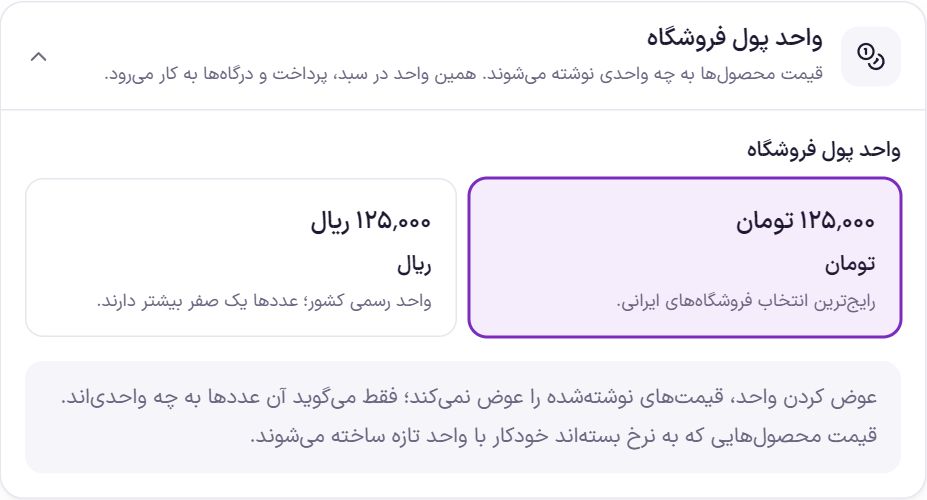
Store currency
This option says what unit the numbers you wrote in product prices are in. This same unit is used in the cart, checkout page, payment gateways, and reports. Farin also syncs WooCommerce’s own currency setting with this choice.
| Option | What it does | Default |
|---|---|---|
| Toman | Prices are written and shown in Toman. It is the most common choice for Iranian stores. | Selected |
| Rial | Prices are in Rial; the numbers have one more zero. |
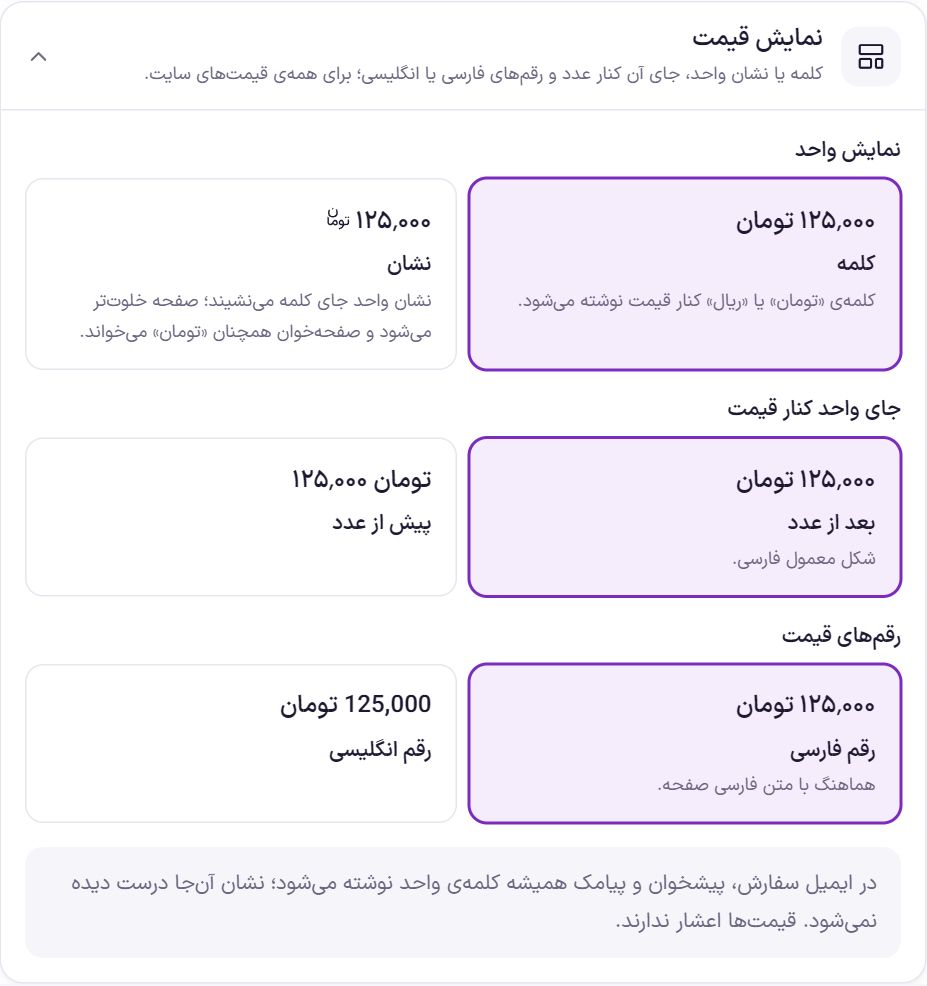
Price display
This box only changes how prices are written and does not touch the amount itself. The choices affect all prices on the site: product card, product page, cart, checkout, and prices that page scripts write.
| Option | What it does | Default |
|---|---|---|
| Unit display | “Word”: the word “Toman” or “Rial” is written beside the price. “Symbol”: a small symbol replaces the word and the page is less cluttered; a screen reader for the blind still reads “Toman”. | Word |
| Symbol size | Visible only when you have chosen “Symbol”. From “Size 1 (same size as the text)” to “Size 5”. The size is relative to the text beside the price; where the price is written larger, the symbol gets bigger too. | Size 1 |
| Unit position beside the price | “After the number” (125,000 Toman, the usual Persian form) or “Before the number” (Toman 125,000). | After the number |
| Price digits | “Persian digits” (۱۲۵٬۰۰۰) matching the page text, or “English digits” (125,000). The discount percentage beside the price follows this choice too. | Persian digits |
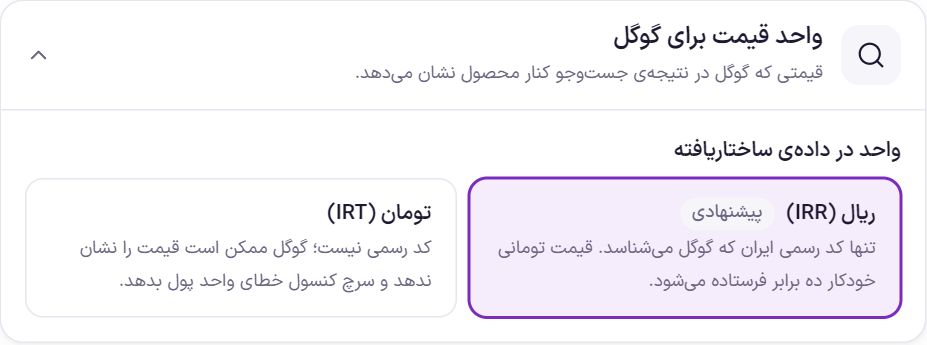
Price unit for Google
Google reads the product price from the page’s structured data and sometimes shows it beside the product name in search results. This option changes only that data, and the buyer sees nothing of it on the site.
| Option | What it does | Default |
|---|---|---|
| Rial (IRR) | The only official Iranian currency code that Google knows. If the store is in Toman, the price is automatically multiplied by ten and sent in Rial; for example, a 125,000 Toman product is reported to Google as 1,250,000 Rial. | Selected |
| Toman (IRT) | It is not an official code. Google may not show the price and Search Console may report a currency error. |
Rates
Farin fetches currency, gold, coin, metal, and several other categories of rates from a rate service. These rates do two things: they are shown to visitors in the rate bar at the top of the site, and they become the basis for the price of products linked to a rate. Rates are fetched in the background; a visitor never waits for the rate service.
Setup
- Press “Fetch rates”. Until rates have been fetched once, the rates table is empty.
- Turn on “Automatic rate updates”. Also choose the rate fetching interval.
- In the “Rates” table, tick the columns. “Product basis” for rates that product prices are built on, and “Rate bar” for rates that are visible at the top of the site.
- Link the product to a rate. This is done on each product’s edit page (the bottom of this page, Rate-based product prices).
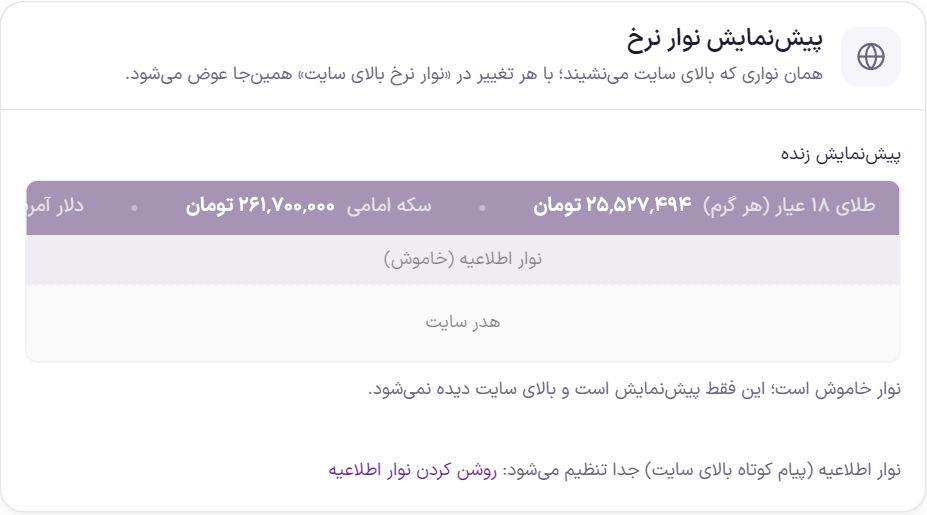
The “Rate bar preview” is at the top of the tab and updates instantly with every change in the “Rate bar at the top of the site” box. The announcement bar (the short message at the top of the site) is set separately in Top Bar and its link is below the preview.
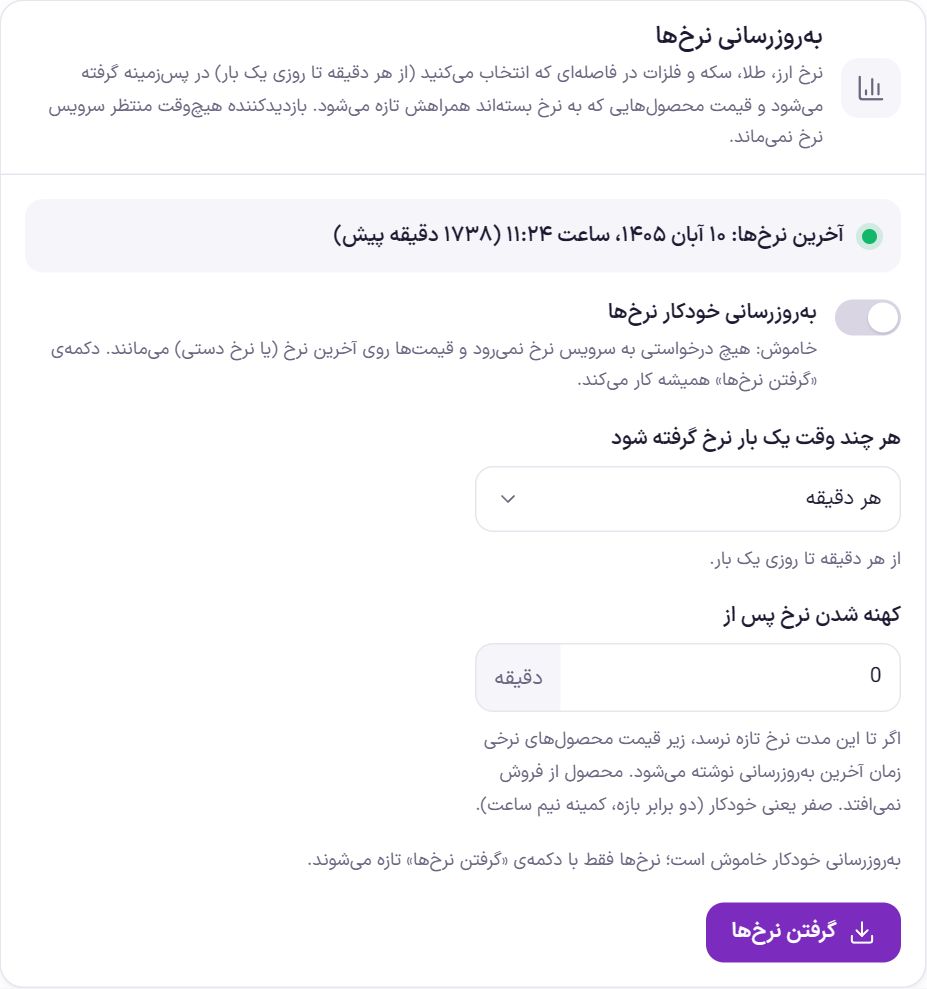
Rate updates
| Option | What it does | Default |
|---|---|---|
| Automatic rate updates | On: rates are fetched in the background at the interval you chose, and the prices of rate-linked products are refreshed with them. Off: no request goes to the rate service and prices stay on the last rate (or the manual rate). | Off |
| How often to fetch rates | From every minute to once a day. Under the box, it says the next turn is in about how many minutes. | Every 15 minutes |
| Rate becomes stale after | If no new rate arrives within this many minutes, the note “Price updated at” and the date and time of the latest rate are written under rate-linked product prices. The product does not go off sale. Zero means automatic: twice the rate fetching interval, and at least half an hour. This note is shown only when automatic updates are on. | 0 (automatic) |
| “Fetch rates” | Fetches rates right now, even when automatic updates are off. The prices of rate-linked products are rebuilt with it. |
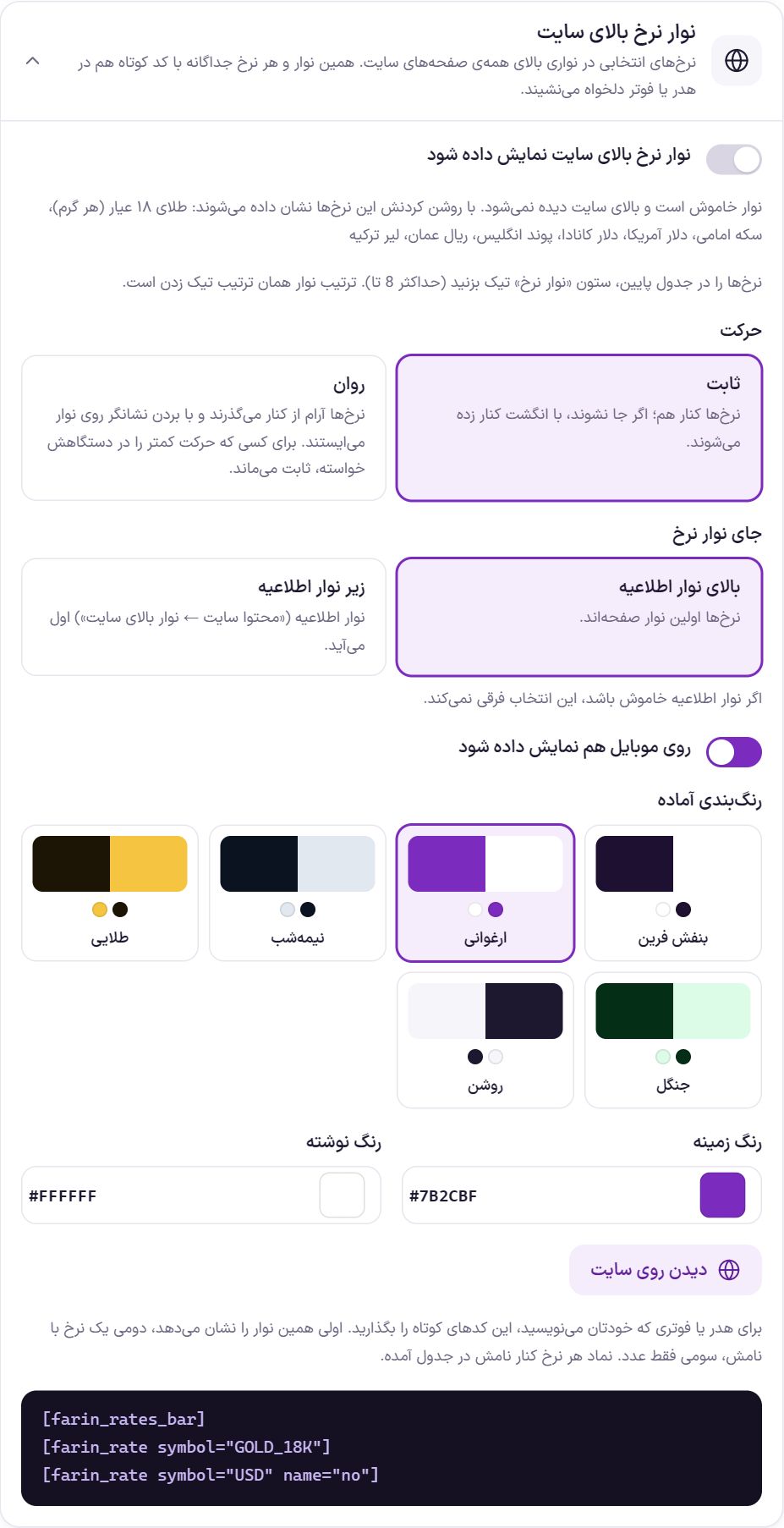
Rate bar at the top of the site
A thin bar above all pages of the site that shows the selected rates. You tick the bar’s rates in the table below, in the “Rate bar” column; at most 8 rates, in the order you ticked them. If the bar is off and you tick a rate for it, the bar turns on by itself. If you later turn it off deliberately, it stays off.
| Option | What it does | Default |
|---|---|---|
| Show the rate bar at the top of the site | Turns the bar on or off on the site. The list of the bar’s rates is written below it. | Off |
| Motion | “Static”: the rates sit side by side and, if they don’t fit, can be swiped aside. “Scrolling”: the rates drift gently past and stop when the pointer goes over the bar. For someone who has asked their device for reduced motion, the bar stays static. | Static |
| Motion speed | Only for “Scrolling” motion: from “Very slow” to “Very fast”. | Normal |
| Rate bar position | “Above the announcement bar” (the rates are the first bar on the page) or “Below the announcement bar”. If the announcement bar is off, this choice makes no difference. | Below the announcement bar |
| Also show on mobile | Turn it off so the bar is seen only on computers and doesn’t take up space on phones. | On |
| Ready-made color schemes | Six pairs of background and text colors (Farin purple, magenta, midnight, golden, forest, light). Tapping one fills the two colors below. | Farin Purple |
| Background color / text color | Pick any color for the bar; you can also type a color code. | |
| “View on site” | Opens the site's home page in a new tab. |
If you build the header or footer yourself (for example with Elementor), place the whole bar or a single rate anywhere with these shortcodes. Each rate's symbol is listed beside its name in the rates table.
[farin_rates_bar]Shows the rate bar itself.[farin_rate symbol="GOLD_18K"]Shows one rate with its name.[farin_rate symbol="USD" name="no"]Shows only the rate's number.

Rates table
Rates are grouped by category in the tabs above the table, and the number beside each category is how many rates it holds. Use the search box to find a rate by name or symbol. Some rates are quoted in the market for several units (for example the Japanese yen per 10 units); the table shows these per single unit and says so under their name.
| Column | What it does | Default |
|---|---|---|
| Name | The rate's name and its Latin symbol, which is used in shortcodes. | |
| Live rate | The latest rate received from the service. | |
| Manual rate | Type a number and press “Set” to put it in place of the live rate. Until you press “Clear”, this number stays, and new rates from the service do not replace it. | Empty |
| Unit | The unit the rate is quoted in. Type the manual rate per one unit, in that same unit. | |
| Product basis | Ticked means this rate appears in the “Price basis” list on the product edit page. Untick it to shorten the list. | Currencies, gold, coins and metals are ticked |
| Rate bar | Show this rate on the rate bar at the top of the site. Up to 8 rates. | Dollar, euro, 18-karat gold, Emami coin |
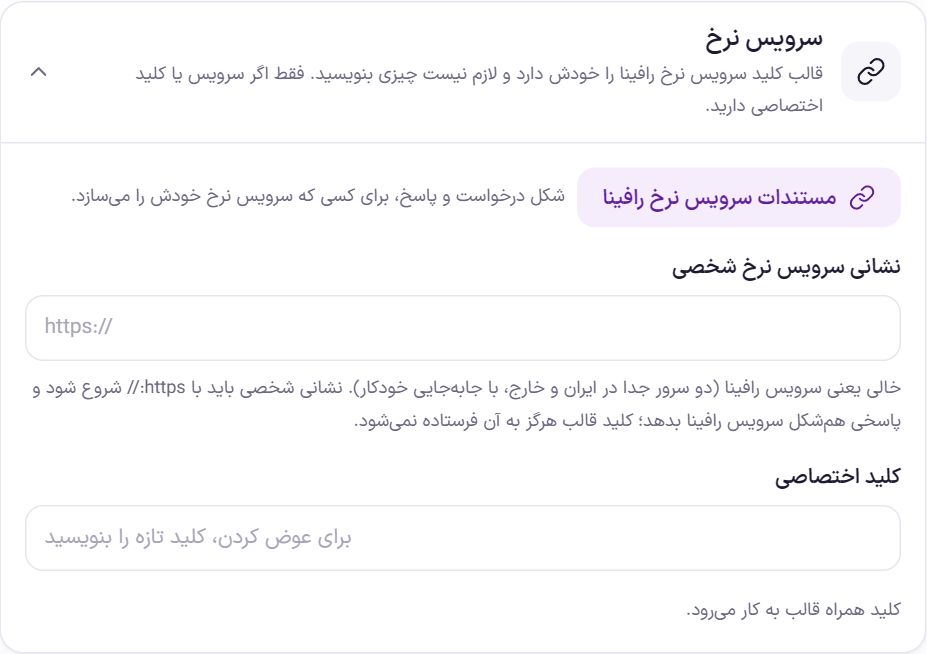
Rate service
The Rafina rate service key comes with the theme. This box is only for when you have your own rate service or a dedicated key. Only the site's main administrator sees its fields; for a shop manager or other roles a message appears instead of the fields, and any changes to them are rejected.
| Option | What it does | Default |
|---|---|---|
| “Rafina rate service documentation” | Shows the request and response format of the service, for anyone building their own rate service. | |
| Custom rate service address | Empty means the Rafina service (two separate servers, one in Iran and one abroad, where one takes over if the other does not respond). A custom address must be complete, starting with https:// and must return a response in the same shape as the Rafina service. The theme key is never sent to a custom address. | Empty |
| Dedicated key | Type a key to use it in place of the theme key. After saving, the field empties and the key is no longer shown; only a line under the field says which key is in use. To change it, type the new key. | Empty (theme key) |
| “Clear the key and go back to the theme key” | Visible only when a dedicated key has been saved. |
Pricing
This tab is for products whose price is tied to a rate, for example “2 Emami coins”, “3.4 grams of 18-karat gold” or “120 dollars”. The price of these products is built like this: quantity × today's rate, plus the product's markup, and finally rounding. For gold you can use the jeweler's formula instead of this simple calculation. The built price is written into the product itself, so shop pages read an ordinary WooCommerce price and never wait on the rate service.
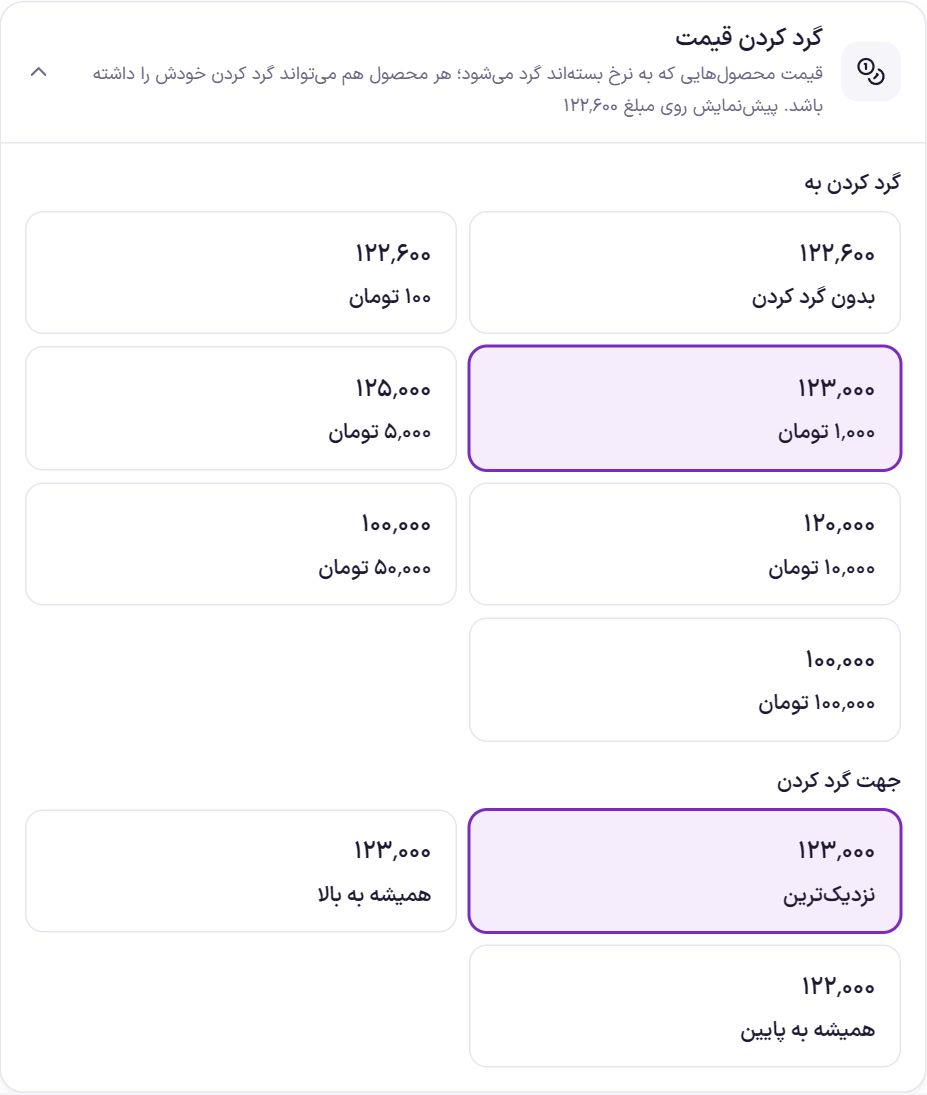
Price rounding
The price of rate-based products usually comes out as a number like 122,637. Rounding makes it a more readable number. This is the shop's default setting; each product can have its own rounding on its edit page. The discounted price is rounded the same way. This setting has no effect on the price of products priced manually.
| Option | What it does | Default |
|---|---|---|
| Round to | “No rounding”, or round to 100, 1,000, 5,000, 10,000, 50,000 or 100,000 in the shop's unit. | 1,000 |
| Rounding direction | “Nearest” (122,600 becomes 123,000), “Always up” (123,000) or “Always down” (122,000). | Nearest |
When you change the step or direction, the price of every rate-based product is rebuilt at that moment.
Jeweler's formula
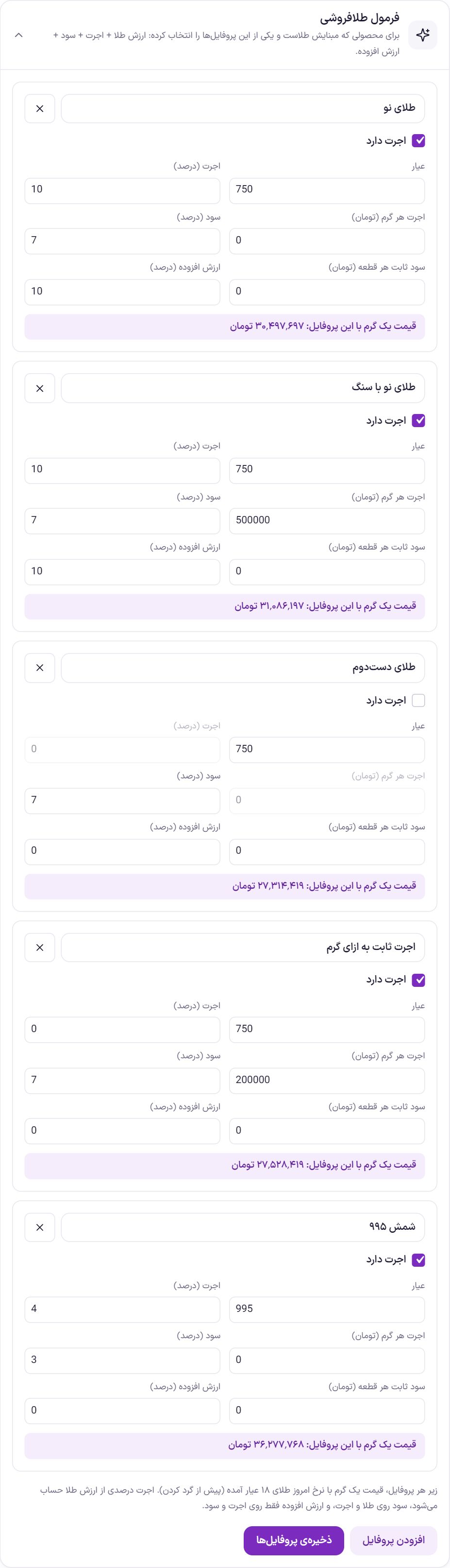
For a product whose basis is one of the gold rates and which has one of these profiles selected on its edit page, the price is built like this: gold value + labor fee + profit + VAT. You fill in each profile once here, and products simply choose it.
| Option | What it does | Default |
|---|---|---|
| Profile name | The name shown in the “Jeweler's formula” list on the product edit page. | |
| Has labor fee | Unticking means this profile has no labor fee (for example second-hand gold) and the two labor fee fields are ignored. | |
| Purity | Gold purity per thousand: 750 for 18 karat, 995 for bullion. The product's weight is converted to 18-karat gold weight on this basis. | 750 |
| Labor fee (percent) | A percentage of the gold value. | |
| Labor fee per gram | A fixed amount per gram, in the shop's unit. It is added to the percentage labor fee. | |
| Profit (percent) | A percentage of the sum of gold value and labor fee. | |
| Fixed profit per item | An amount added once to the price of each item, in the shop's unit. | |
| VAT (percent) | Calculated only on the labor fee and profit, not on the gold value. | |
| “Add profile” / “Save profiles” | Creates a new card; changes are not recorded until you press “Save profiles”. The ✕ button beside the name deletes the profile. |
Example with the “New gold” profile (purity 750, labor fee 10%, profit 7%, VAT 10%) for one gram of gold whose rate is 10,000,000 Toman: gold value 10,000,000, labor fee 1,000,000, profit 7% of 11,000,000 which is 770,000, and VAT 10% of the labor fee and profit which is 177,000. Total: 11,947,000 Toman, which is then rounded.
Rate-based product prices
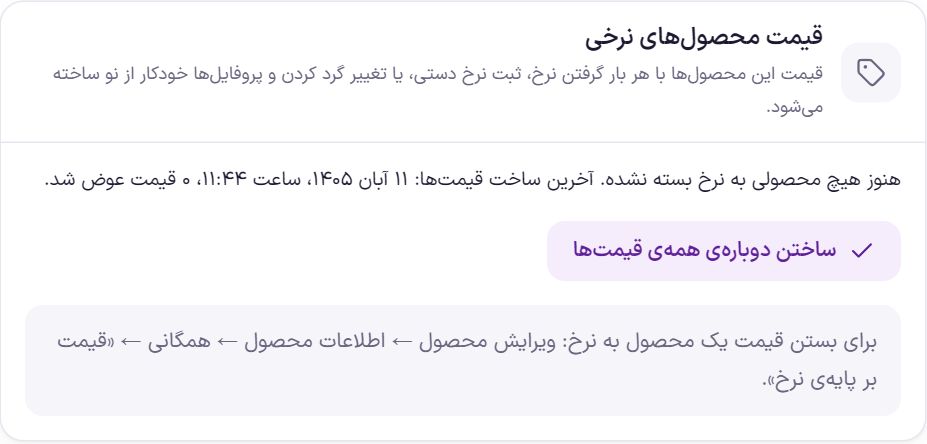
The prices of these products are rebuilt automatically: every time rates are fetched, a manual rate is set or cleared, the currency unit changes, rounding changes, and profiles are saved. “Rebuild all prices” does the same thing right away. In a large shop, if the work takes long, the rest of the products continue in the background.
To tie a product's price to a rate: Edit product → Product data → General → “Rate-based price”. There you fill in these:
- Price basis: The rate the price is built from. Only rates whose “Product basis” column is ticked in the rates table appear here.
- Quantity: How many units of that rate, for example 3.4 grams or 2 coins. In a variable product, each variation can have its own quantity.
- Jeweler's formula: For a gold basis, one of the profiles above.
- Profit: As a percentage or a fixed amount in the shop's unit.
- Discount (percent): The special sale price is built from this percentage and moves with the rate.
- Rounding: “Same as the shop default” or a separate step for this product.
Frequently Asked Questions
I switched the unit from Toman to Rial and prices became one tenth.
Changing the unit does not convert the numbers; it only says what unit they are in. Multiply the prices you typed manually by ten, or switch the unit back to Toman. The prices of rate-based products are rebuilt correctly on their own.
Under the price of some products it says “Price updated at …”.
No new rate has arrived since the “Rate becomes stale after” threshold passed. Check the status at the top of the “Update rates” box and press “Fetch rates”. In the meantime the product is sold at its last price.
I want to set the dollar price myself today.
In the rates table, on the US dollar row, type the manual rate and press “Set”. The prices of dependent products are built from it at that moment, and this rate stays until you press “Clear”.
The rate I want is not in a product's “Price basis”.
In the rates table, tick the “Product basis” column for that rate. If the table is empty, first press “Fetch rates” once.
Farin Theme · 1405