

Shipping Label
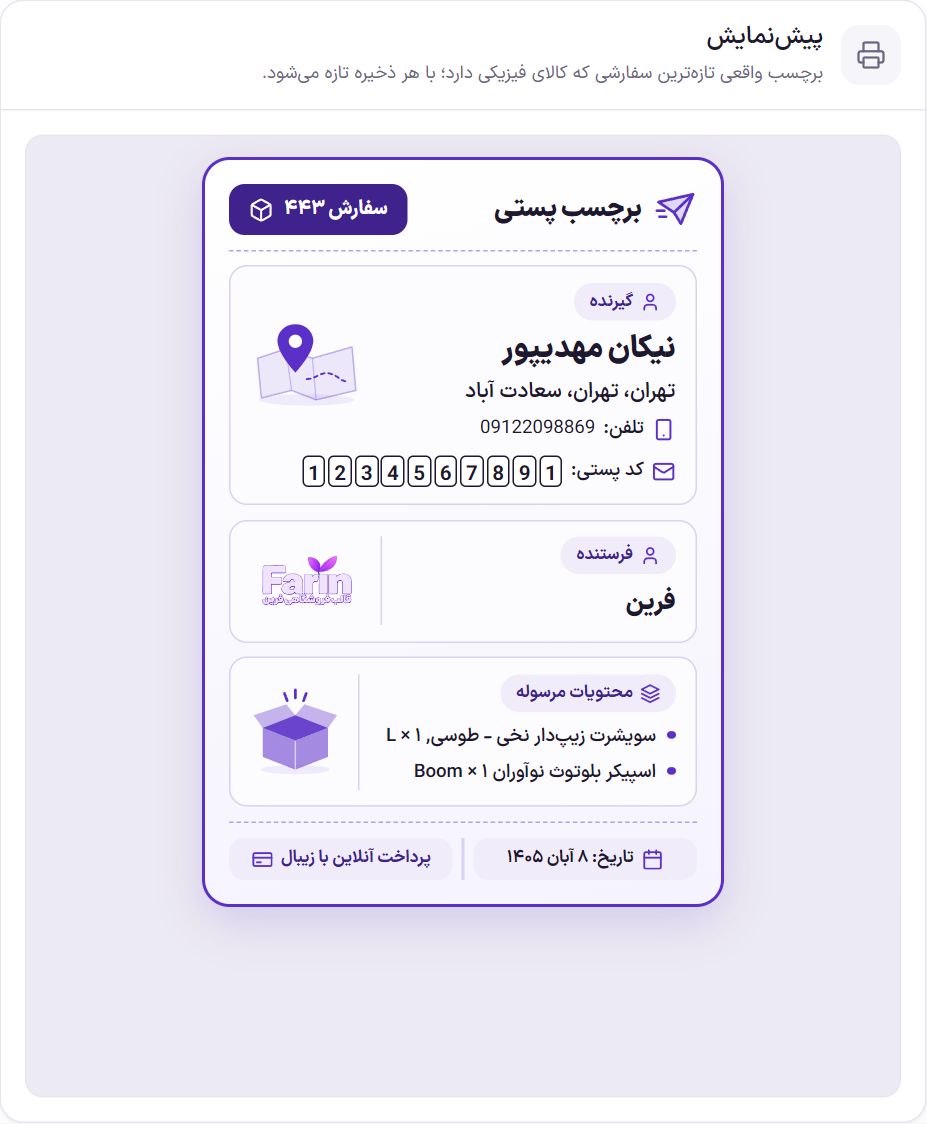
For every order that has a physical product, Farin builds a print-ready shipping label: the recipient’s name and address, the postal code in boxes, the sender and the package contents. You print it with a label printer or a regular printer and stick it on the package.
Where is it? Farin → Site content → Checkout and Payment → Shipping Label
Where do I print the label
- One order: In the WooCommerce order list, the “Print” column has the “Shipping label” link. On each order’s page, the “Print” box at the side has the same link.
- Several orders together: Tick the orders in the list and choose “Print shipping labels” from the bulk actions.
An order that has only digital or virtual products gets no label. Only store managers see the label; the shopper has no access to it.
Shipping Label
| Option | What it does | Default |
|---|---|---|
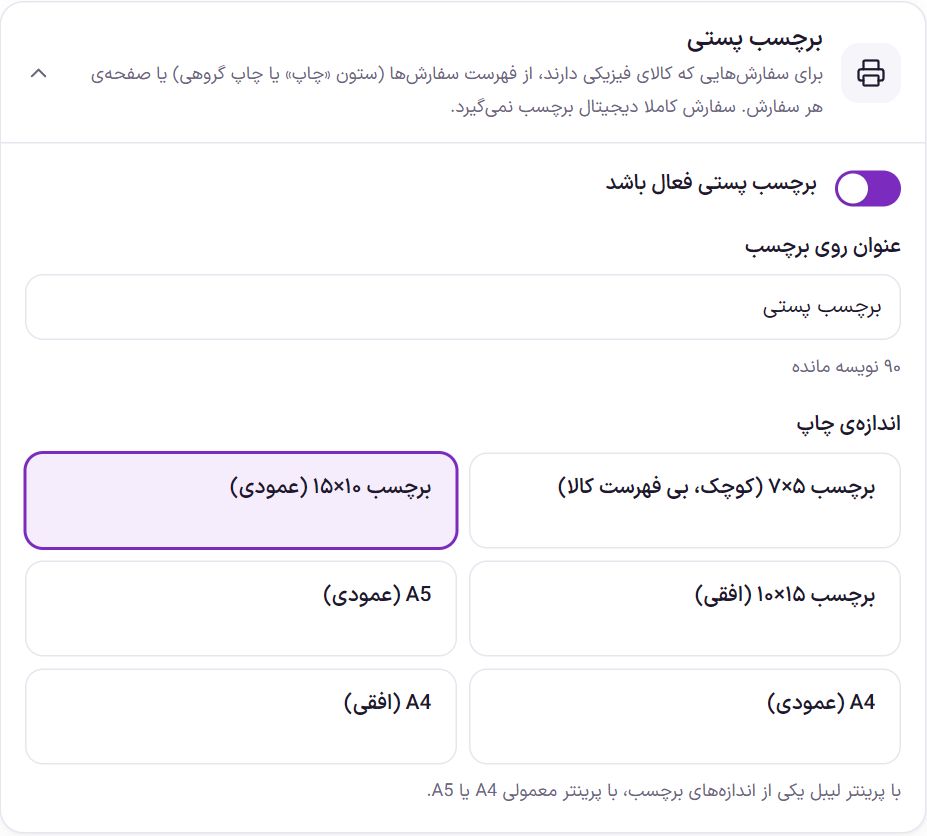
| Shipping label enabled | When off, the label link appears nowhere and its address does not open. | On |
| Label title | The title at the top of the label. If left empty, the default is used. | Shipping Label |
| Print size | With a label printer choose one of the label sizes, and with a regular printer A4 or A5. Sizes: “Label 5×7 (small, no product list)”, “Label 10×10 (square)”, “Label 10×15 (portrait)”, “Label 15×10 (landscape)”, “A5 (portrait)”, “A4 (portrait)” and “A4 (landscape)”. | 10×15 label (portrait) |
Sender
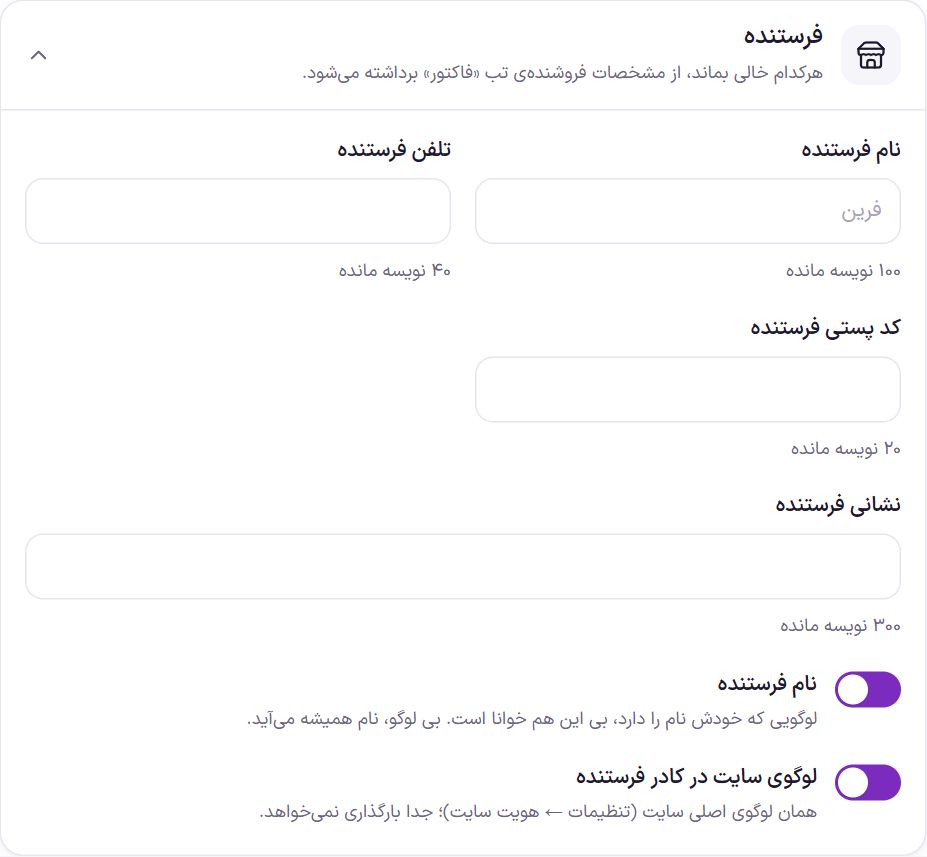
Any box left empty is taken from the seller details on the Invoice tab . So if you filled that in, you don’t need to write anything here; unless packages are shipped from another address, such as a warehouse.
| Option | What it does | Default |
|---|---|---|
| Sender name | The name in the sender box. | Store name |
| Sender phone | The phone for the post office or courier to call. | Invoice tab phone |
| Sender postal code | The origin postal code. | Invoice tab postal code |
| Sender address | The origin address, up to 300 characters. | Invoice tab address |
| Sender name (switch) | Prints the name beside the logo. A logo that contains the name is readable without this. If there is no logo, the name always appears. | On |
| Site logo in the sender box | The site’s same main logo in Site Identity; no separate upload is needed. | On |
What to print
| Option | What it does | Default |
|---|---|---|
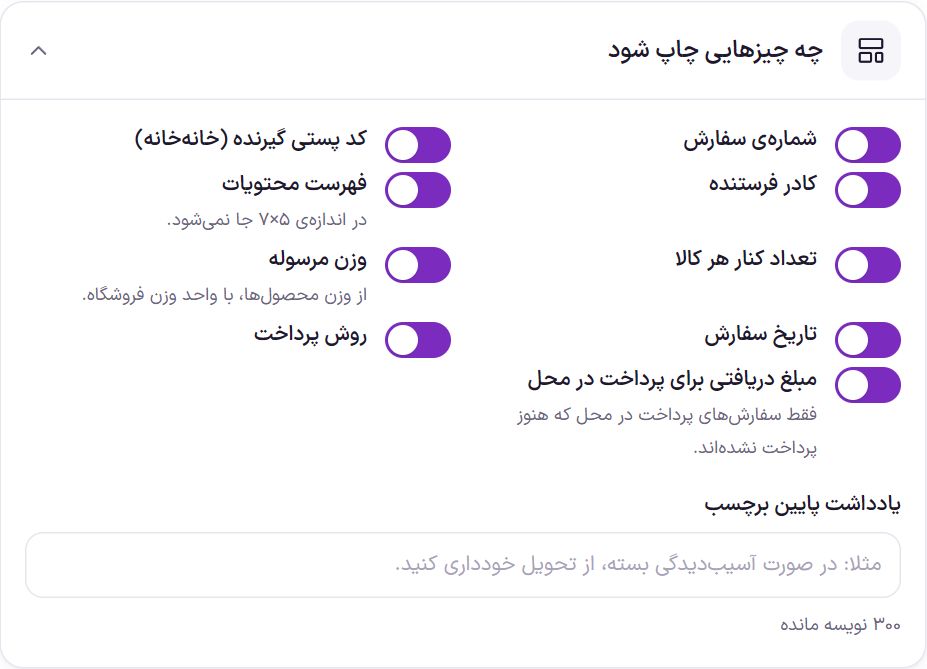
| Order number | The order number at the top of the label, for finding the order when packing. | On |
| Recipient postal code (boxed) | The recipient’s postal code, one digit per box, so it is readable. | On |
| Sender box | A box with the sender’s name, address and logo. | On |
| Contents list | The names of the products inside the package. It does not fit in the 5×7 size. | On |
| Quantity beside each product | The quantity of each product beside its name in the contents list. | On |
| Package weight | The total weight of the products, from the weight you entered for each product and in the store’s weight unit. | On |
| Order date | The Jalali order date. | On |
| Payment method | The name of the gateway or payment method. | On |
| Amount to collect for cash on delivery | The amount the courier must collect from the recipient. It is printed only on cash-on-delivery orders that have not yet been paid. | On |
| Note at the bottom of the label | A sentence at the bottom of the label, up to 300 characters; for example “If the package is damaged, refuse delivery”. If left empty, it does not appear. | Empty |
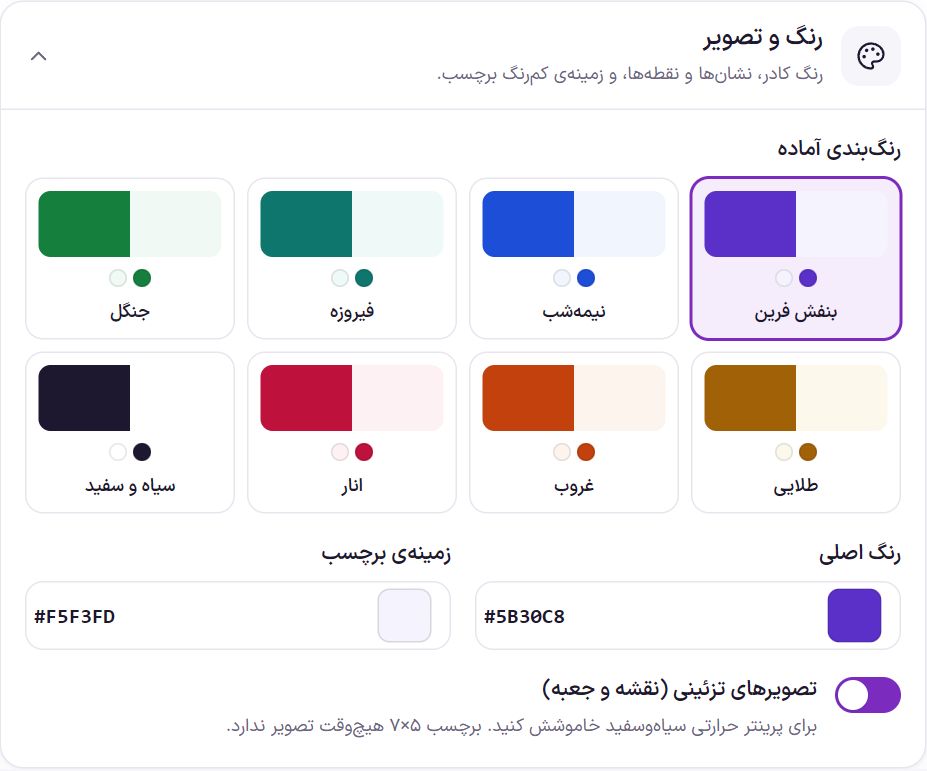
Color and images
The color of the frame, badges and dots, and the label’s light background. Click one of the eight ready-made color schemes or set the colors yourself. The “Black and white” scheme has a white background.
| Option | What it does | Default |
|---|---|---|
| Main color | Frame, badges and dots. | #5B30C8 |
| Label background | The light background of the boxes. | #F5F3FD |
| Decorative images (map and box) | A map image beside the recipient and a box beside the contents. Turn it off for a black-and-white thermal printer. The 5×7 label never has images. | On |
Frequently Asked Questions
I have a thermal printer. What is the best setting?
Choose your printer’s label size (for example 10×15), click the “Black and white” color scheme and turn off “Decorative images”. In the browser’s print window, choose that same printer and size too.
The label link isn’t beside an order.
That order probably has only digital or virtual products; such an order has nothing to ship and gets no label. If “Shipping label enabled” is off, the link doesn’t appear for any order either.
Does the shopper see the label too?
No. The label opens only for store managers. The shopper sees only their own invoice and proforma invoice.
Farin Theme · 1405