

SMS Panel
With this section Farin sends automatic SMS messages to buyers and store admins: order placed and paid, status change, parcel tracking code, wallet top-up, ticket reply, new order, low stock and login code. You connect an SMS service, set a text and template code for each message, and turn on the ones you need.
Where is it? Farin → SMS Panel
manage_options (the “Super Admin” role). Even if you have opened parts of the Farin panel to the store manager, this section is not among them: the store manager cannot see it, cannot save its settings and cannot send a test SMS. This restriction is checked both in the panel display and, on the server, in saving and test sending. The reason is that users' login codes are sent through the SMS account.Connection
In the “Connection” tab you choose the main and backup SMS services, enter each service's keys, enter the admins' mobile numbers, and send a test SMS.
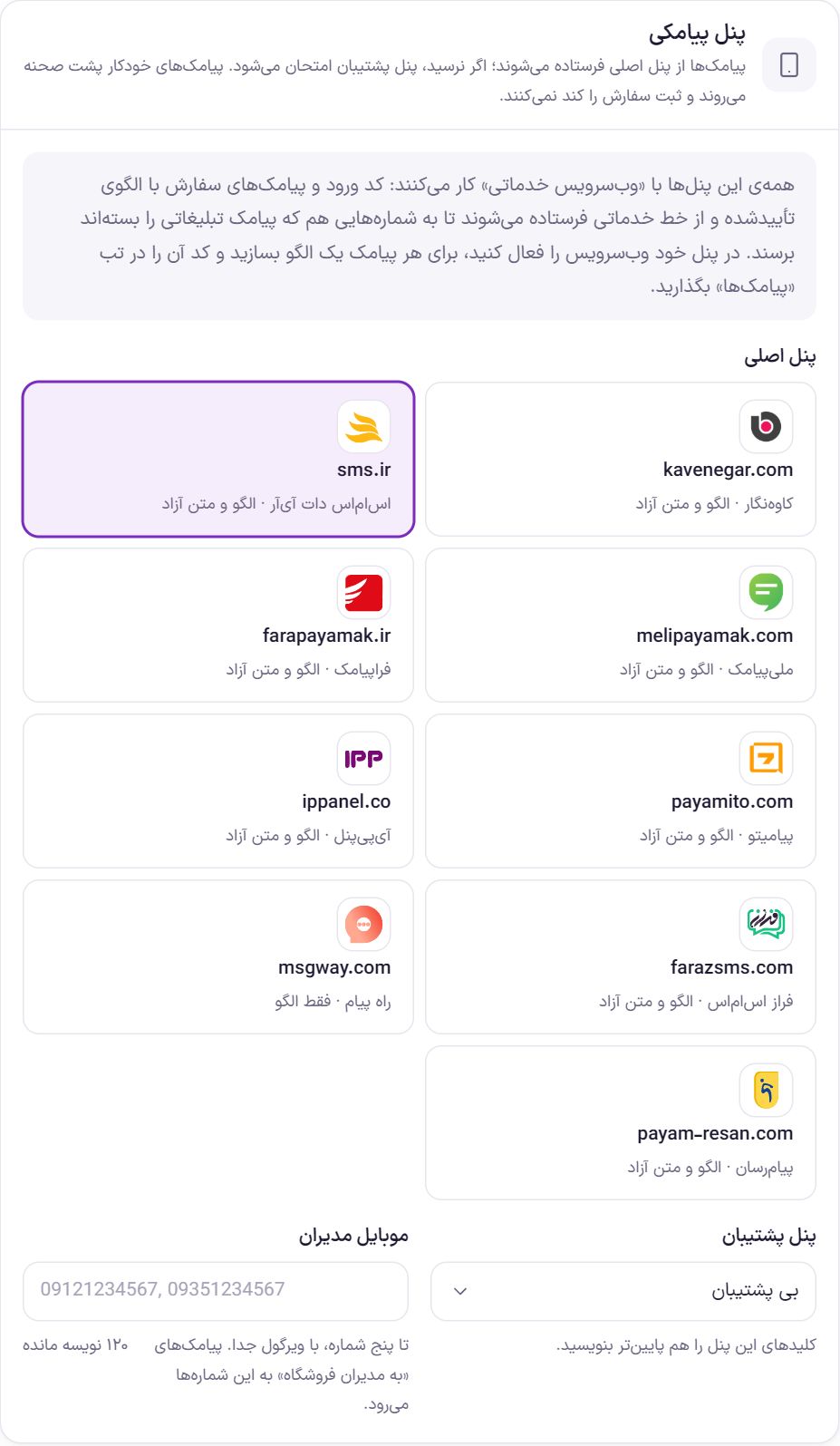
Set up in five steps
- Enable the web service in your SMS service. All services in this list work through a “service web service”. In your service's panel turn on the web service and copy its key.
- Choose the “Main panel”. Click the card of the service you have an account with.
- Enter the keys and save. Open that service's box in the list below and put the key in it. The label next to the service name should change to “Keys saved”.
- Create a template for each SMS. Take each SMS's text from the “SMS messages” tab, register it as a template in the service's panel, and after approval put the template code in that same SMS.
- Send a test SMS. In the “Test send” box enter your own number and see whether the SMS arrives.
SMS panel box options
| Option | What it does | Default |
|---|---|---|
| Main panel | The service every SMS is sent from first. Until a service is selected or its keys are empty, no automatic SMS is sent. | None |
| Backup panel | If an SMS does not go through the main panel, Farin retries that SMS with this service. You must also enter this service's keys in its own box; without keys, the backup is ignored. The main panel cannot also be set as the backup. | No backup |
| Admin mobiles | Up to five mobile numbers that receive the “To store admins” group of SMS messages. Separate numbers with commas or spaces. Invalid and duplicate numbers are dropped when saving. | Empty |
Each service's keys
Under the first box there is one collapsed box for each service. Click the service name to open it. Next to the name, the “Main” or “Backup” label shows the service's role, and on the other side “No key” or “Keys saved” shows the state of its keys.
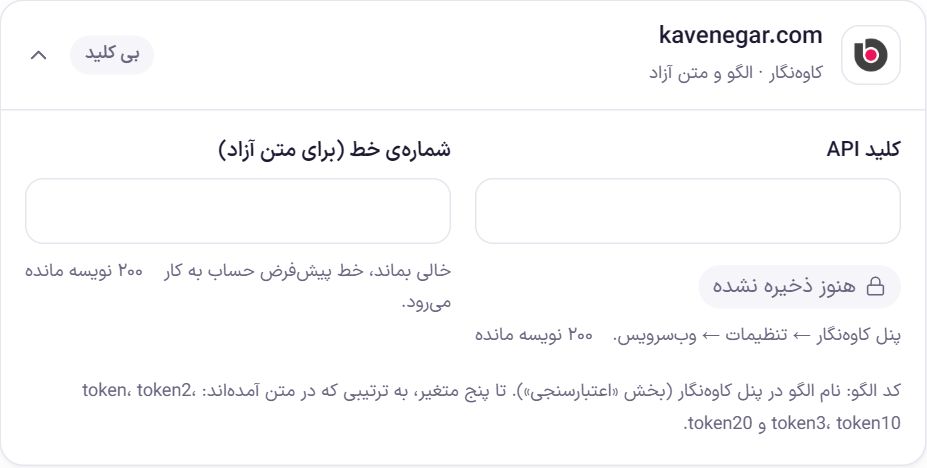
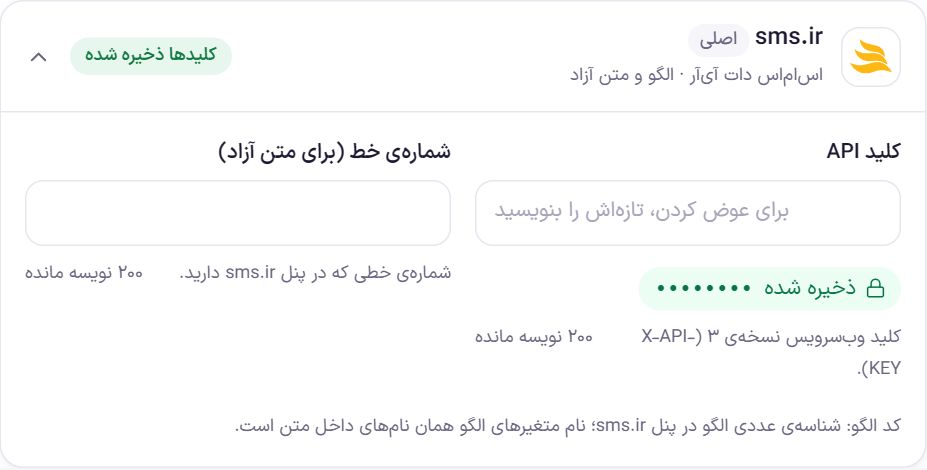
Kavenegar and sms.ir
Both have an “API key” and a “Line number (for free text)”. The Kavenegar key is in “Kavenegar panel → Settings → Web service”. For sms.ir, use the version 3 web service key. In Kavenegar, if the line number is left empty, the account's default line is used.
Melipayamak, Farapayamak and Payamito
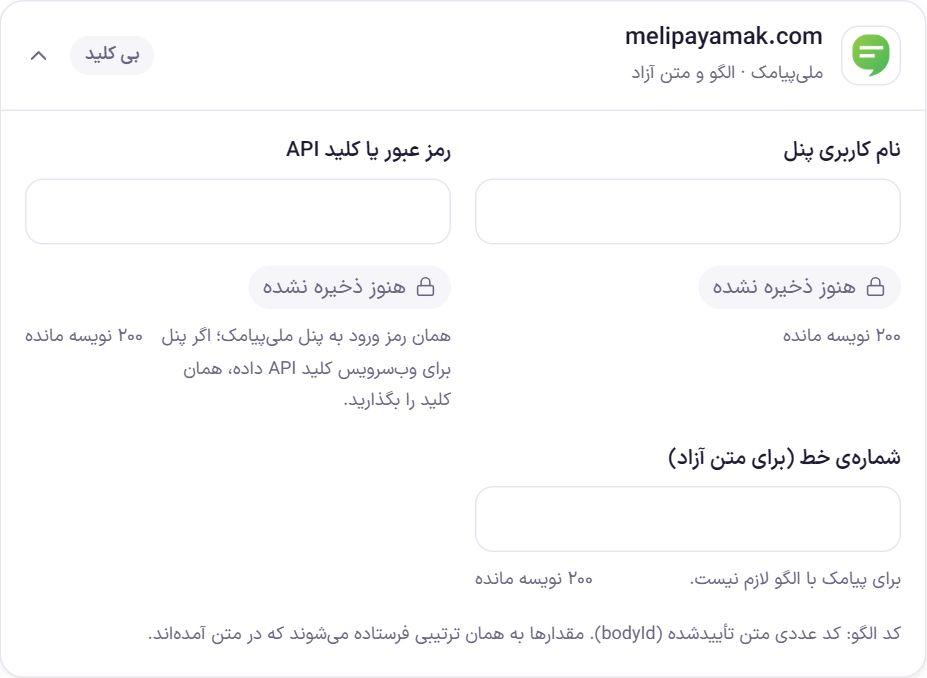
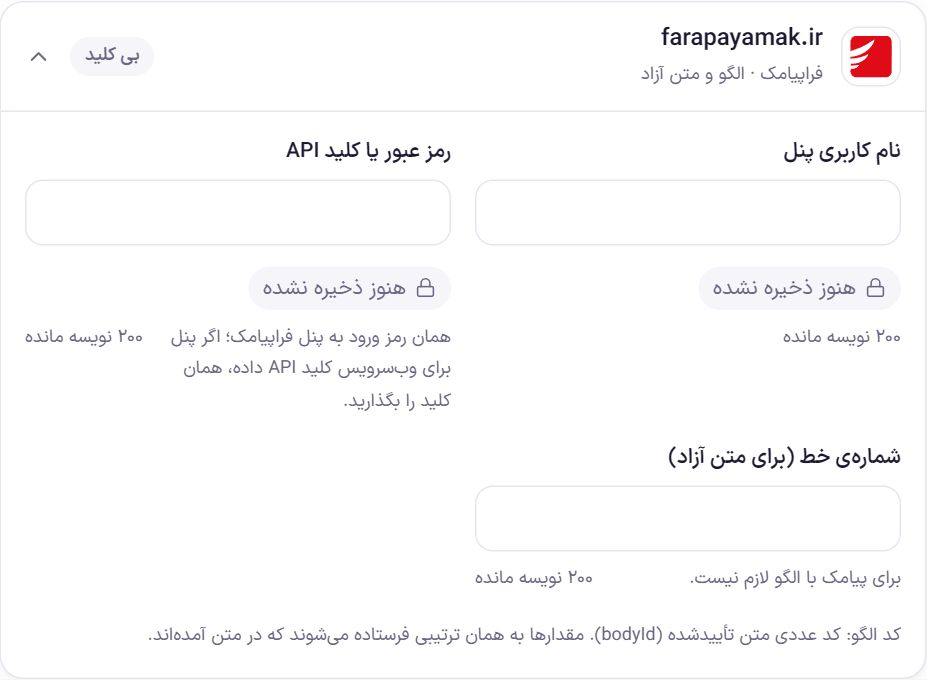
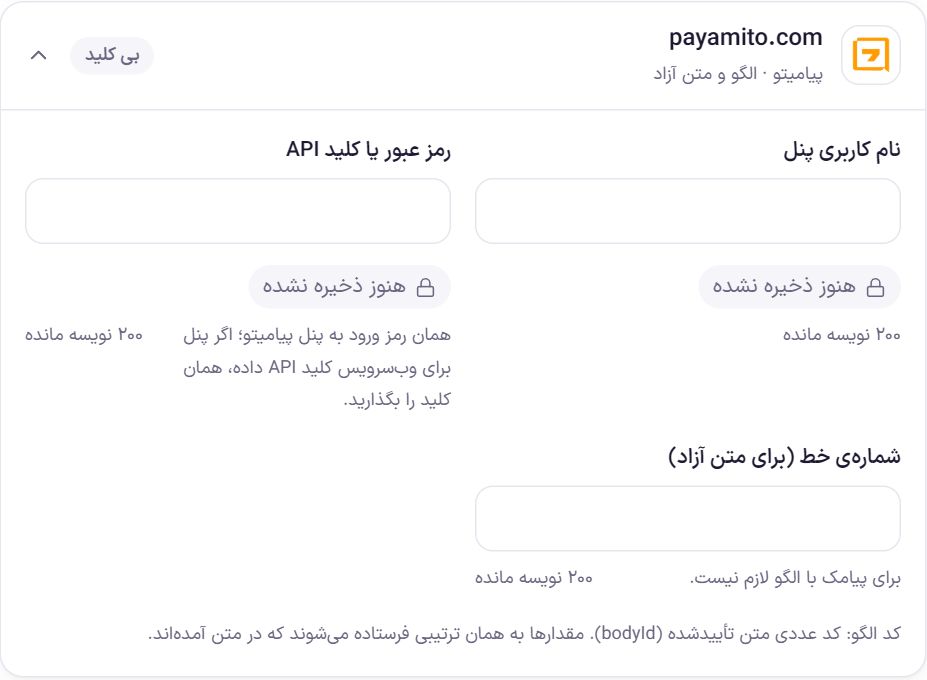
These three services need the panel username and password. If the panel gives a separate API key for the web service, put that key in place of the password. The “Line number” is needed only for free text; template-based SMS does not need it.
IPPanel and Faraz SMS
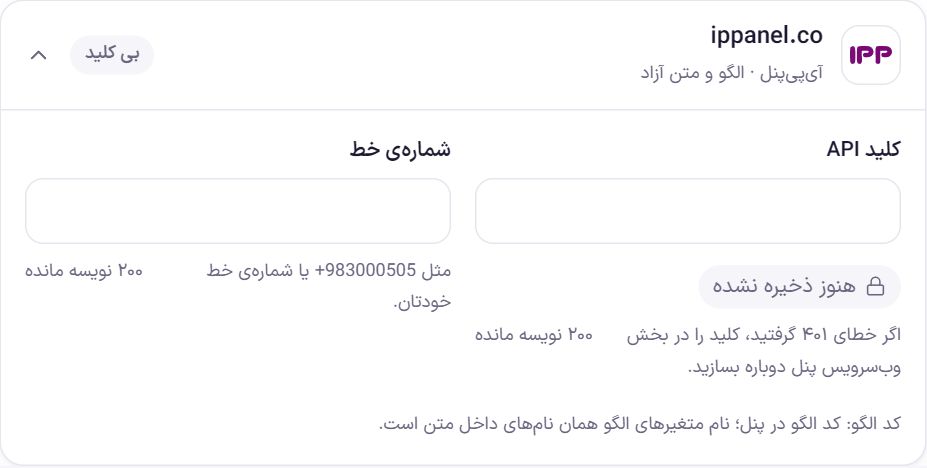
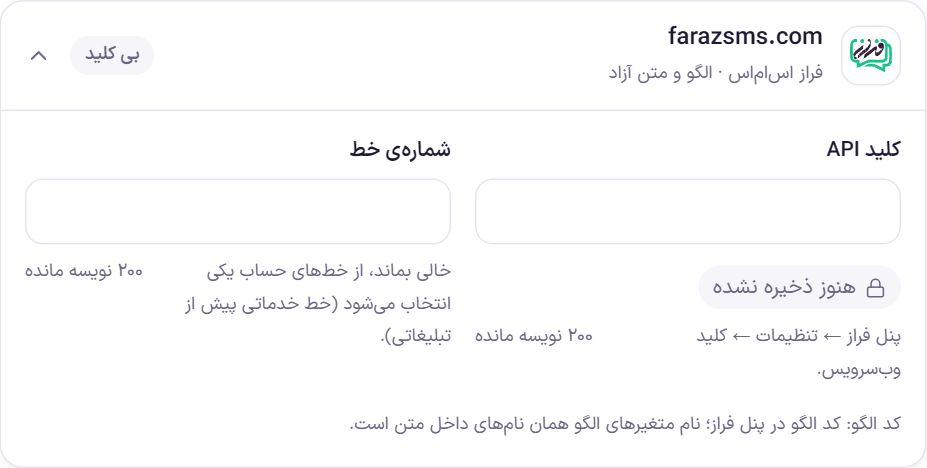
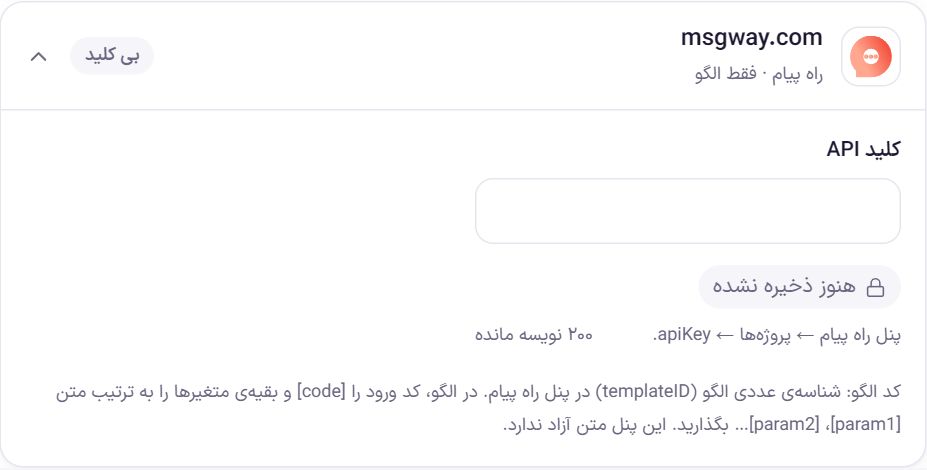
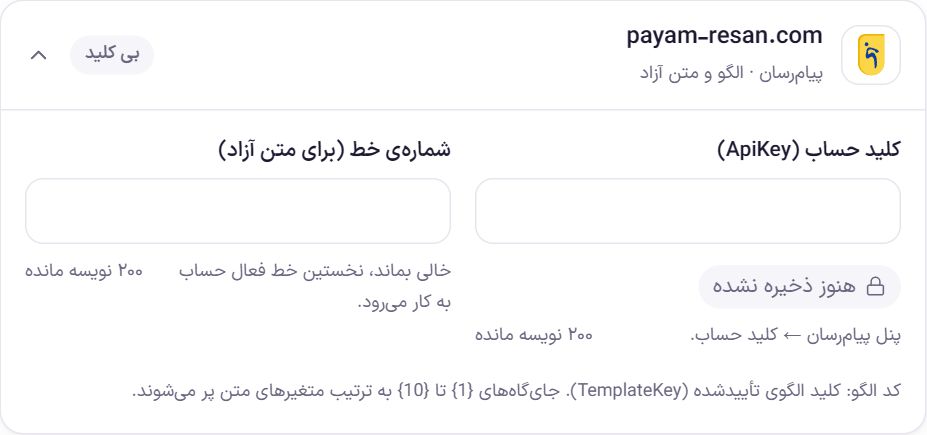
Rahpayam and Payamresan
Test send
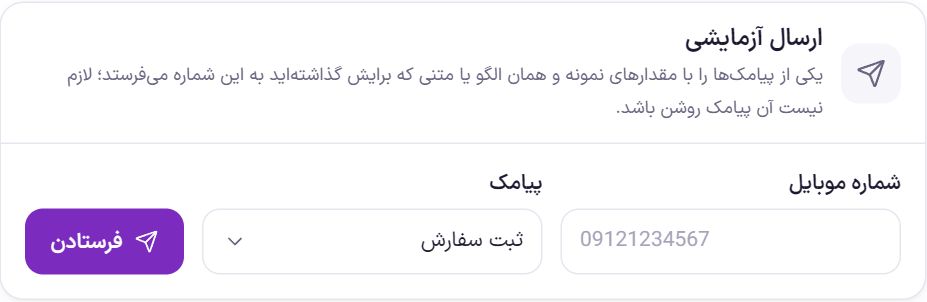
- The selected SMS is sent with sample values, for example the name “Ali”, order number 1234 and amount “250,000 Toman”.
- The text and template code you have just entered in the boxes are used, even if you have not saved yet. The SMS does not need to be turned on.
- If the SMS does not arrive, the service's error message is shown under the box. Every test send is also recorded in the “Send log”.
- Each user can send up to 20 test SMS messages per hour, and the whole site up to 30.
SMS messages
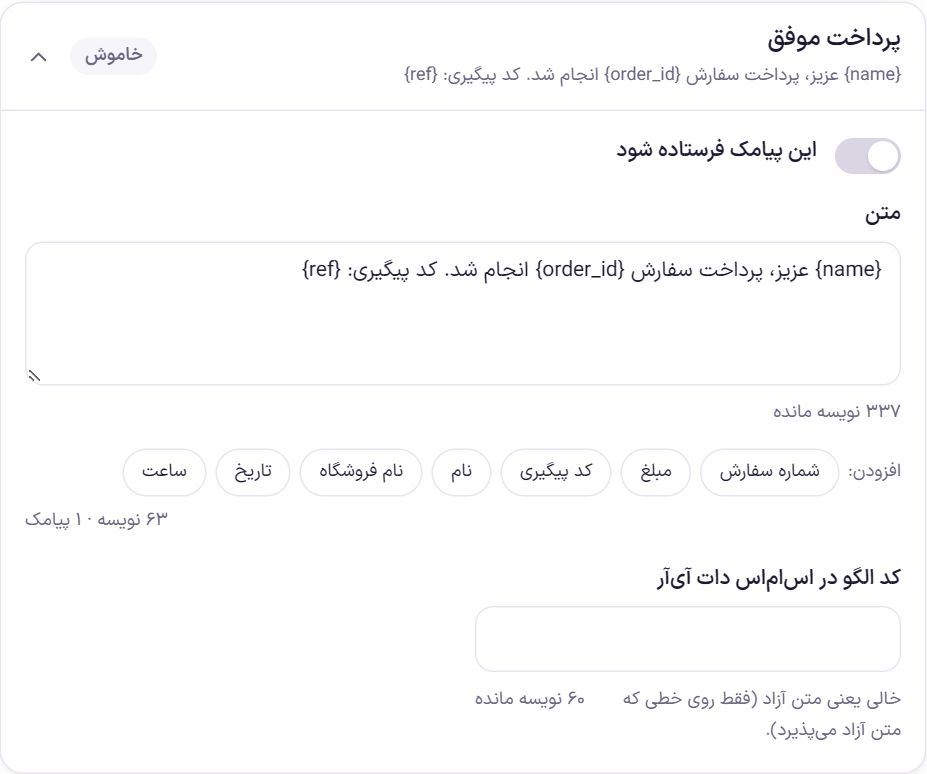
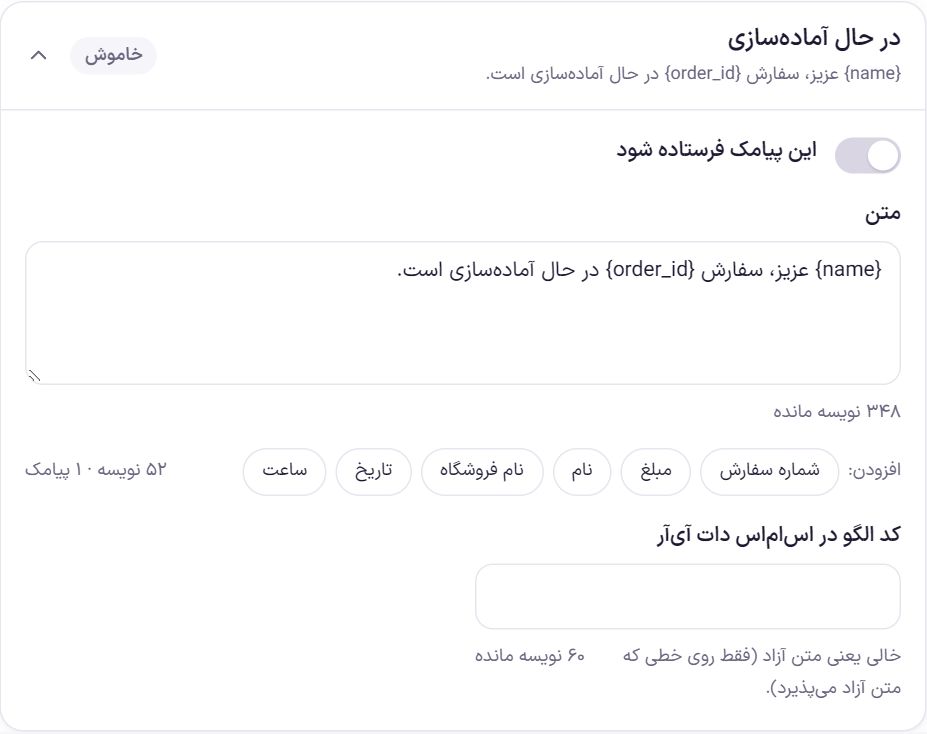
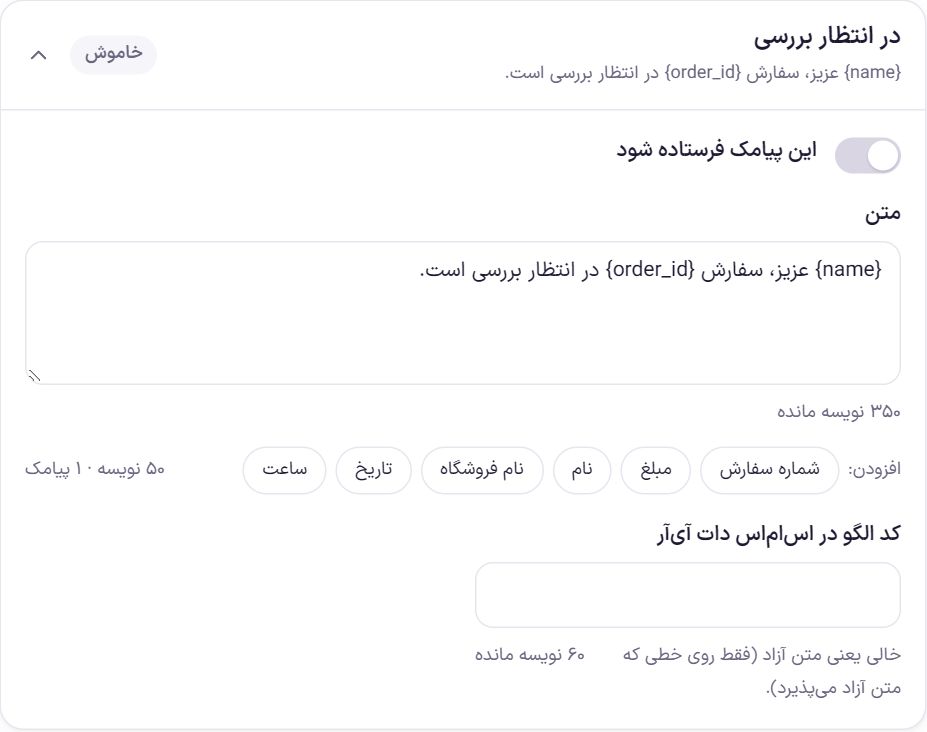
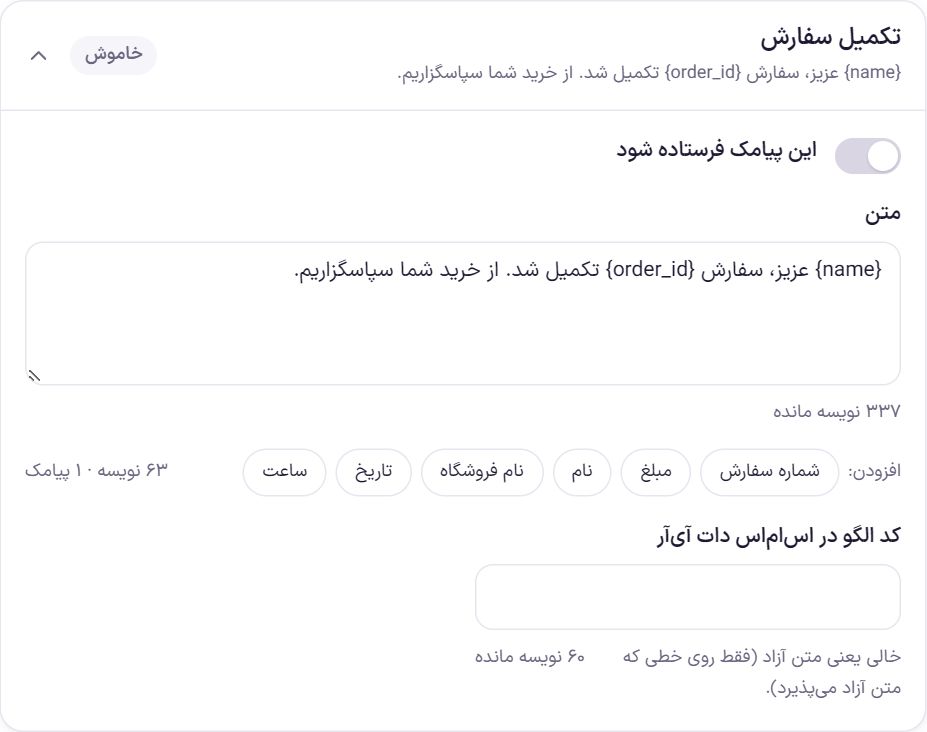
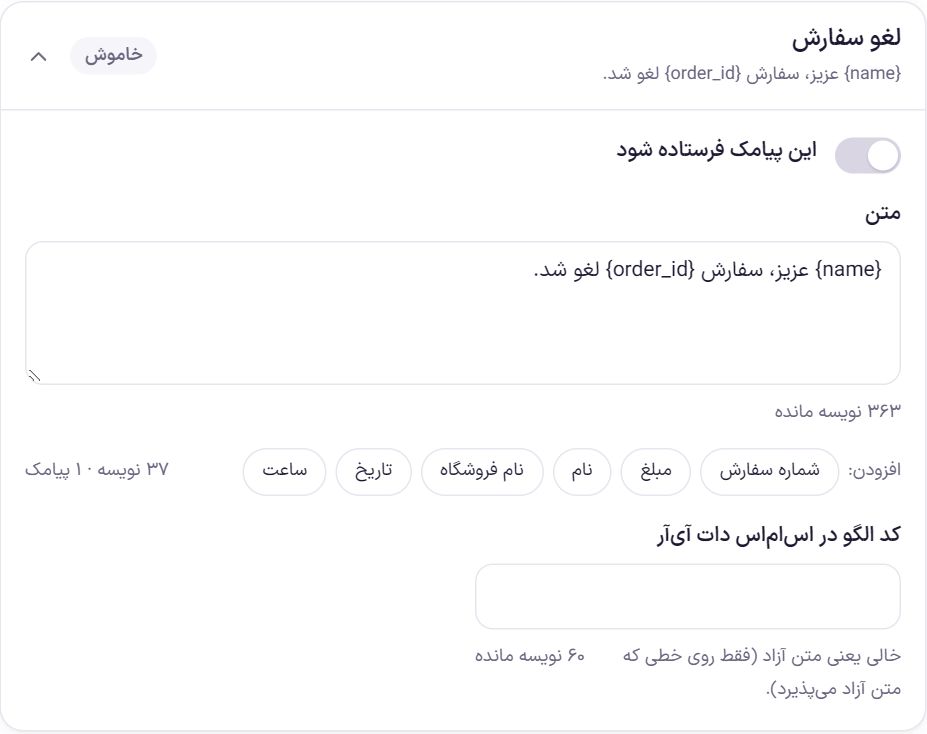
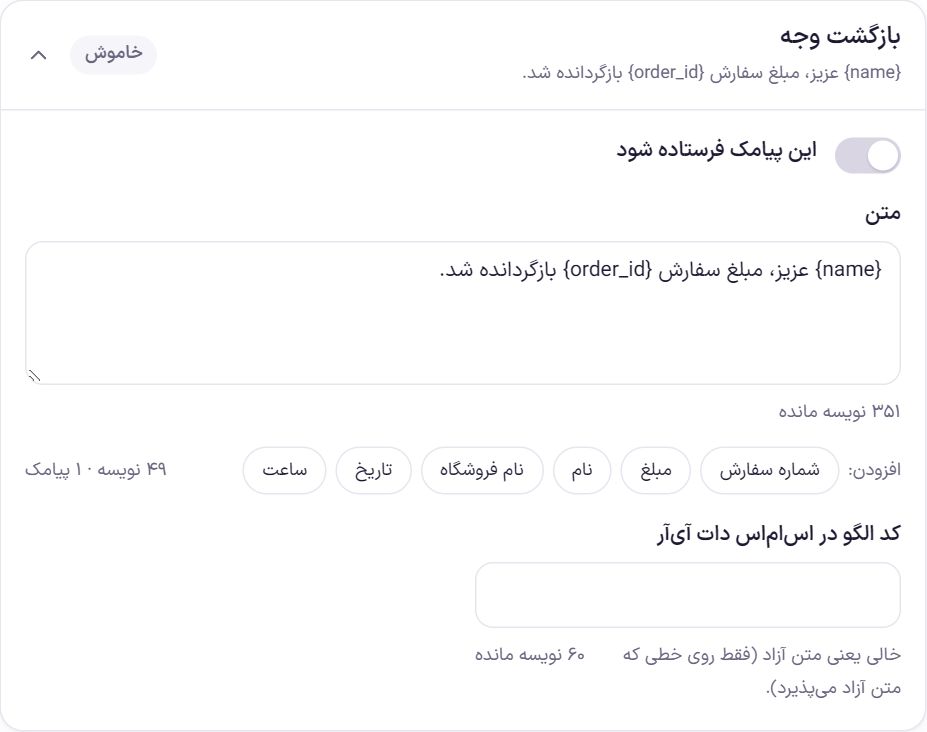
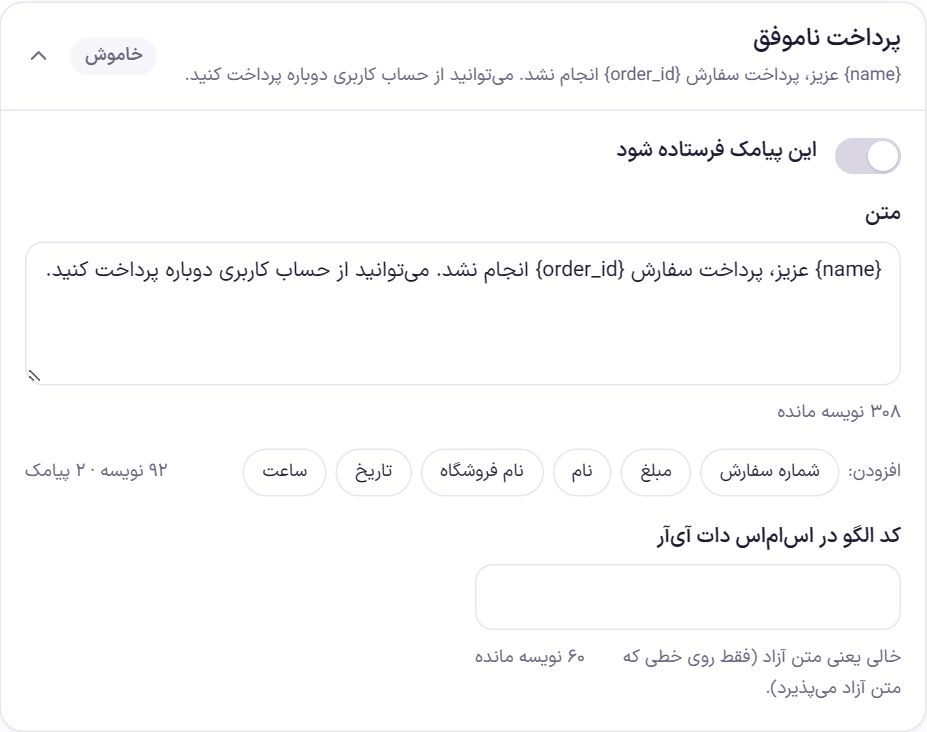
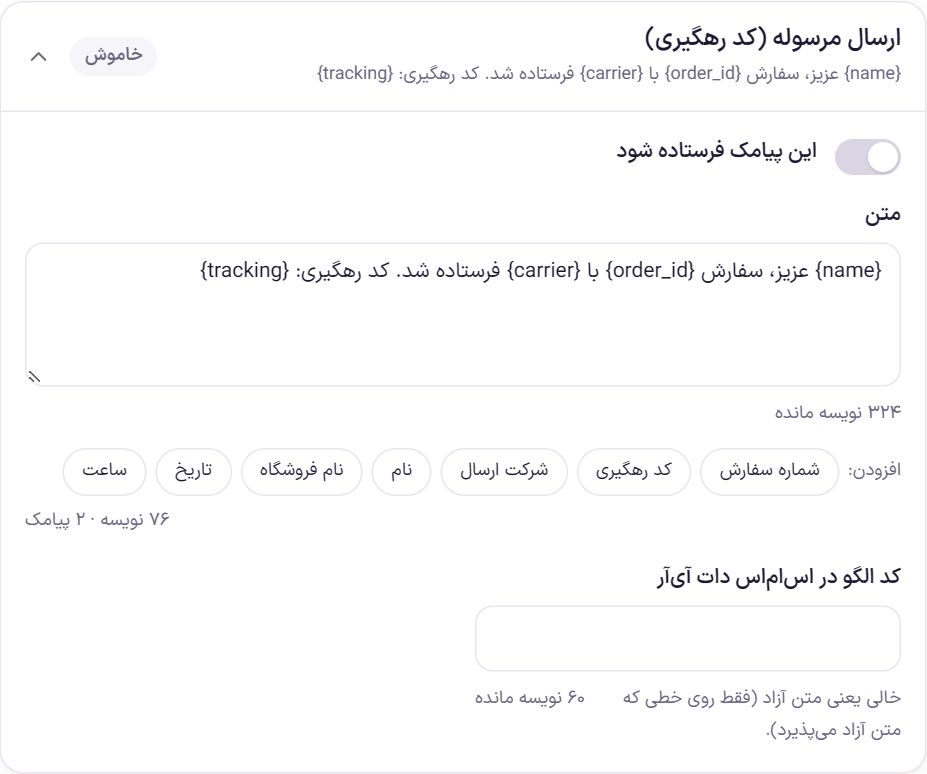
In the “SMS messages” tab all automatic SMS messages appear in three groups: “Orders (to buyer)”, “Account and wallet (to buyer)” and “To store admins”. All are off by default, and only the ones you turn on are sent. If you have not yet chosen a service in “Connection”, a warning at the top of this tab reminds you.
{} are placed into the template variables in the order they appear in the text.Each SMS box
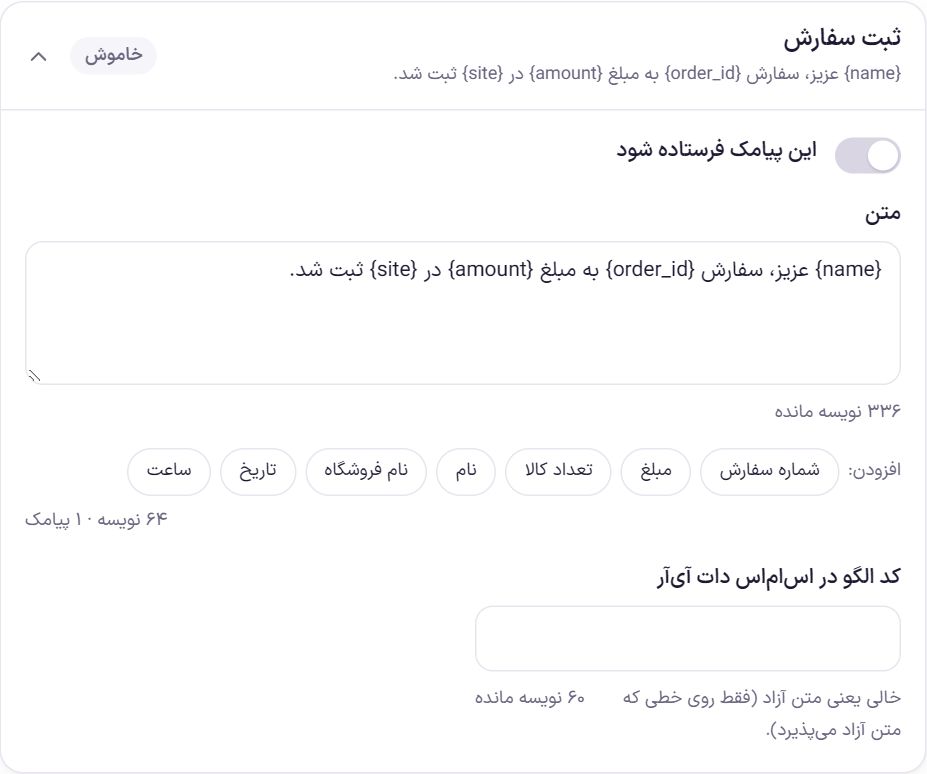
| Option | What it does | Default |
|---|---|---|
| Send this SMS | The SMS is sent only when this toggle is on. The label at the top of the box shows “On” or “Off”. The “One-time login code” does not have this toggle and its label is “On login”. | Off |
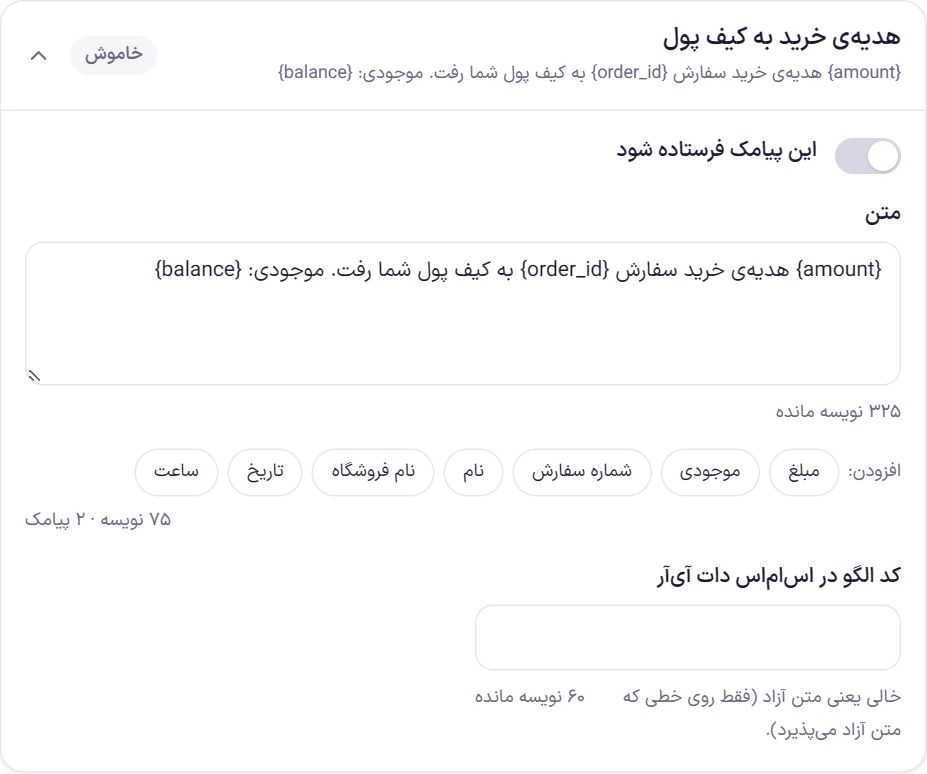
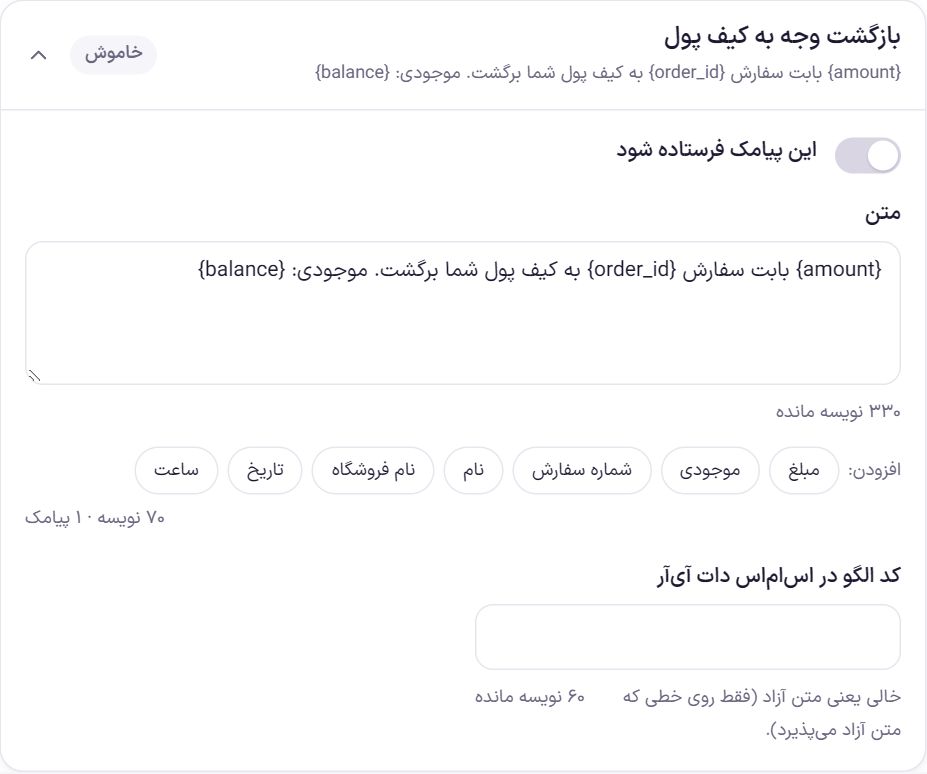
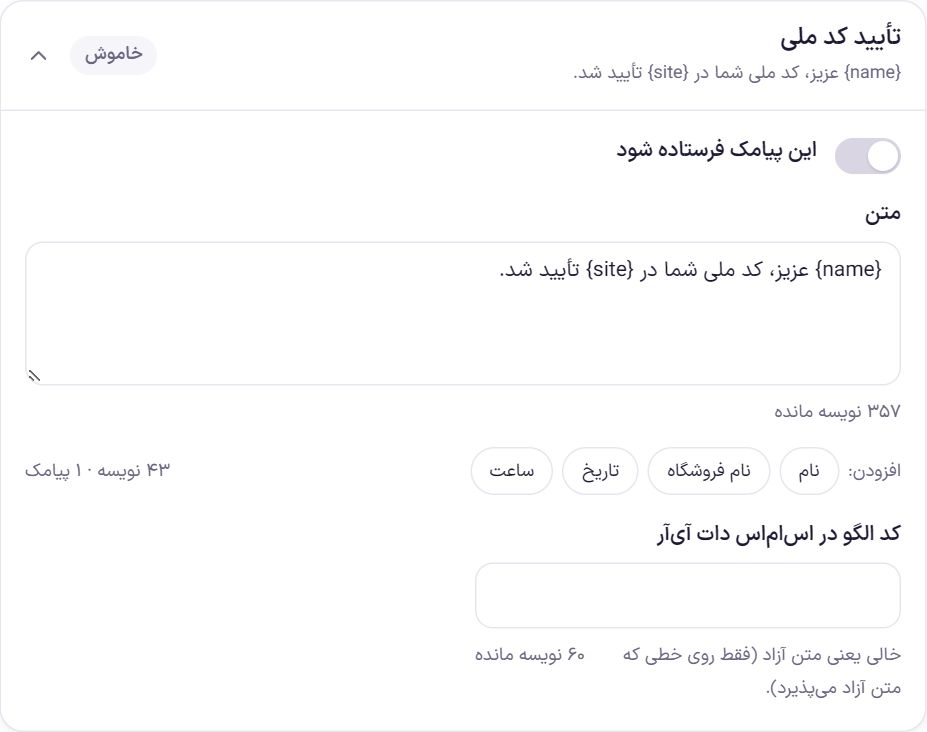
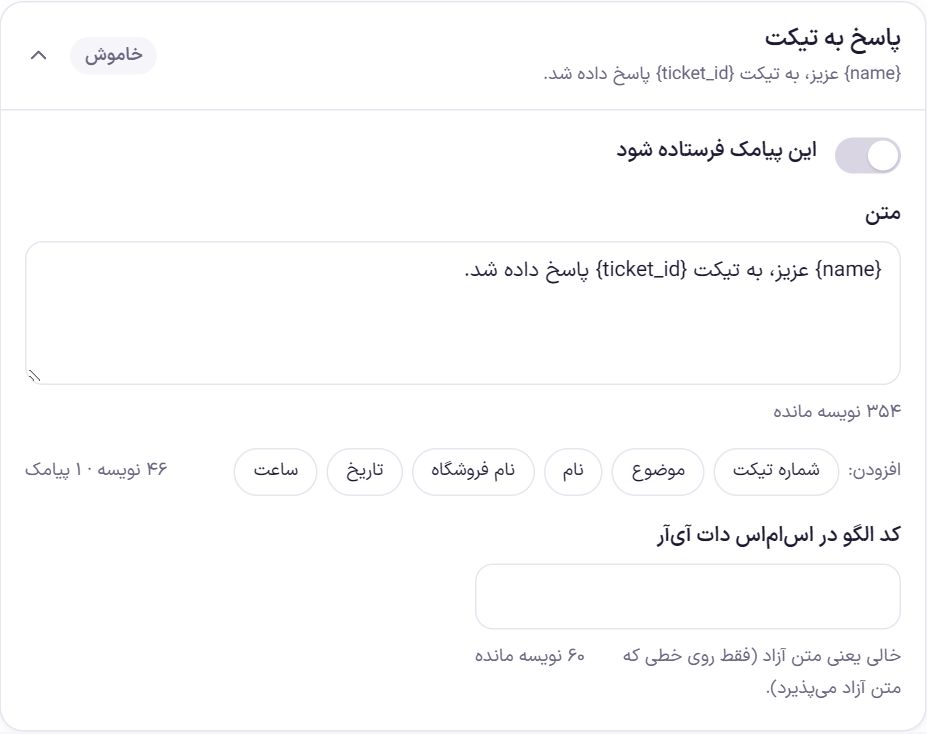
| Text | The SMS text, up to 400 characters. HTML tags and code are removed and extra spaces are tidied, but line breaks stay. If you delete the text completely, the default text returns. | A ready-made text for each SMS |
| Add: | Each button inserts its placeholder (for example {order_id}) at the cursor in the text. Each SMS shows only the buttons for placeholders that make sense for it. | |
| Counter | Shows the number of characters and SMS parts. A Persian SMS is 70 characters, and longer text is sent in 67-character parts. The counter counts the placeholders themselves, such as {name}, so the length of the delivered SMS differs slightly depending on each placeholder's value. | |
| Template code in [main panel name] | The template code or ID of this SMS in the main panel. Empty means free text, which works only on a line that accepts free text. Rahpayam has no free text and sends no SMS without a template code. | Empty |
| Template code in [backup panel name] (backup) | Visible only when a backup panel is selected. This SMS's template code in the backup service. Empty means the code above is used. | Empty |
www. or .ir or .com , Farin does not send it and writes the reason in the log. Remove the URL or set an approved template.English SMS
When the site's English version in Languages is on, every buyer SMS also gets an English version:
- Preview: Above each SMS box, the Persian and English texts are filled in side by side with sample words; this is what the buyer reads.
- English text (optional): Below the Persian text. “Insert suggested text” puts ready-made English text for that SMS in the box. For Latin text the counter counts 160 characters per SMS.
- English template code: Separately for the main panel and the backup panel. Register the English template in that SMS panel and put its code here. The code of each system is kept separately, and if you change the system, the previous system's code is not deleted.
- Who gets English: A buyer who placed their order on the English pages (
/en/), or who most recently registered or logged in with an English account. A login code goes in the language of the page that requested the code. “Notify me” goes in the language of the page where the number was registered. - Words in English: Gregorian date, Latin digits, amount with the English unit, the English store name and the English product name.
- If left empty: If there is neither English text nor an English template code, an English buyer gets the same Persian SMS, with Persian words. If English text exists but the system only sends with a template and has no English code, the Persian template is sent so the SMS is sure to arrive.
- Store manager SMS It is always Persian.
In “Test send” you can choose the language too. In the send log, the language of each SMS is shown beside it.
Placeholders (text variables)
Each placeholder inside {} is replaced with the real value when sending. The first four placeholders are in all SMS messages; the rest only in the SMS messages listed in the group table.
| Placeholder | Button name in the panel | What replaces it |
|---|---|---|
{name} | Name | The buyer's first name. In order SMS messages, the billing first name, or “Customer” if empty. In account SMS messages, the user's first name or display name. Where no name exists, “User”. |
{site} | Store name | The site title in WordPress. |
{date} | Date | The sending day's date in the Jalali calendar, such as “11 Aban 1405”. |
{time} | Time | The sending hour and minute. |
{order_id} | Order number | The WooCommerce order number. |
{amount} | Amount | In order SMS messages, the order total; in wallet SMS messages, the amount that moved. In the same currency unit the store displays. |
{count} | Item count | The number of items in the order. |
{ref} | Payment reference | The transaction ID the payment gateway returned for the order. |
{note} | Note | The text of the note you wrote for the buyer on the order. |
{mobile} | Mobile | The buyer's mobile number. |
{balance} | The balance | The wallet balance after this movement. |
{ticket_id} | Ticket number | The ticket number. |
{subject} | Subject | The ticket subject or the contact form message. If the contact form message has no subject, “No subject”. |
{customer} | Buyer name | The order's billing first and last name; in a contact form message, the name the sender entered. |
{product} | Product | The product name. |
{stock} | Stock | The remaining quantity of the product in stock. |
{code} | Login code | The one-time login code. |
{tracking} | Tracking code | The parcel's tracking code. |
{carrier} | Shipping company | The name of the company carrying the parcel. |
{minutes} | Validity (minutes) | How many minutes the login code is valid. |
- Each value is made single-line and shortened before sending: line breaks and the “;” character become spaces, and anything beyond 80 characters is not sent.
- If you write a placeholder that the SMS has no value for, “-” is sent in its place.
- Style
#CODE#which many panels use, is also accepted and counts the same as{code}This is true of every other placeholder too, for example#ORDER_ID#. - In admin SMS messages, what the visitor typed (name, subject, product name, note) is stripped of URLs and long numbers and shortened to 30 characters before sending, so nobody can use the contact form to send SMS to others from the store's line.
Variable names in each service's template
Each service takes template variables in its own form. This same guide is written under each service's keys box in the “Connection” tab.
| Service | Template code | Variables in the template |
|---|---|---|
| Kavenegar | The template name in the Kavenegar panel (“Verification” section) | Up to five variables, in the order they appear in the text: token, token2, token3, token10 and token20. |
| sms.ir | The template's numeric ID | Variable names are the same as the text placeholder names, for example name and order_id. |
| Melipayamak, Farapayamak, Payamito | The numeric code of the approved text (bodyId) | Values are sent in the same order the placeholders appear in the text. |
| IPPanel | The template code in the panel | Variable names are the same as the text placeholder names. |
| Faraz SMS | The template code in the Faraz panel | Variable names are the same as the text placeholder names. |
| Rahpayam | The template's numeric ID (templateID) | Put the login code in [code] and the others, in text order, in [param1], [param2] and so on. |
| Payamresan | The approved template key (TemplateKey) | Slots {1} to {10} are filled in the order of the text placeholders. |
{name} and then {order_id} come, then in the template too the first variable is the name and the second is the order number.Orders (to buyer)
These SMS messages go to the order's billing mobile. If the order has no mobile, the buyer's account mobile is used. A wallet top-up order is not counted as an account order and no order SMS is sent for it; the “Wallet top-up” SMS takes its place.
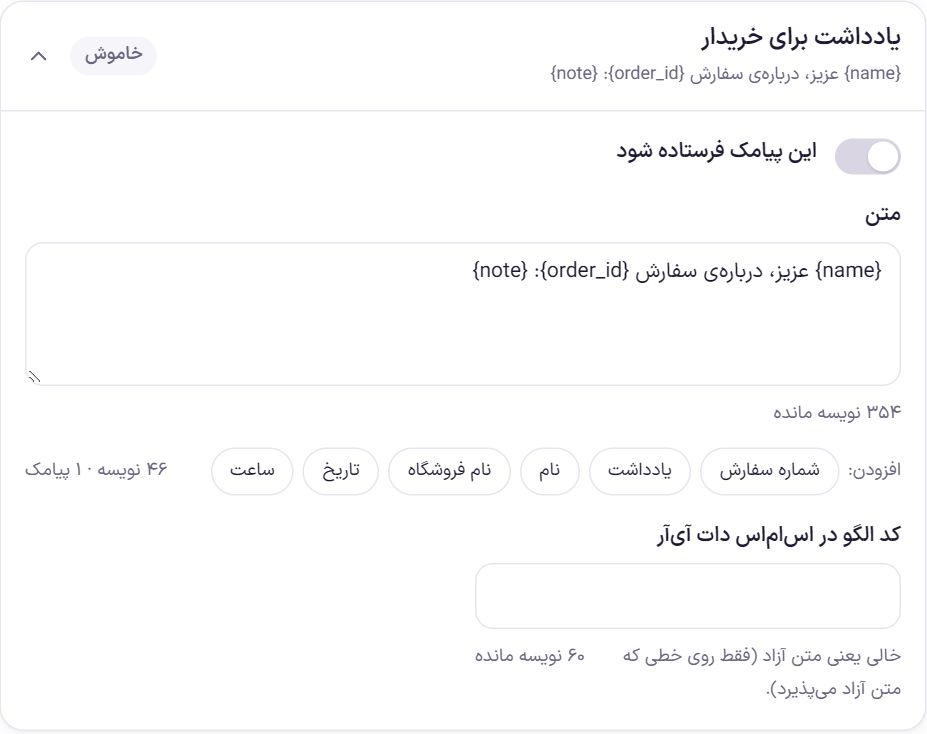
{note} .| SMS | When it is sent | Special placeholders |
|---|---|---|
| Place order | When the buyer places an order. Once per order. | Order number, amount, item count |
| Successful payment | When the order's payment is complete. Once per order. | Order number, amount, payment reference |
| Preparing | When the order status becomes “Processing”. Not sent if it was just paid or just placed (such as pay on delivery), because “Payment successful” or “Order placed” has already given the same news. | Order number, amount |
| On hold | When the status becomes “On hold”. If the order was just placed, “Order placed” takes its place. | Order number, amount |
| Order complete | When the status becomes “Completed”. | Order number, amount |
| Order cancelled | When the status becomes “Cancelled”. | Order number, amount |
| Refunds | When the status becomes “Refunded”. | Order number, amount |
| Failed payment | When the status becomes “Failed”. | Order number, amount |
| Parcel shipped (tracking code) | When a new tracking code is added to the order. Once per code. | Order number, tracking code, shipping company |
| Note to buyer | Each time you write a “Note to customer” type note on the order page. | Order number, note |
Status SMS messages are sent at every real status change, not just the first time. But a status SMS for one order is not sent again within two minutes.
Account and wallet (to buyer)
These SMS messages go to the user's billing mobile, or if none, to the mobile they registered with.
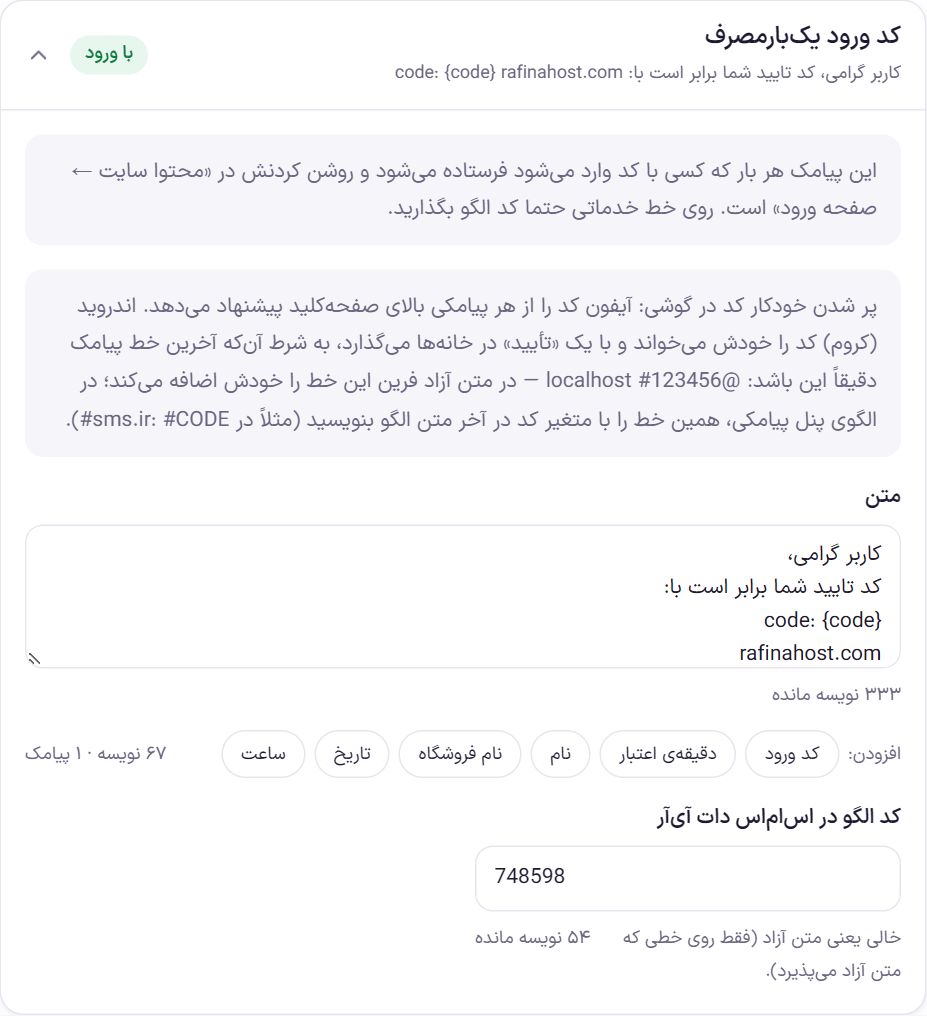
- Turning it on: This SMS is sent each time someone signs in with a code. Turning on sign-in with a code is in Site content → Login page . On a service line, definitely set a template code for it.
- Immediate sending: The login code does not wait in the queue and is sent at that moment. It is recorded in the send log, but the code itself is never kept.
- Automatic code filling: iPhone suggests the code above the keyboard from any SMS. Chrome on Android reads the code itself and fills it in with one tap on “Confirm”, provided the last line of the SMS has the form
@site-address #123456(your site's exact address is written in the note of this same box). In free text, Farin adds this line itself. In an SMS service template, write this same line with the code variable at the end of the template text.
| SMS | When it is sent | Special placeholders |
|---|---|---|
| One-time login code | Every time someone requests a login code. | Login code, validity (minutes) |
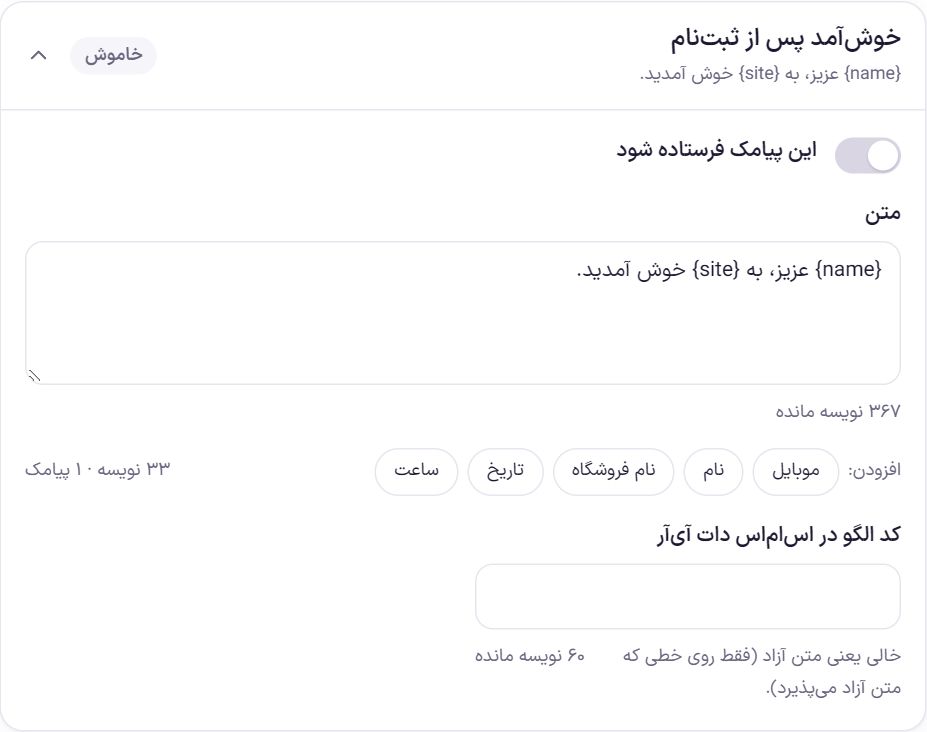
| Welcome after sign-up | When a new customer account is created. | Mobile |
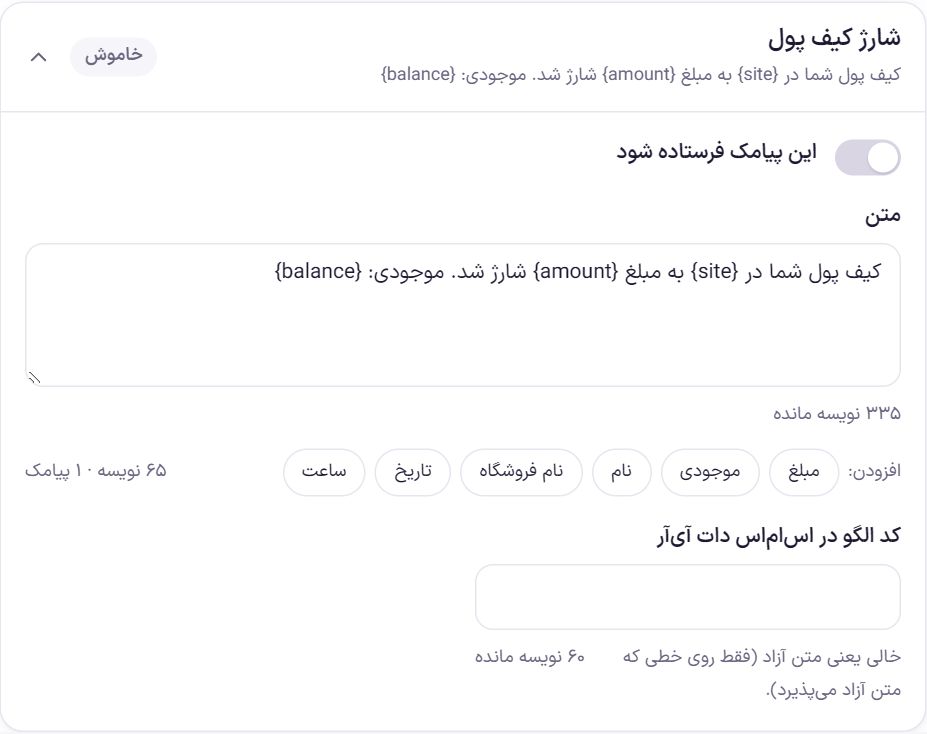
| Wallet top-up | When the buyer's wallet is topped up. | Amount, balance |
| Purchase reward to wallet | When the reward for a purchase goes to the buyer's wallet. | Amount, balance, order number |
| Refund to wallet | When an order's amount is refunded to the wallet. | Amount, balance, order number |
| National ID verification | When the user's national ID is verified. | None |
| Ticket reply | When a user's ticket is answered. | Ticket number, subject |
To store admins
These SMS messages go to all the numbers in “Admin mobiles” on the “Connection” tab. If that box is empty, they are not sent.
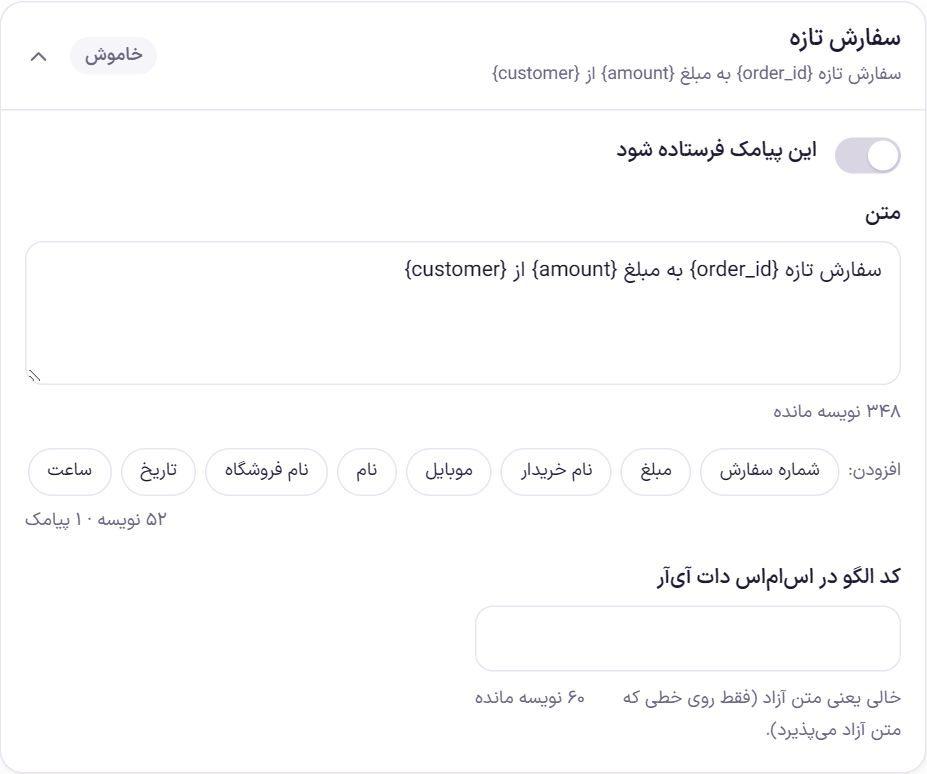
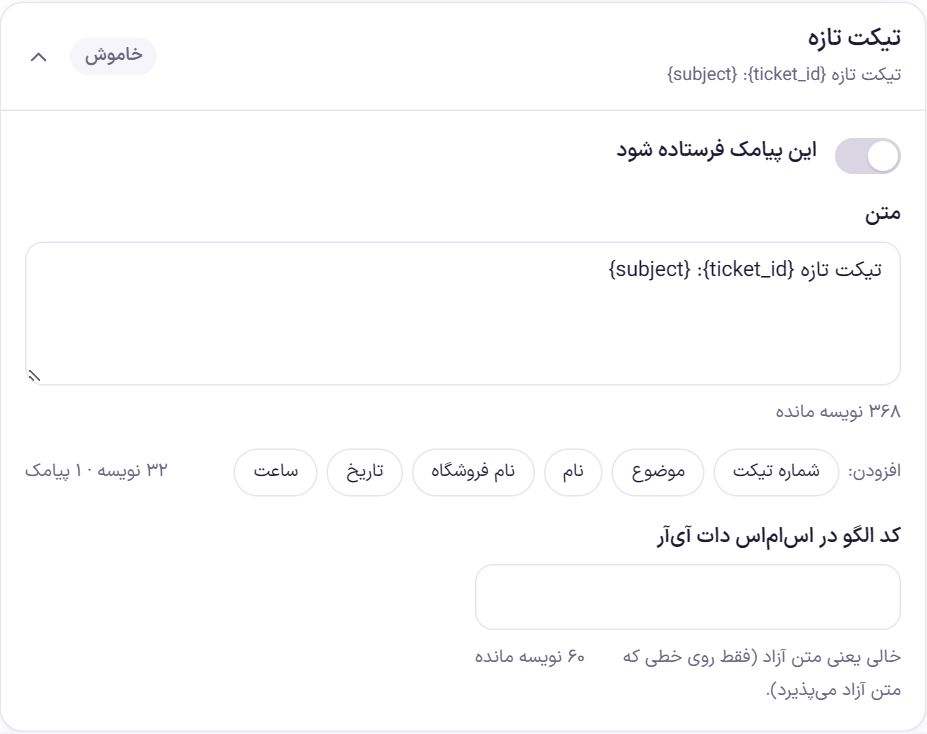
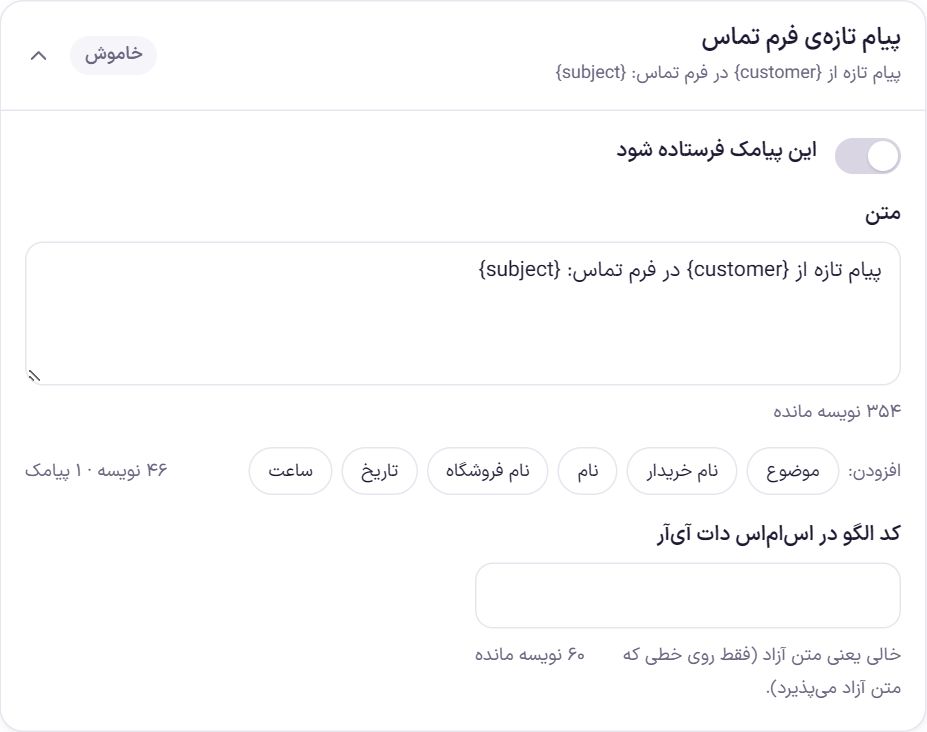
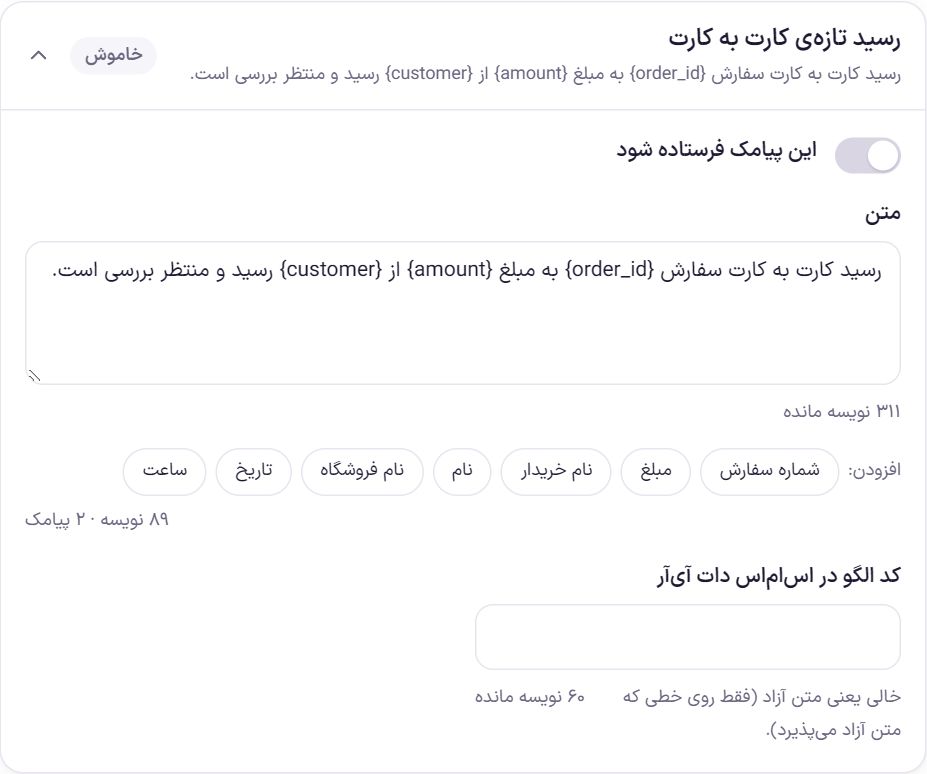
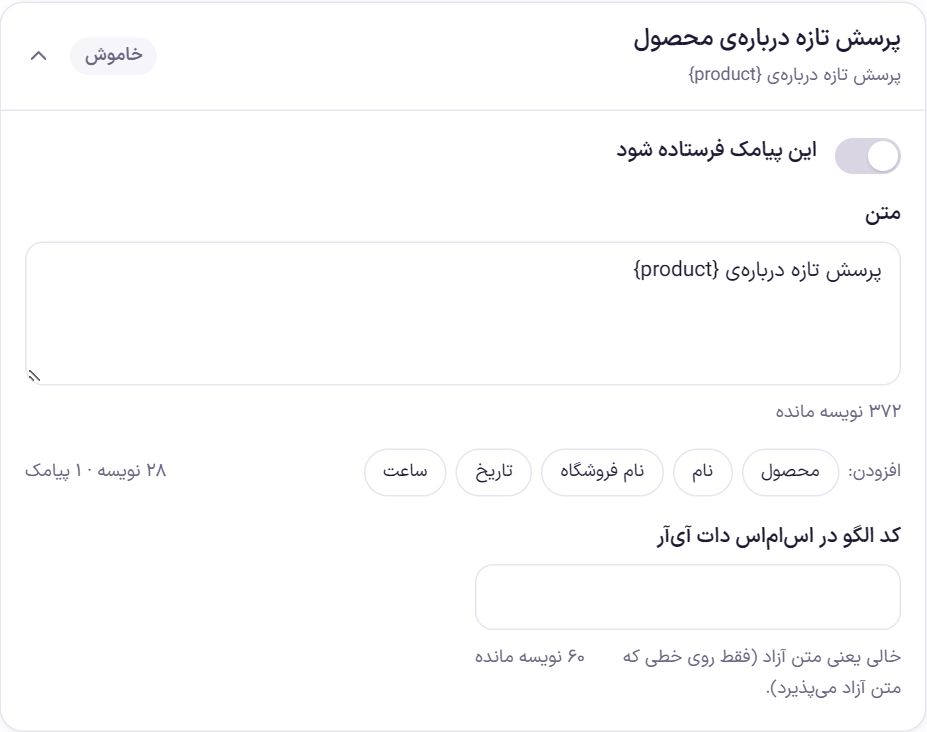
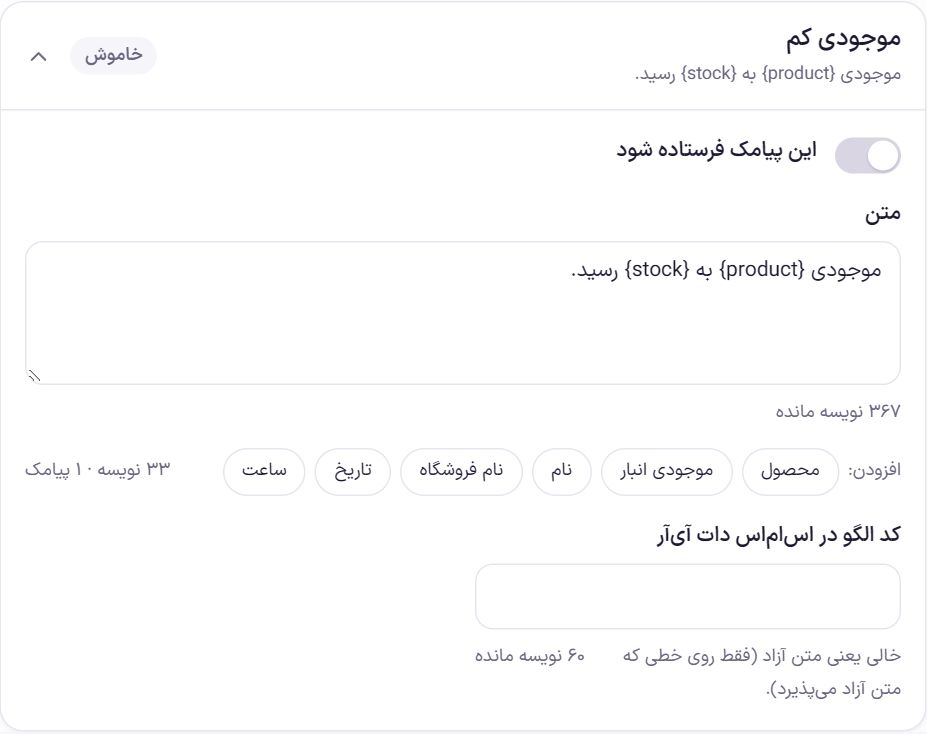
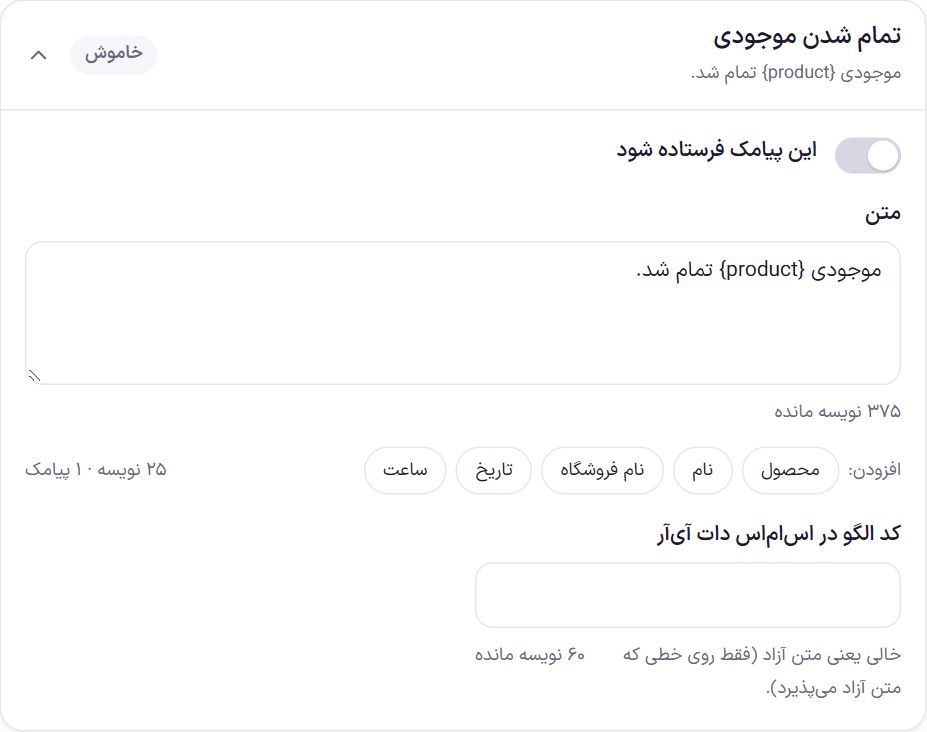
| SMS | When it is sent | Special placeholders |
|---|---|---|
| New order | Once per order: when its payment is complete; or for an order that needs no online payment (such as pay on delivery, card-to-card, or full payment from the wallet), when it is placed or when it moves to “Processing”, “On hold” or “Completed”. | Order number, amount, buyer name, mobile |
| New ticket | When a new ticket is created. | Ticket number, subject |
| New contact form message | When someone submits the contact form. | Subject, buyer name |
| New card-to-card receipt | When the buyer sends a card-to-card receipt and the receipt is waiting for your review. | Order number, amount, buyer name |
| New product question | When someone sends a question about a product. | Product |
| Low stock | When WooCommerce reports a product's stock as low. At most once a day per product. | Product, stock |
| Out of stock | When a product's stock runs out. At most once a day per product. | Product |
Sending limits
So that nobody can use checkout or the contact form to send SMS to others at the store's expense, Farin has limits:
- To one buyer number, at most 6 SMS messages per hour and 20 per day.
- Each admin SMS at most 10 times per hour.
An SMS that hits a limit is not sent and is recorded with its reason in the “Send log”.
Send log
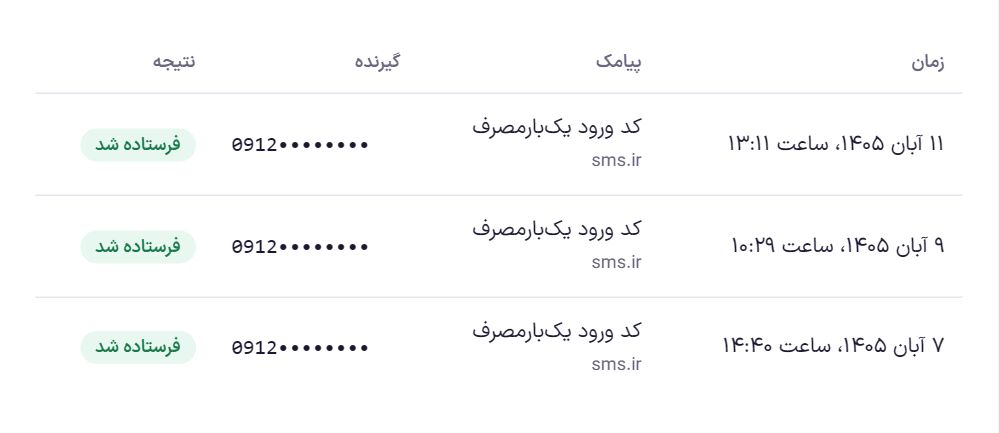
The “Send log” tab shows the last 200 sends, newest at the top. Successful SMS messages are recorded too. If no SMS has been sent yet, you see “No SMS has been sent yet”.
| Column | What it shows |
|---|---|
| Time | Date and time of sending. |
| SMS | The SMS name, such as “Order placed”, and under it the service the SMS went through. If the main panel failed and the backup delivered the SMS, the backup's name appears here. |
| Recipient | The mobile number, with the first four and last four digits shown and the middle masked. |
| Result | “Sent” or “Not delivered”. For an SMS that was not delivered, the service's response or Farin's reason is written under it, such as a limit being reached or a URL being present. |
Frequently Asked Questions
The SMS does not reach some buyers.
Most of the time the buyer has blocked advertising SMS and the SMS was sent as free text. Create a template for that SMS in your service and put the template code in the “SMS messages” tab. An SMS with a template goes through the service line and reaches these numbers too. See the service's response in the “Send log”.
The test SMS arrived but the order SMS did not.
Test sending does not require the SMS to be on, but real sending does. Turn on the “Send this SMS” toggle and save. If it is on and you also see no row in the log, WooCommerce's job queue may not have run yet; automatic SMS messages wait in this queue under the name farin_sms_send .
The store manager does not see the SMS panel section.
Correct. This section opens only for the site's super admin and cannot be delegated to the store manager, because the SMS account keys and users' login codes depend on it.
I changed a service's key; how do I delete the old key?
Enter the new key in the same box and save; it replaces the old one. An empty box does not delete the saved key. The last four characters shown next to “Saved” tell you which key is currently stored.
Farin Theme · 1405