

Reviews and Questions
Everything shoppers write about the shop is collected here: product comments, product page questions and Contact us form messages. Right here you approve, reply and set spam aside.
Where is it? Farin → Reviews and Questions
This section has four tabs: “Comments”, “Q&A”, “Contact us” and “Settings”. Beside each status button is the number of items in that status, and the lists are paginated.
Comments
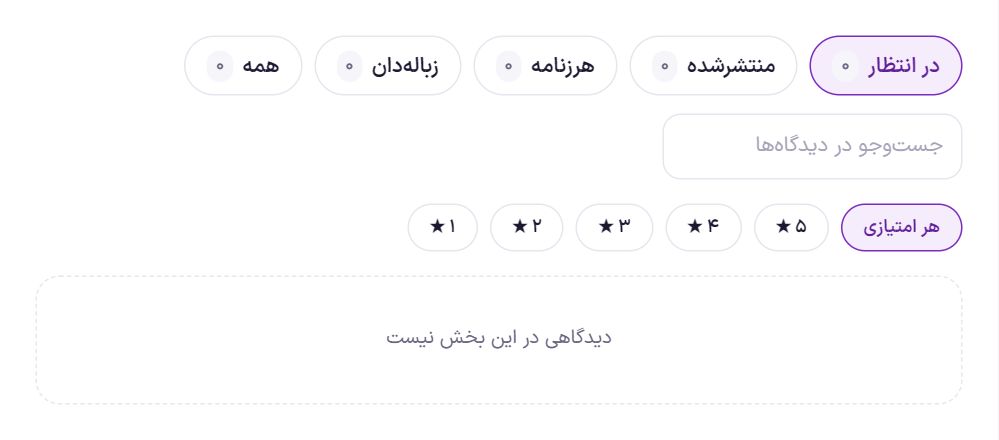
Comments are the same as WooCommerce comments. Statuses: “Pending”, “Published”, “Spam”, “Trash” and “All”. A comment from someone who bought that product with the same account carries a “Buyer” badge.
What you can do with each comment:
- “Publish” Shows a pending comment on the product page. “Return to pending” hides it again.
- “Store reply”: your reply appears under that comment on the product page. You can edit the reply later or remove it with “Delete reply”.
- “Edit text” Changes the comment's own text.
- “Spam” and “Trash” Both remove the comment from the page. From either one it can be brought back with “Not spam” or “Restore”, and “Delete permanently” erases it for good.
Q&A
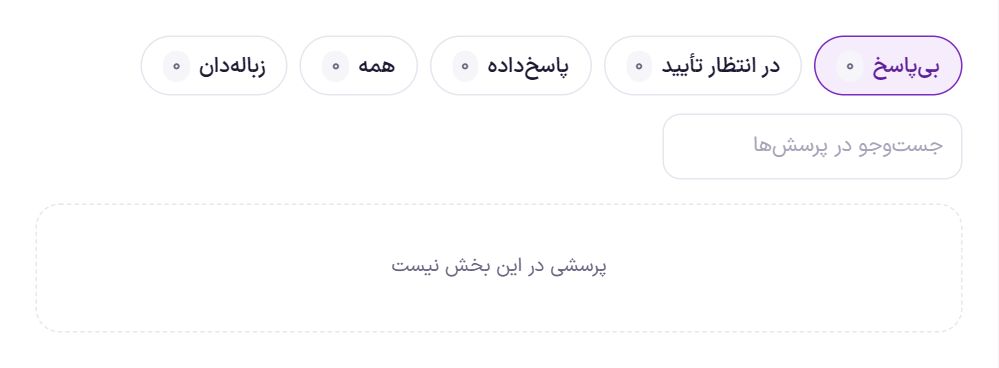
A logged-in user sends a question from the Q&A tab of the product page. Statuses: “Unanswered”, “Pending approval”, “Answered”, “All” and “Trash”.
- “Store reply”: publishing the reply publishes the question too, and if it is turned on in settings, an email goes to the person who asked.
- “Publish unanswered”: shows the question on the product page without you giving an answer.
- Buyers' answers: If you allow it in settings, buyers of the product can answer too. Their answer stays “Pending” until you press “Publish”, and it carries a “Buyer” badge.
- Each answer has “Edit” and “Delete”, and each question has “Trash”.
Questions and answers are kept separate from comments. They do not appear in the WordPress comments list or in the product's comment count.
Contact us
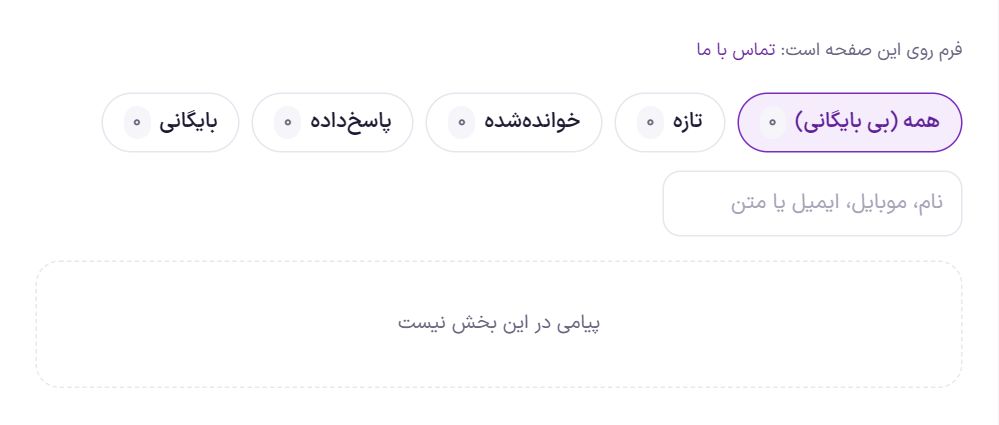
Contact form messages are kept separate from comments, in their own table. Statuses: “All (not archived)”, “New”, “Read”, “Replied” and “Archived”.
- Open the message. You see the name, mobile number, email, time, subject and message text. If the sender was logged in, “Site user” is shown too. An opened message becomes “Read”.
- Reply. Write in “Your reply” and press “Send reply”. The reply goes to the sender's email, together with their own message.
- If they did not leave an email, call their number and then press “Replied”.
- Archive finished messages. “Archive” takes the message out of the main list and “Delete permanently” erases it.
If you have not yet chosen a page for the form, this tab reminds you.
Settings
Settings has four boxes and saves instantly.
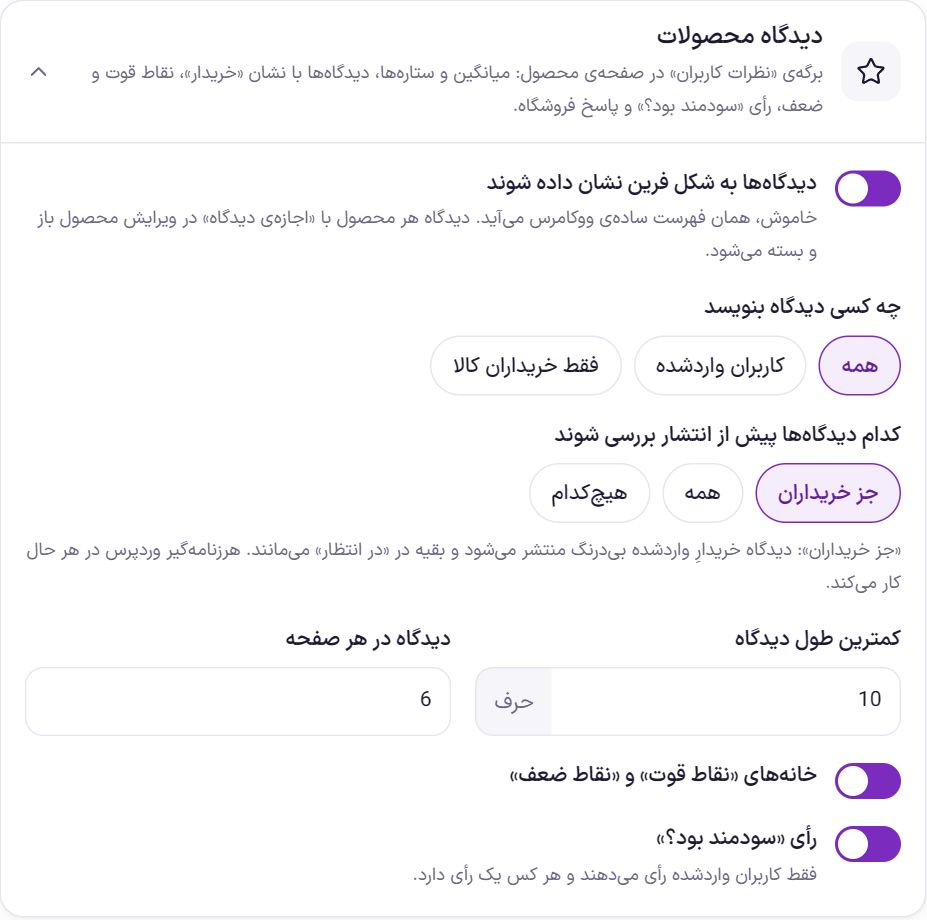
Product comments
| Option | What it does | Default |
|---|---|---|
| Show comments in Farin's style | Average and stars, the “Buyer” badge, pros and cons, the “Was this helpful?” vote and the shop reply. When off, WooCommerce's plain list appears. Whether comments are open or closed for each product is set by “Allow comments” on that product's edit page. | On |
| Who can write a comment | “Everyone”, “Logged-in users” or “Only buyers of the product”. | All |
| Which comments are reviewed before publishing | “Except buyers”: a logged-in buyer's comment is published immediately and the rest stay in “Pending”. “Everyone”: every comment waits for your approval. “None”: all are published immediately. WordPress's spam filter works in every case. | Except buyers |
| Minimum comment length | A comment shorter than this number of characters is not accepted. | 10 characters |
| Comments per page | How many comments per page of the product's comment list. | 6 |
| “Pros” and “Cons” fields | Two optional fields in the comment form. | On |
| “Was this helpful?” vote | Only logged-in users vote, and each person has one vote. | On |
The “Buyer” badge comes only from orders on a logged-in account. Nobody can get this badge by typing another customer's email.
Q&A
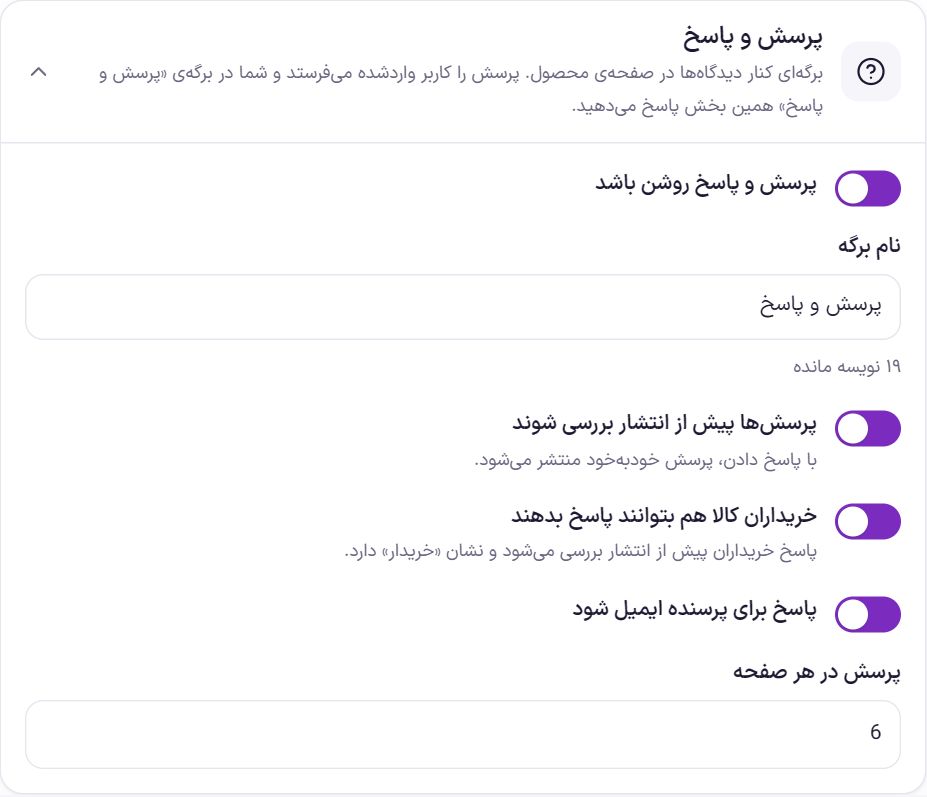
| Option | What it does | Default |
|---|---|---|
| Q&A enabled | The Q&A tab on the product page. Only a logged-in user can send a question. | On |
| Tab name | The tab's title on the product page, up to 30 characters. | Q&A |
| Review questions before publishing | A question is not visible until you approve it. When you answer it, the question is published automatically. | On |
| Let buyers of the product answer too | Buyers' answers are reviewed before publishing and carry a “Buyer” badge. | On |
| Email the answer to the asker | When an answer is published, an email goes to the person who asked. | On |
| Questions per page | How many questions per page of the tab. | 6 |
Contact us form
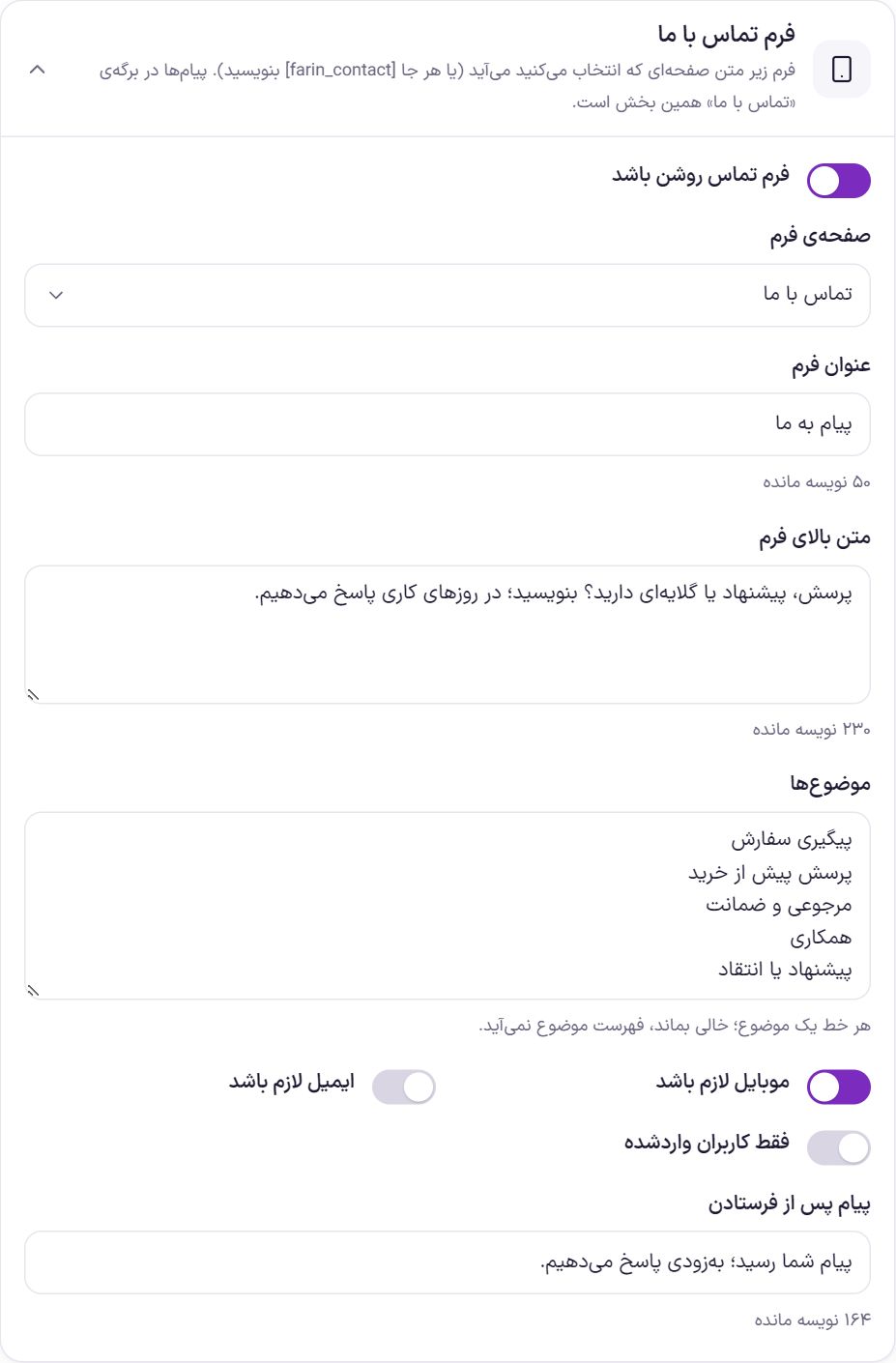
| Option | What it does | Default |
|---|---|---|
| Contact form enabled | Turns the form on and off. | On |
| Form page | The form appears under this page's content. Instead, you can write [farin_contact] on any page. | Not selected |
| Form title | The heading above the form, up to 60 characters. | Send us a message |
| Text above the form | One or two sentences under the title, up to 300 characters. | Have a question, suggestion or complaint? … |
| Subjects | One subject per line; the buyer picks one. If left empty, no subject list appears. | Order tracking, pre-purchase question, returns and warranty, collaboration, suggestion or criticism |
| Mobile number required | Without a valid mobile number, the form is not sent. | On |
| Email required | When off, email is optional. Turn it on if you want to reply by email from the panel. | Off |
| Logged-in users only | A guest sees a message to log in to their account instead of the form. | Off |
| Message after sending | The text shown to the buyer after sending, up to 200 characters. | Your message has arrived; we will reply soon. |
The message text must be at least ten characters. After each message, a sender has to wait a little before sending the next one.
Email to the shop
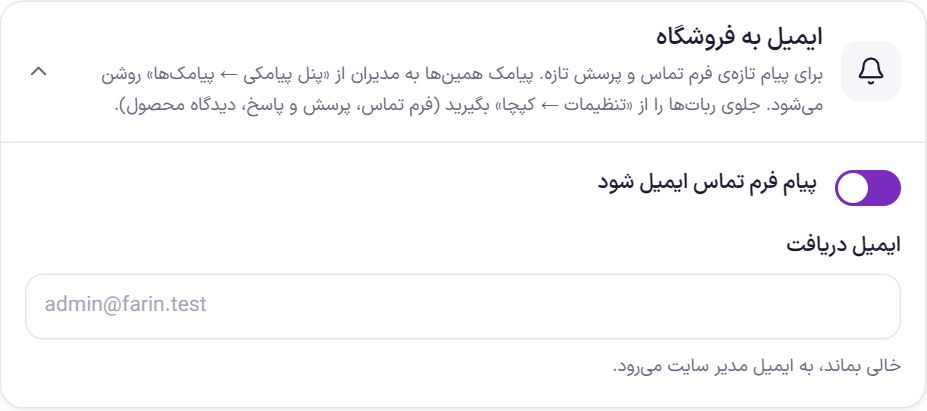
| Option | What it does | Default |
|---|---|---|
| Email contact form messages | Every new contact form message is sent to the shop's email. | On |
| Receiving email | The address that emails about new contact messages and questions go to. Empty means the site administrator's email. | Empty |
To get these as SMS to administrators, use SMS Panel . Stop bots on the contact form, Q&A and product comments with Captcha with us.
Frequently Asked Questions
Comments do not appear on the site.
Look at the “Comments” tab on “Pending”. With “Which comments are reviewed before publishing” set to “Except buyers”, comments from guests and non-buyers wait for your “Publish”. If there is no comment form at all, check “Allow comments” on that product's edit page.
I want the contact form on an Elementor page.
Either choose that page in “Form page”, or place the shortcode [farin_contact] in Elementor's Shortcode widget wherever you want.
Contact form messages do not reach my email.
Turn on “Email contact form messages” and check “Receiving email”. If those are right, check the email spam folder and the site's email sending setup. The messages are in the “Contact us” tab in every case.
Farin Theme · 1405