

Custom Code
Two places for your own code: one for CSS, which changes how part of the site looks, and one for code that services such as Google Analytics or Tag Manager give you. Both stay in place when the theme is updated.
Where is it? Farin → Settings → Custom Code
Code is not saved while you type; after writing, click “Apply”.
Custom CSS
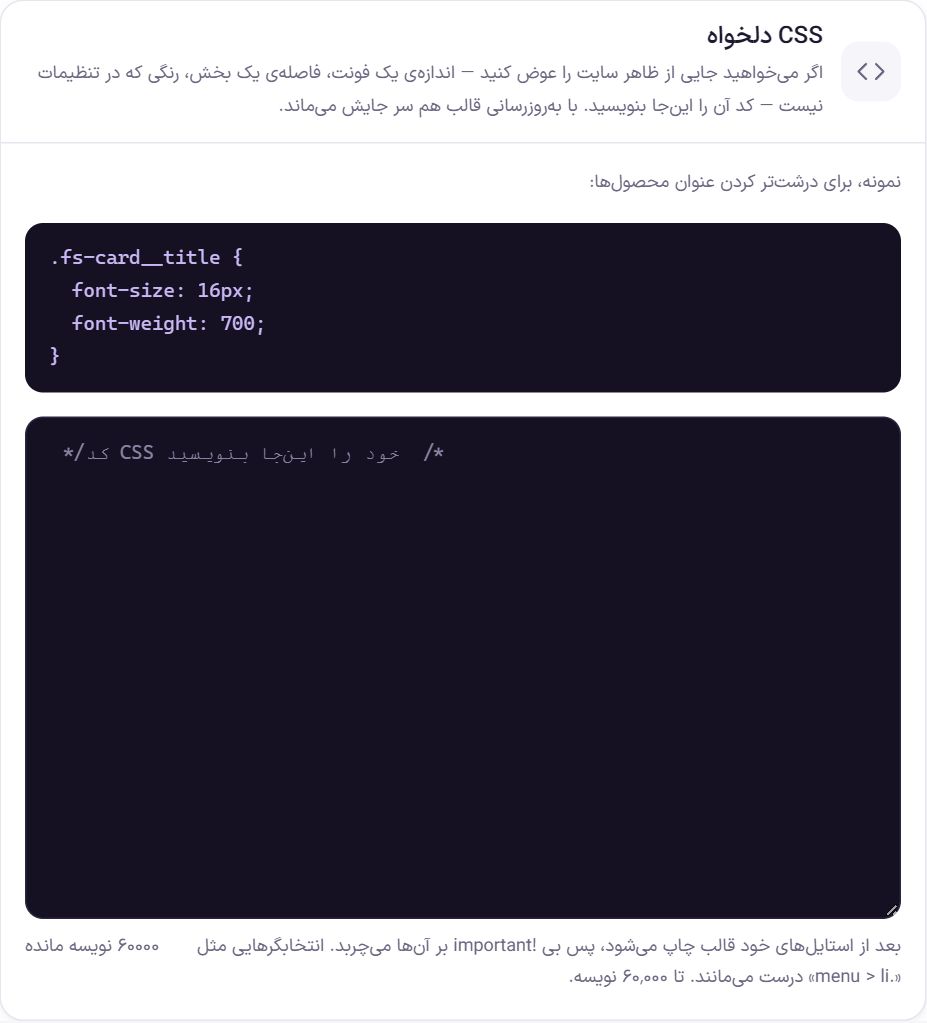
If you want to change something that is not in the settings, such as a font size, the spacing of a section or a color, write its CSS here.
- This CSS is printed after the theme's own styles, so even without
!importantit takes precedence over them. - Selectors like
.menu > likeep working correctly. - The maximum length is 60,000 characters.
- If you paste HTML by mistake, such as the
<meta>tag for Google ownership verification or a<script>, here, it will not be saved and a message tells you to put it in “Header and body code”. The previous CSS stays untouched.
Header and body code
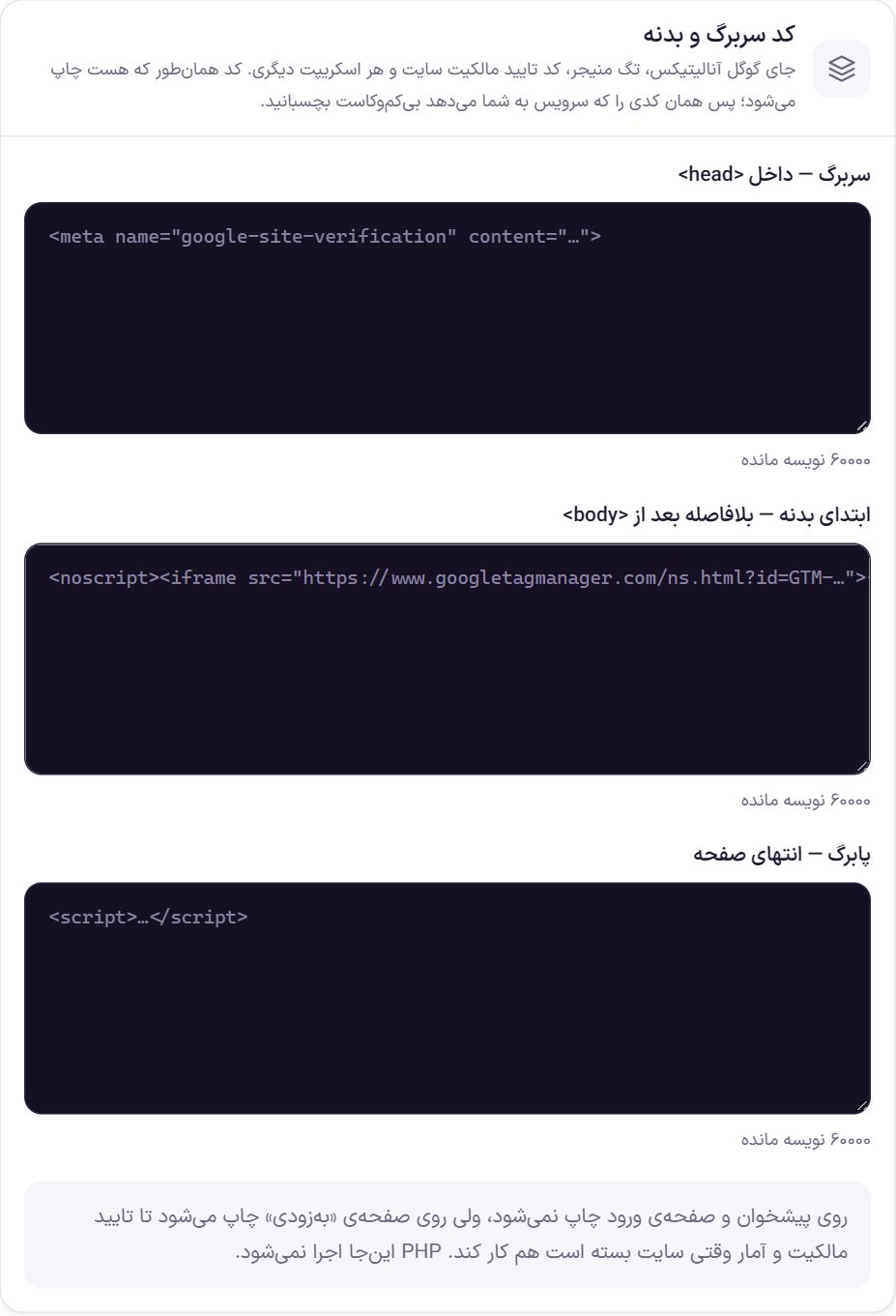
The code here is printed as-is on every page of the site, so paste exactly the code the service gives you, unchanged.
| Option | Where it is printed | Example use |
|---|---|---|
| Header, inside <head> | Inside the <head> tag of every page. | The <meta> tag for Google Search Console ownership verification, the main Google Analytics code, or Tag Manager. |
| Start of body, right after <body> | The first thing inside <body>. | Section <noscript> Google Tag Manager. |
| Footer, end of the page | Just before the page closes. | A live-chat script or any script that does not need to load early. |
These codes are not printed on the dashboard and login page. They are printed on the Coming Soon page, so ownership verification and analytics also work while the site is closed. PHP code is not executed here.
Frequently Asked Questions
Where do I put the Google ownership verification code?
Paste the tag that starts with <meta name="google-site-verification" into “Header, inside <head>” and click “Apply”. Then click the verify button in Search Console.
I wrote the CSS but nothing changed.
If you have a cache plugin, clear the cache and reload the page. If it still has no effect, the selector probably does not match that section's class on the site; right-click that section in the browser and click “Inspect” to see the correct class name.
Will my code be deleted when the theme is updated?
No. This code is stored in the site's database, not in the theme files.
Farin Theme · 1405