

Discount Codes
This section creates and manages the store’s discount codes: one code for everyone, one code for a specific customer, or hundreds of one-time codes for SMS and gift cards. The codes are WooCommerce’s own discount codes and are accepted in the cart and checkout page.
Where is it? Farin → Discount Codes
Codes
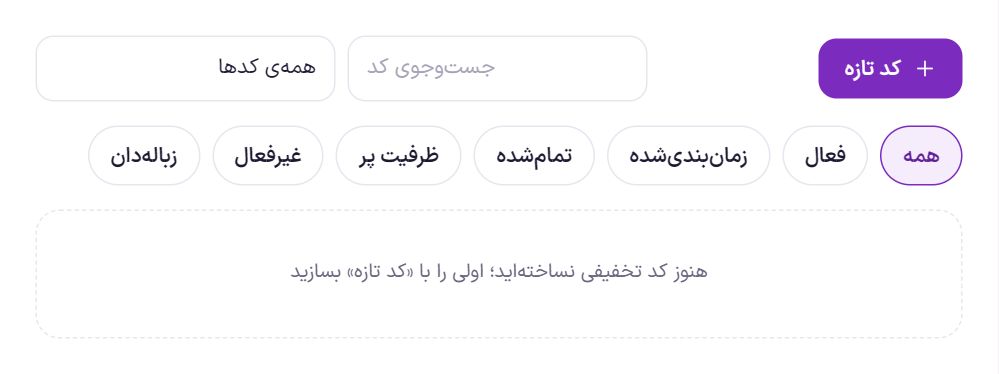
Each row of the list shows the code, the discount amount, the usage count, the time, and its status. Codes created with “Bulk create” carry the “Created in bulk” label, and you can view only those or only single codes.
| Status | Meaning |
|---|---|
| Active | The code is accepted right now. |
| Scheduled | The “From day” has not arrived yet. The buyer sees the message “This code becomes active from …”. |
| Expired | The “Until end of day” has passed. |
| Fully used | The code has been used as many times as “Total uses”. |
| Inactive | The “Active” switch is off. The code is kept but not accepted. |
| Trash | The code is deleted but can still be restored. |
Beside each code are these buttons: “Edit”, “Duplicate”, and “Trash”. “Duplicate” creates an inactive code with the same conditions; change its code and activate it. In “Trash”, “Restore” brings the code back inactive and “Delete permanently” erases it for good.
Creating or editing a code
“New code” or “Edit” opens the code form. The form has five sections.
| Option | What it does | Default |
|---|---|---|
| Code | What the buyer types. English letters and digits, at least two characters and no spaces. Letter case doesn’t matter. “Generate automatically” writes a random code. | Empty |
| Description (for you only) | A note the buyer doesn’t see, for example “Yalda campaign”. | Empty |
| Discount type | “Percentage of cart”, “Fixed amount off the cart”, or “Fixed amount off each item”. | Percentage of cart |
| Amount | The discount percentage or amount. A percentage above 100 is not accepted. | Empty |
| Maximum discount | The cap on a percentage discount. For example, 20% up to a cap of 500,000 Toman. Empty means no cap. | Empty |
| Free shipping | A shipping method set to “Free with a discount code” becomes free. | Off |
| Active | Off means the code is kept but not accepted. | On |
Time. Dates are Shamsi, like 1405/08/15.
| Option | What it does |
|---|---|
| From day | The code is accepted from the start of this day. Empty means from now. |
| Until end of day | The code is accepted until 23:59 of that day. Empty means always. |
Cart conditions.
| Option | What it does |
|---|---|
| Minimum cart total | The code is accepted only when the cart total is at least this amount. |
| Maximum cart total | Above this amount the code is not accepted. It must not be smaller than the minimum total. |
| Can’t be combined with another code | If this code is applied, no other code is accepted beside it. |
| Don’t apply to sale items | Products that have a sale price don’t get the discount. |
| First purchase only | For someone who is logged in and has no paid order yet. A guest must log in first. |
Products and categories. “Only these products”, “All except these products”, “Only these categories”, and “All except these categories”. Search for a product by name or ID and add it. Empty means all products.
Who and how many times.
| Option | What it does |
|---|---|
| Total uses | After this many uses, the code becomes “Fully used”. Empty means unlimited. |
| Uses per buyer | How many times each buyer can enter this code. |
| On how many cart items | For “Fixed amount off each item”: the discount is calculated on how many items. Empty means all. |
| Only these mobile numbers | One number per line. It is checked only against a mobile number the customer has verified with an SMS code, not a number typed in the billing form. |
| Only these emails | One email per line. *@company.ir means all emails of that domain. |
The button at the bottom of the form is “Create code” for a new code and “Save changes” for an existing one. If a date is wrong, the end day is before the start day, or the code is a duplicate, an error message appears and nothing is saved.
Usage report
At the bottom of each code’s edit form is the “Usage report”: the order, buyer, date, order status, and discount amount for each use.
Bulk create
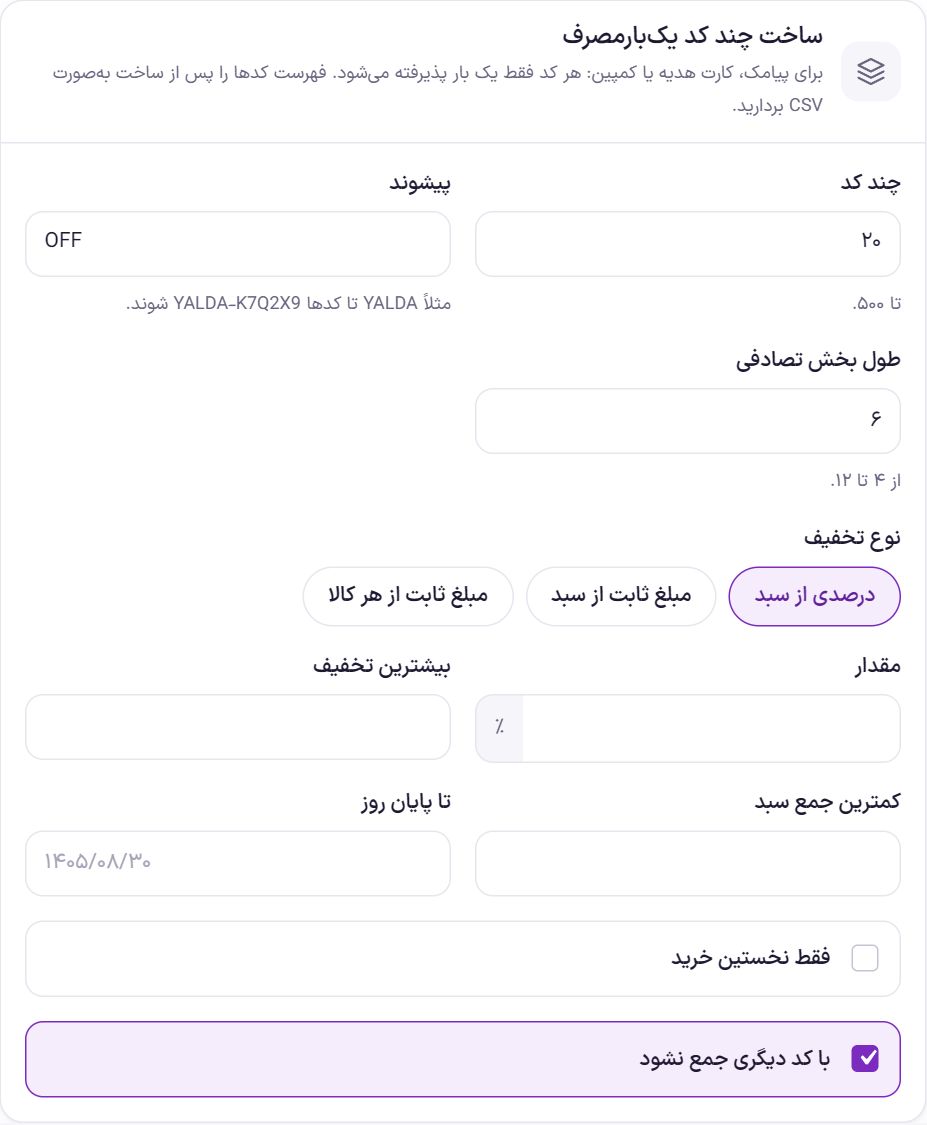
For SMS, gift cards, or campaigns: each code is accepted only once. All the codes made in one run have the same conditions.
| Option | What it does | Default |
|---|---|---|
| How many codes | From 1 to 500 codes. | Empty |
| Prefix | The fixed first part of the codes. For example YALDA makes codes like YALDA-K7Q2X9. English letters and digits only, up to 12 characters. | Empty |
| Random part length | From 4 to 12 characters. Characters that are easily confused (such as 0 and O or 1 and I) are not used. | 6 |
| Discount type | Like the single code form. | Percentage of cart |
| Amount | The discount percentage or amount. | Empty |
| Maximum discount | The discount cap, only for the percentage type. | Empty |
| Minimum cart total | The minimum cart total to be accepted. | Empty |
| Until end of day | The Shamsi end date. Empty means always. | Empty |
| First purchase only | Like the single code form. | Off |
| Can’t be combined with another code | Like the single code form. | On |
- Fill in the form and press “Create codes”. The codes are created active.
- Press “Download list (CSV)”. After creation, the number of codes created and this button appear above the form. Open the file in Excel or your SMS system.
- Distribute the codes. In the “Codes” tab, you can see these same codes with “Created in bulk”.
Frequently Asked Questions
A “First purchase only” code doesn’t work for guests.
Correct. Farin must know whether the buyer has purchased before, so the buyer has to log in. The message “Log in to your account first” is shown to them.
I created a code for a customer’s mobile but it isn’t accepted.
The customer must have logged in at least once with an SMS code for that number. A number that was only written in the billing form is not checked.
I deleted a code by mistake.
Press the “Trash” button at the top of the list and press “Restore” beside the code. The code comes back inactive; turn “Active” on by editing it.
Farin Theme · 1405