

Payment gateway
In this section you connect Iranian payment gateways to the shop, arrange their order on the checkout page, and set a discount or fee for each gateway. Completed payments are in “Payments”, and if you want, you can set up card-to-card with receipt review.
Where is it? Farin → Payment, SMS and Shipping → Payment gateway
Gateways work only when WooCommerce is active and the shop currency is Toman or Rial. If the currency is something else, a warning appears at the top of this page and Iranian gateways do not show on the checkout page. Change the currency in Currency Settings .
Gateways
This tab has several boxes: “Basics”, “Payment with VPN”, one box for each gateway, and finally “Return address”. Each box saves separately.
Setting up a gateway
- Get the keys from the gateway's panel. After approving your shop, each gateway gives you its own key or merchant code. If it asks, also register the return address written at the bottom of this tab in the gateway's panel.
- Open the gateway's box. Click the gateway's name to open its box and type the keys in “Gateway keys”.
- Click “Test connection”. If the keys are correct, a green message says the gateway returned a payment ID.
- Turn the gateway on and save. Flip the “Payment with … enabled” switch. From this moment shoppers see it on the checkout page.
- Make a small purchase. Before announcing it to shoppers, pay a real low-value order all the way through and check the result in “Payments”.
Basics
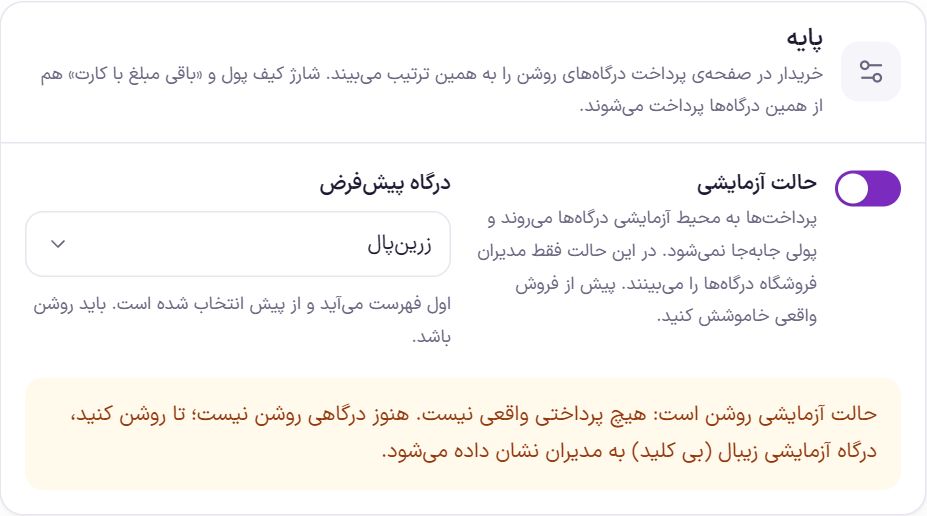
The shopper sees the enabled gateways in the same order you arrange them in this tab. Wallet top-up and “rest of the amount by card” are paid through these same gateways; they need no separate setting.
| Option | What it does | Default |
|---|---|---|
| Test mode | Payments are sent to the gateway's test environment. In this mode gateways are shown only to shop administrators, and a regular shopper does not see them. If no gateway is on, the Zibal test gateway, which needs no key, is shown to administrators. When you turn it off, the panel asks whether you are sure, because from that moment payments are real. | Off |
| Default gateway | The gateway that comes first in the checkout list and is preselected. It must be on; if you choose an off gateway, the first enabled gateway becomes the default. A “Default” label appears next to the default gateway's name. | First enabled gateway |
Payment with VPN
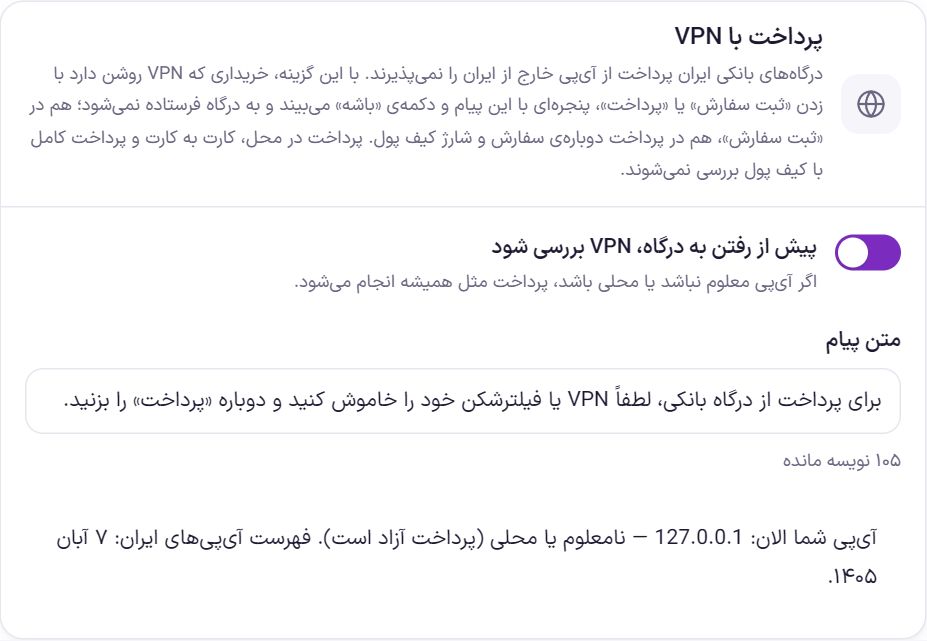
Iranian bank gateways do not accept payments from an IP outside Iran. Without this option, a shopper with a VPN on goes to the gateway and fails there. With this option, before sending the shopper to the gateway, Farin checks their IP against the list of Iranian IPs. If they are outside Iran, when they press “Place order” or “Pay” they see a window with the message text and an “OK” button and are not sent to the gateway. This check happens on placing an order, paying an order again and wallet top-up.
| Option | What it does | Default |
|---|---|---|
| Check for VPN before going to the gateway | Turns the IP check on or off. If the IP is unknown or local, payment goes ahead as usual. Cash on delivery, card-to-card and full payment by wallet are not checked. | On |
| Message text | The message the shopper sees with a VPN on. Up to 200 characters. Leave it empty and the default text returns. | “To pay through the bank gateway, please turn off your VPN or proxy and press ‘Pay’ again.” |
Each gateway's box
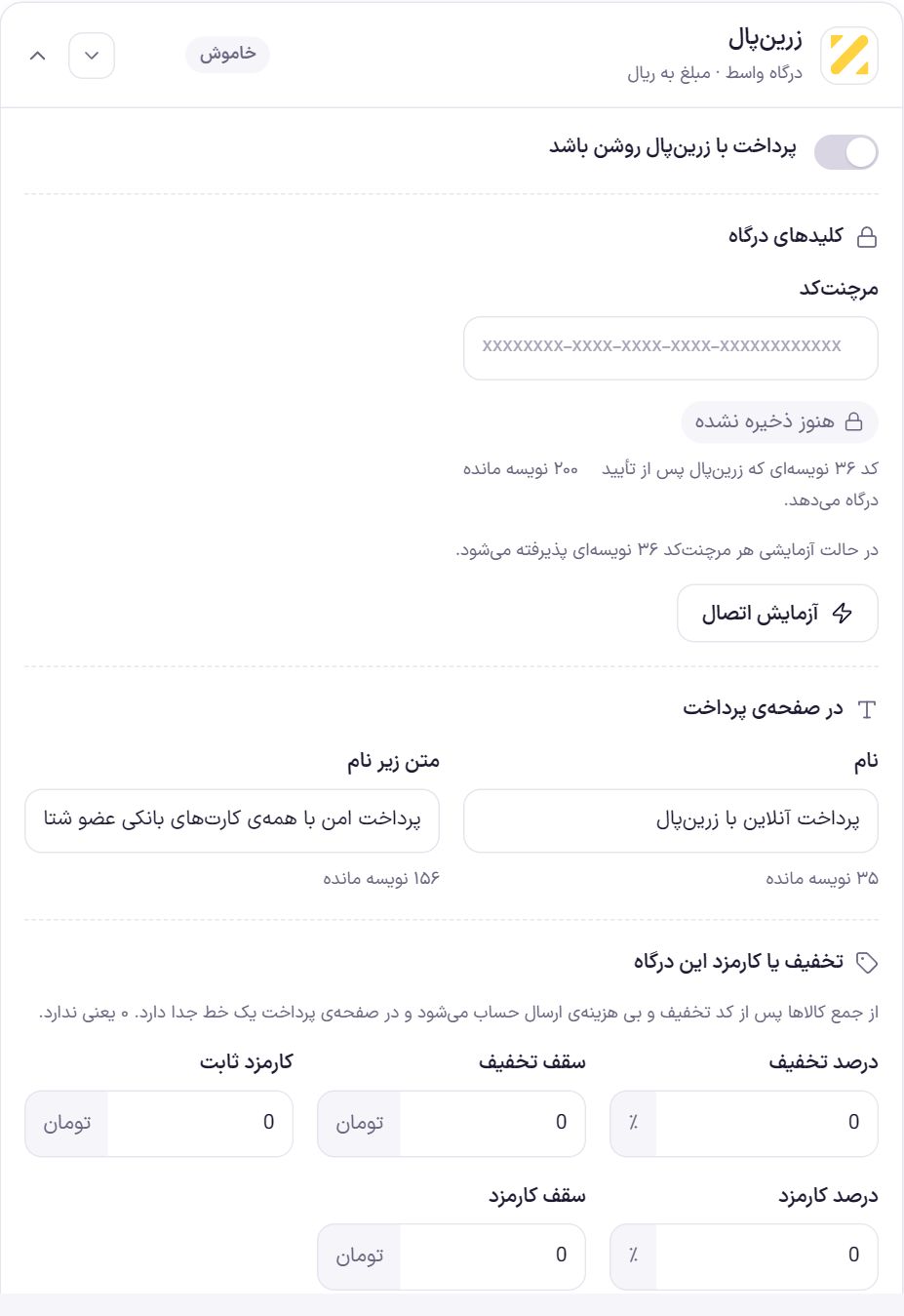
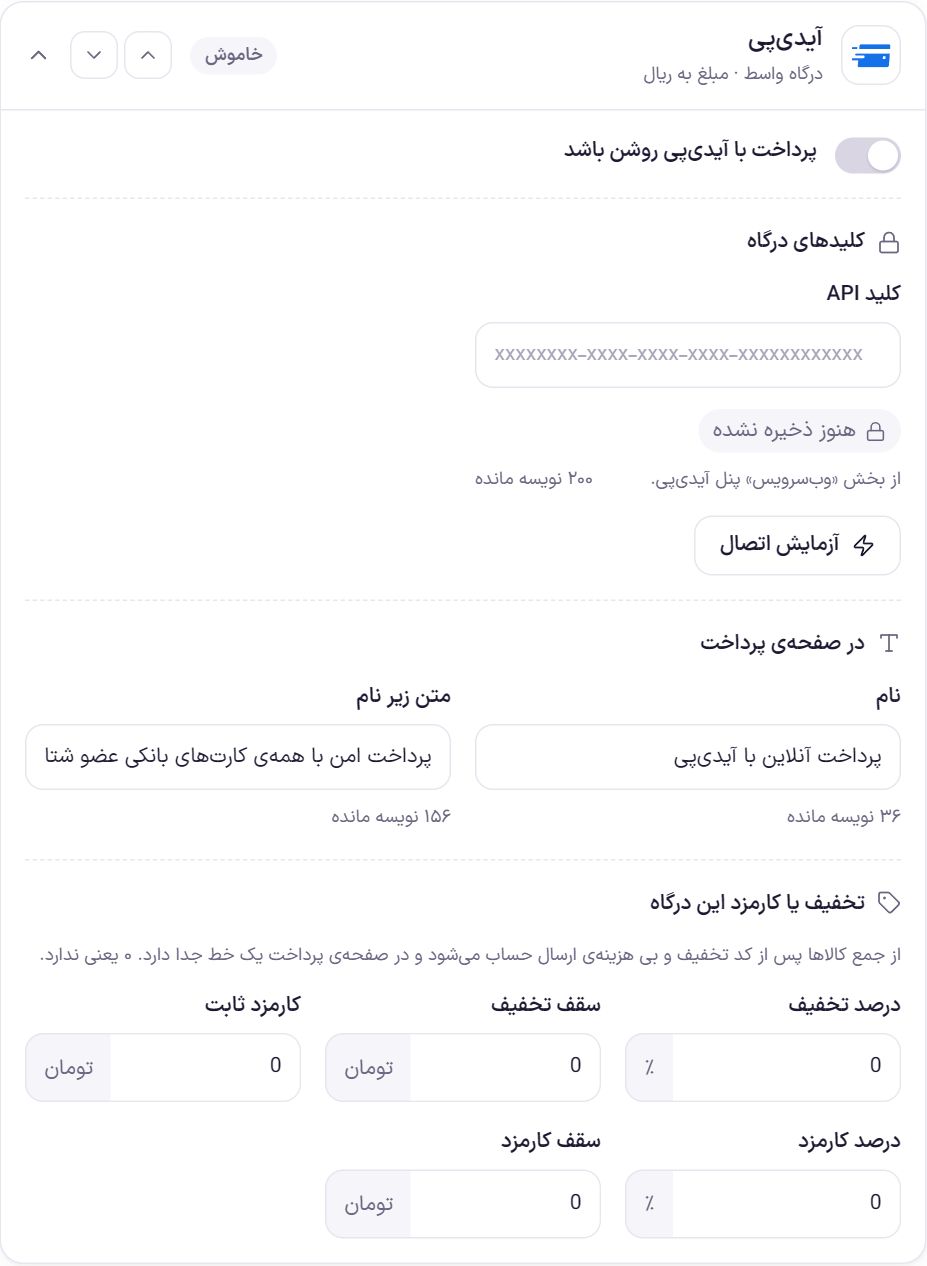
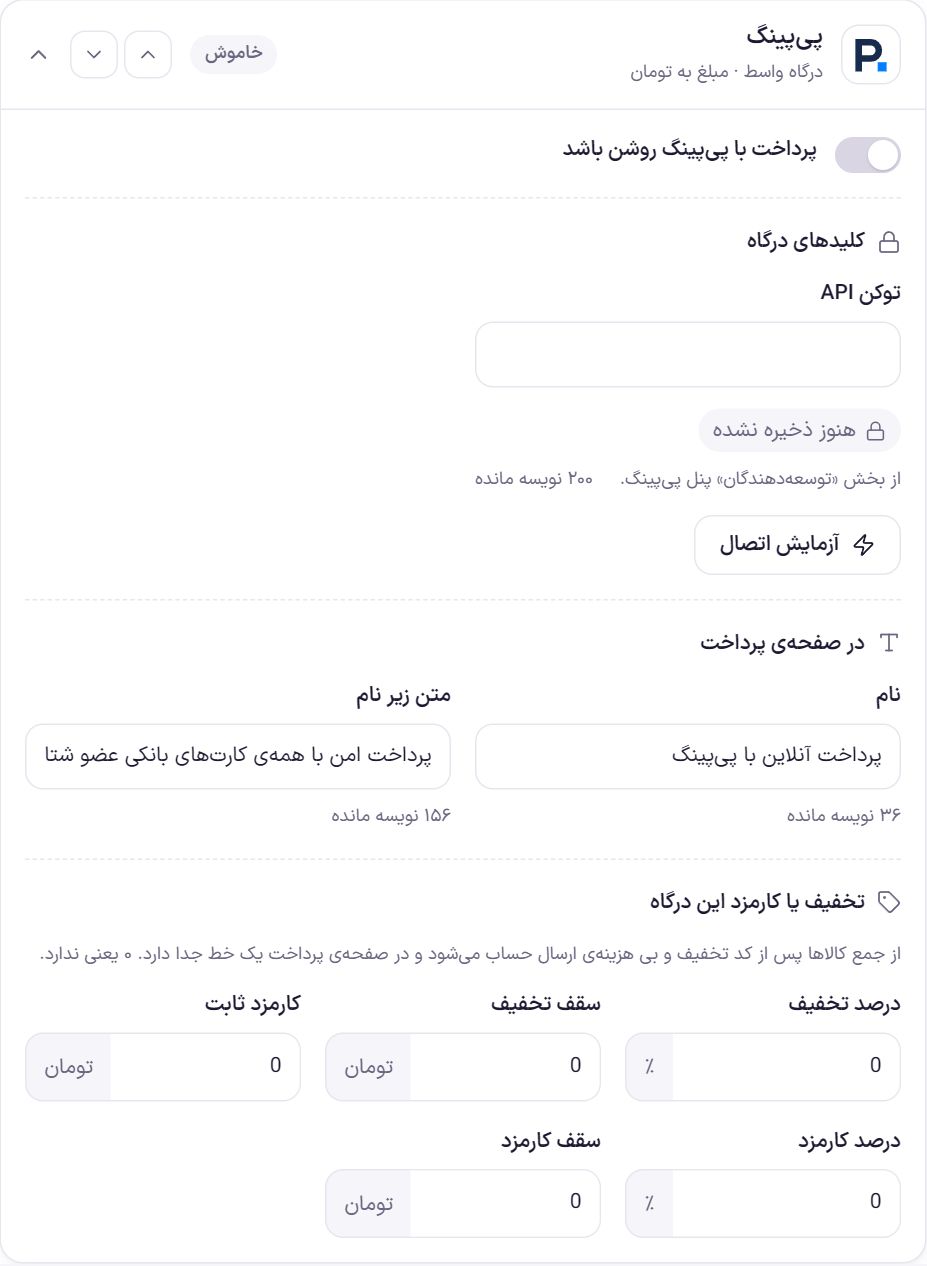
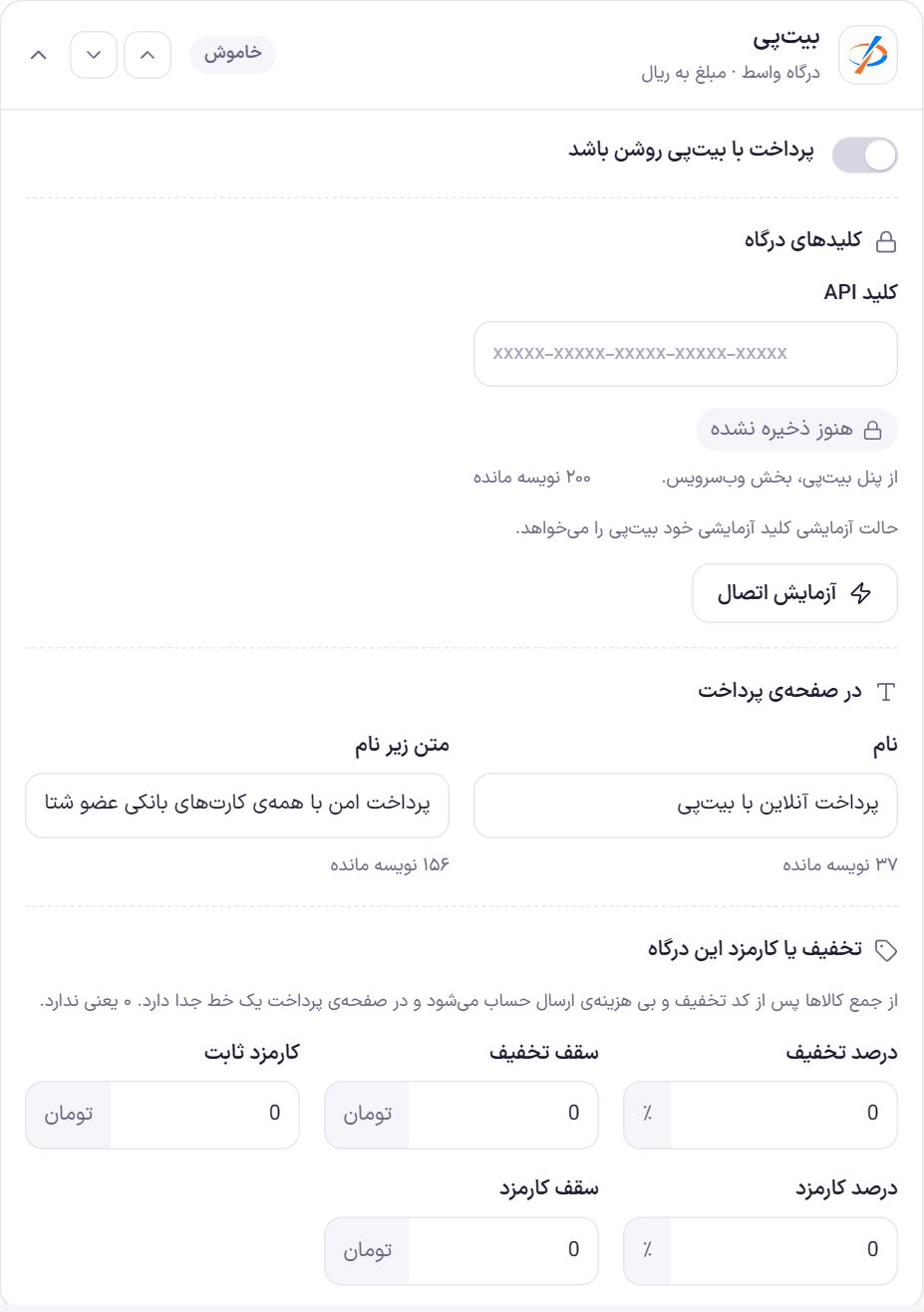
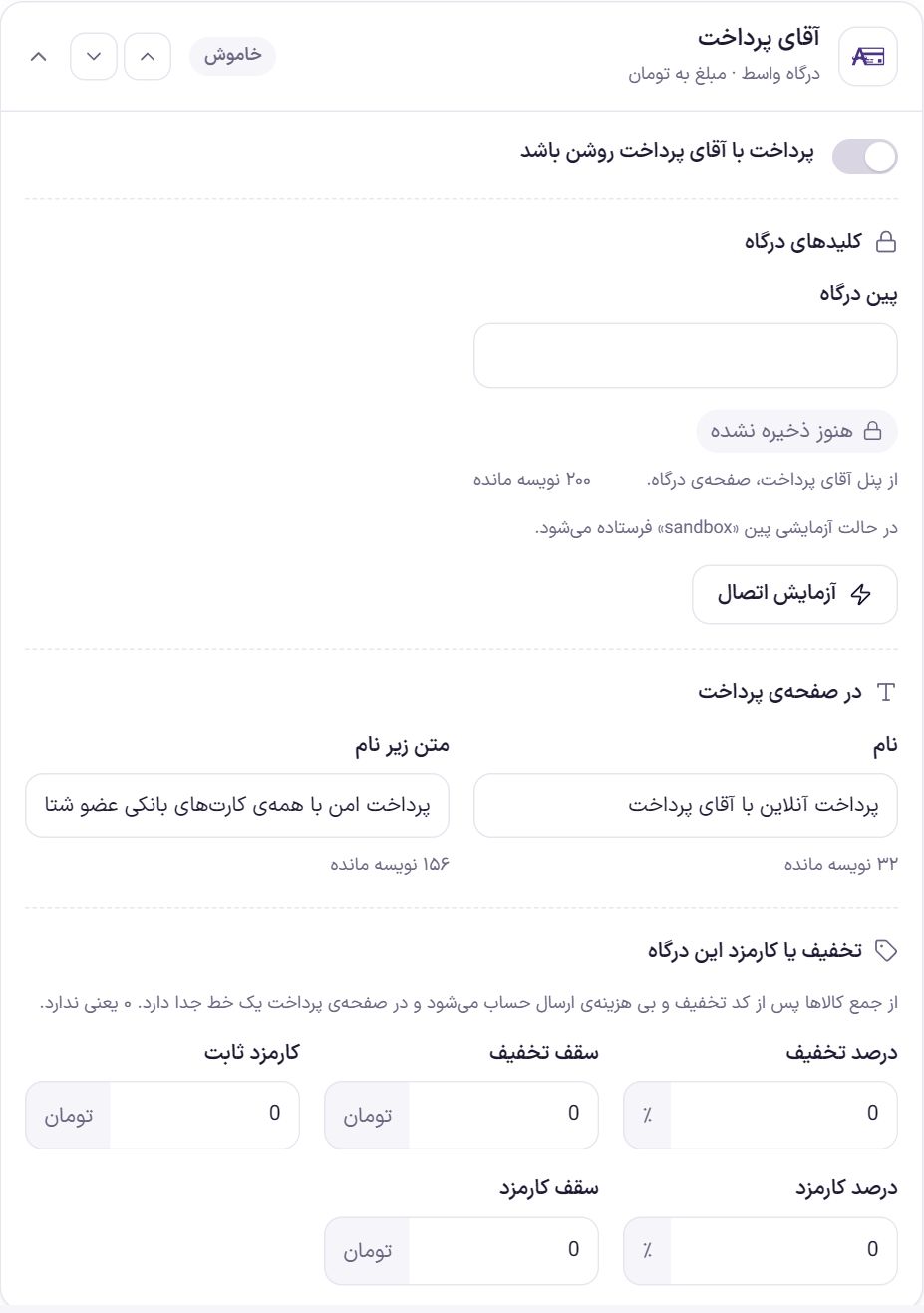
Each gateway has its own box. The box header shows the gateway's name and logo, its type (intermediary gateway or direct bank gateway) and the unit the gateway calculates in (Toman or Rial). Converting the amount to the gateway's unit is automatic and you need do nothing. The label beside it tells the status:
- Off: The gateway is not on the checkout page.
- On: The gateway is on and all its keys are filled in.
- Incomplete key: The gateway is on but one of its key fields is empty; until it is filled, it is not shown to shoppers.
With the two arrow buttons at the top of the box, move the gateway up or down the list. The checkout page order is this order, and the default gateway always comes first. If the shopper's wallet covers the whole order, the wallet stays above all.
| Option | What it does | Default |
|---|---|---|
| Payment with … enabled | Brings the gateway to the checkout page, provided its keys are complete. | Off |
| Gateway keys | The fields each gateway needs to recognize your shop. Their list is below. | Empty |
| Test connection | With the values currently in the fields, even if not yet saved, it asks the gateway for a 10,000 Toman payment. If the gateway returns a payment ID, the message says the connection is working and which address the shopper would be sent to; otherwise it shows the gateway's own error message. No one is charged and nothing is saved. | |
| Name | The name the shopper sees in the list of payment methods. Up to 60 characters. | Online payment via the gateway name |
| Text under the name | A short sentence under the gateway's name. Up to 200 characters. | Secure payment with all Shetab member bank cards. |
| Discount percent | The percentage taken off the amount when this gateway is chosen. From 0 to 100. | 0 |
| Discount cap | The largest discount, in the shop's currency. 0 means no cap. | 0 |
| Fixed fee | An amount added to the order when this gateway is chosen. | 0 |
| Fee percent | A percentage added on top of the fixed fee. From 0 to 100. | 0 |
| Fee cap | The largest fee, fixed and percentage together. 0 means no cap. | 0 |
Gateway discount and fee
A discount and a fee both change the amount the shopper pays. Both are calculated on the sum of items after the coupon and without shipping, and each has its own line on the checkout page: “Discount for paying with …” and “Fee for paying with …”. When the gateway is changed, these lines change too.
Example: the sum of items is 2,000,000 Toman, “Discount percent” is 5 and “Discount cap” is 50,000 Toman. Five percent is 100,000 Toman, but the cap brings it to 50,000 Toman.
Each gateway's keys
Farin has these ten gateways. Fields marked “secret” are hidden after saving (explained below).
| Gateway | Fields | Note |
|---|---|---|
| Zarinpal | Merchant code (secret) | The 36-character code Zarinpal gives after approving the gateway. In test mode any 36-character merchant code is accepted. |
| Zibal | Merchant key (secret) | From the Zibal panel, the gateway page. No key is needed in test mode. |
| IDPay | API key (secret) | From the “Web service” section of the IDPay panel. |
| PayPing | API token (secret) | From the “Developers” section of the PayPing panel. Amount in Toman. |
| BitPay | API key (secret) | From the BitPay panel, the web service section. Test mode needs BitPay's own test key. |
| Aghayepardakht | Gateway PIN (secret) | From the Aghayepardakht panel, the gateway page. In test mode the PIN sandbox is sent and your own PIN is not needed. |
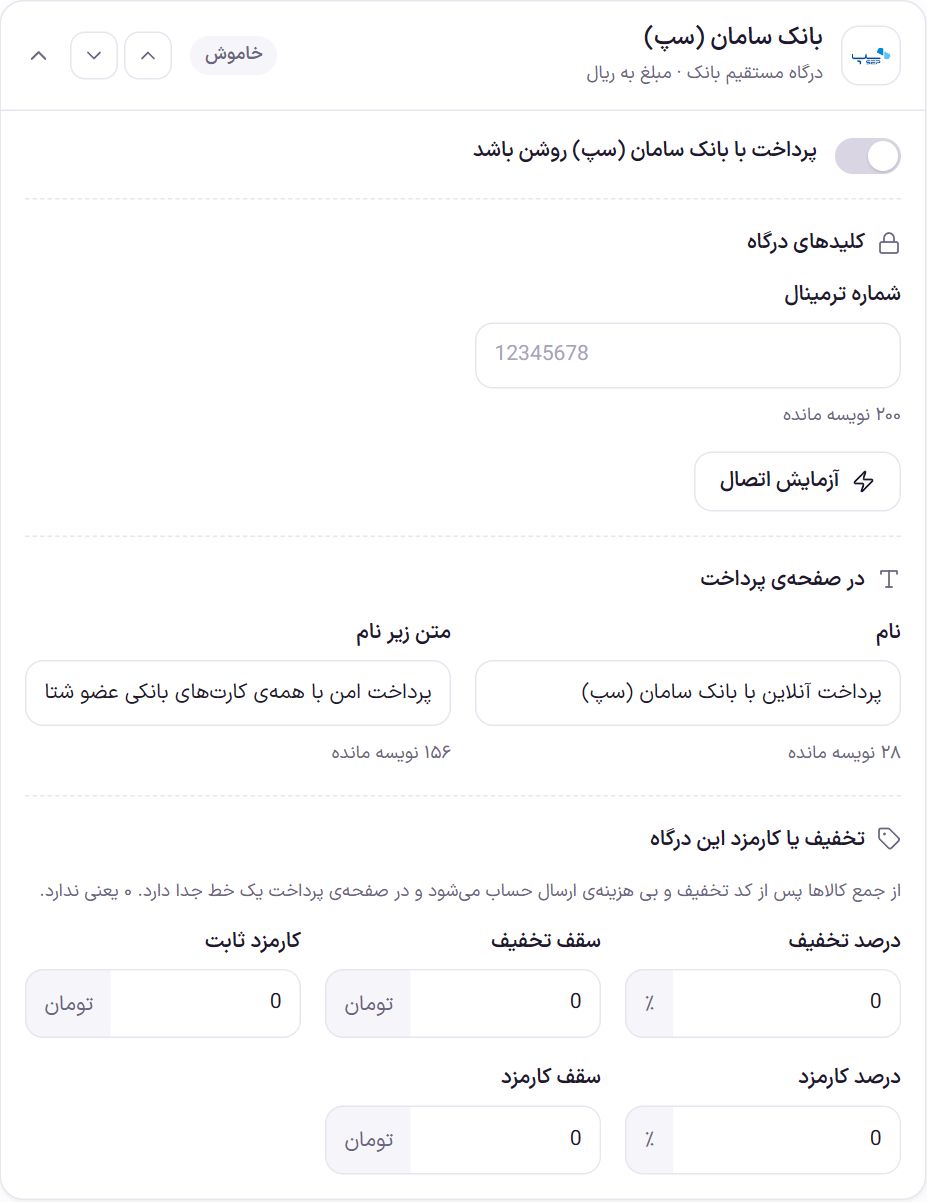
| Saman Bank (SEP) | Terminal number | Direct bank gateway. |
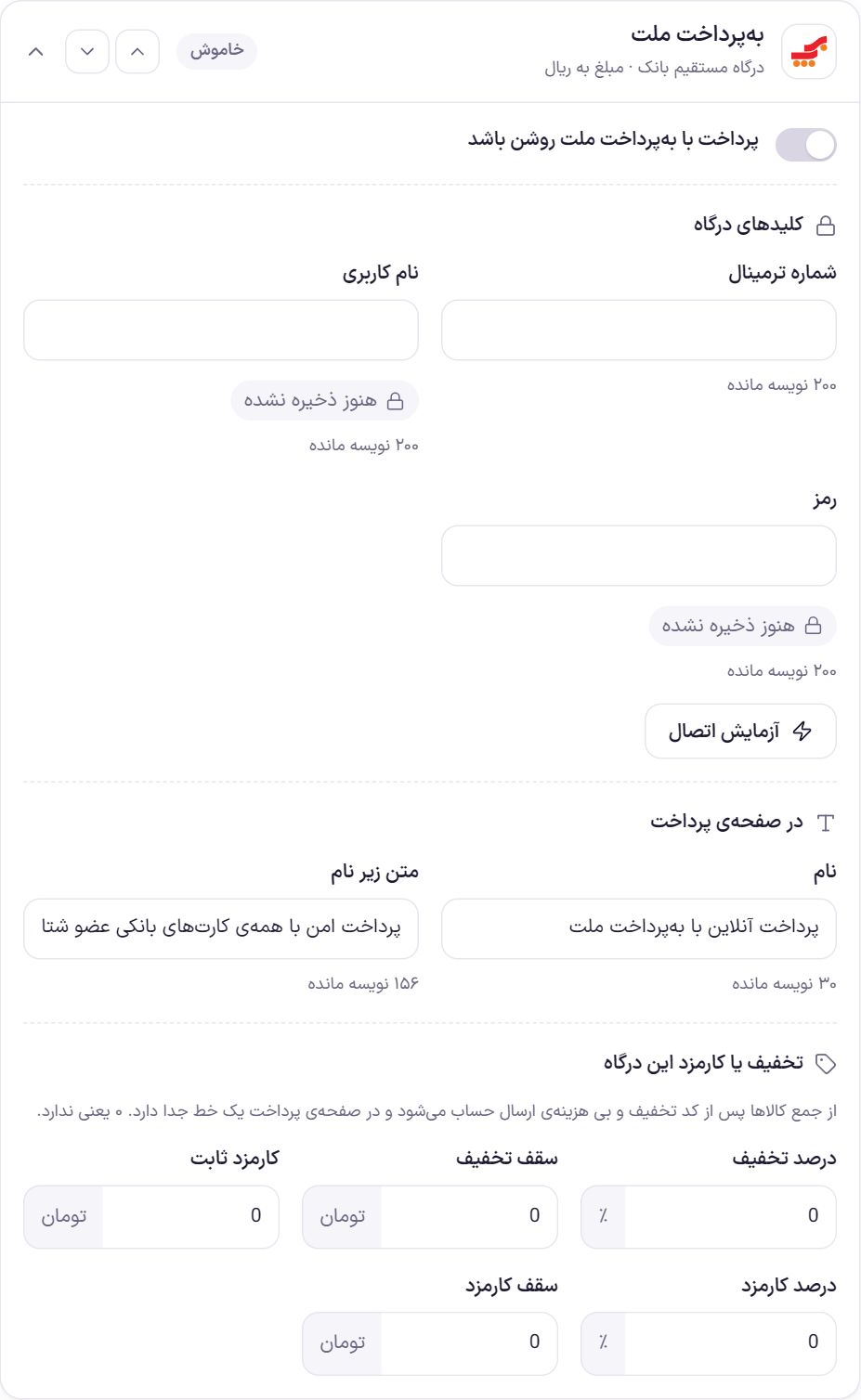
| Behpardakht Mellat | Terminal number, username (secret), password (secret) | Direct bank gateway. |
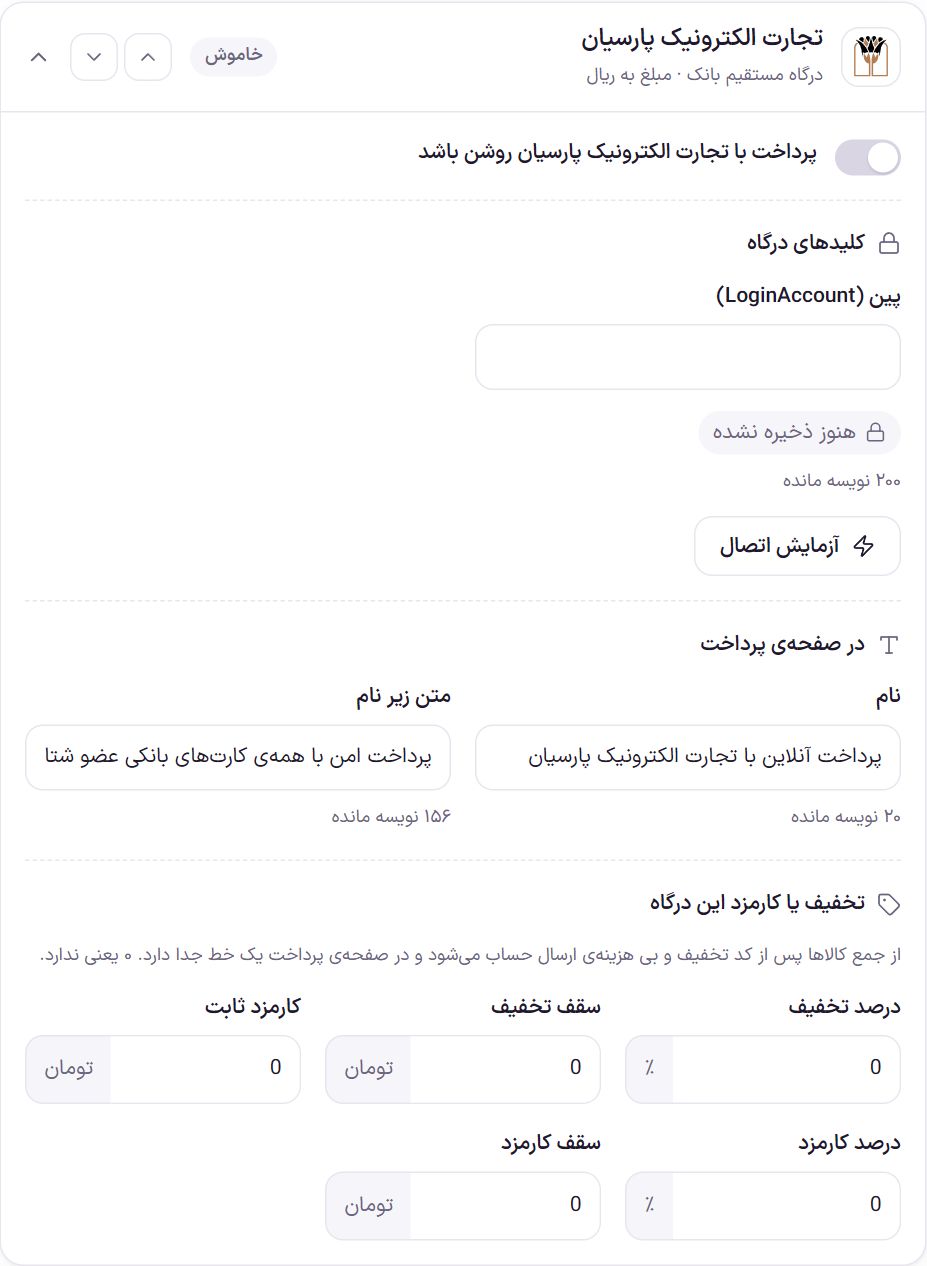
| Parsian E-Commerce | PIN (LoginAccount) (secret) | Direct bank gateway. |
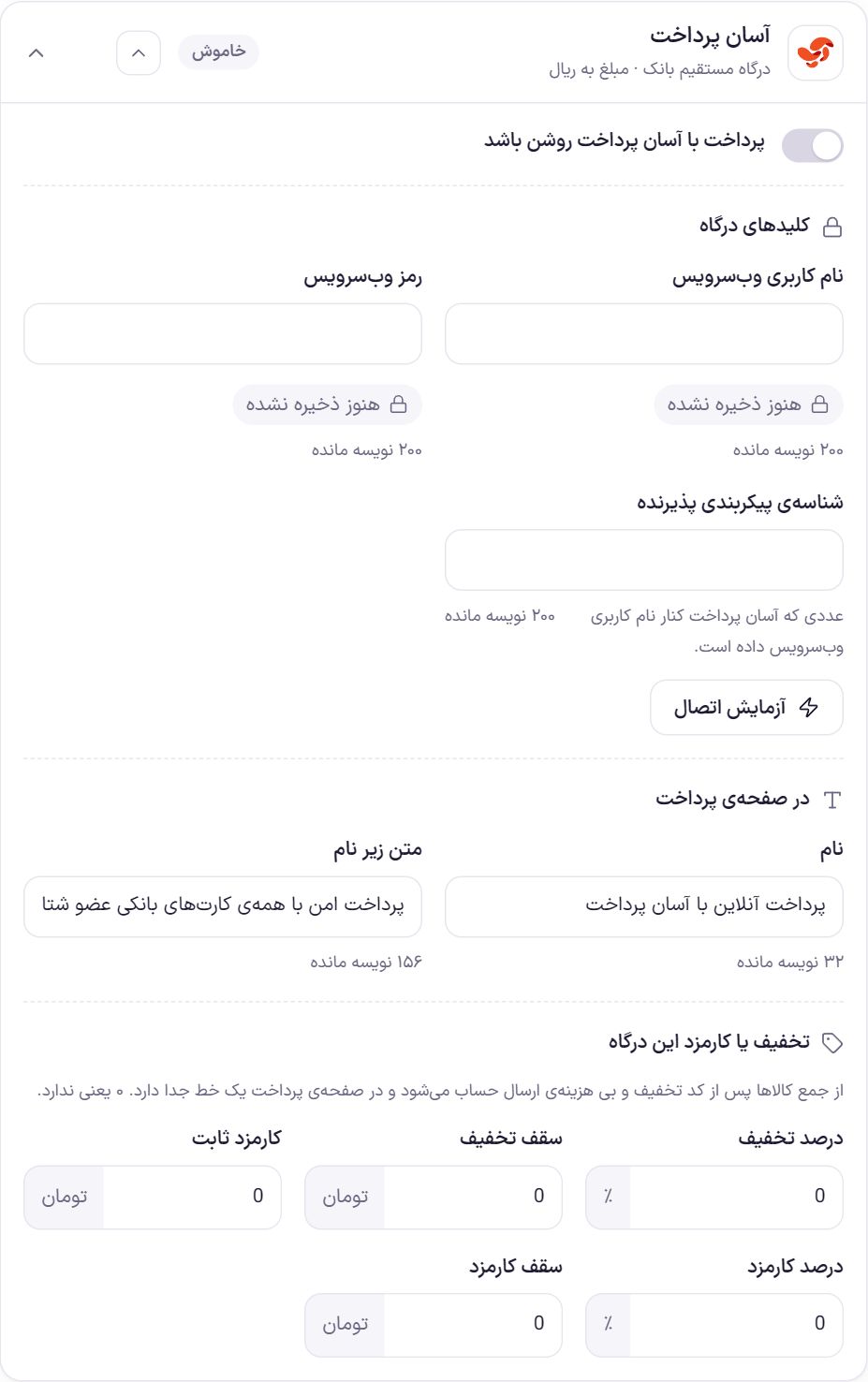
| Asan Pardakht | Web service username (secret), web service password (secret), merchant configuration ID | A numeric ID that Asan Pardakht gives alongside the web service username. |
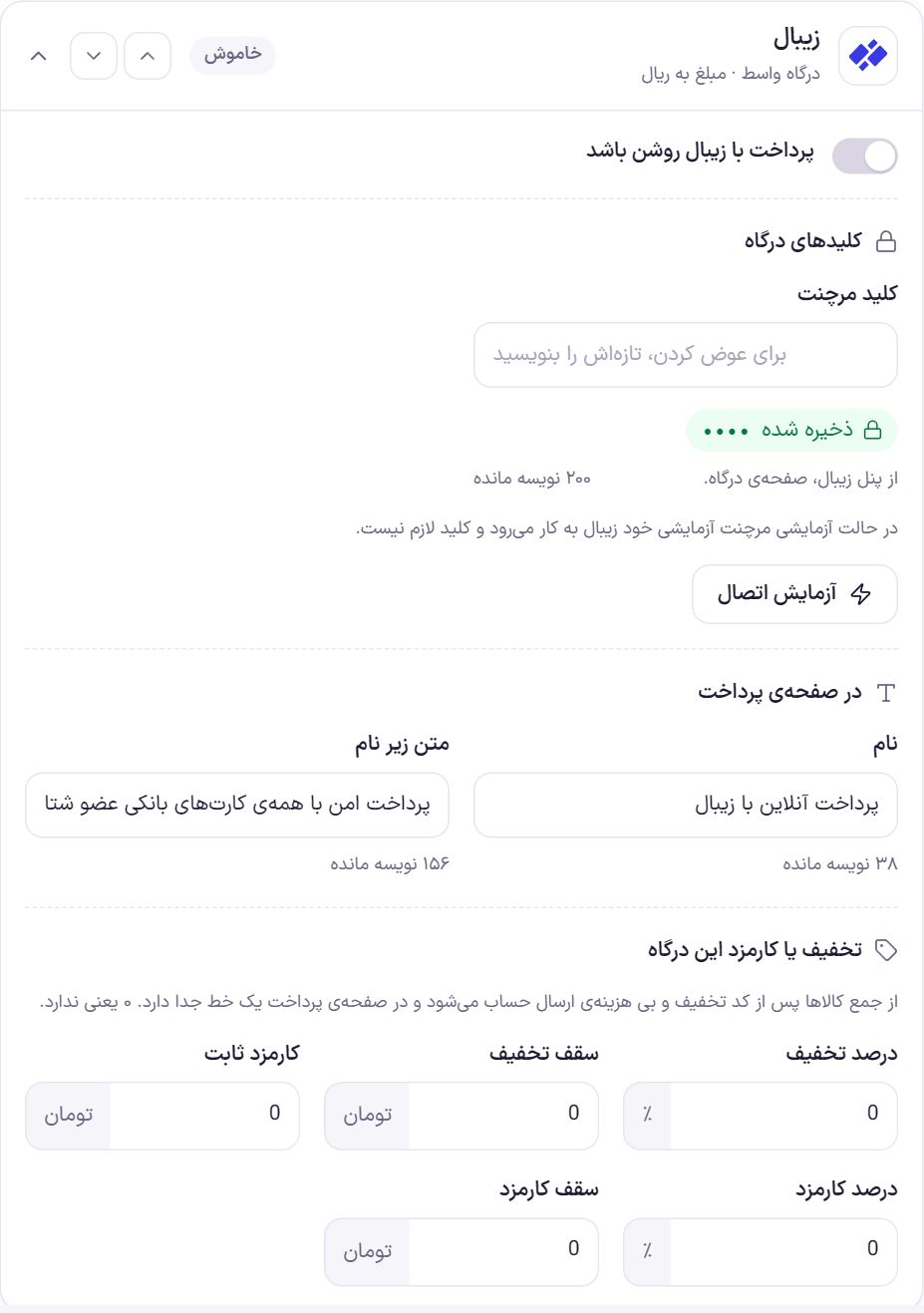
On saving, spaces on both sides and invisible characters that sometimes come along when copying a key are removed, and Persian digits are converted to Latin (except in secret fields, which stay exactly as you typed them).
Plugin gateways
If you have installed another gateway plugin (for example the Digipay or Zarinpal plugin), a box with its name appears before “Return address”. These gateways appear on Farin's checkout page with their own name, logo and fields beside the gateways above. The box shows only whether they are on or off, and the “Settings” link takes you to that gateway's page in WooCommerce.
Return address
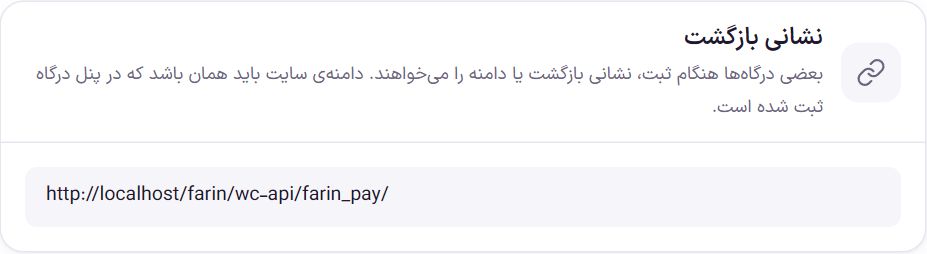
After paying, the shopper returns to this address and Farin asks the gateway about the payment. Some gateways ask for the return address or the domain at registration. The site's domain must be the same one registered in the gateway's panel; if you change the domain or move from http to https , update it in the gateway's panel too.
Payments
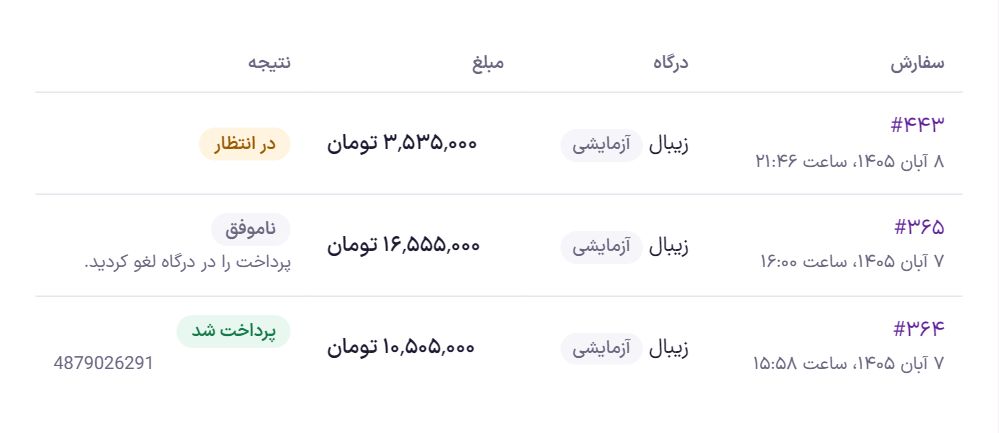
This tab is view-only. Orders that were paid, or were meant to be paid, with one of Farin's gateways are listed from newest to oldest, 30 per page.
| Column | What it shows |
|---|---|
| orders | The order number and its date. Click the number to open the order page with all its notes. |
| Gateway | The gateway of the latest payment attempt. If that attempt was in test mode, a “Test” label appears beside it. |
| Amount | The order total. |
| Result | “Paid” with the bank tracking code, “Failed” with the reason the gateway gave, or “Pending”. |
“Pending” means the shopper went to the gateway but the payment has not yet been confirmed. When the gateway is unreachable, the order also stays pending, because the bank may have taken the money. If the shopper paid less than the order's current amount (for example the order changed after they went to the gateway), the order is not recorded as paid and stays in WooCommerce's “On hold” status for your review; read the order note before shipping.
Card-to-card
The shopper deposits the order amount to the shop's card and sends the receipt from the order page. Until you review it, the order stays in WooCommerce's “On hold” status and the stock of its items is held for them. An order becomes paid only with your approval.
Preview
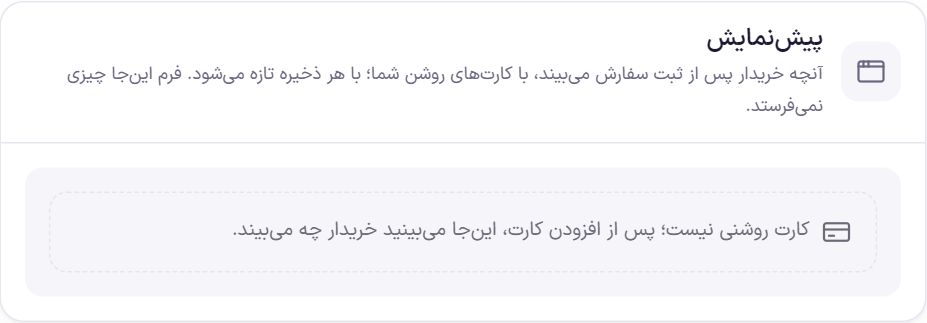
What the shopper sees after placing an order, with your enabled cards. It refreshes with every save. The form in this preview sends nothing.
Receipts awaiting review
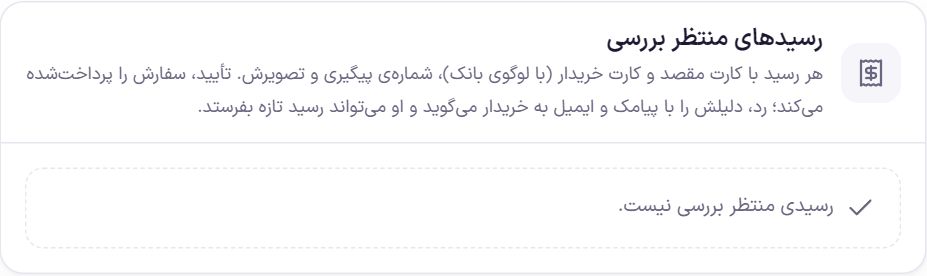
Each receipt shows the destination card and the shopper's card (with the bank logo), the cardholder's name, the tracking number, the deposit time, the order amount at the moment of sending and the receipt image. Click the image to open it large. You can do two things:
- “Approve and mark paid”: Before approving, the panel asks “Did you see the deposit in the account?”. On approval the order is recorded as paid and WooCommerce's usual process (emails, SMS, preparation) begins. The name of the person who approved stays in the order note.
- “Reject receipt”: Choose one of the ready-made reasons or write your own, and press “Reject and notify buyer”. The reason is recorded as a note to the buyer; WooCommerce emails it, and if the “Note to buyer” SMS is on in SMS Panel it is sent as SMS too. The shopper can send a new receipt, and their deadline is extended by at least as much as the first deadline.
This same box is on the edit page of every card-to-card order. A WooCommerce shop manager without access to the “Payment gateway” section reviews receipts from there. While any receipt is awaiting review, “Card-to-card receipt” with the number of receipts shows in the dashboard's top bar.
Card-to-card
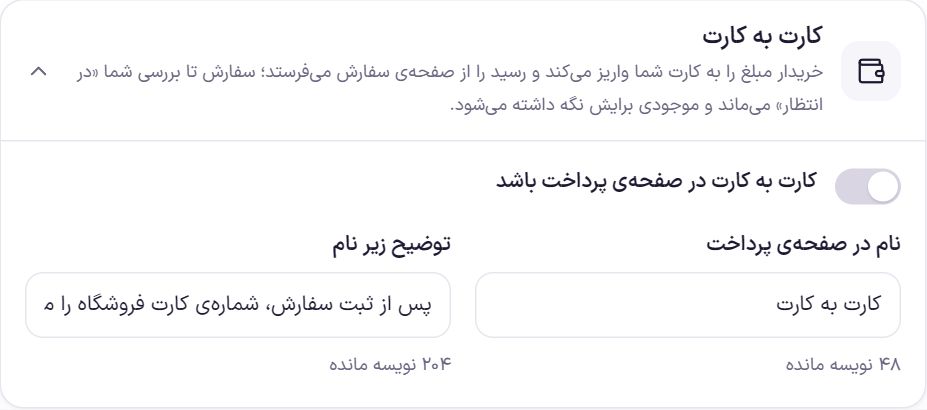
| Option | What it does | Default |
|---|---|---|
| Card-to-card on the checkout page | Brings this method to the checkout page. Until you have at least one card on, the shopper does not see it. | Off |
| Name on the checkout page | Up to 60 characters. | Card-to-card |
| Text under the name | Up to 300 characters. | After placing the order you see the shop's card number; deposit the amount and send the receipt right there. |
Shop cards
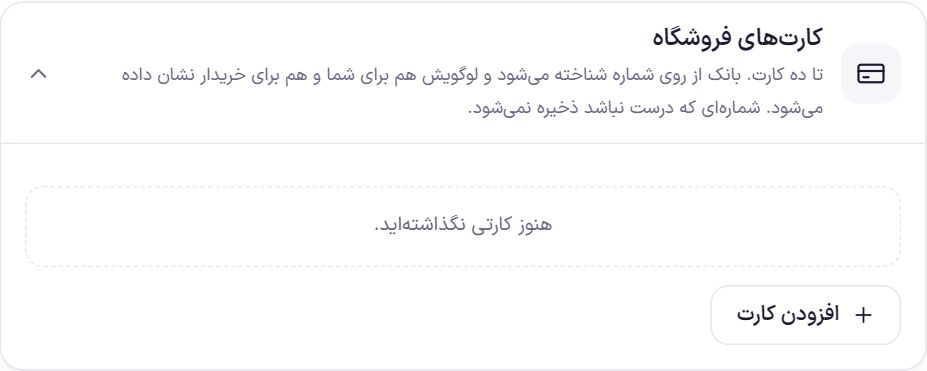
You can add up to ten cards. Each card has these fields: “Card number”, “Account holder's name”, “Sheba number (optional)”, “Note to buyer (optional)” and an “On” switch. The shopper sees only the cards that are on; change their order with the “Move up” arrow.
- The bank is recognized from the card number, and its logo is shown to you and to the shopper.
- A card number that is not valid is not saved, and the panel tells you before saving. The account holder's name is also required so the shopper is sure they are depositing to the right account.
- An incorrect Sheba is not saved, but the card itself is saved.
- If you delete a card, orders deposited to it still show it.
Rules
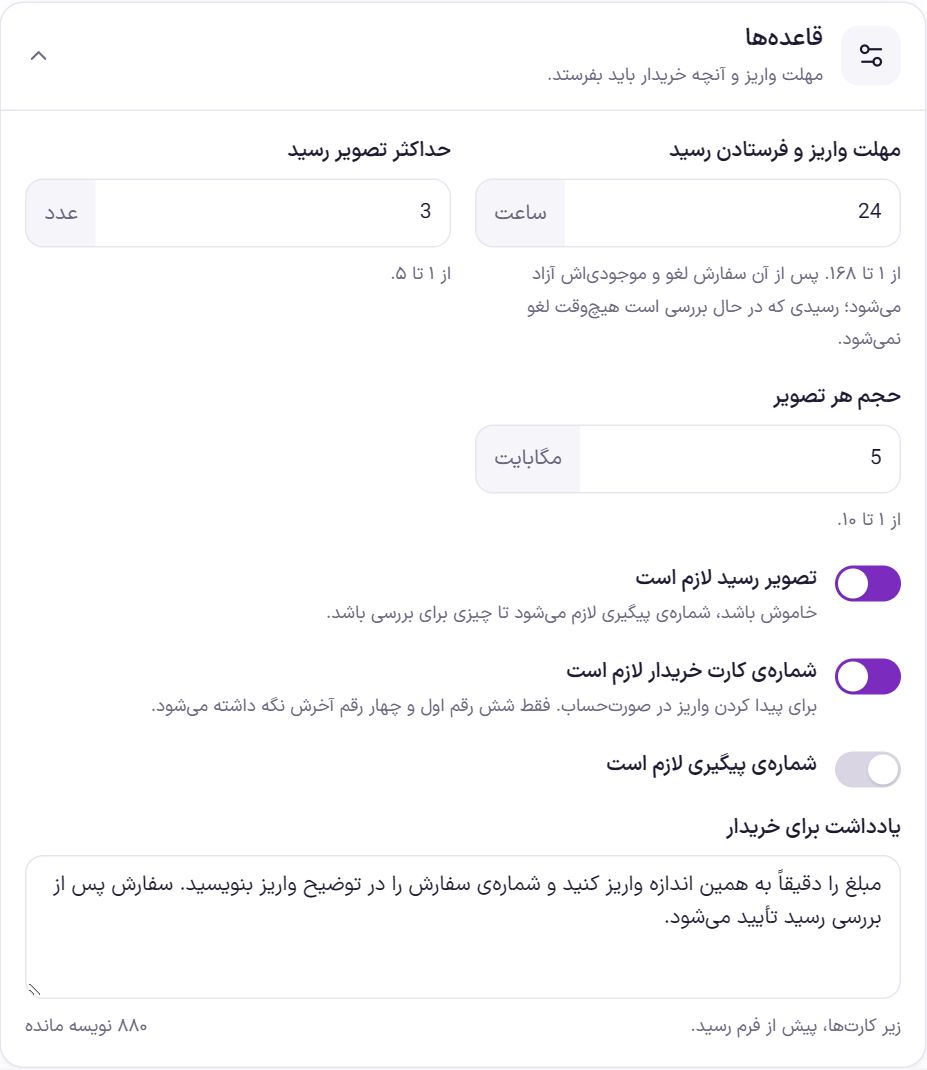
| Option | What it does | Default |
|---|---|---|
| Deadline to deposit and send the receipt | From 1 to 168 hours. If no receipt arrives by the end of the deadline, the order is canceled and the stock of its items is released. An order whose receipt is under review is never canceled automatically. | 24 hours |
| Maximum receipt images | How many images the shopper can send with each receipt. From 1 to 5. | 3 |
| Size of each image | From 1 to 10 MB. | 5 MB |
| Receipt image required | Without an image, the receipt is not sent. If you turn it off, “Tracking number required” turns on by itself so there is something to review. | On |
| Shopper's card number required | For finding the deposit in the statement. Only the first six and last four digits of the shopper's card are kept. | On |
| Tracking number required | The shopper must write the deposit's tracking number. | Off |
| Note to buyer | The text that appears under the cards, before the receipt form. Up to 1000 characters. | Deposit exactly this amount and write the order number in the deposit description. The order is confirmed after the receipt is reviewed. |
Frequently Asked Questions
I turned the gateway on but the shopper does not see it.
Check three things: the label on the gateway's box is not “Incomplete key”, “Test mode” is off (in that mode only administrators see gateways), and the shop currency is Toman or Rial.
I can no longer see the key I saved. How do I know it is right?
For security, keys are not shown after saving. Press “Test connection”; with an empty field, the saved key is the one tested. If the key is long, its last four characters beside “Saved” also help.
Our shop manager does not see the Payment gateway section.
This is intentional. The gateway key decides which account the money goes to, so this section is only for the site's main administrator and cannot be opened through “Access” either. A shop manager reviews card-to-card receipts from the order page itself.
A shopper says they cannot pay with a VPN.
Iranian bank gateways do not accept foreign IPs, and with the “Check for VPN before going to the gateway” option Farin tells the shopper exactly that. They must turn the VPN off and press “Pay” again.
Farin Theme · 1405