

Backup and Transfer
This tab makes one file out of all Farin settings and imports that same file again. With it you take a backup before big changes, or move the site's settings and images to a new host or domain.
Where is it? Farin → Settings → Backup and Transfer
Moving the site to a new host
If you are moving the whole site, go in this order:
- On the new site, install WordPress, WooCommerce, Elementor and Farin. Guide in Installing the Theme .
- On the old site, take the settings file. In “Export Farin settings”, if you want the keys too, tick “Include secret keys in the file” and press “Download settings file”.
- Move the media. If the old site stays up until the end, take the media list from the “Media” box and import it on the new site. If it does not stay up, use “Zip of all media”.
- Move the products and pages. With the buttons of the “Products and pages” box.
- Import the settings on the new site. In “Import settings”, choose the file and press “Import”.
Export Farin settings
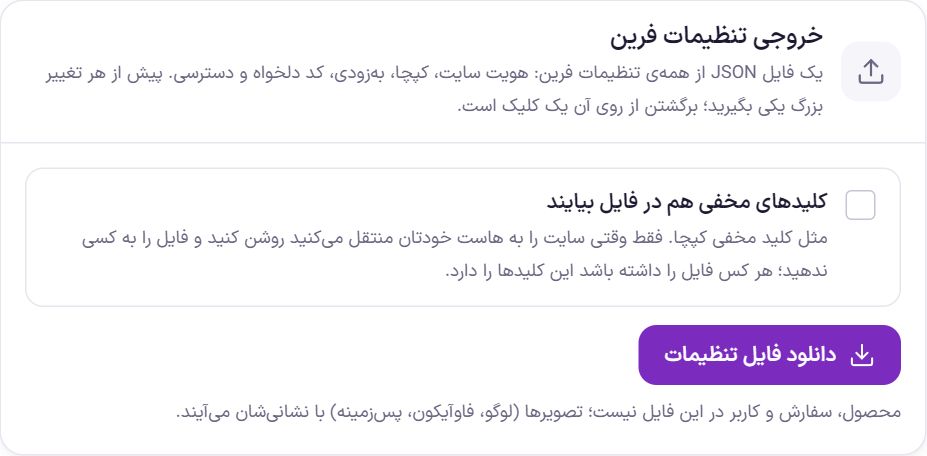
The file includes site identity, captcha, coming soon, custom code, access, currency settings and Site Content settings. Take one before any big change; going back from it is easy.
- Products, orders and users are not in this file.
- Images, such as the logo, favicon and backgrounds, come in the file with their addresses and are downloaded from those addresses on import.
- Rates you set manually for currencies and font files you uploaded stay on this site; if a font is not on the new site, IRANSansX takes its place.
| Option | What it does | Default |
|---|---|---|
| Include secret keys in the file | Secret keys, such as the captcha secret key and the currency rate service key, are written to the file too. When off, these keys stay empty. | Off |
Import settings
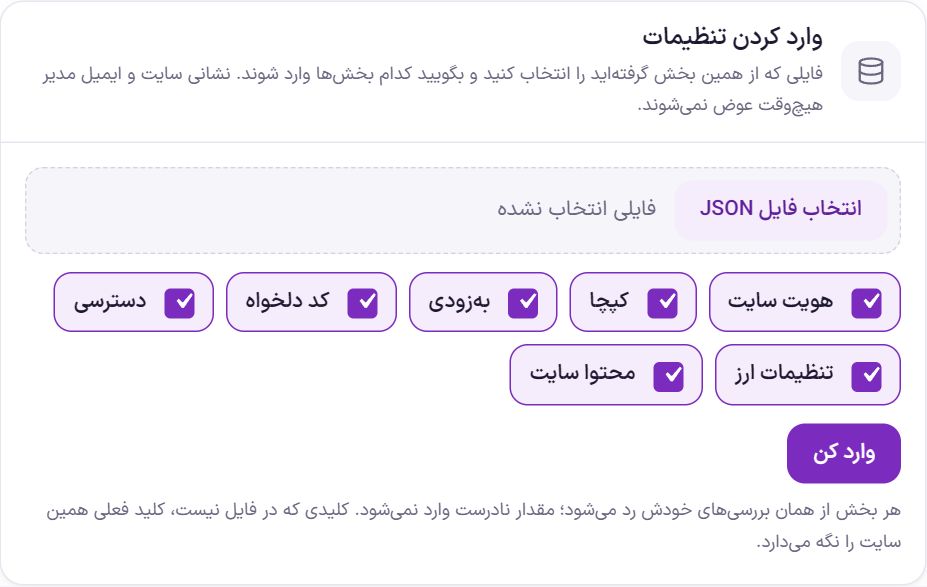
Only a file taken from this same Farin section is accepted. Sections: “Site identity”, “Captcha”, “Coming soon”, “Custom code”, “Access”, “Currency settings” and “Site content”. All are ticked beforehand.
- Before importing, a confirmation message appears: the settings of the chosen sections will be replaced with the file's content.
- The site address, WordPress address and administrator email are never changed from the file.
- Every value goes through the same checks it has in the panel; an invalid value is not imported.
- A key that is not in the file keeps this site's current key.
- After importing, a message says which sections were imported and, if an image could not be downloaded, which one it was.
Media
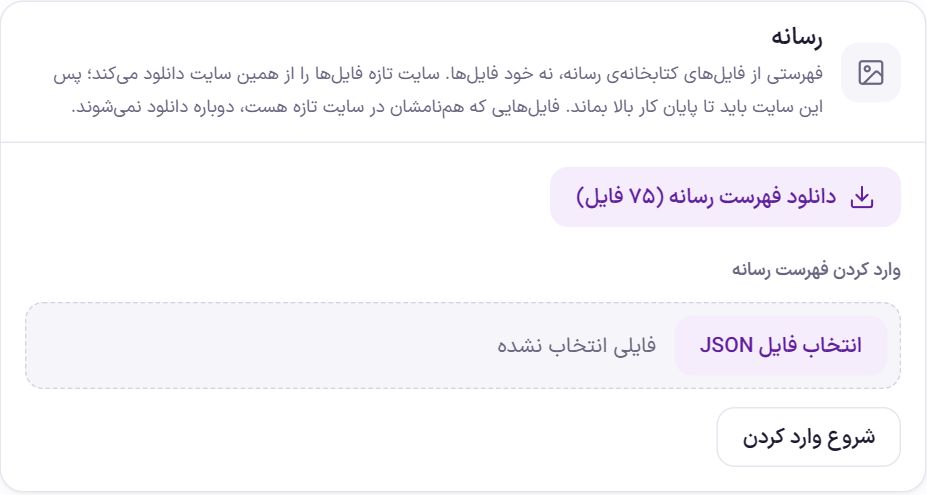
“Download media list” gives a list of the media library files, not the files themselves. On the new site, give this same list to “Import media list” and press “Start import”. The new site downloads the files one by one from the old site and shows a progress bar.
- The old site must stay up and reachable until the work is done.
- A file whose namesake already exists on the new site is not downloaded again.
- With “Stop and clear queue” you stop the job halfway.
Zip of all media
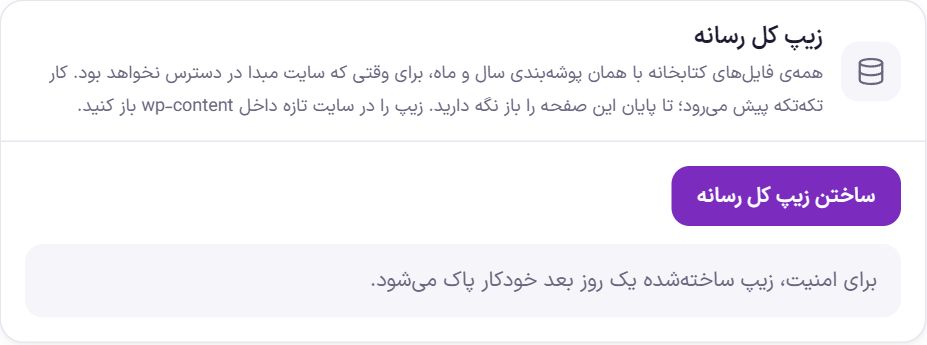
“Create zip of all media” puts all the library's files, with the same year and month folder structure, in one zip file. The work proceeds in pieces and has a progress bar; keep this page open until the end. Once it is created, “Download media zip” appears. On the new site, extract the zip into the folder wp-content .
For security, the created zip is deleted automatically a day later. You can also delete it sooner with “Delete zip”.
Products and pages
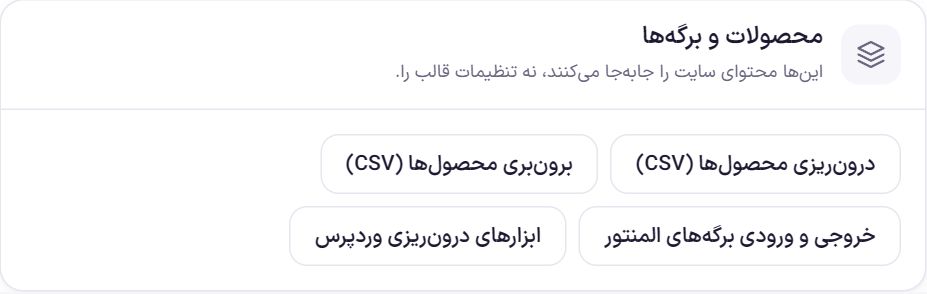
These buttons move the site's content, not the theme's settings:
| Button | Where it goes |
|---|---|
| Import products (CSV) | WooCommerce's product import tool. |
| Export products (CSV) | WooCommerce's product export tool. |
| Export and import Elementor pages | The Kit export and import section in Elementor's tools. |
| WordPress import tools | WordPress's “Tools → Import” page. |
Frequently Asked Questions
Does this section replace a full site backup?
No. Here it backs up only Farin settings and media. For a full backup, including the database, orders and users, use the host's backup or a backup plugin.
After importing settings, the captcha doesn't work.
Probably the file was taken without secret keys and this site had no key either. Write the secret key in Captcha again.
Some images didn't come after import.
Images are downloaded from the old site's address. If the old site was not reachable, the import message names the images that were not downloaded. Upload them by hand in the same settings, or import the settings again when the old site is reachable again.
Farin Theme · 1405