

Login Page
The page a logged-out shopper sees on WooCommerce’s “My Account”. Farin gives it a new look and adds two Iranian features: logging in with a mobile number instead of a username, and signing up with a mobile number without an email. If you want, login with an SMS code is also turned on from this same tab.
Where is it? Farin → Site content → Users → Login Page
Below this page is the same WooCommerce login and sign-up; CAPTCHAs and plugins that work with the WooCommerce form work here too.
Preview
The welcome column's text and features appear only in the “Showcase and form” layout, and “Mobile image” only in “Half image” and “Full-screen image”. Options that do nothing in the selected layout are hidden.
The “Half image” model puts a full-height photo on the right half of the page and a simple form on the left half, with the logo placed on the photo. Use a portrait 1000×1400 photo for it. You can change the photo's side (right or left), showing the logo on the photo and showing the photo on mobile right there. By default, phones get no photo.
The top of the page is a preview of the login page. Use “Login” and “Sign up” to see the two forms, and “Desktop” and “Mobile” to change the size. Changes appear right there.
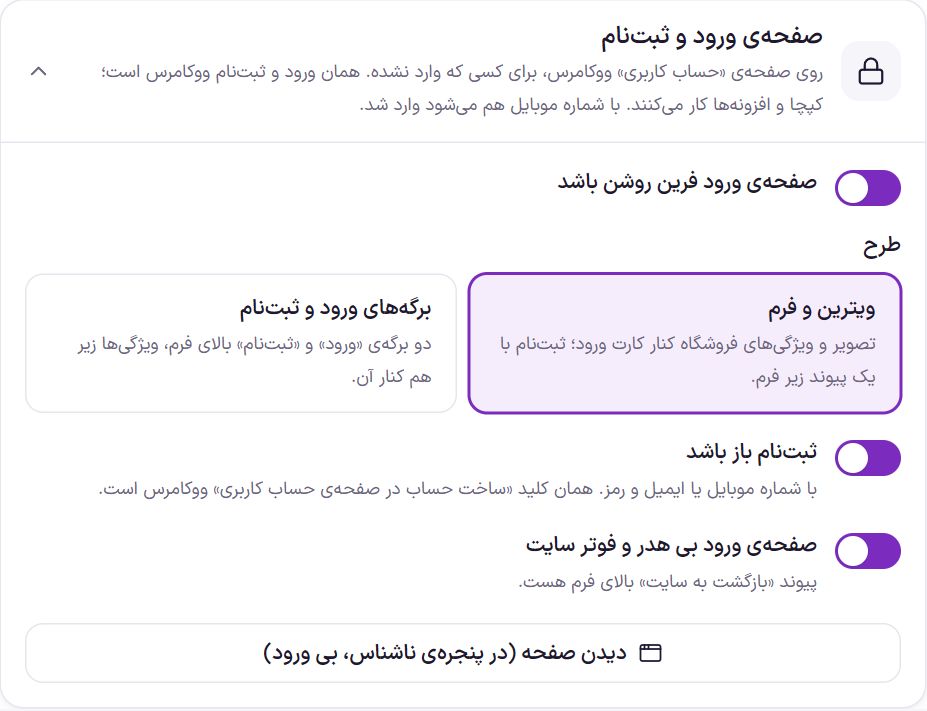
Login and sign-up page
| Option | What it does | Default |
|---|---|---|
| Turn on the Farin login page | When off, the plain WooCommerce form is shown. | On |
| Layout | “Showcase and form”: the store's image and features beside the login card. | Showcase and form |
| Login and sign-up tabs | A separate switch that works in all layouts: two tabs, “Login” and “Sign up”, above the form. When off, sign-up is a link under the form. It shows only when sign-up is open. | Off |
| Sign-up is open | A new buyer creates an account with a mobile number or email and a password. This is the same switch as “Allow customers to create an account on the My account page” in WooCommerce settings; changing either one changes the other. | On |
| Login page without the site header and footer | The page shows only the form so the buyer stays focused. A “Back to site” link sits above the form. | On |
The “View page (in an incognito window, logged out)” button opens the account page. Since you are logged in, you will see your own panel there; to see the login form, open the address in your browser’s incognito window.
Login and sign-up with a mobile number
- Sign-up: In the sign-up box you can enter either a mobile number or an email. With a mobile number, the number becomes the account username and no email is needed. The Farin form always asks for a password.
- Login: A mobile number in the username box works like a username. A number typed in Persian digits, with spaces, or with
+98is accepted too.
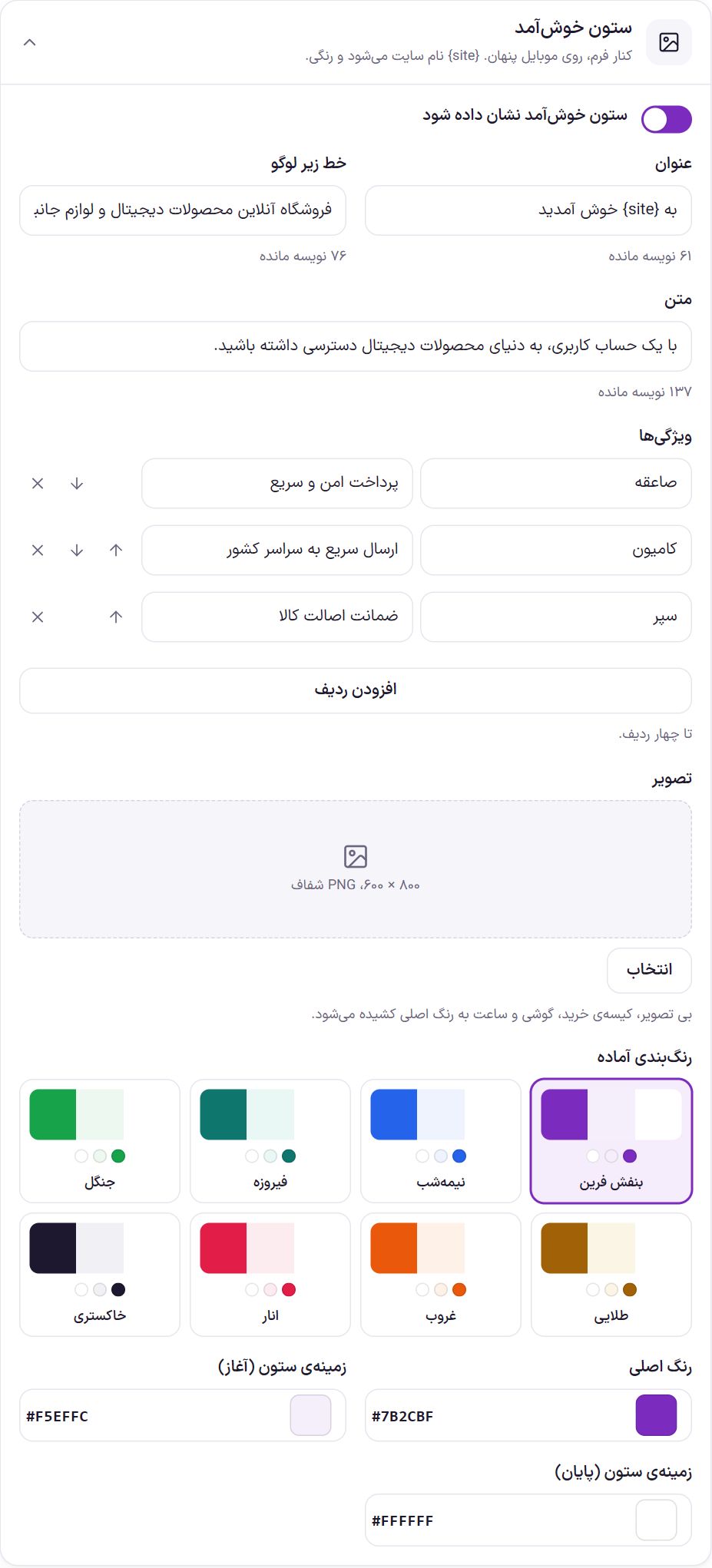
Welcome column
This column sits beside the form and is hidden on mobile. Wherever you write {site} the site name appears in its place in the main color.
| Option | What it does | Default |
|---|---|---|
| Show the welcome column | Turns the column on or off. | On |
| Title | The column’s large heading, up to 80 characters. | Welcome to {site} |
| Line under the logo | One short sentence about the store. | Online store for digital products and accessories |
| Text | Text under the heading, up to 200 characters. | With one account, get access to the world of digital products. |
| Attributes | Up to four rows, each with an icon (shield, truck, lightning, headset, lock, gift, return, card, star, verified badge) and a title. Use the arrows to reorder and ✕ to remove a row. | Secure and fast payment, fast delivery nationwide, guaranteed authentic goods |
| Image | Column image; the recommended size is 800 × 600, as a PNG with a transparent background. Without an image, a shopping bag, phone, and watch are drawn in the main color. | Empty |
| Main color | Button and site name color. | #7B2CBF |
| Column background (start) | The color the column background starts with. | #F5EFFC |
| Column background (end) | The color the background fades into. | #FFFFFF |
The eight “ready-made palettes” set all three colors together.
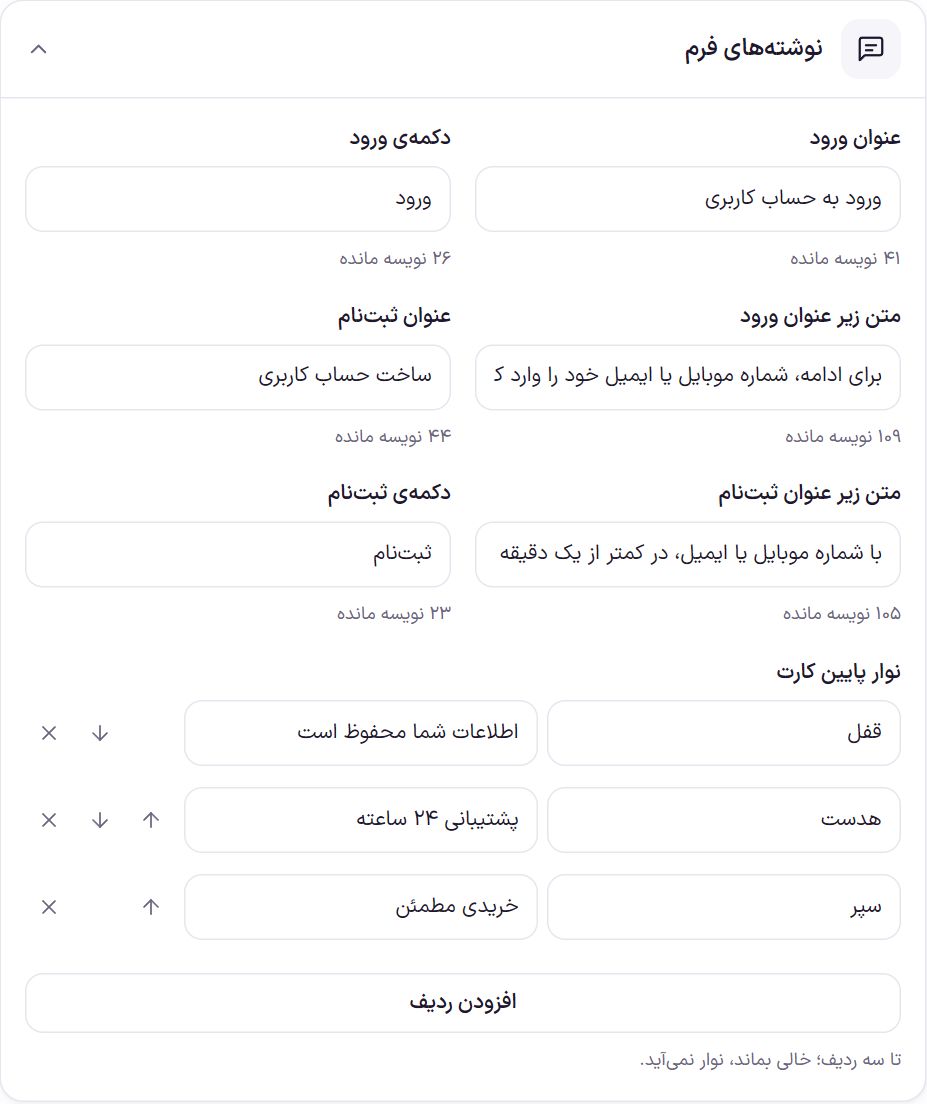
Form texts
| Option | What it does | Default |
|---|---|---|
| Login heading | Heading of the login form. | Log in to your account |
| Login button | Text of the login button, up to 30 characters. | Login |
| Text under the login heading | A guiding sentence under the heading. | To continue, enter your mobile number or email. |
| Sign-up heading | Heading of the sign-up form. | Create an account |
| Text under the sign-up heading | A guiding sentence under the sign-up heading. | Join in under a minute with a mobile number or email. |
| Sign-up button | Text of the sign-up button. | Sign up |
| Bar under the card | Up to three rows of icons and text under the form card. Leave it empty and the bar is not shown. | Your information is safe, 24-hour support, a trustworthy purchase |
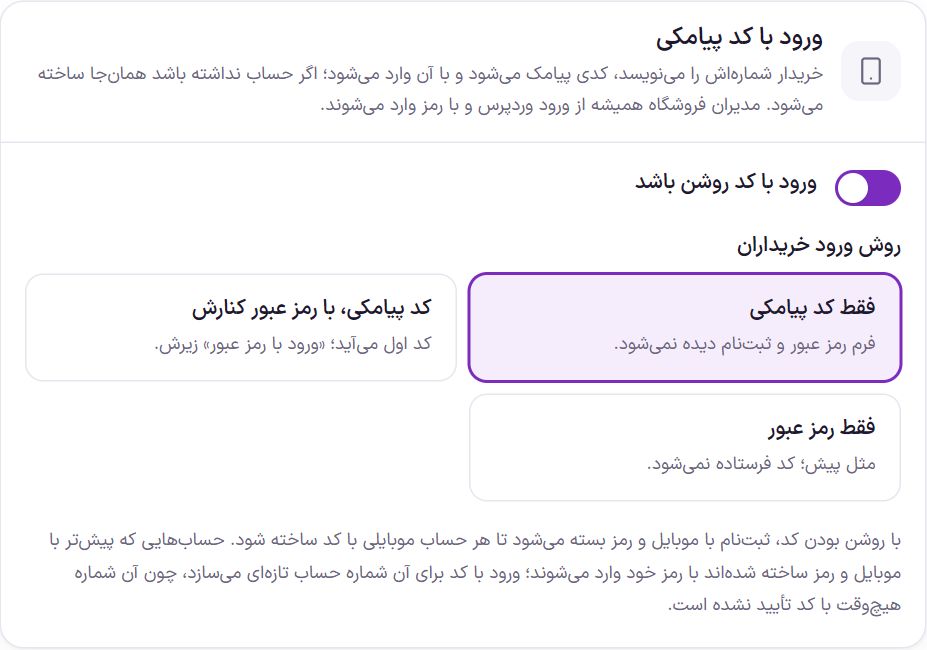
Login with an SMS code
The buyer enters their number, a code is sent to them by SMS, and they log in with it. If they have no account, one is created for them right there. Store admins always log in with a password through the WordPress login.
This section is visible only to someone who has access to the Authentication section.
- Set up the SMS panel. In SMS Panel set up the service and its keys, and under “Messages” write the template code for “One-time login code”. Until this is done, a warning appears at the top of this card and code login does not work.
- Know the captcha. to Captcha When off, Farin itself adds an “I'm not a robot” check with ALTCHA for “Send one-time code”. If you have turned the captcha on, don't turn off the “Send one-time code” spot.
- Turn on “Enable login with code” and choose the login method.
| Option | What it does | Default |
|---|---|---|
| Enable login with code | Opens SMS-code login to buyers. | Off |
| Buyer login method | “SMS code only”: the password and sign-up forms are not shown. “SMS code, with password beside it”: the code comes first and “Log in with password” sits below it. “Password only”: as before, no code is sent. | SMS code, with password beside it |
While code login is on, sign-up with a mobile number and password is closed so every mobile account is created with a code. Accounts previously created with a mobile number and password log in with their own password. If the owner of such an account logs in with a code, a new account is created for that number, because that number has never been verified with a code.
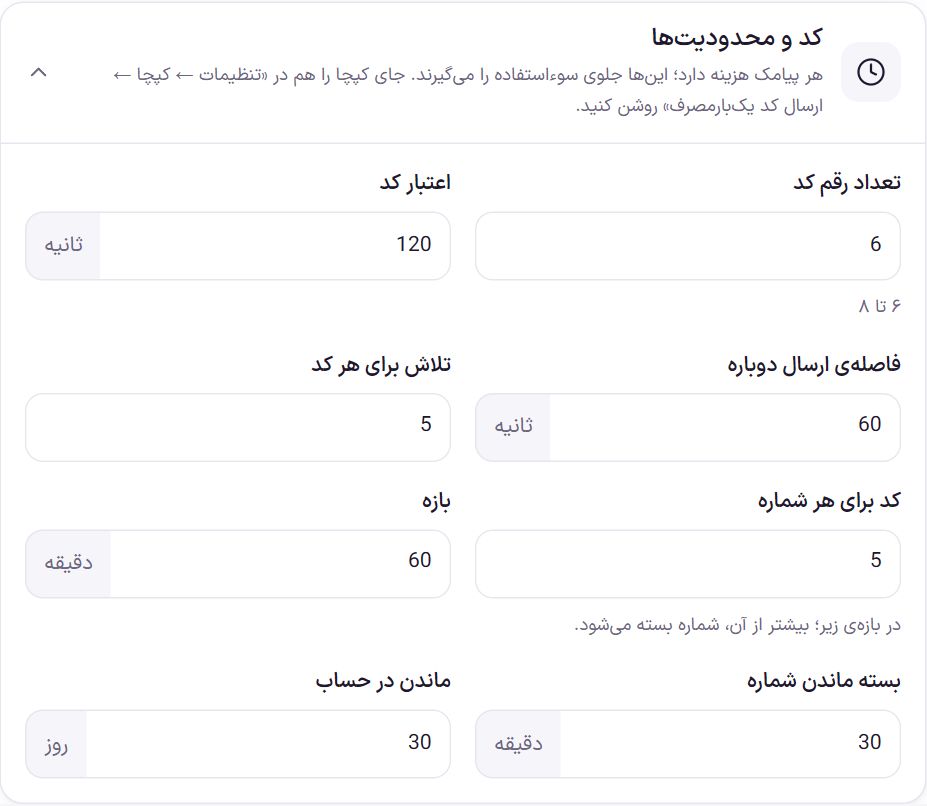
Code and limits
Every SMS costs money; these numbers prevent abuse. A number outside the allowed range is moved to the nearest edge of that range; for example, 4 for the number of code digits is saved as 6.
| Option | What it does | Default |
|---|---|---|
| Number of code digits | Code length, from 6 to 8 digits. | 6 |
| Code validity | How many seconds after sending the code works; from 60 to 900. | 120 seconds |
| Resend interval | How long the buyer must wait before requesting a new code; from 30 to 600 seconds. | 60 seconds |
| Attempts per code | How many times a wrong code can be entered; from 3 to 10. | 5 |
| Codes per number | How many codes one device can request for one number within the “window”; beyond that, the same device is blocked for that number. The owner of the number is not blocked on their own device, so no one can block another person's login with repeated requests. Across all devices together, no more than three times this number of codes are sent for one number until the window ends. From 1 to 20. | 5 |
| Window | The window for counting codes; from 10 to 1440 minutes. | 60 minutes |
| Number lockout | How long a device that has exceeded the limit for a number cannot get codes for that number; from 5 to 1440 minutes. | 30 minutes |
| Staying logged in | How many days the buyer stays logged in after a code login; from 1 to 365. | 30 days |
The code SMS text is under “SMS panel → Messages”, named “One-time login code”.
Frequently Asked Questions
The buyer signed up with a number and has no email. What happens to order emails?
The account is created without a real email, so no email reaches them. To notify such a buyer, turn on the order SMS messages in SMS Panel .
If I turn on “SMS code only”, how do I log in to the dashboard myself?
As always, from the WordPress login page with your username and password. Code login is only for buyers.
I don’t want anyone to sign up. What should I do?
Turn off “Sign-up is open”. The sign-up form and its link are removed from the page and only login remains.
Farin Theme · 1405