

Stories
Stories are like Instagram highlights: a row of circles, each holding several photos or videos. The buyer taps a circle and the stories play full screen one by one. Each story can have a button that goes to a product or page.
Where is it? Farin → Site content → Trust and Notifications → Stories
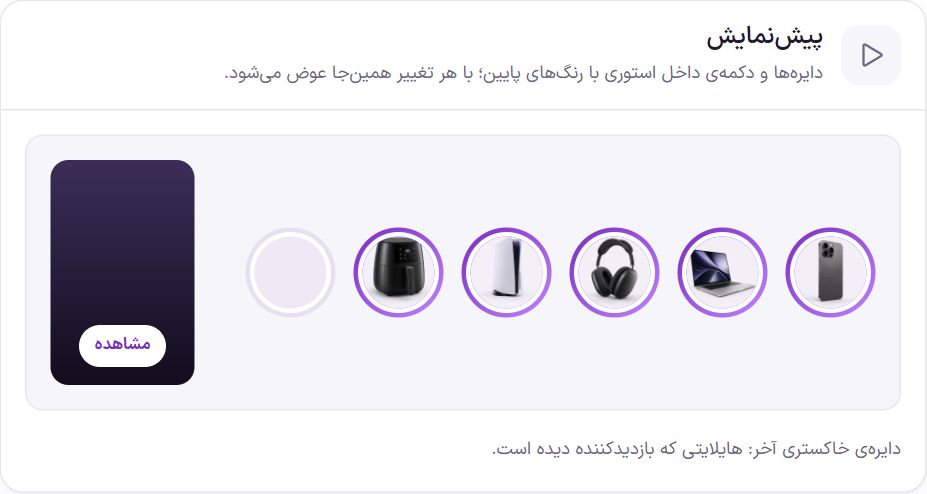
The preview updates right here with every change of color or button text. On the site, a highlight the visitor has watched to the end is shown with a gray ring. If you later add a new story to that highlight, the ring turns colored again.
Setup
- Create a highlight. In the “Highlights” box, press the “Add highlight” button.
- Give it a name and cover. Write the “Name under the circle” and pick the circle’s image from the media library with “Choose cover”.
- Add stories. Press “Add story” and select one or more photos and videos at once.
- Place the widget. In Elementor, drag the “Stories” widget from the “Home page” group onto the page. The “Edit home page with Elementor” link in this same section opens the home page directly in Elementor.
Stories
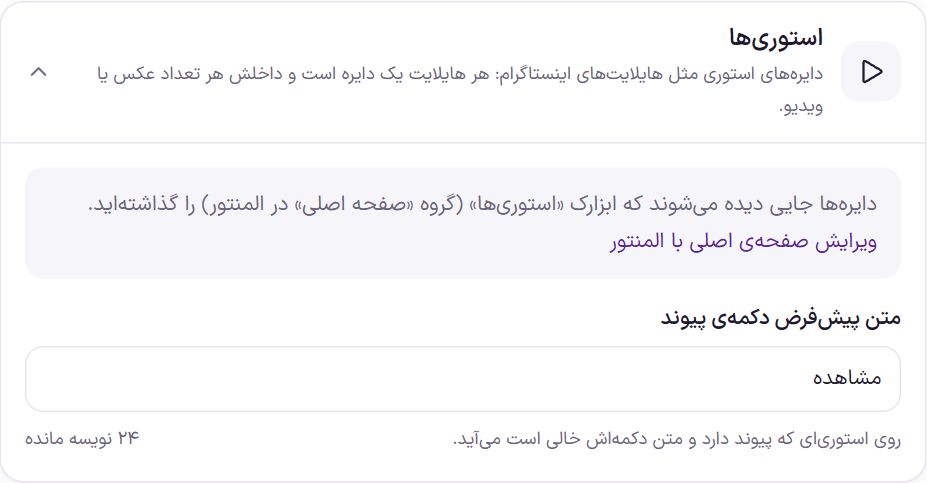
| Option | What it does | Default |
|---|---|---|
| Default link button text | It appears on a story that has a link but whose button text you left empty. Up to 30 characters. | View |
Colors
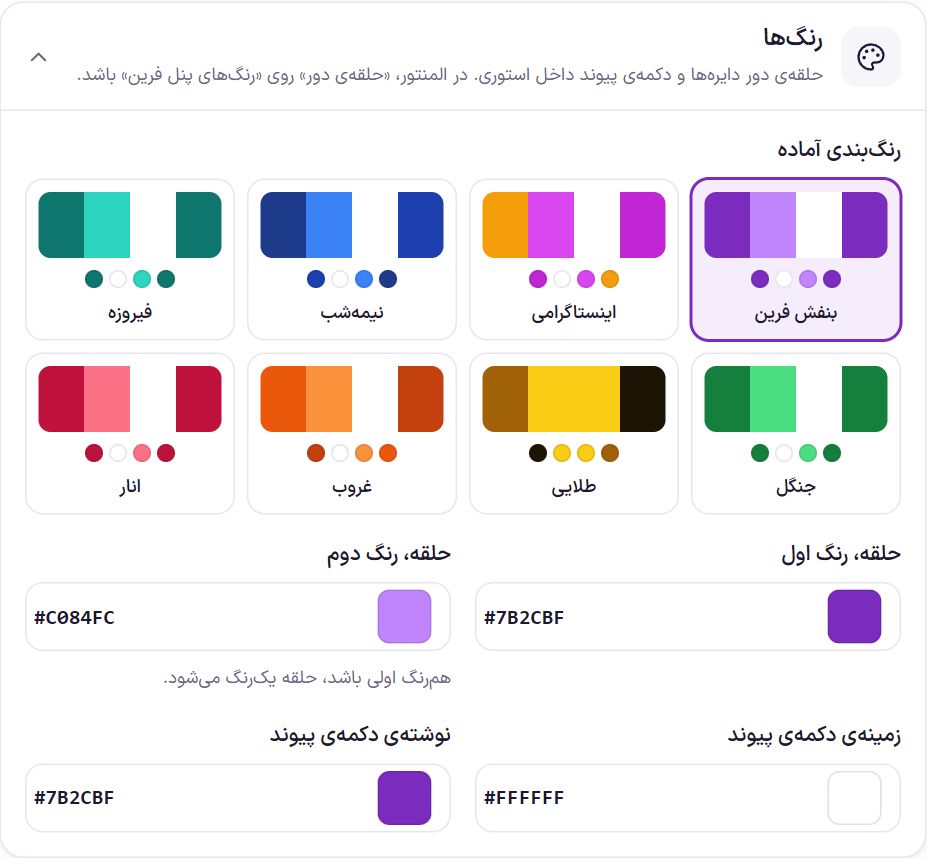
Ready-made palettes: Farin purple, Instagram-style, midnight, turquoise, forest, golden, sunset, and pomegranate. Each changes the four colors below at once.
| Option | What it does | Default |
|---|---|---|
| Ring, first color | The start color of the ring around the circles. The ring goes from this color to the second color. | #7B2CBF |
| Ring, second color | The end color of the ring. If it’s the same as the first, the ring becomes a single color. | #C084FC |
| Link button background | The color of the button that appears on a story with a link. | #FFFFFF |
| Link button text | The text color on that button. | #7B2CBF |
Highlights
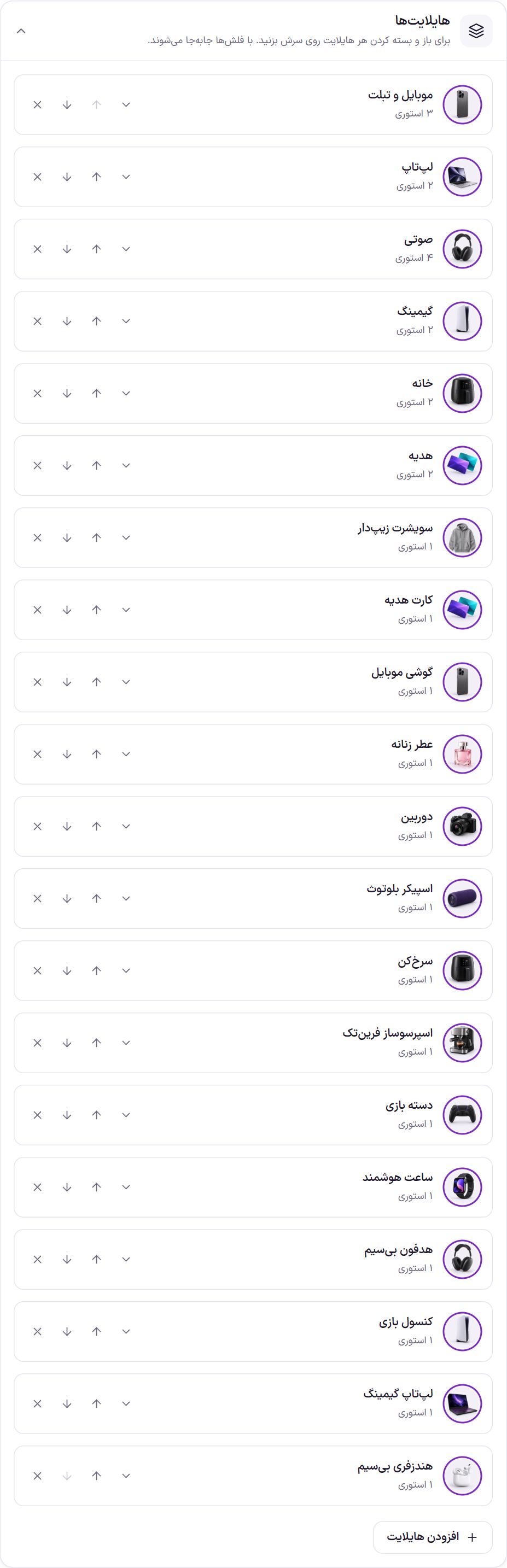
Tap the head of each highlight to open it. The order of this list is the order of the circles on the site. Inside each highlight you have:
| Option | What it does |
|---|---|
| Name under the circle | The name written under the circle, such as “Discounts”. Up to 40 characters. |
| Circle cover | The image inside the circle. Suggested size 300 × 300 pixels. |
| Stories in this highlight | Photos and videos in playback order. Suggested vertical size 1080 × 1920 pixels. Several files can be selected at once. Each highlight holds up to 30 stories. |
| Link (optional) | The address the button on the story goes to, such as a product address. Leave empty and no button appears. |
| Button text | The text of that button. Leave empty and the “Default link button text” is used. |
| Seconds | How long a photo stays on screen, from 2 to 30 seconds; default 5 seconds. A video plays for its own length. |
Tap a story’s image to change its photo or video. Each story also has its own move arrows and delete button. You can create up to 40 highlights.
Frequently Asked Questions
I created the stories but they are not on the site.
The circles appear only where you have placed the “Stories” widget in Elementor. If the widget is there, check that each highlight has a cover and at least one story.
Should I add a video or a photo?
Both. A video plays for its own length and a photo for the time you set in “Seconds”. A short, small video loads faster for the buyer on mobile internet.
When I delete a highlight, are the files deleted too?
No. The highlight is only removed from the list, and the photos and videos stay in the media library. If the highlight has stories, you are asked to confirm before deleting.
Farin Theme · 1405