

Bulk Product Editing
With this section you change the price, stock, category, brand, attributes and product page options for a group of products at once. Before any change, you see the result on a few sample products, and every change can be undone for a while.
Where is it? Farin → Bulk Product Editing
Bulk change
The page has three steps: first you select the products, then you write the changes, and finally you preview and apply.
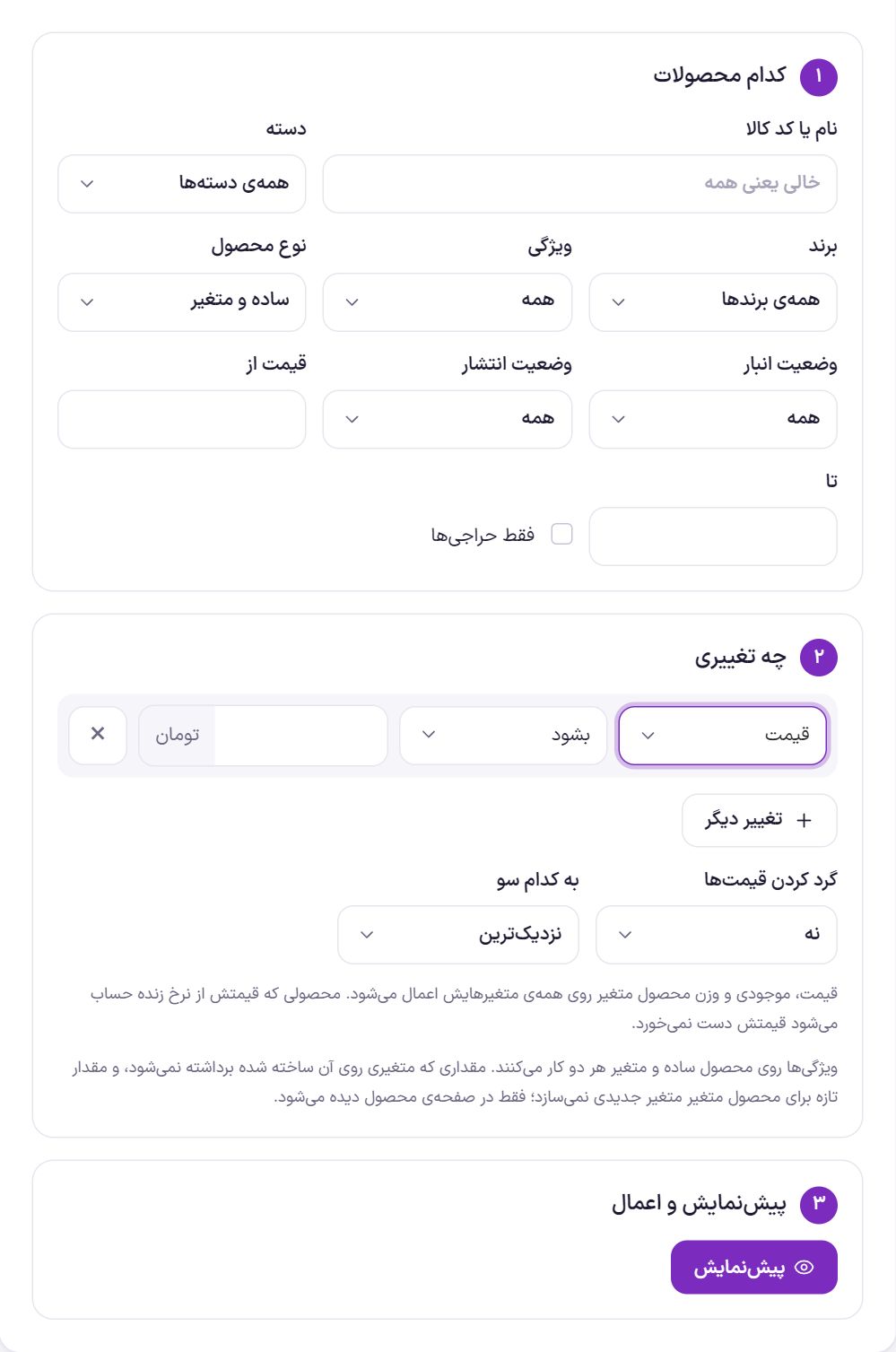
Step 1: Which products
The filters combine. Any filter left empty or set to “All” sets no restriction. If you leave all empty, all products are selected.
| Option | What it does | Default |
|---|---|---|
| Product name or code | Part of the product name or product code (SKU). Empty means all. | Empty |
| Category | Only the products of one category. Subcategories appear in the list with a dash under their parent category. | All categories |
| Brand | Only the products of one brand. It appears when brands are enabled on the site. | All brands |
| Attribute | Only products that have a specific attribute value, such as “Color: Red”. It appears when you have created at least one attribute. | All |
| Product type | “Simple and variable”, “Simple only” or “Variable only”. | Simple and variable |
| Stock status | In stock, out of stock or backorder. | All |
| Publish status | Published, draft or private. | All |
| Price from / to | The product’s current price range. Leave one empty to keep that side open. | Empty |
| On-sale only | Only products that currently have a sale price. | Off |
Step 2: What change
Each row is one change: a field, an action and a value. “Another change” adds a new row, and ✕ removes a row. All rows are applied together to each product.
The actions are: “Set to” (the new value replaces the old), “Increase by percent”, “Decrease by percent”, “Increase by amount”, “Decrease by amount” and “Clear”. Each field shows only the actions that make sense for it.
| Field group | Fields |
|---|---|
| Price, stock and publishing | Price, sale price, stock quantity, stock status, weight, publish status, featured product |
| Category, brand and tag | Add category, remove category, only this category; the same three for brand; add and remove tag |
| Attributes | Add attribute value, remove attribute value, only this attribute value, remove the whole attribute |
| Product page (Farin tab) | Units sold and showing it, units remaining and showing it, production date, expiry date, warranty, instant delivery with its time and description, the offer window after adding to cart with its title and products |
“Only this category” means the product’s previous categories are removed and only the chosen category remains. “Add category” keeps the categories and adds one. Brand, tag and attribute work the same way.
| Option | What it does | Default |
|---|---|---|
| Rounding prices | Rounds the new price to 100, 1,000, 5,000, 10,000, 50,000 or 100,000 units of the site’s currency. It affects only the price and sale price. | No |
| Which direction | Round to “Nearest”, “Up” or “Down”. | Nearest |
Example: “Price, increase by percent, 10” with rounding “to 1,000 Toman” upward takes a price of 123,400 Toman to 136,000 Toman.
Rules Farin follows by itself
- Variable product: Price, sale price, stock and weight are applied to all its variations. Category, brand, attributes and Farin options are applied to the product itself.
- Price from a live rate: A product whose price is calculated from a live rate (such as a currency rate) has its price left untouched.
- Below zero: If a decrease would take a number below zero, that value is not changed.
- Sale price: The sale price must always stay lower than the price. If a change would break this, that change is not made on that product.
- Discount on a product with no sale: “Decrease by percent” on the sale price of a product that has no sale price yet is calculated from the regular price. So “Sale price, decrease by percent, 20” means a 20% discount.
- Attributes: A value that a variation was built on is not removed. A new value on a variable product does not create a new variation and is seen only on the product page.
Products that hit one of these rules are reported after applying, with the reason.
Step 3: Preview and apply
- Click “Preview”. Farin finds the products, tells you how many there are, and shows the before and after values side by side for the first 12 products. If a product in this sample hits one of the rules above, a yellow message gives the reason. Nothing is saved yet.
- Check the result. If it is not right, change the filter or the changes and preview again.
- Click the Apply button. Products are changed fifty at a time and a progress bar moves forward. Do not close the page until it finishes.
History
The last ten bulk changes are listed here: when and who made each, a summary of the change, and how many products out of how many were actually changed.

| Status | Meaning |
|---|---|
| Done | All products were changed. “Revert” is available. |
| Incomplete | Applying was interrupted midway. “Revert” undoes the part that was done. |
| Partially reverted | Reverting was interrupted midway. Click “Revert” again to finish. |
| Reverted | The previous values are back in place. |
Everyone can revert only their own jobs; the site’s main admin can revert everyone’s. When the eleventh change arrives, the oldest change drops off the list and loses its ability to be reverted.
Frequently Asked Questions
I want to raise all prices by 15% and make them round.
Leave the filters empty, create a row “Price, increase by percent, 15” and set rounding to, for example, “to 1,000 Toman”. If some products have a sale price, also add a row for “Sale price” with the same percentage.
Why were some products not changed?
The reasons appear in the completion message, next to “Done: … products changed”: the price is calculated from a live rate, the number would have gone below zero, or the sale price would have exceeded the price.
How do I end a category’s sale?
Select the category in the filter and click “On-sale only”. Then apply the row “Sale price, clear”.
Farin Theme · 1405