

Tickets
With tickets, buyers send their question or problem from the “Support” page in their account panel and follow the conversation there. You reply in the Farin panel, leave internal notes, and change the ticket's status and priority.
Where is it? Farin → Tickets
This section has two tabs: “Tickets” and “Settings”. Tickets and messages are kept in their own tables and do not appear in WordPress's comments list.
Tickets
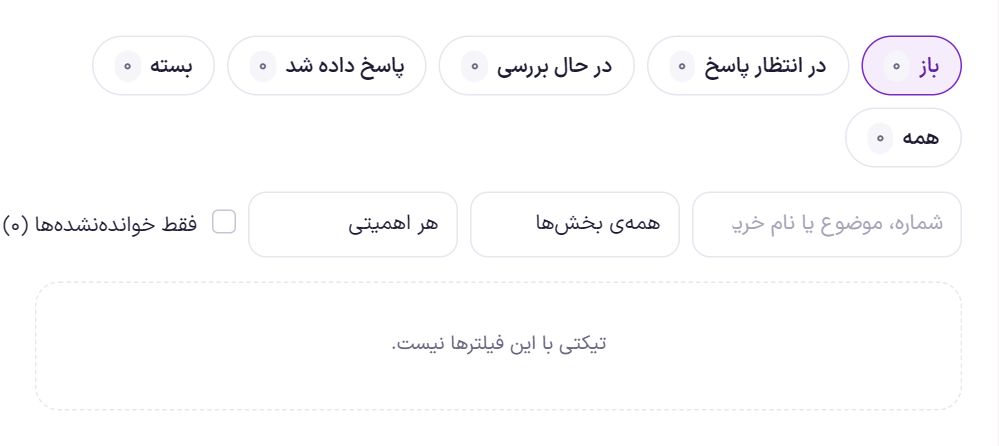
| Status | Meaning |
|---|---|
| Awaiting reply | The buyer has written and it is your turn. |
| Under review | You have put the ticket under review. |
| Answered | You have replied and it is the buyer's turn. |
| Closed | The conversation is finished. |
Filters: search by number, subject or buyer name, “All departments”, “Any priority” (low, normal, urgent) and “Unread only”, which also shows the number of unread tickets next to it.
Replying to a ticket
Click a ticket to open the conversation. Beside it you see the buyer, the department, when it was opened, the order the buyer attached to the ticket, and the same buyer's “Other tickets”. Each message's attachments are under that message.
- Write the reply. Write in the “Reply to buyer…” field. If attachments are on, you can send files too.
- Choose the “Status after reply”. Usually “Answered”; “Under review” if the work is not finished, and “Closed” if the conversation is over.
- Click “Send”. The reply appears in the buyer's account panel, and if turned on in settings, an email goes to them.
Internal note. If you tick “Internal note (buyer does not see)”, the text is saved only for you and your colleagues; for example “Coordinated with the warehouse, ships tomorrow”. Nothing goes to the buyer.
Outside of a reply you can also change the ticket's “Status” and “Priority” and “Save”.
Settings
Settings has four boxes and saves instantly.
Tickets
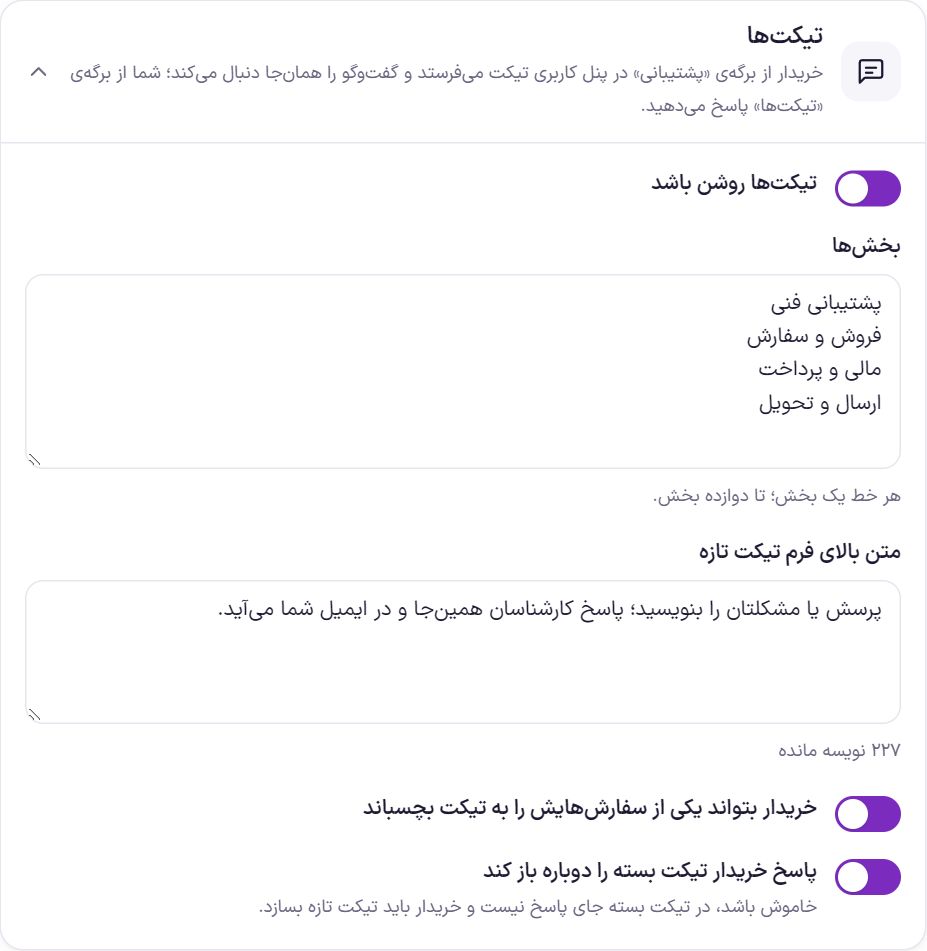
| Option | What it does | Default |
|---|---|---|
| Tickets on | The “Support” page in the buyer's account panel. | On |
| Departments | One per line; up to twelve departments. | Technical support, Sales and orders, Billing and payments, Shipping and delivery |
| Text above the new ticket form | A short guide above the form, up to 300 characters. | Write your question or problem; our team's reply will appear here and in your email. |
| Let the buyer attach one of their orders to the ticket | The ticket form shows the buyer's own orders. Only their own orders are accepted. | On |
| Let the buyer's reply reopen a closed ticket | If off, a closed ticket has no reply box and the buyer must create a new ticket. | On |
Attachments
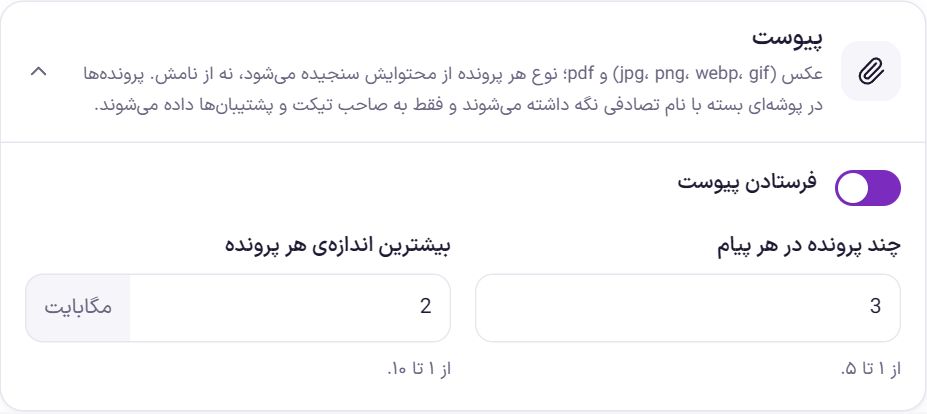
| Option | What it does | Default |
|---|---|---|
| Allow attachments | Buyers and support can send images (jpg, png, webp, gif) and PDFs. | On |
| Files per message | From 1 to 5. | 3 |
| Maximum size per file | From 1 to 10 MB. | 2 MB |
Each file's type is checked from its content, not its name. If a file is not accepted, the message is not sent and the reason is given. Files are stored in a closed folder with a random name and are given only to the ticket's owner and support staff.
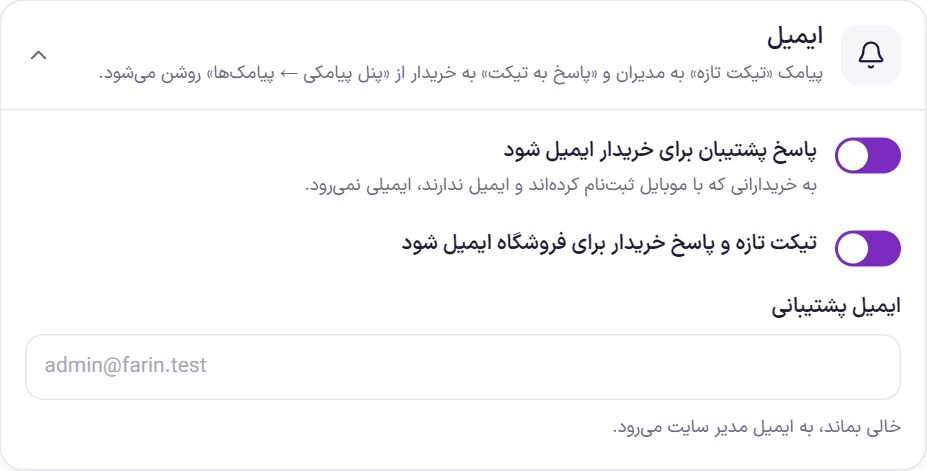
| Option | What it does | Default |
|---|---|---|
| Email the support reply to the buyer | An email goes to the buyer with each of your replies. No email goes to buyers who signed up with a mobile number and have no email. | On |
| Email the store about new tickets and buyer replies | An email goes to the store with every new ticket and every buyer reply. | On |
| Support email | The address that receives the store's emails. If left empty, it goes to the site admin's email. | Empty |
Turn on the “New ticket” SMS to admins and the “Ticket reply” SMS to the buyer from SMS Panel .
Auto-close
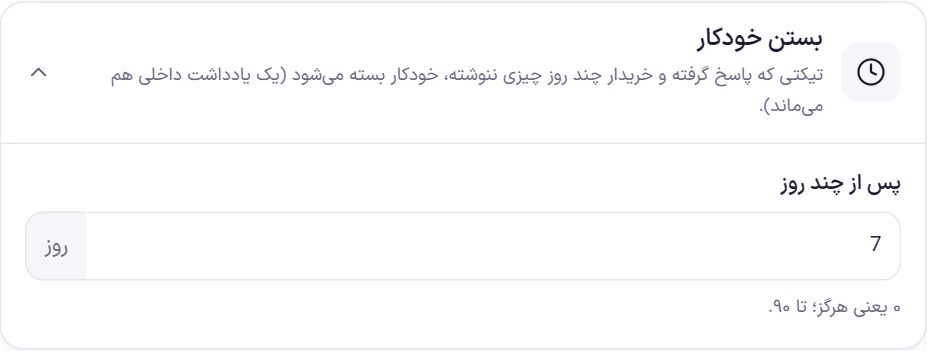
| Option | What it does | Default |
|---|---|---|
| After how many days | A ticket that has been answered and where the buyer has written nothing for this many days is closed automatically, and the internal note “Ticket auto-closed because the buyer did not reply” stays in it. 0 means never; up to 90. | 7 days |
Frequently Asked Questions
Where does the buyer send a ticket?
In their own account panel, on the “Support” page. There they see their tickets with their statuses, create a new ticket, and reply to any conversation. They must be signed in to do this.
Does the buyer see the internal note?
No. The internal note is visible only in the Farin panel, and no email or SMS goes out for it.
I do not want buyers to reopen a closed ticket.
Turn off “Let the buyer's reply reopen a closed ticket”. A closed ticket has no reply box, and for a new matter the buyer creates a new ticket.
Farin Theme · 1405