

Access
The “shop manager” is a WooCommerce role for someone who runs products and orders but is not the site's main administrator; for example a colleague or a sales employee. In this tab you decide what they see of the Farin panel and the WordPress dashboard.
Where is it? Farin → Settings → Access
Every change is saved at once. These settings affect only users with the “Shop manager” role; the site's main administrator always sees everything.
Giving access to a colleague
- Create the colleague's account. In the WordPress dashboard open “Users → Add New User” and set the role to “Shop manager”.
- Open the Farin panel for them. In this same tab, turn on “Shop manager can access the Farin panel”.
- Choose the sections. In “Farin panel sections”, turn on only the sections the colleague needs for their work.
- Limit the dashboard pages. In “WordPress dashboard pages”, turn off the pages they should not see.
Shop manager access
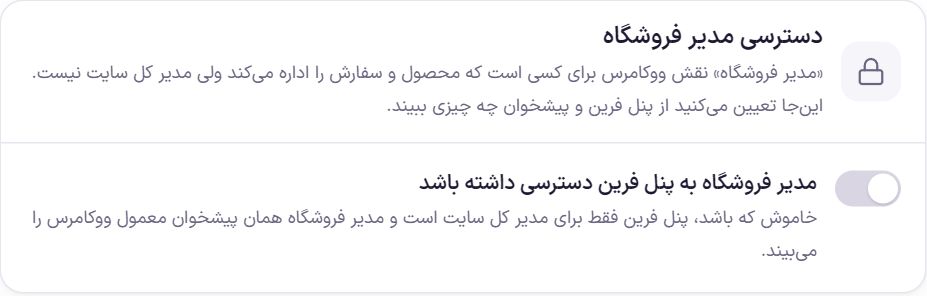
| Option | What it does | Default |
|---|---|---|
| Shop manager can access the Farin panel | When off, the Farin panel is only for the site's main administrator and the shop manager sees the usual WooCommerce dashboard. When on, the two boxes “Farin panel sections” and “WordPress dashboard pages” open up. | Off |
Keeping managers logged in
If “Remember me” is not ticked, WordPress keeps the login only until the browser is closed or for two days. After that, the “Your session has expired” window appears in the dashboard and you have to log in again. Farin keeps the site administrator and the store manager logged in, whether or not they ticked this option, for the number of days you set here.
| Option | What it does | Default |
|---|---|---|
| Keep managers logged in | How many days after login the administrator and store manager stay logged in. From 1 to 90 days. It affects later logins, not the login that is open right now. | 30 days |
- A lower number is safer: if a manager's login cookie falls into someone else's hands, it opens the whole store. On a shared computer, log out after work.
- Customers follow WordPress's own rule. If login with an SMS code is on, the “Stay logged in” days in “Authentication ← Login” apply to that login.
- “Remember me” is ticked by default on the dashboard login page and the store login forms. Anyone who does not want it can untick it.
Farin panel sections
There is a switch for every panel section, in four groups: “Content and products”, “Sales and customers”, “Payment, SMS and shipping” and “Tools”. The shop manager sees and opens only the sections that are on. The server also refuses an off section, so typing that section's address does not get them in either. At first, all sections are off.
Four sections are always only for the site's main administrator and their switch is locked, with the label “Main administrator only”: “Settings”, “Payment gateway”, “SMS panel” and “Authentication”. The dashboard login address, captcha and gateway and SMS keys, and the site's custom code are in these sections and for security they are not given to the shop manager.
WordPress dashboard pages
There is a switch for every page of the dashboard menu, such as “Pages”, “Products” or “WooCommerce”. An off page is removed from the shop manager's menu and, even if they open its address directly, they see the message “You do not have access to this section”. Until you change any switch, all pages stay open.
- The Dashboard, Farin panel, Media and Profile are always open and are not in this list.
- Things WordPress itself does not give a shop manager, such as plugins, themes, users and WordPress settings, are not opened here either by turning their switch on. These switches can only reduce access, not increase it.
- The list is built from your dashboard menu. If the message “The page list has not been built yet” appears, refresh the page once. If you install a new plugin, its page is added to the list too.
Frequently Asked Questions
My colleague doesn't see the Farin menu.
Check three things: their role is “Shop manager”, “Shop manager can access the Farin panel” is on, and at least one section is on in “Farin panel sections”. After a change, the colleague should refresh the page.
Do these settings affect the “Editor” or “Author” role too?
No. Only the WooCommerce “Shop manager” role. Other WordPress roles have no way into the Farin panel.
I want my colleague to be able to change the captcha or custom code too.
That is not possible; for security the “Settings” section is only in the main administrator's hands. If the colleague must do these things, make them a main administrator, knowing that the main administrator has access to the whole site.
Farin Theme · 1405