

Shipping
In this section you turn on the methods the buyer sees at checkout, enter each method's rate for in-province and out-of-province, and decide where shipping is free. Buyers can also choose the delivery day and time slot. All of this is read from this panel, and you do not need to create a zone or method in “WooCommerce → Shipping”.
Where is it? Farin → Payment, SMS and Shipping → Shipping
Shipping methods
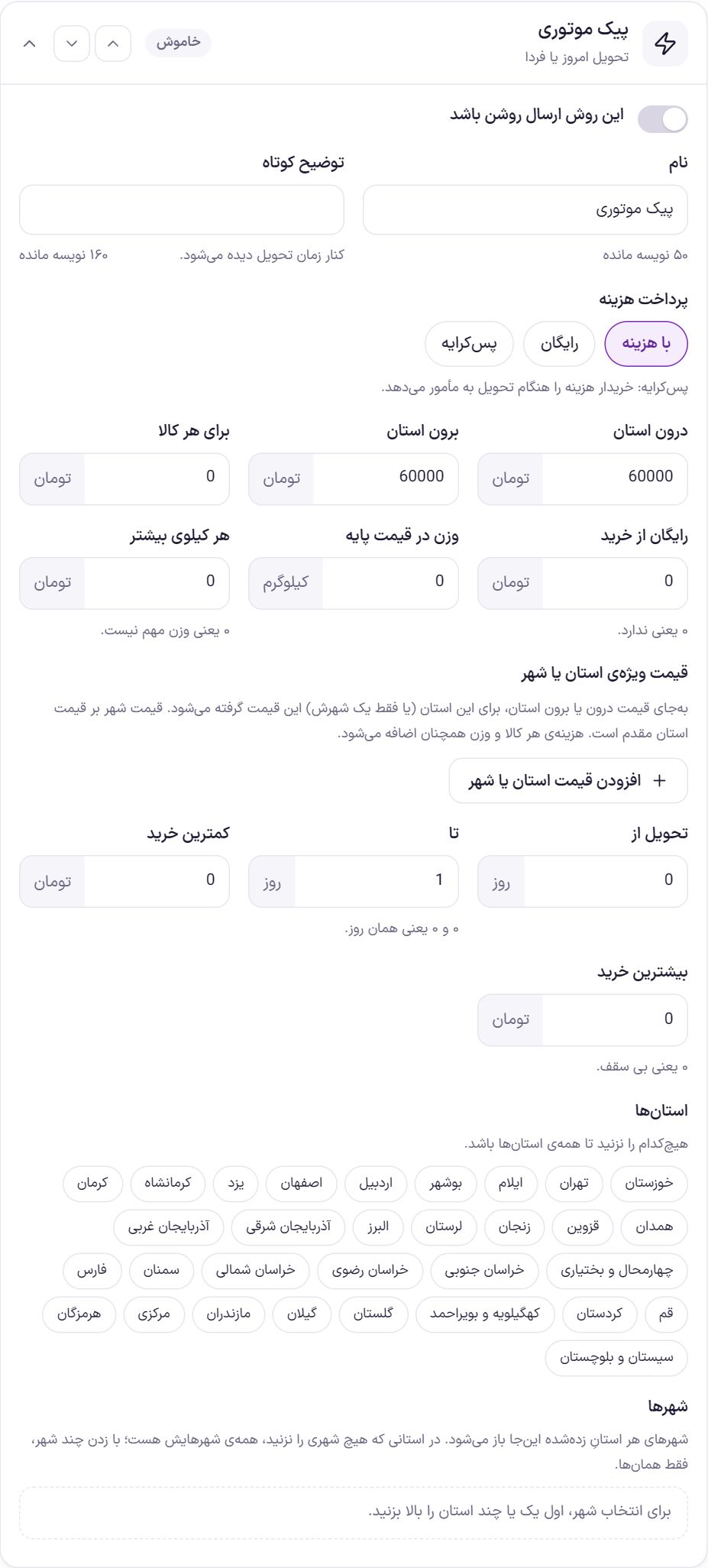
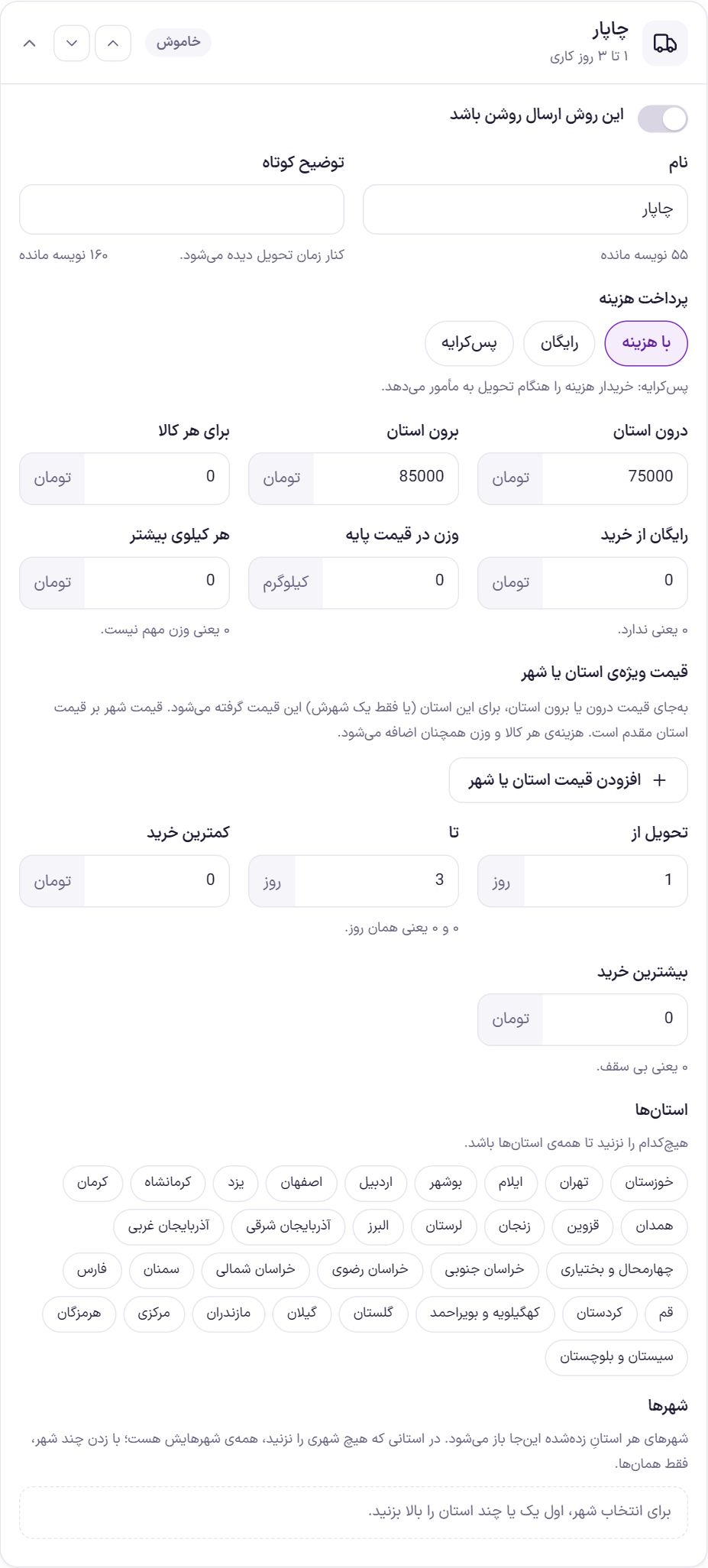
You have seven ready methods: Pishtaz Post, Express Post, Tipax, Chapar, motorbike courier, pay-on-delivery, and in-store pickup. After installation only “Pishtaz Post” is on. Each method has a box; click its header to open it. The header of each box shows the method name, its delivery time (such as “2 to 4 business days”) and an “On” or “Off” label.
The buyer sees the methods that are on, in the same order as in the panel, at checkout. Use the two arrow buttons beside each box to move a method up or down.
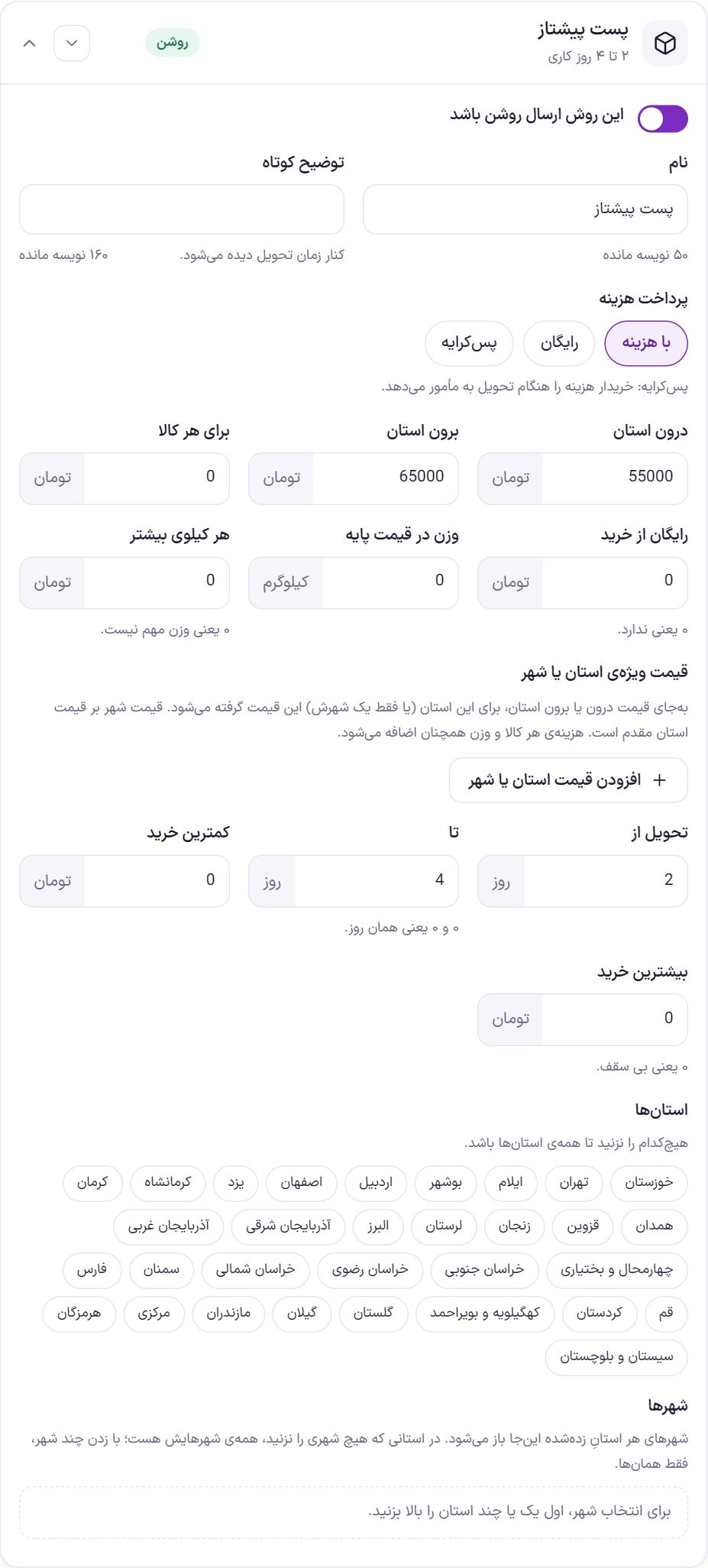
Name and payment type
| Option | What it does |
|---|---|
| Turn this shipping method on | If turned off, this method does not appear at checkout. |
| Name | The name the buyer sees next to the method's select button. Up to 60 characters. |
| Short description | Shown next to the delivery time, for example “Even days only”. Up to 160 characters. |
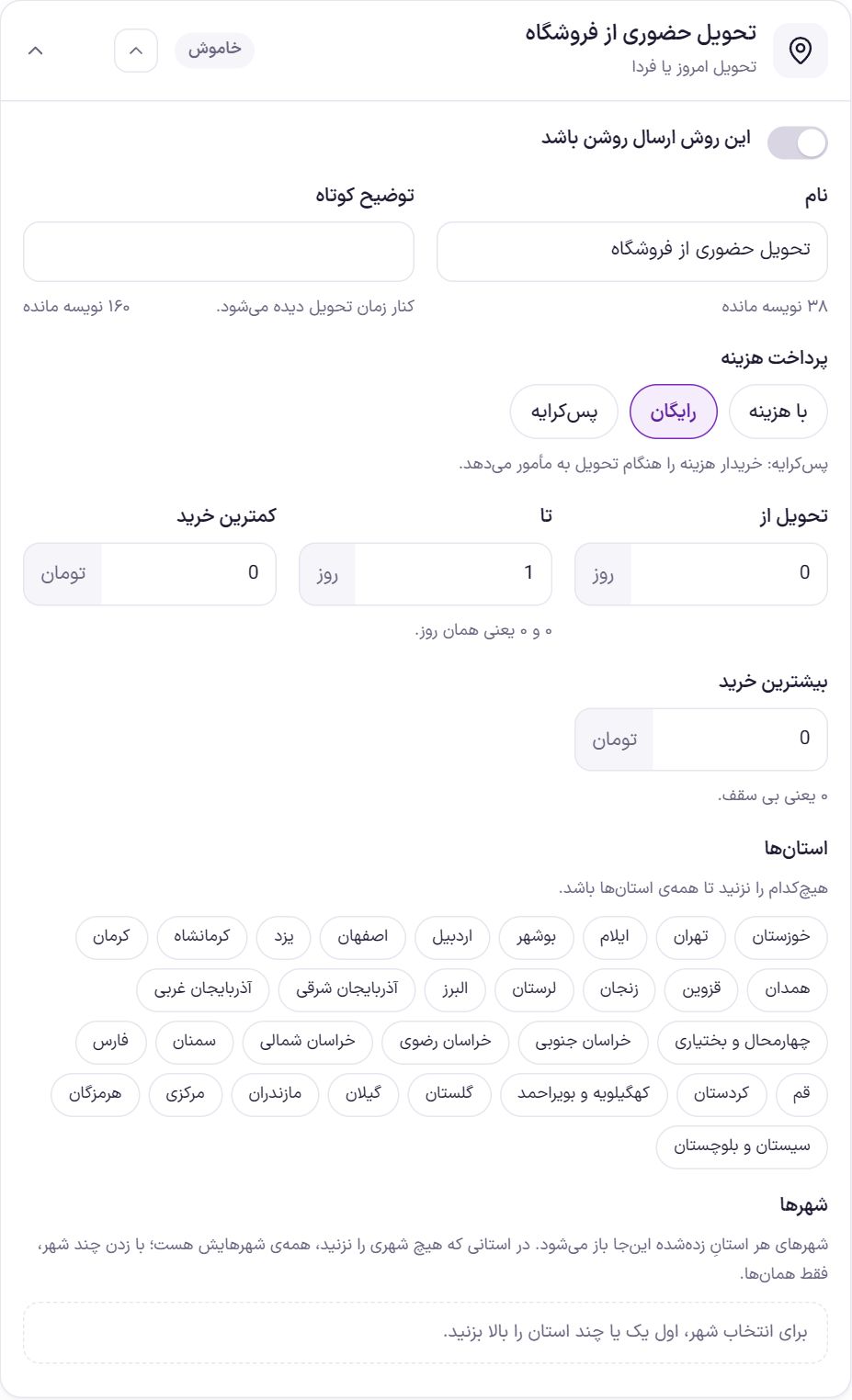
| Shipping cost payment | “Paid”: the cost is calculated from the prices below. “Free”: the shipping cost is zero. “Pay on delivery”: no fee is charged on the site and the buyer pays the courier on delivery. Pay-on-delivery is never shown as “Free”. |
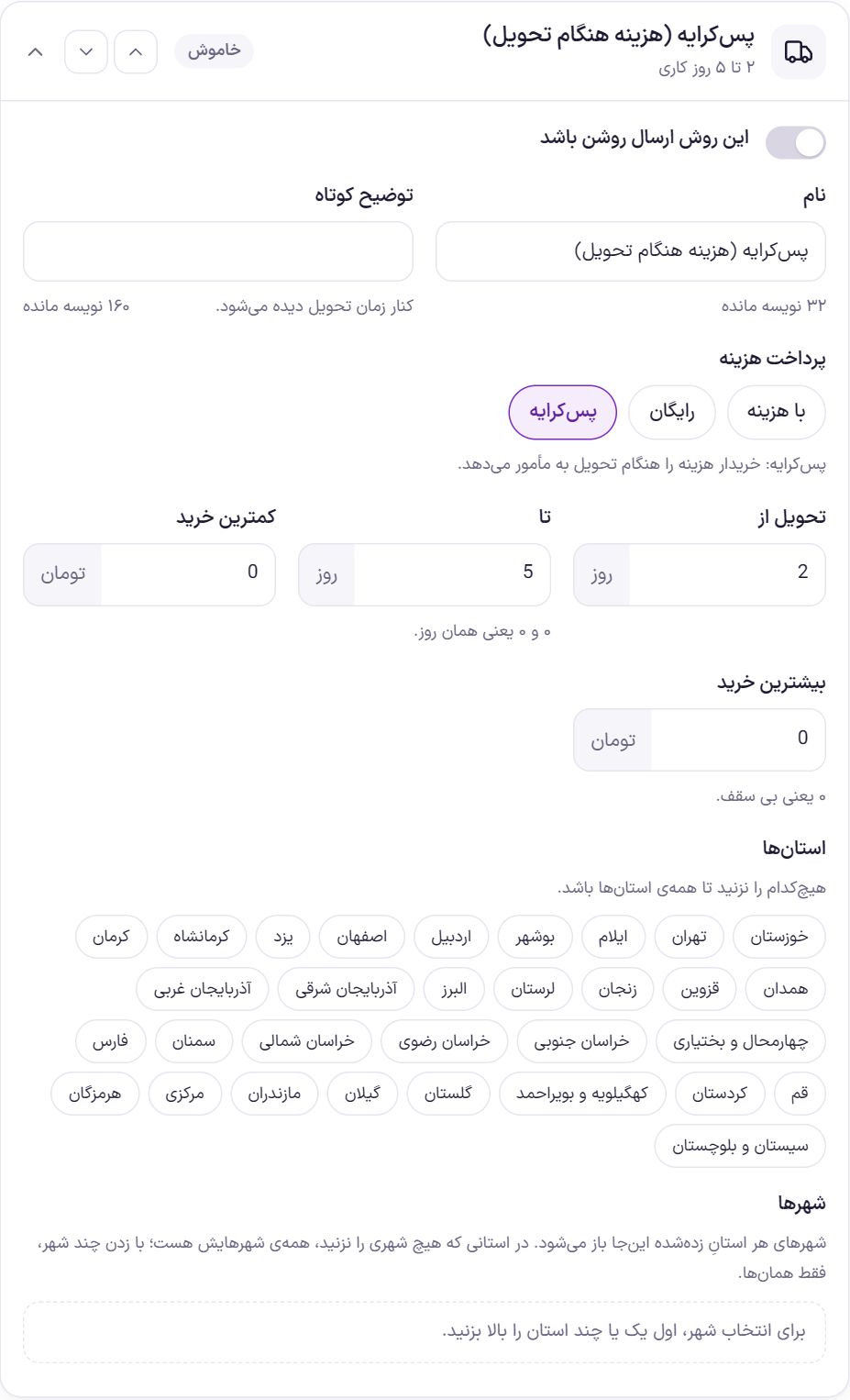
Prices
These fields appear only when “Shipping cost payment” is set to “Paid”.
| Option | What it does | Default |
|---|---|---|
| In-province | The base price when the buyer's province is the same as the store's province. You set the store province in the “General” tab. | |
| Out-of-province | The base price for all other provinces. | |
| Per item | This amount is added for each unit of an item in the cart. Three units of one item are charged three times. | 0 |
| Free from purchase | If the item total (after the discount code) reaches this amount, this method becomes free. “0 means none.” | 0 |
| Weight in base price | How many kilograms the base price covers. | 0 |
| Each extra kilo | This amount is added for each kilo above the “Weight in base price”. A fraction of a kilo counts as a kilo; for example, with a base weight of 2 kg, a 3.2 kg parcel has 2 extra kilos. “0 means weight does not matter.” | 0 |
| Special province or city price | Use “Add province or city price” to create a row: province, city (or “Whole province”) and price. This price is charged instead of the in-province or out-of-province price. If you set a price for both a province and one of its cities, the city price takes precedence. The per-item and weight costs are still added. | Empty |
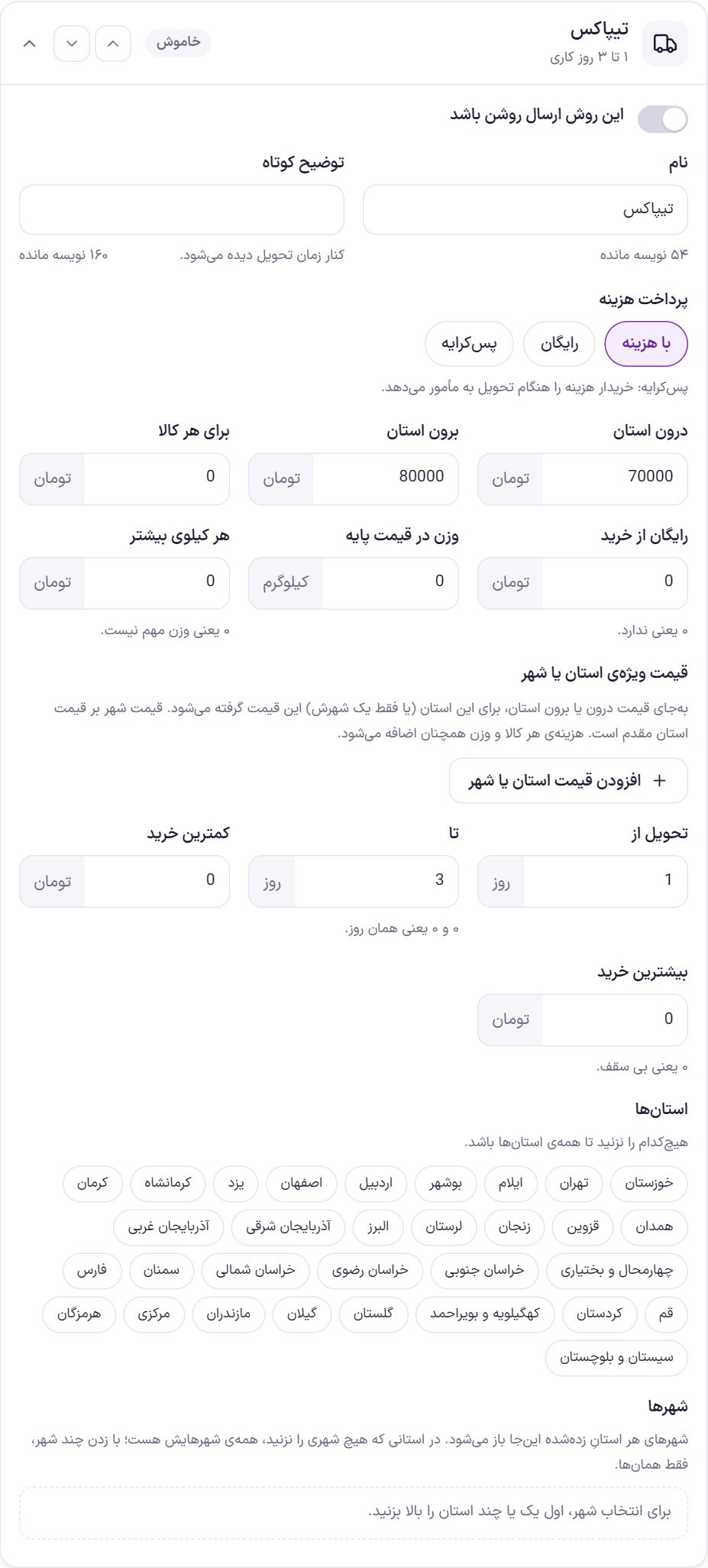
Delivery time and purchase limit
| Option | What it does |
|---|---|
| Delivery from / to | Business days until delivery. The buyer sees it under the method name, such as “1 to 3 business days”. “0 and 0 means the same day”, and “0 to 1” is written as “delivery today or tomorrow”. This number is only text and does not lock the delivery day; to choose day and time, go to the Delivery time tab. |
| Minimum purchase | If the item total is below this amount, this method is not shown at all. |
| Maximum purchase | If the item total is above this amount, this method is not shown. “0 means no limit.” |
Provinces and cities
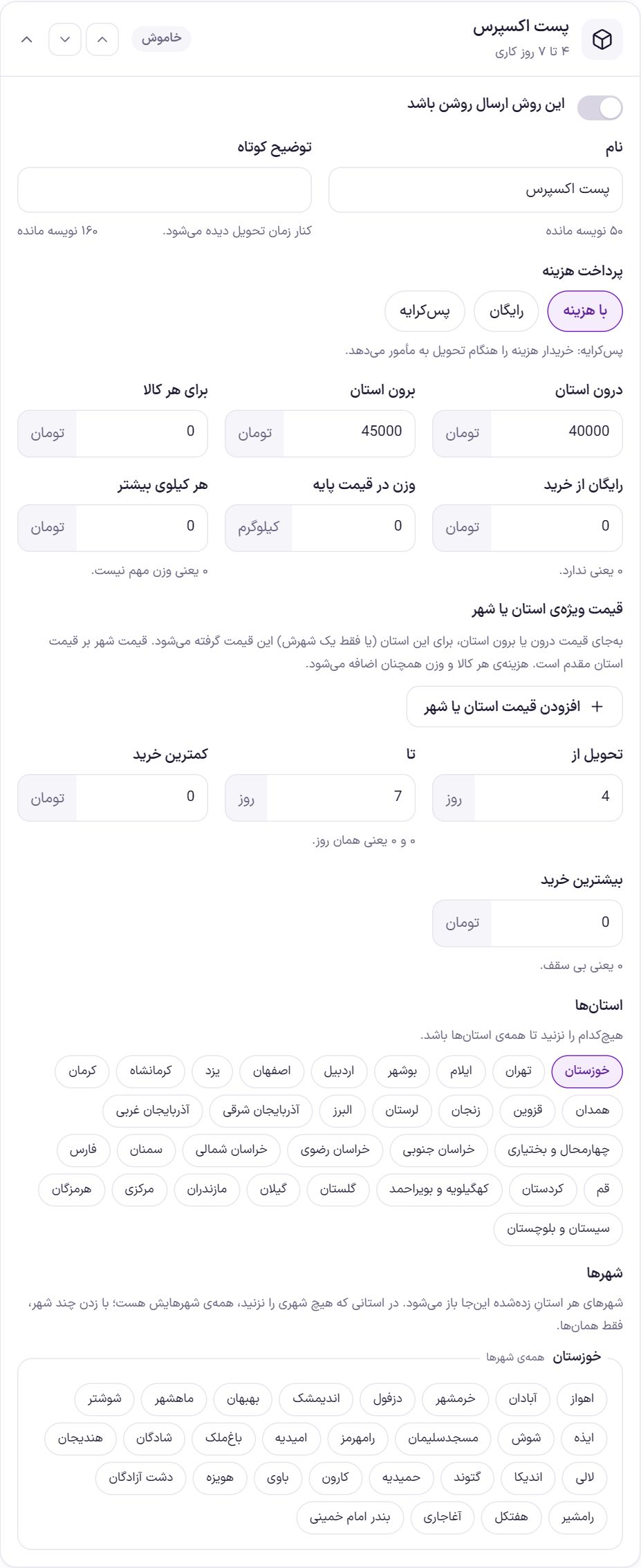
These two options decide where the method reaches. A buyer whose address is outside this area does not see the method.
- Provinces: “Select none to include all provinces.” If you select several provinces, the method appears only for those.
- Cities: The cities of each province you selected open below it. In a province where you select no city, all its cities are included; if you select some cities, only those. This is useful for courier and in-store pickup.
If another shipping plugin supplies its own city list, you will see a text field named “Only these cities” instead of the city buttons. Separate city names with commas, such as “Tehran, Karaj”. Empty means all cities of the provinces above. In this case “Special province or city price” is not shown either.
Class and weight
This tab adds a cost separate from each method's price, applied on top of all “Paid” methods. “Free” and “Pay on delivery” methods are not affected.
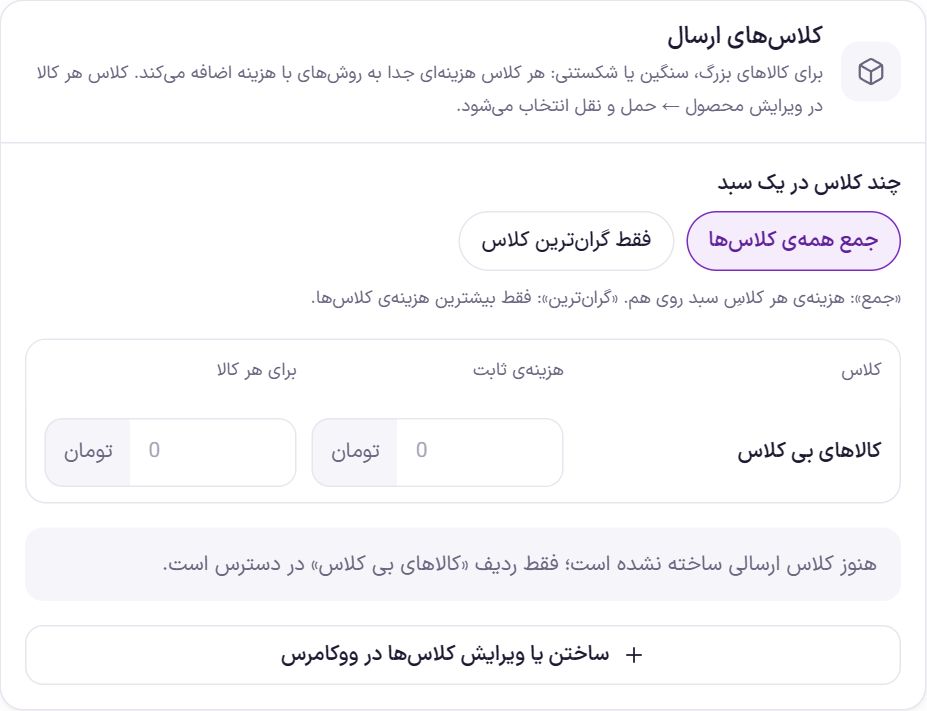
Shipping classes
A shipping class is for large, heavy or fragile items. You create classes in WooCommerce (the “Create or edit classes in WooCommerce” button) and choose each item's class in “Edit product → Shipping”. Then in this table you enter two amounts for each class.
| Option | What it does | Default |
|---|---|---|
| Several classes in one cart | “Sum of all classes”: the cost of every class in the cart is added together. “Highest class only”: only the highest class cost is charged. | Sum of all classes |
| Fixed cost | Added once if at least one item from this class is in the cart. | 0 |
| Per item | Added for each unit of an item from this class. | 0 |
The “Items with no class” row is for items that have no class. Example: a “Fragile” class with a fixed cost of 20,000 and 5,000 Toman per item; a cart with three fragile items adds 20,000 + 3 × 5,000 = 35,000 Toman to the shipping cost.
Weight tiers
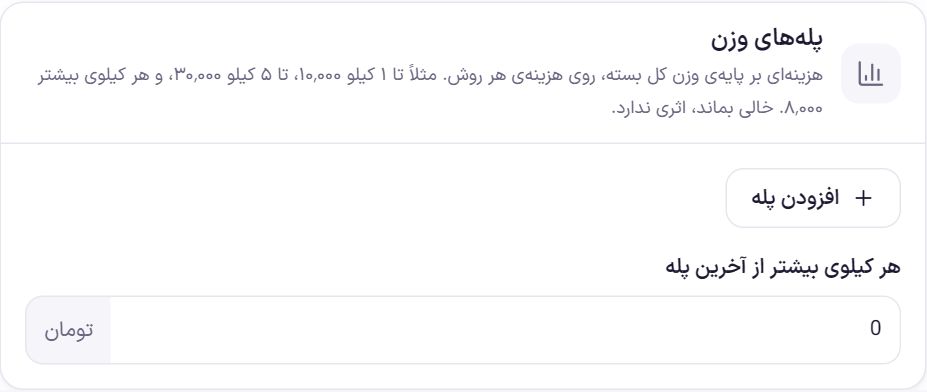
Each tier has a weight (“up to … kg”) and a cost. The total weight of the parcel is compared with the tiers, and the cost of the first tier the parcel fits in is added. You can create up to 20 tiers, and they are sorted from light to heavy when saved.
| Option | What it does | Default |
|---|---|---|
| Each extra kilo beyond the last tier | If the parcel is heavier than the last tier, the last tier's cost plus this amount for each extra kilo is charged. A fraction of a kilo counts as a kilo. | 0 |
The panel's own example: up to 1 kg 10,000, up to 5 kg 30,000, and 8,000 for each extra kilo. A 7 kg parcel adds 30,000 + 2 × 8,000 = 46,000.
Free by city
This tab lets you offer free shipping to a city, or a whole province, provided the buyer purchases enough from the specified categories.
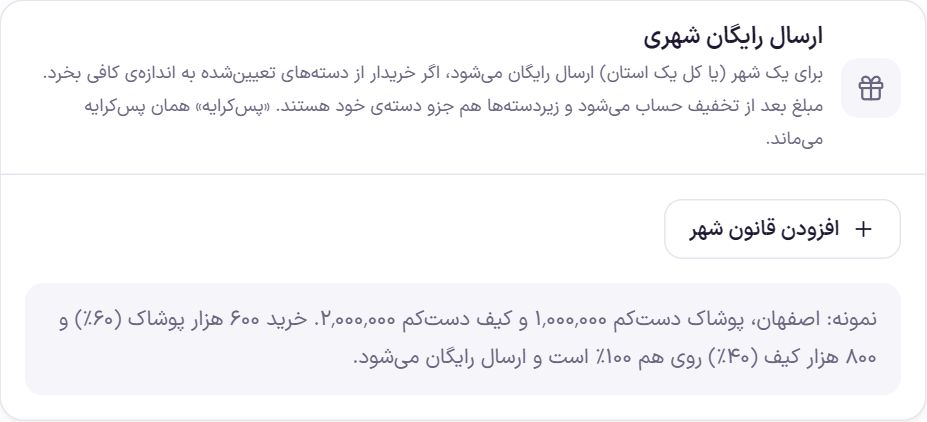
- Click “Add city rule”. A new row opens.
- Select the province and city. If you set the city to “Whole province”, the rule applies to all cities in that province.
- Enter the category and minimum amount. For each product category, enter the minimum purchase from that category. One rule can have several categories.
- Save.
If a rule has several categories, the purchase share from each category is added up, and when it reaches 100% shipping is free. Panel example: Isfahan, Clothing at least 1,000,000 and Bags at least 2,000,000. A purchase of 600 thousand from Clothing is 60% and 800 thousand from Bags is 40%; together 100%, so shipping is free.
- Each item's amount is calculated after the discount code.
- Subcategories belong to their own category; a purchase from “Clothing › Coats” counts for “Clothing” too.
- This rule makes all “Paid” methods free. “Pay on delivery” stays pay-on-delivery.
- If you have not created any product category yet, this tab shows a warning; first create categories in “Products → Categories”.
Delivery time
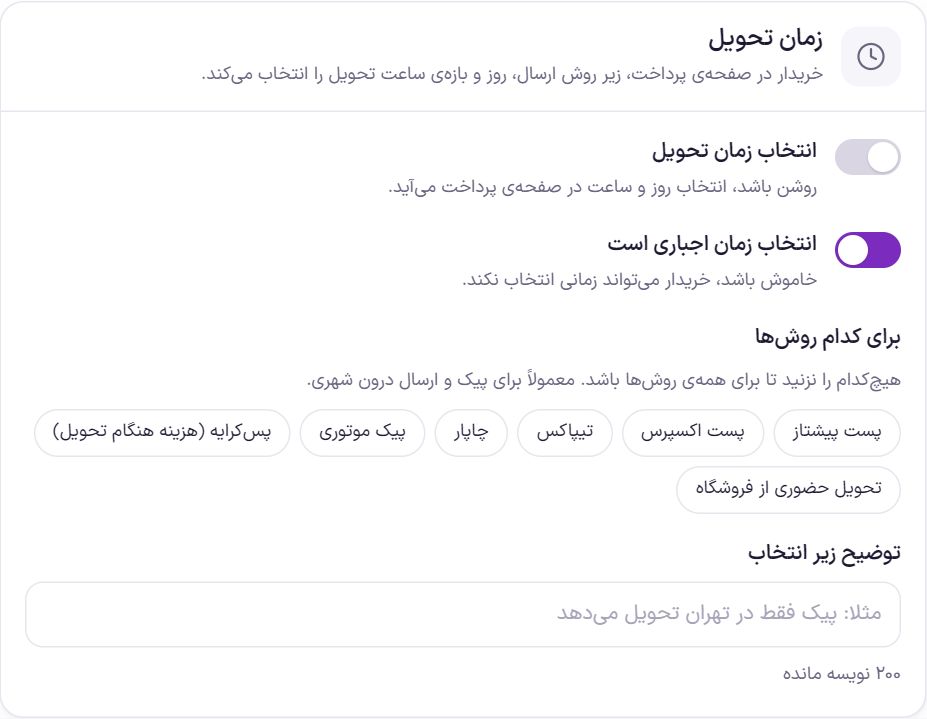
When you turn this tab on, the buyer chooses the delivery day at checkout, under the shipping method, and the time slot if you want. At the top of this tab you see a preview of that same picker, with the saved settings. If no day is open with your settings, the preview says so.
| Option | What it does | Default |
|---|---|---|
| Delivery time selection | If on, day and time selection appears at checkout. | Off |
| Time selection is required | If on, an order cannot be placed without choosing a day and the buyer sees the message “Choose a delivery day.” If off, the buyer may choose no time. | On |
| For which methods | Time selection appears only when the buyer has chosen one of these methods. Select none to apply to all methods. Usually for courier and in-city delivery. | All methods |
| Note under the picker | A line under the picker, such as “The courier delivers only in Tehran”. Up to 200 characters. | Empty |
Delivery days
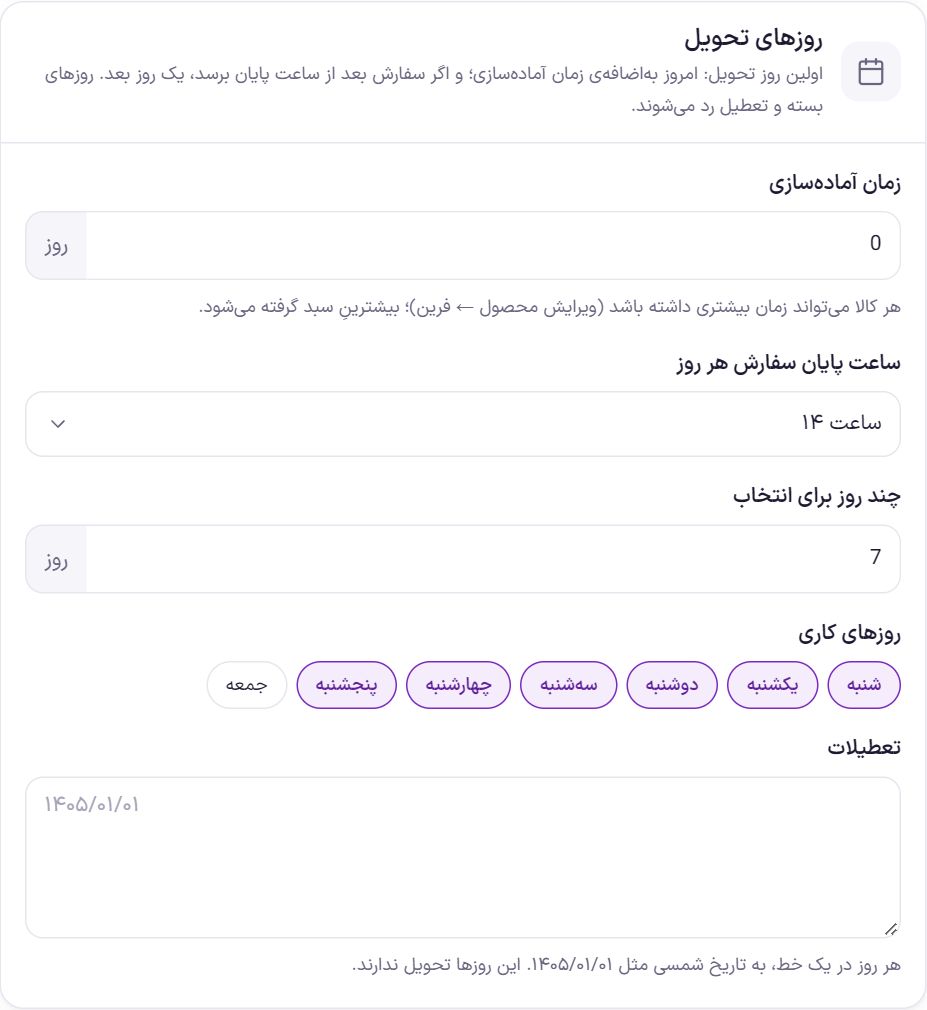
The first day the buyer can choose: today plus the preparation time; and one day later if the order arrives after the cutoff time. Closed days and holidays are skipped.
| Option | What it does | Default |
|---|---|---|
| Preparation time | How many days after the order the parcel is ready for delivery. Each item can have a longer time (the “Preparation days” field in Edit product → Farin); the largest among the cart's items is used. Maximum 60 days. | 0 |
| Daily order cutoff time | Orders that arrive from this time onward start one day later. “No cutoff time” means the order time does not matter. | 14:00 |
| Days offered | How many consecutive open days are shown to the buyer. From 1 to 30. | 7 |
| Working days | The days you deliver. Days that are not selected do not appear in the list. | Saturday to Thursday |
| Holidays | One day per line, in the Jalali date format, such as 1405/01/01. There is no delivery on these days. | Empty |
Time slots
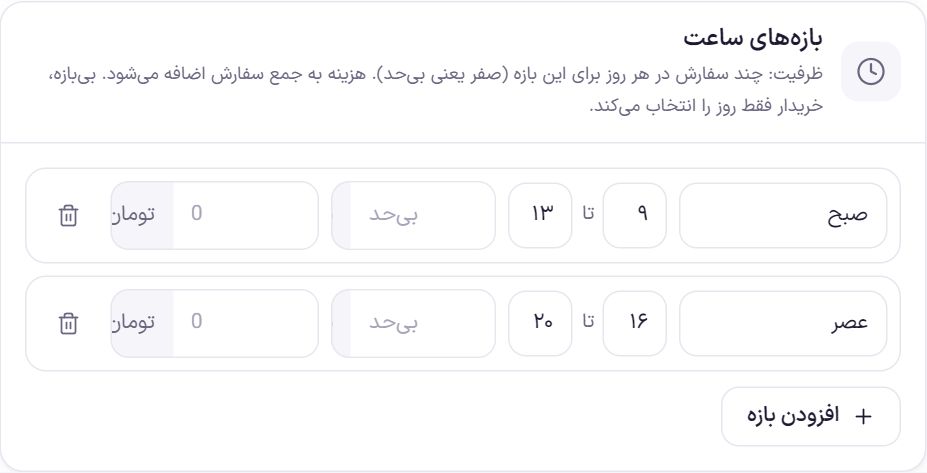
Each row is one slot: name, start and end time, capacity and fee. You can create up to 12 slots. If there is no slot, the buyer chooses only the day.
- Capacity: How many orders per day for this slot. Empty or zero means unlimited. Cancelled, failed and refunded orders do not count against capacity. When capacity is full, that slot cannot be chosen for that day.
- Fee: This amount is added to the order total as a separate line titled “Delivery in slot …”. A free slot shows “No fee” next to its name.
- For today, a slot whose start time has passed can no longer be chosen.
The selected day and slot are saved with the order and appear in the order total, emails, the order page in the dashboard, and the thank-you page. At “Place order”, it is checked once more that the day and slot are still open.
General
| Option | What it does | Default |
|---|---|---|
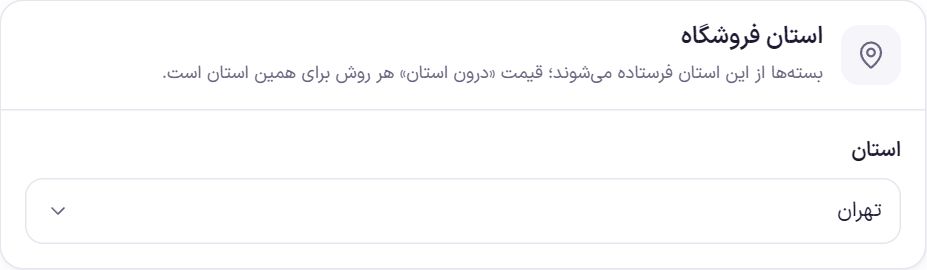
| Province | Parcels are sent from this province. Buyers in this province pay the “In-province” price and everyone else pays the “Out-of-province” price. | Tehran |
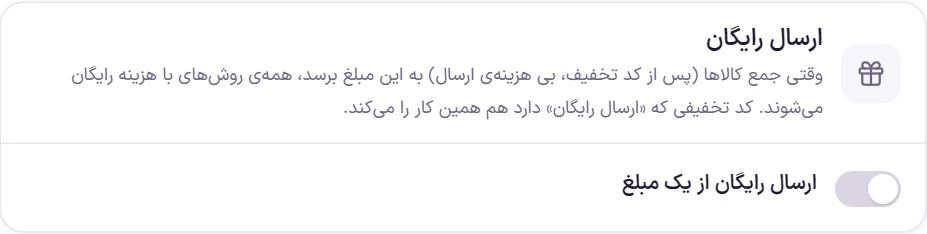
| Free shipping from an amount | If on, when the item total reaches the “From purchase” amount, all paid methods become free. This amount is calculated after the discount code and excluding shipping cost. | Off |
| From purchase | The amount from which shipping is free. | 1,000,000 |
A discount code that has the “Free shipping” option in WooCommerce also makes all paid methods free, whether this toggle is on or not.
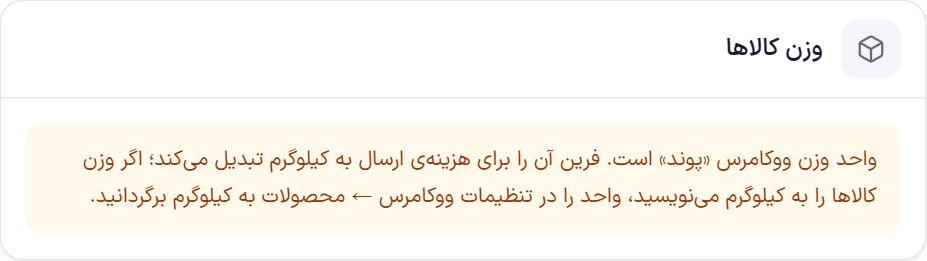
Farin calculates weight cost in kilograms and converts product weight from WooCommerce's unit to kilograms. If you entered product weights in kilograms but WooCommerce's unit is something else, the weight cost will be wrong; switch the unit back to kilograms in WooCommerce settings → Products.
The cost the buyer pays
For each “Paid” method, the shipping cost is built like this:
- Base price: The special price for the buyer's city; if none, the special price for their province; if none, “In-province” or “Out-of-province”.
- + per item multiplied by the number of items.
- + shipping classes and Weight tiers from the “Class and weight” tab.
- + each extra kilo for weight above that method's “Weight in base price”.
This whole amount becomes zero if any of these holds: a free-shipping discount code is in the cart; the item total reaches the General tab's “Free shipping from an amount”; the item total reaches that method's “Free from purchase”; or a “Free by city” rule applies to the buyer's city.
- All threshold amounts (free from purchase, minimum and maximum purchase, free by city) are compared against the item total after the discount code.
- Virtual and downloadable items that do not ship are not counted in quantity, weight or amount.
- The “Free” method is always zero. “Pay on delivery” is zero on the site and the buyer pays the cost at the door.
- The delivery slot fee is separate from the shipping cost and does not become zero with free shipping.
- New prices apply the moment you save; a buyer who has the checkout page open sees the new price when the page refreshes.
Frequently Asked Questions
The buyer sees no shipping method at checkout.
Check these: at least one method is on; the buyer's province or city is within that method's “Provinces” and “Cities”; the cart total is between “Minimum purchase” and “Maximum purchase”. If the cart contains only virtual or downloadable items, no shipping is needed and no method is shown.
I want the courier for Tehran only.
In the “Motorbike courier” box, select only Tehran under “Provinces” and the city of Tehran under “Cities”. Buyers in other cities do not see this method. If you want delivery time selection for the courier only, in the “Delivery time” tab, under “For which methods”, select only Motorbike courier.
Do I need to create a zone in “WooCommerce → Shipping”?
No. Farin automatically adds its own method to the “Locations not covered by your other zones” zone and reads provinces, cities and prices from this panel. If you already have a zone, Farin's methods are shown alongside that zone's methods.
I filled in both the method's “Free from purchase” and the general free shipping. Which one counts?
Whichever is reached first. If the item total reaches either amount, that method becomes free. The general amount makes all paid methods free, and a method's amount makes only that method free.
Farin Theme · 1405