

Top Bar
The top bar is a thin line above all pages that gives a short message, for example “Free shipping on purchases over 500,000 Toman”, and it can have a button too. Every change is saved instantly, and the preview at the top of the tab updates with it.
Where is it? Farin → Site content → Site Appearance → Top Bar
Top Bar
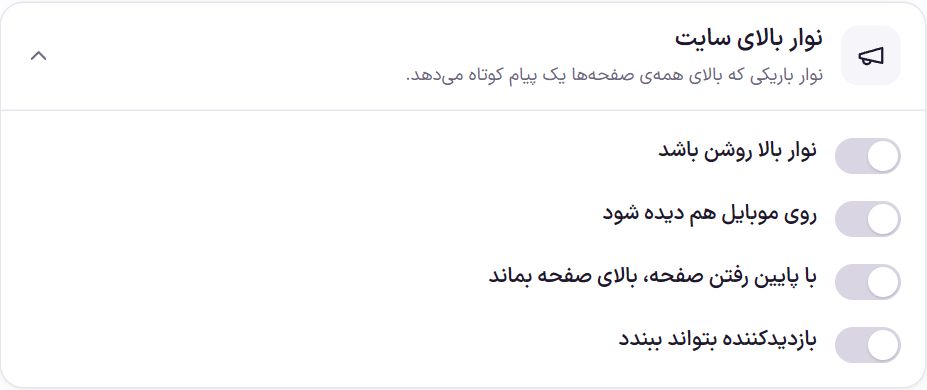
| Option | What it does | Default |
|---|---|---|
| Top bar is on | Shows the bar on the site. When off, the preview remains for viewing only. | Off |
| Show on mobile too | When off, the bar is shown only on large screens. | On |
| Keep at the top while scrolling | The bar does not move away when scrolling down and is always visible at the top of the page. | Off |
| Visitor can close it | A close button appears beside the bar. | On |
| After closing, don’t show for how many days | Only when closing is on. From 0 to 365 days. Zero means don’t show until the message changes. | 7 days |
Text and button
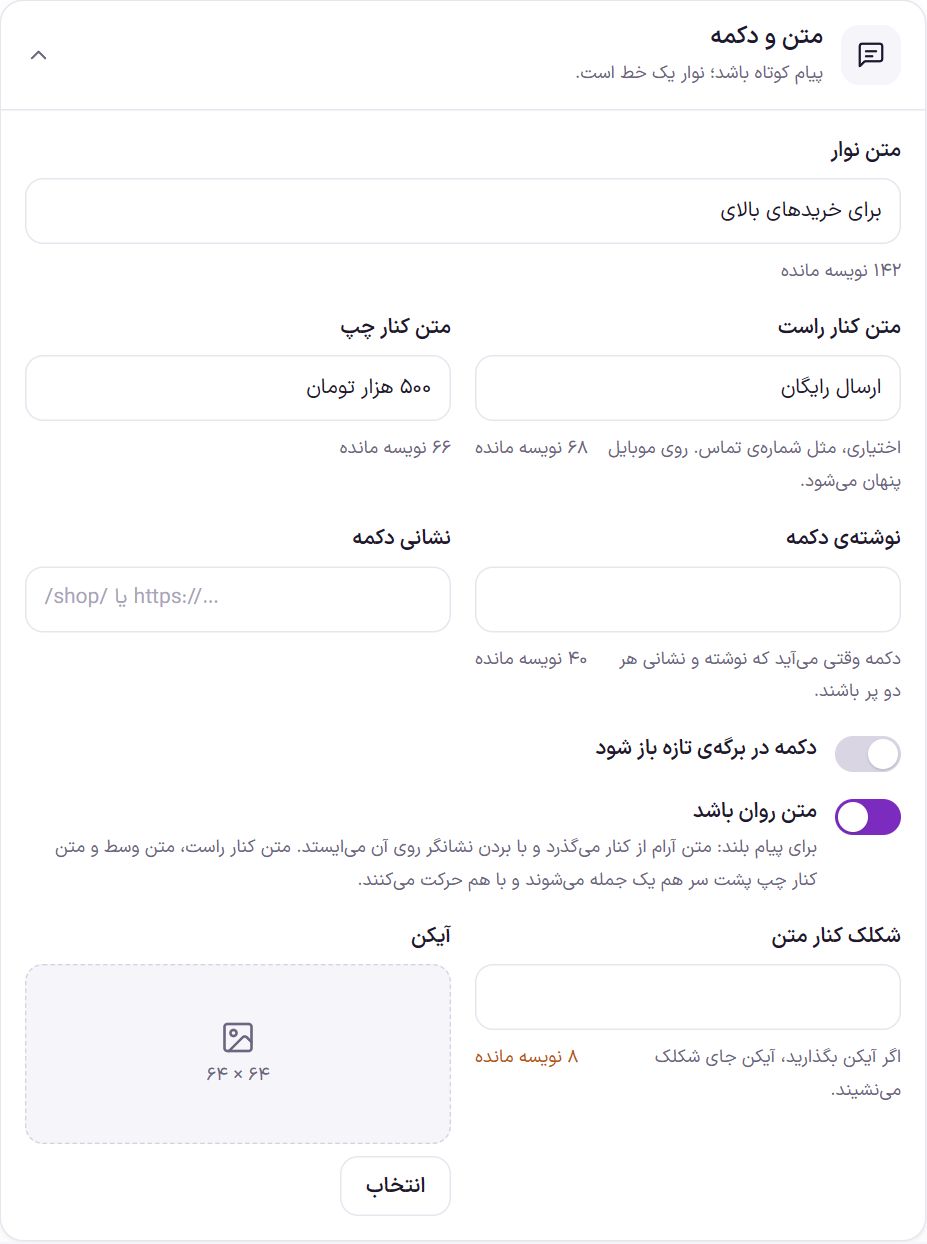
| Option | What it does | Default |
|---|---|---|
| Bar text | The main message, up to 160 characters. | Free shipping on purchases over 500,000 Toman |
| Right-side text | Optional, up to 80 characters; for example a phone number. Hidden on mobile. | Empty |
| Left-side text | Optional, up to 80 characters. | Empty |
| Button text | Up to 40 characters. The button appears when both its text and address are filled in. | Empty |
| Button address | A page of the site such as /shop/ or a full address. | Empty |
| Open the button in a new tab | Tapping the button opens the page in a new browser tab. | Off |
| Scrolling text | For a long message: the text drifts gently past and stops when the pointer goes over it. The right-side text, middle text, and left-side text join into one sentence and move together. | Off |
| Emoji beside the text | An emoji beside the message, up to 8 characters. | Empty |
| Icon | A small image beside the message; suggested size 64 × 64. If you add an icon, it takes the place of the emoji. |
Background and color
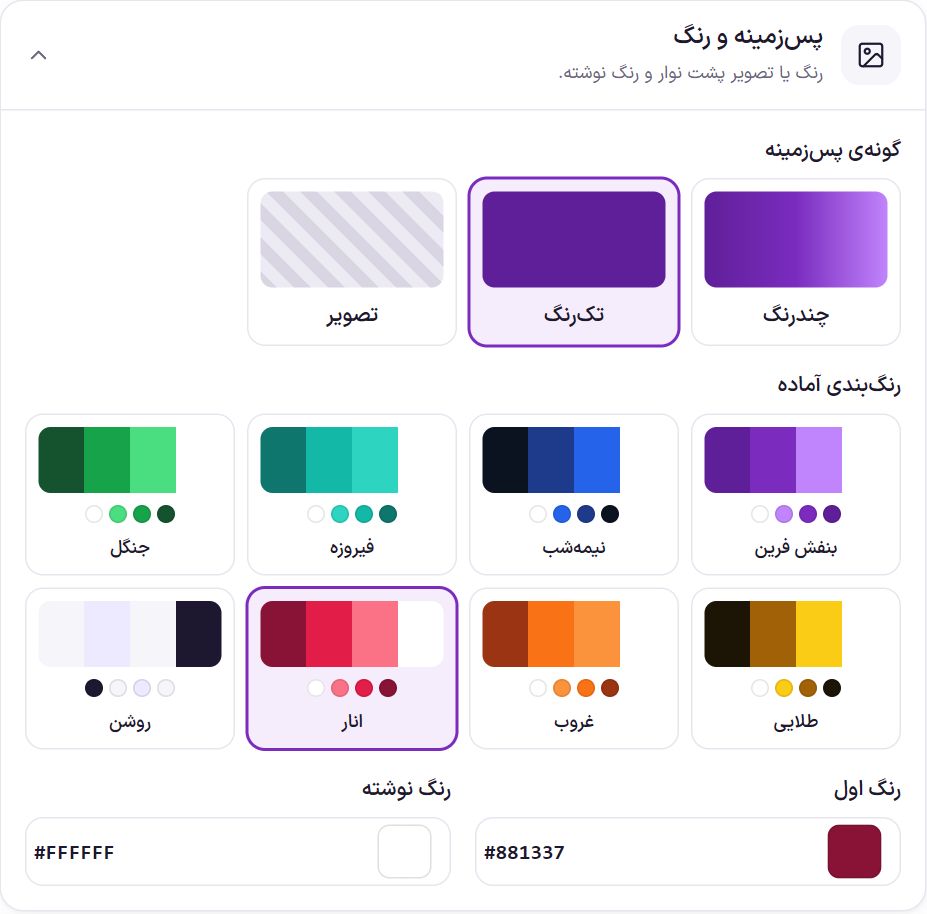
“Background type” has three modes: multicolor, single color (default), and image. Ready-made palettes: Farin purple, midnight, turquoise, forest, golden, sunset, pomegranate, and light. Tapping one sets the bar colors and text color together.
| Option | What it does | Default |
|---|---|---|
| First color | The background color in single-color mode, and the first color in multicolor mode. | #5F1F99 |
| Second color | Only in multicolor mode. | #7B2CBF |
| Third color (optional) | Only in multicolor mode. Leave empty to keep two colors. | Empty |
| Text color | The color of the message and side texts. | #FFFFFF |
| Colors drift slowly | Only in multicolor mode. The colors slowly shift across the bar. | Off |
| Color angle | Only in multicolor mode. The direction of going from one color to the next, from 0 to 360 degrees. | 90 degrees |
| Time for one rotation | Only in multicolor mode. From 3 to 60 seconds; the higher, the calmer. | 12 seconds |
| Background image | Only in image mode. Suggested size 1600 × 80. | |
| Darkness over the image | Only in image mode. From 0 to 90 percent; the higher, the more readable the text. | 35% |
Text size and position
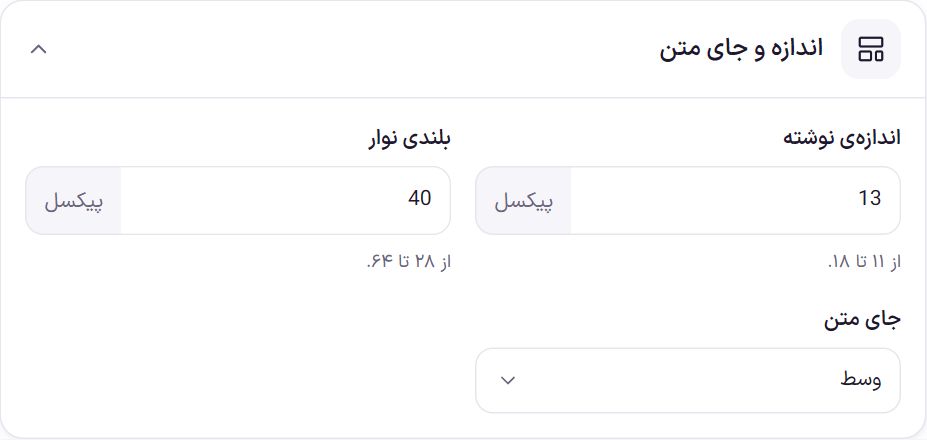
| Option | What it does | Default |
|---|---|---|
| Text size | From 11 to 18 pixels. | 13 |
| Bar height | From 28 to 64 pixels. | 40 |
| Text position | “Center” or “Start of the bar” (right side). | Center |
Frequently Asked Questions
I closed the bar and now I can’t see it myself either.
The bar closing is stored in your browser. Either wait until the days in “After closing, don’t show for how many days” pass, or open the site in your browser’s incognito window. Changing the message text also reopens the bar for everyone.
The bar button is not visible.
The button appears only when both “Button text” and “Button address” are filled in.
My message is long and doesn’t fit on one line.
Turn on “Scrolling text” so the text drifts gently past, or shorten the message.
Farin Theme · 1405