

Search
While you type, Farin search shows products under the box and understands Persian writing: “ی” and “ي”, “ک” and “ك”, Persian and English digits, and the half-space are all the same to it. Before typing, it can also show a banner, suggested products, and popular phrases.
Where is it? Farin → Site content → Store and Products → Search
Preview
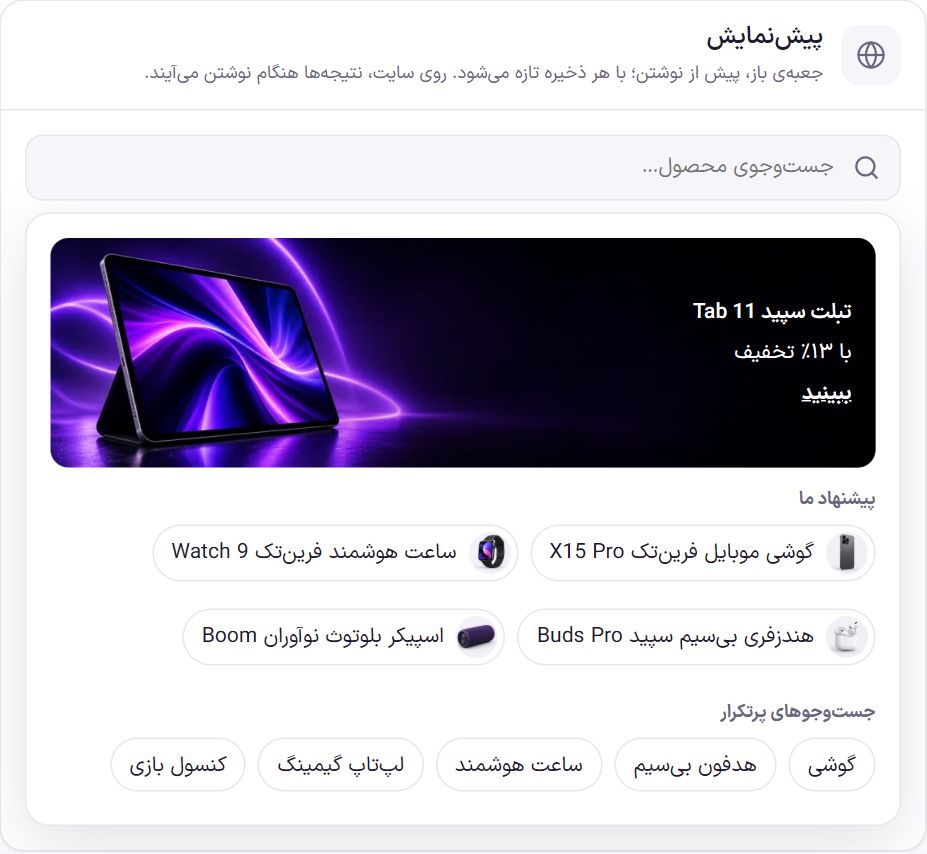
The preview shows the box as the buyer sees it after tapping it and before typing. It refreshes with every save. On the site, as a few letters are typed, the results replace these.
Search box
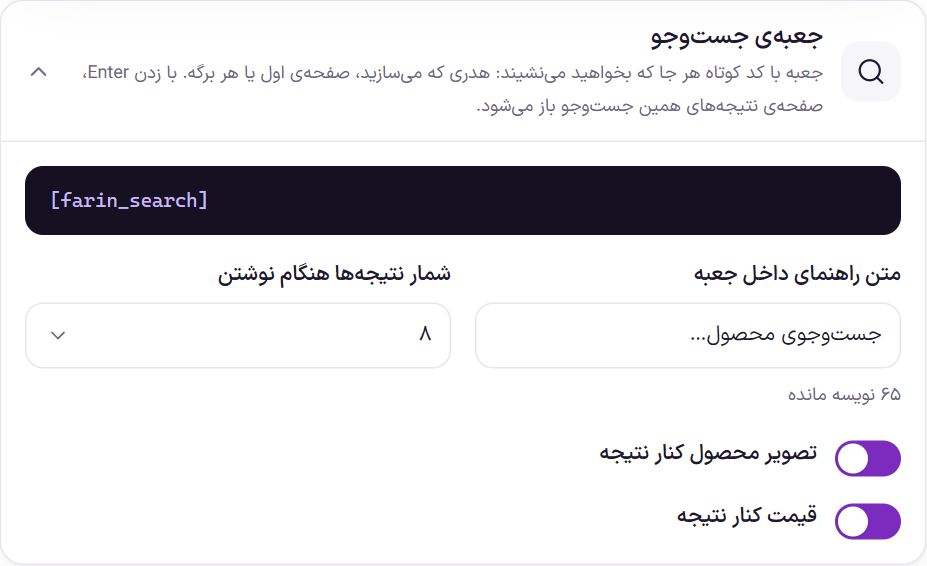
Search box with a shortcode [farin_search] It sits wherever you like: a header you build, the home page, or any page. The “Search” section in Header and the bottom bar’s search Mobile both show this same search. Pressing Enter opens the results page for this search, whose look is set by the Store .
| Option | What it does | Default |
|---|---|---|
| Placeholder text inside the box | The faint text inside the empty box, up to 80 characters. | Search products… |
| Number of results while typing | How many products appear under the box, from 3 to 20. The rest are seen with “All results” on the results page. | 8 |
| Product image beside the result | A small product image beside its name. | On |
| Price beside the result | The product price beside its name. | On |
Color
| Option | What it does | Default |
|---|---|---|
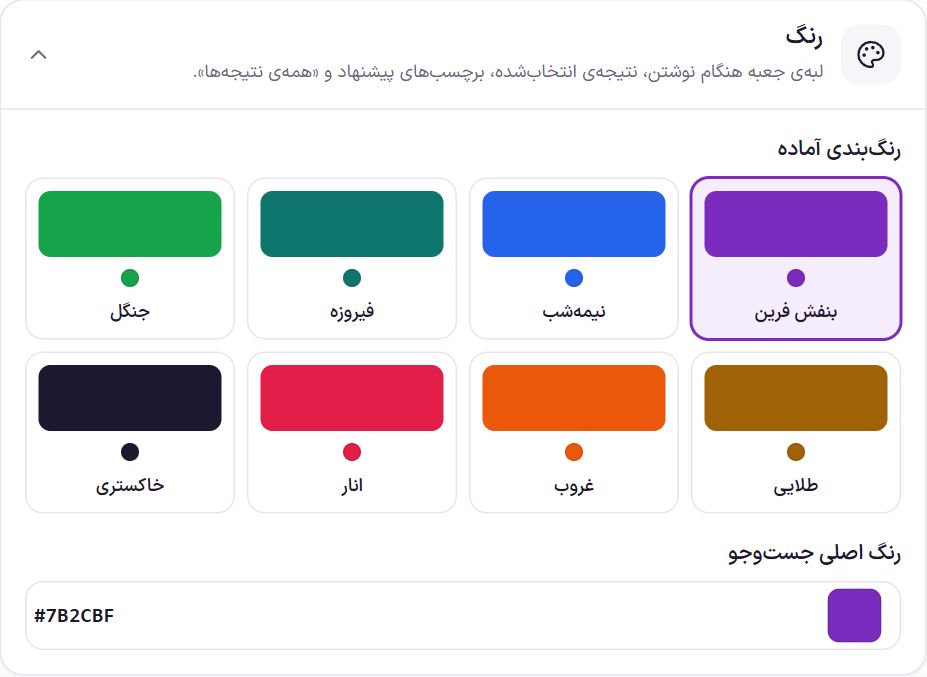
| Ready-made color schemes | Farin purple, midnight, turquoise, forest, golden, sunset, pomegranate, and gray. | Farin Purple |
| Main search color | The box edge while typing, the selected result, the suggestion labels, and “All results”. You can type a color code too. | #7b2cbf |
What to search
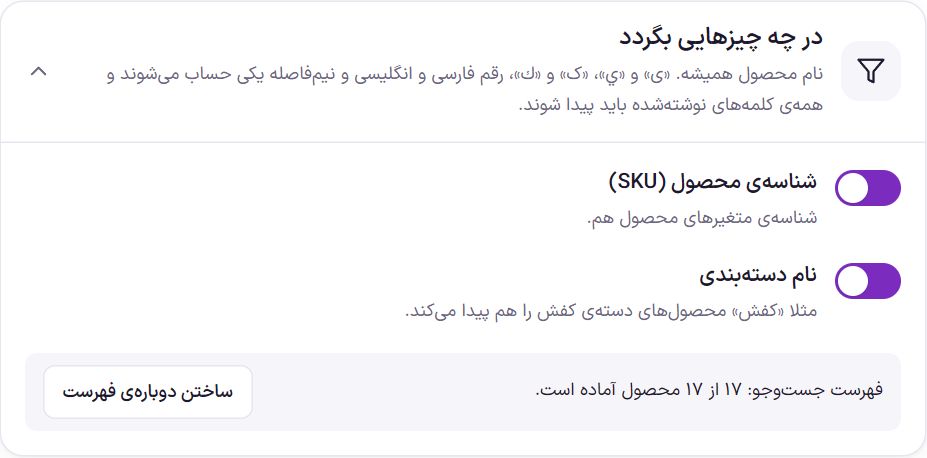
The product name is always searched. All the words the buyer types must be found; “Samsung phone” brings up a product that has both words. Results are ordered like this: first a name that is exactly the same, then a name that starts with it, then a name where a word starts with the phrase, and finally the rest. Within each tier, in-stock products come before out-of-stock ones.
| Option | What it does | Default |
|---|---|---|
| Product ID (SKU) | Typing the product ID finds it too; the IDs of variable product variations as well. | On |
| Category name | The product category name is searched too. For example, “shoes” also finds products in the shoes category, even if the word shoes is not in their name. | On |
| Rebuild the index | Rebuilds the search index of all products from scratch. |
Only published, visible, password-free products appear in the results. If “Hide out of stock items” is on in WooCommerce settings, out-of-stock products do not appear either.
Before writing
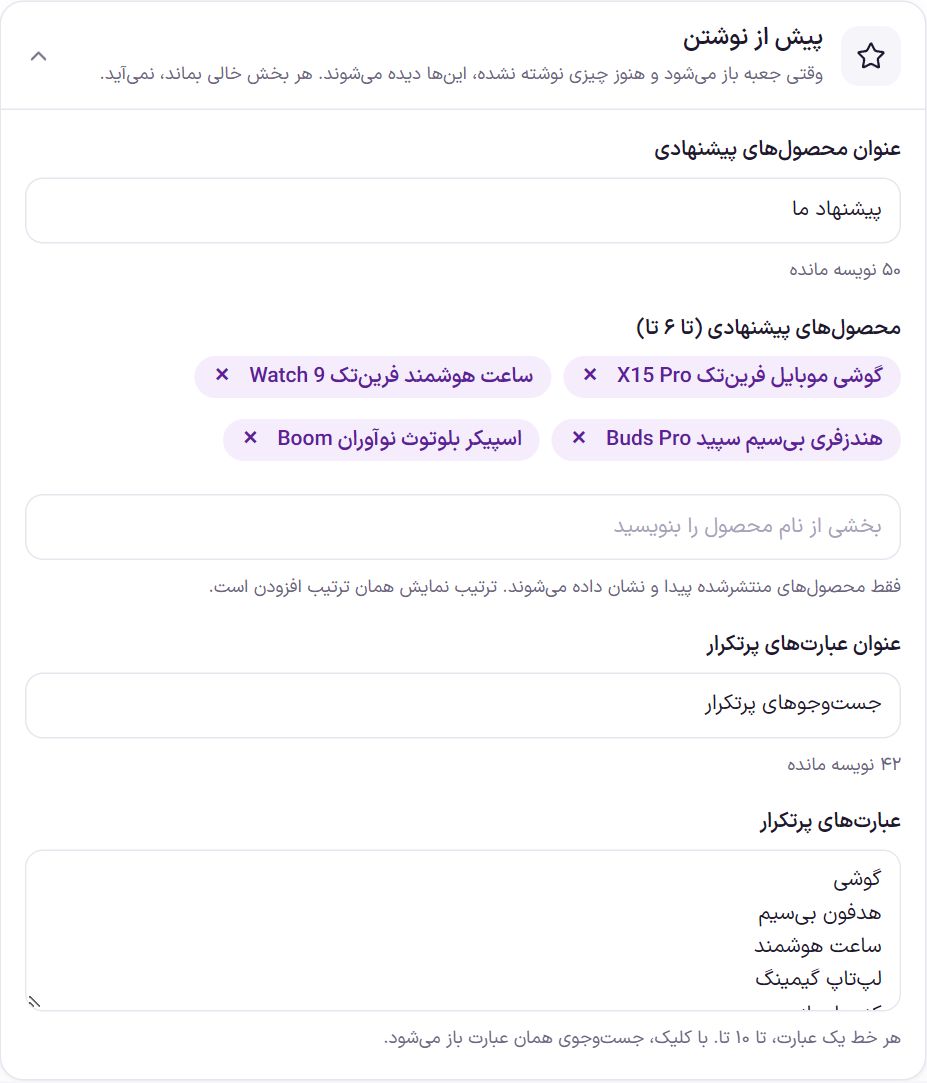
These are shown when the box opens and nothing has been typed yet. Any section left empty is not shown.
| Option | What it does | Default |
|---|---|---|
| Suggested products heading | Up to 60 characters. | Our suggestions |
| Suggested products (up to 6) | Type part of a product name and pick it from the list. Only published products are found and shown. The display order is the order of adding. | Empty |
| Popular phrases heading | Up to 60 characters. | Popular searches |
| Popular phrases | One phrase per line, up to 10 phrases. Tapping one shows the buyer that phrase’s search. You write this list yourself; it is not built from buyers’ searches. | Empty |
Search box banner
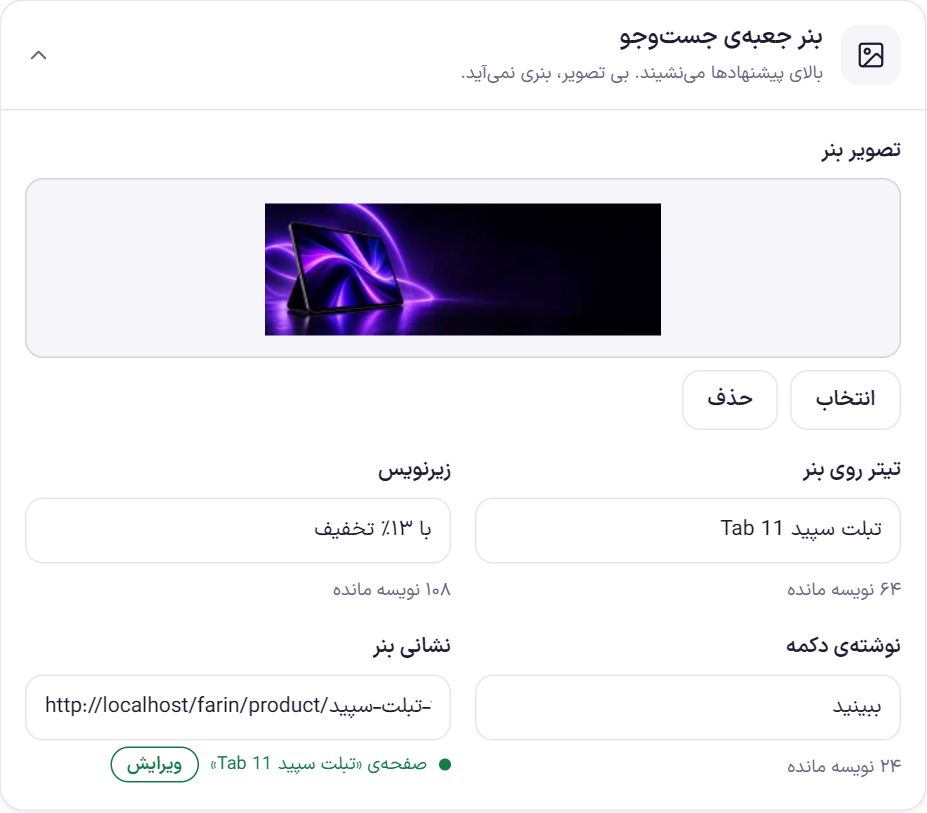
The banner sits above the suggestions. With no image, no banner appears.
| Option | What it does | Default |
|---|---|---|
| Banner image | Suggested size 1080 × 300. Pick it from media with “Choose” and remove it with “Remove”. | |
| Banner headline | Up to 80 characters. | Empty |
| Subtitle | Up to 120 characters. | Empty |
| Button text | Up to 30 characters. | Empty |
| Banner address | Where the banner goes; an on-site address such as /shop/ or a full address. | Empty |
Frequently Asked Questions
A product I know exists is not found in search.
First check that the product is published, has no password, and is visible in the shop list. Then look at the “search index” number; if not all products are ready, press “Rebuild the index”. Remember that all the typed words must be found in the name (or ID and category, if those are on).
The buyer types with an Arabic keyboard “ي” or “ك”; will it be found?
Yes. “ی” and “ي”, “ک” and “ك”, Persian and English digits, and the half-space are treated as the same; “آیفون 15” and “آيفون 15” give the same result.
Where should I put the search box?
In the Farin header, put the “Search” section in the layout of Header . In any page or Elementor template, write the shortcode [farin_search] there.
Farin Theme · 1405