

eNamad
Here you do two things: choose how eNamad is shown in the footer, and paste the code for all of the store's badges (eNamad, Samandehi, PayPing, payment gateway). Farin cleans the codes and shows them in the footer, on the all-badges page, and with a shortcode or Elementor widget.
Where is it? Farin → Site content → Trust and Notifications → eNamad
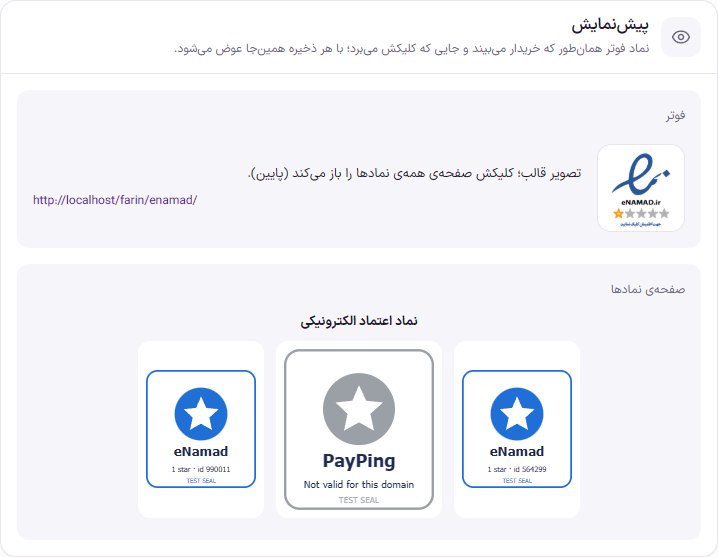
The preview at the top of the page changes the moment you save, without the page reloading. Beside the footer image it says where a click on it goes.
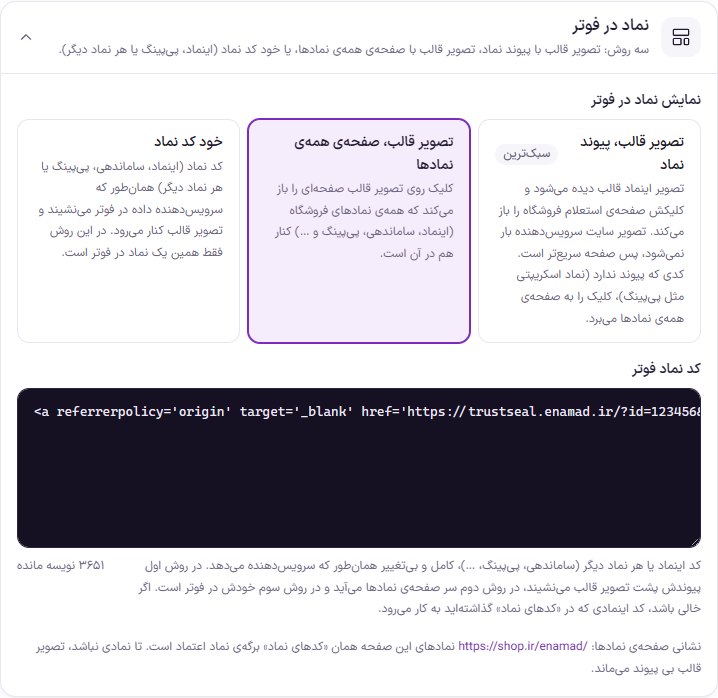
Three ways to show a badge in the footer
| Method | What it does | When it fits |
|---|---|---|
| Theme image, badge link | The theme's own eNamad image is shown in the footer. The inquiry page link is taken from your badge code and placed behind this image. The provider site's image isn't loaded at all. Clicking opens the store's inquiry page. A code with no link (a script badge, like PayPing) has no link to take; then the click opens the all-badges page. | Most stores. It's the lightest method and doesn't slow the page down. Default of a new site. |
| Theme image, all-badges page | Clicking the theme image opens the site's /enamad/ page. On that page all the store's badges appear together, under the title “Trust badge”. | A store with several badges (eNamad, Samandehi, PayPing) that doesn't want a crowded footer. |
| The badge code itself | The badge code (eNamad, Samandehi, PayPing or any other badge) sits in the footer exactly as the provider gave it, and the theme image steps aside. The image or script loads from the provider's site. In this method, only this one badge is in the footer. | When you want the buyer to see the live badge in the footer. |
| Option | What it does | Default |
|---|---|---|
| Footer badge code | The eNamad code or any other badge, complete and unchanged as the provider gives it. It's saved with “Apply”. Code that has no image or script from the providers isn't saved, and its message appears under the box. If empty, the eNamad code you put in “Badge codes” is used. | Empty |
| Until there is a badge code, show the theme image | Third method only. When off, until you add the code the badge spot in the footer stays empty. | On |
Until you add the badge code, in the first and second methods the theme image is shown without a link. The same setting is also in Footer (“Edit footer layout”, “Trust badge” section). Both are the same setting, and a change in one appears in the other.
A site configured before these methods keeps the same behavior: “Real badge” became method three, “Theme image with eNamad link” became method one, and “No sample image” became method three with the theme image switch off.
All-badges page
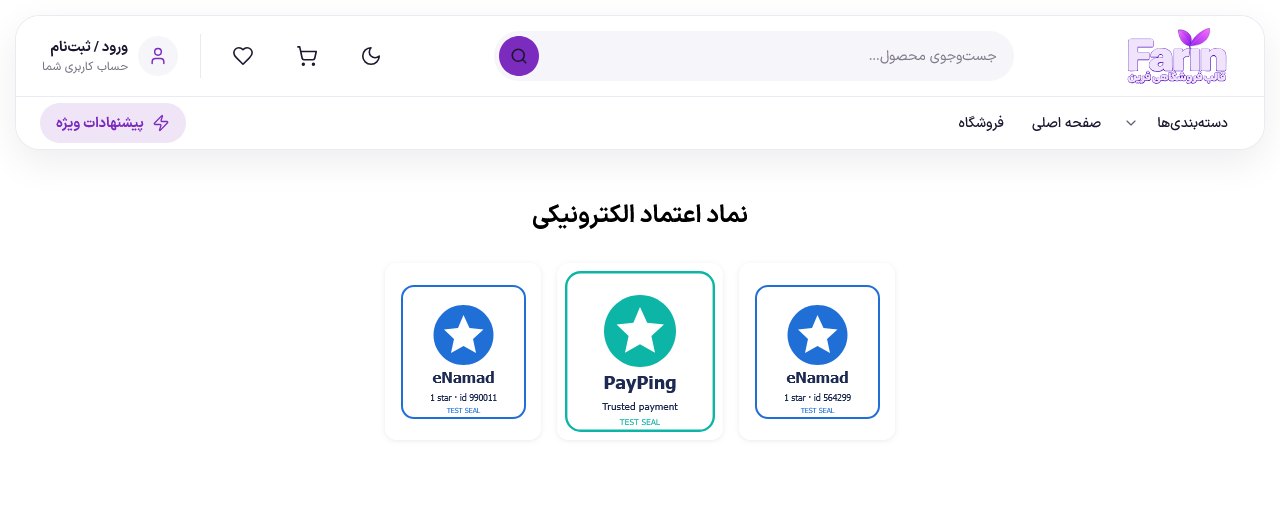
/enamad/: all the badges side by side, with the site's own header and footer.Page address /enamad/ is, for example https://shop.ir/enamad/. Its badges are the “Badge codes” at the bottom of this tab. The footer badge code, if not in the list, comes first in the row. The heading and short description above the row are the “Title” and “Short description” of this tab. On a phone, a badge that doesn't fit in one row moves to the next row.
Until there is no badge or “Show trust badge” is off, this URL shows the “Not found” (404) page, so an empty page doesn't get into the search engine.
Setup
- Get the badge code from the service’s site. In the eNamad, Samandehi, PayPing or payment gateway panel, copy the full badge code.
- Press “Add badge”. An empty box opens. Paste the code in it just as you received it.
- Press “Save badges”. Beside each code, its sanitized result is shown. If part of the code was removed, a message appears above the list.
- Choose the footer method. Under “eNamad in footer”, click one of the three methods and paste the eNamad code. For another place, use the shortcode or Elementor's “Trust badge” widget.
Showing the trust badges
| Option | What it does | Default |
|---|---|---|
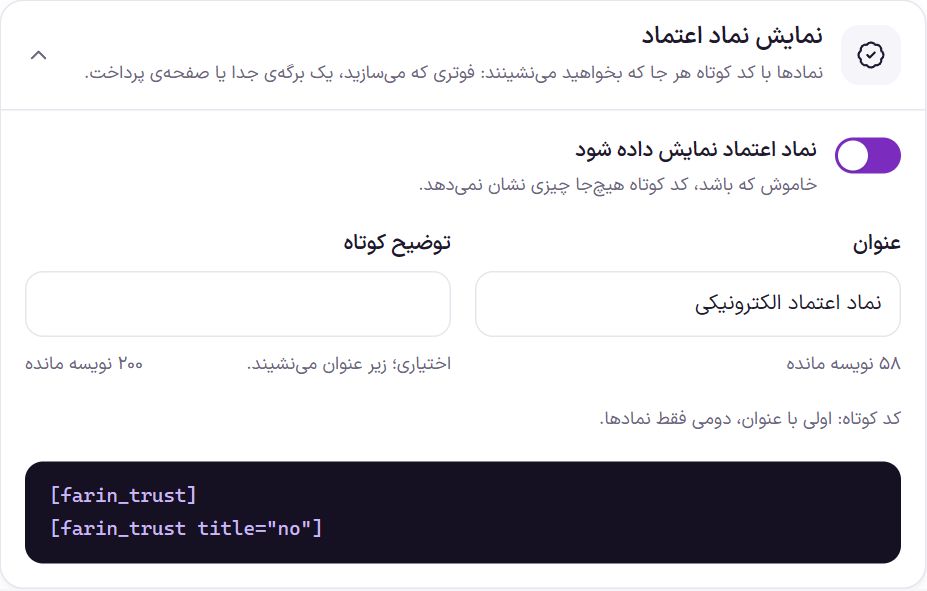
| Show the trust badges | When off, none of the footer, badges page, shortcode and widget show anything. Saved codes aren't deleted. | On |
| Title | Text that goes above the badges and at the top of the badges page. At most 80 characters. | Electronic trust seal |
| Short description | Optional. A line under the heading. Up to 200 characters. | Empty |
You have two shortcode forms:
[farin_trust]Shows the badges with the heading and description.[farin_trust title="no"]Shows only the badges, with no heading.
In Elementor, the “Trust Badge” widget does the same and has a “Heading above the badges” option. If you leave the heading empty in the panel, only the badges are seen with both forms.
Badge codes
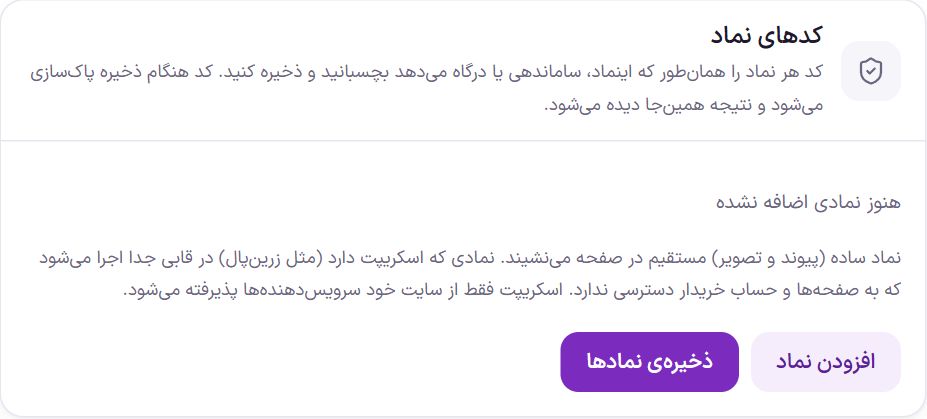
Each badge has a card: the code box on one side and the saved result on the other. “Delete this badge” removes the card; the change is recorded after “Save badges”. Up to 8 badges are saved, and an empty box is ignored.
When saving a code, Farin does the following:
- Simple badge (link and image, like eNamad) is placed directly in the page. Its image loads later than the top of the page so the page speed doesn't drop. Only the link, image and a simple frame remain; manual styling (
style,class), and any image or link that isn't from the providers' sites, are removed. - A badge that has a script (like PayPing and Zarinpal) also runs in the page like the provider's own code so the provider sees the store's address and its inquiry works. The script stays in place of the code and only its known attributes, such as
themeandsizeof PayPing, are kept. In the panel, for preview, it runs in a separate frame. - Script Accepted only as a file, from a secure URL (
https) and from exactly one of these addresses:trustseal.enamad.ir,logo.samandehi.ir,trustseal.ecunion.ir,statics.payping.ir,www.zarinpal.comandzarinpal.com. A script from elsewhere, from a lookalike URL (for examplestatics.payping.ir.evil.com) or a script that has the code inside itself is removed. A badge's link and image fromenamad.ir,samandehi.ir,ecunion.ir,zarinpal.com,shaparak.ir,irannsr.org,payping.irand their subdomains are accepted. - Samandehi badge that opens a new window on click is converted to a regular link so it works without a script.
- JavaScript events (such as
onclickandonerror), linksjavascript:and tags that are not badges (form, button, frame) are removed, and you will see a message for it.
Frequently Asked Questions
Which footer method should I choose?
If you only have eNamad, the first method: the page is faster and the buyer's click opens eNamad's own inquiry page. If you have several badges, the second method, so the buyer sees them all side by side on one page. Choose the third method when you want the live eNamad image in the footer.
I added the eNamad code but the badge image isn’t visible.
The eNamad image is visible only on the domain it was registered for. Open the site with that domain. If you copied the code from somewhere else, get the new code from the eNamad panel and paste it again.
After saving I got the message “A script from an unknown address was removed”.
The code had a script that was not from a known provider’s site, or it had the code inline. That part was removed for the buyers’ security. Look at the result beside the code; if the badge is displayed correctly, nothing needs to be done.
Where on the site should I put the badges?
eNamad in the theme's own footer sits in the method you chose, and other badges on the badges page. If you built the footer with Elementor, the “Trust badge (footer)” widget places the same footer badge and the “Trust badge” widget places all the badges side by side. For the “About us” tab or the payment page, a shortcode is enough.
Farin Theme · 1405