

Cart
This section builds the cart page: the product list, the order summary with the final amount, the free shipping bar, “Buy later” and suggested products. The checkout step names and the colors here are also used on the payment page.
Where is it? Farin → Site content → Store and Products → Cart
Preview and layout editing
At the top of the page is a preview of the cart. If your own cart is empty, the preview shows a sample cart. See both sizes with “Desktop” and “Mobile”.
The “Edit layout” button opens a window that shows the page in three rows: “Top of page”, “Two columns” (with “Wide column (right)” and “Side column (left)”) and “Bottom of page”. Drag sections and drop them wherever you like, or click one and move it with the arrow keys. Clicking a section opens that section’s settings beside the window.
Farin Cart
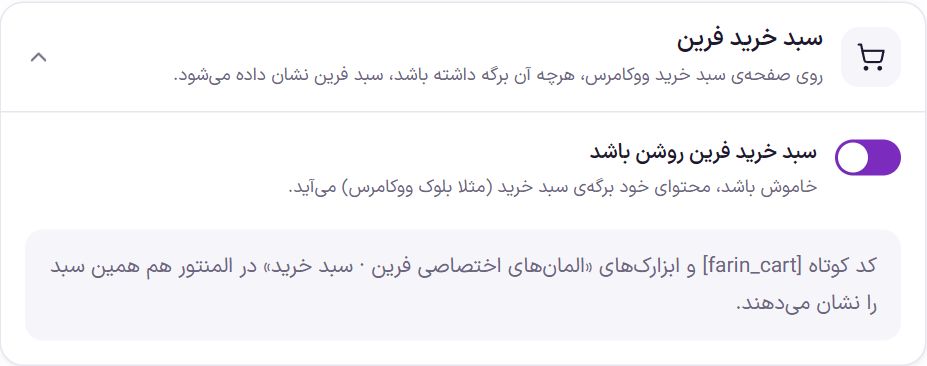
| Option | What it does | Default |
|---|---|---|
| Farin cart enabled | When on, the Farin cart is shown on the WooCommerce cart page, whatever that page contains. When off, the page’s own content (for example, the WooCommerce cart block) appears. | On |
Shortcode [farin_cart] and the “Farin Custom Elements · Cart” widgets in Elementor also show this same cart. The widgets guide is in Elementor Widgets .
Summary and shipping cost
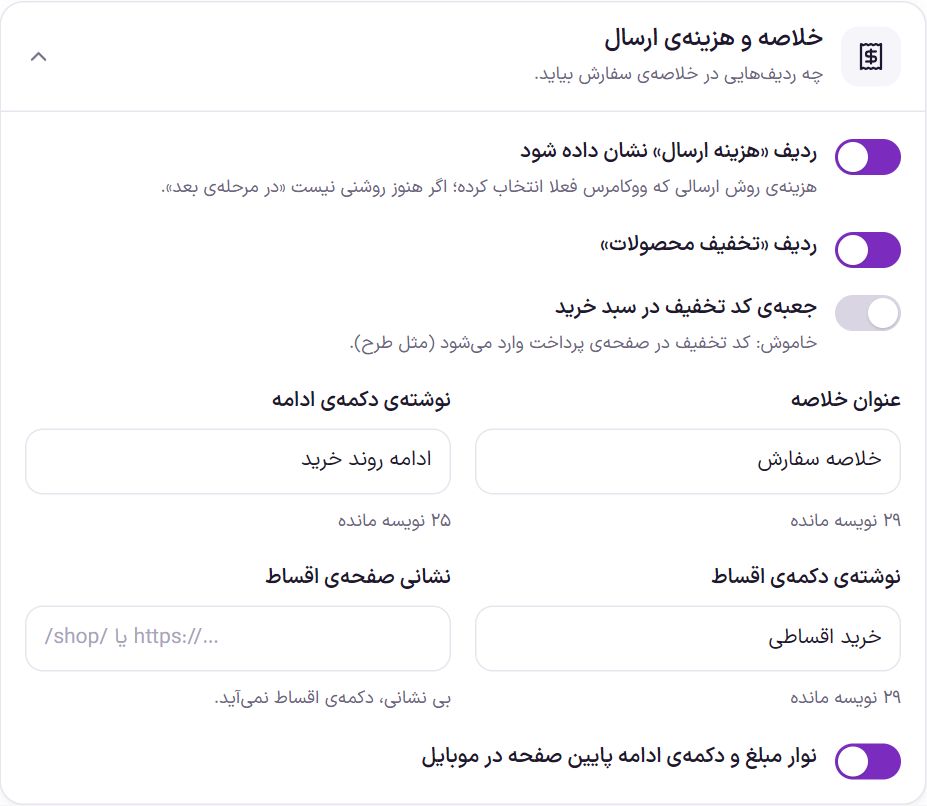
| Option | What it does | Default |
|---|---|---|
| Show the “Shipping cost” row | The cost of the shipping method WooCommerce has currently selected for the cart. If it is not yet determined (for example, the shopper’s address is unknown), “At the next step” is written. | On |
| “Product discounts” row | The total discount on cart products in a separate row. | On |
| Discount code box in cart | The shopper enters the discount code right here. When off, the discount code is entered on the payment page. | Off |
| Summary title | Up to 40 characters. | Order summary |
| Continue button text | The button that goes to the payment page, up to 40 characters. | Continue checkout |
| Installment button text | Up to 40 characters. | Buy in installments |
| Installment page address | The page the installment button goes to, an address inside the site or a full address. With no address, the installment button does not appear. | Empty |
| Amount bar and continue button at the bottom of the page on mobile | On phones, the final amount and the continue button stay in a bar at the bottom of the page. | On |
The discount codes themselves are created in the Discount Codes section.
Free Shipping Bar
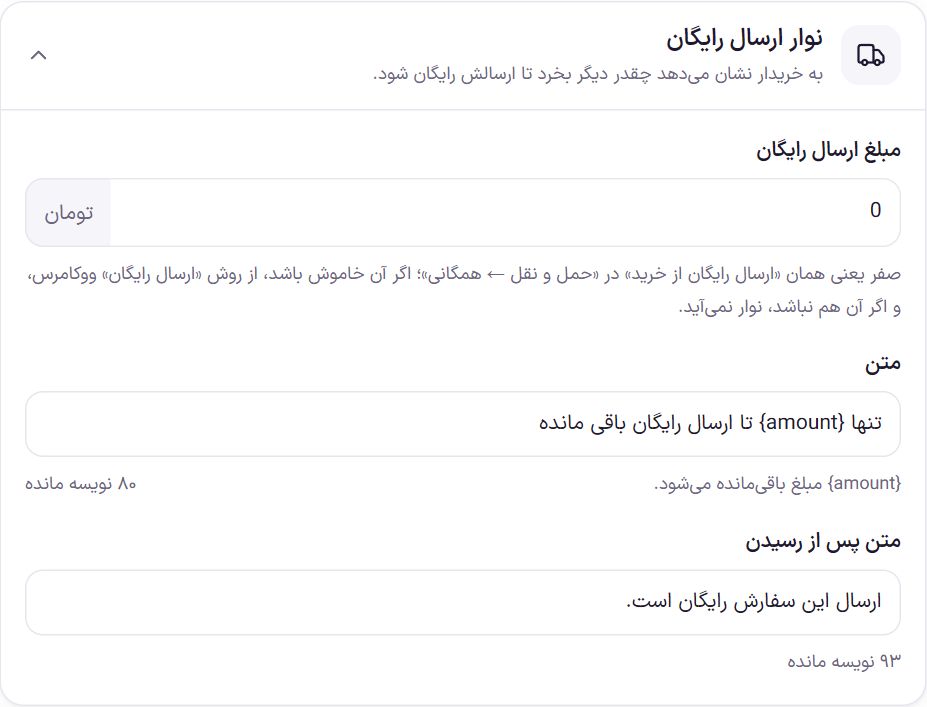
This bar shows the shopper how much more to buy to get free shipping. When the cart total reaches that amount, the “Text after reaching” takes its place.
| Option | What it does | Default |
|---|---|---|
| Free shipping amount | The amount from which shipping is free, in the store’s currency. Zero means the same “Free shipping from purchase” in Shipping ← General; if that is off, it is read from WooCommerce’s “Free shipping” method, and if that is not there either, the bar does not appear. | 0 |
| Text | Up to 120 characters. {amount} is replaced by the remaining amount. | Only {amount} left until free shipping |
| Text after reaching | Up to 120 characters. | Shipping for this order is free. |
Steps, title and width
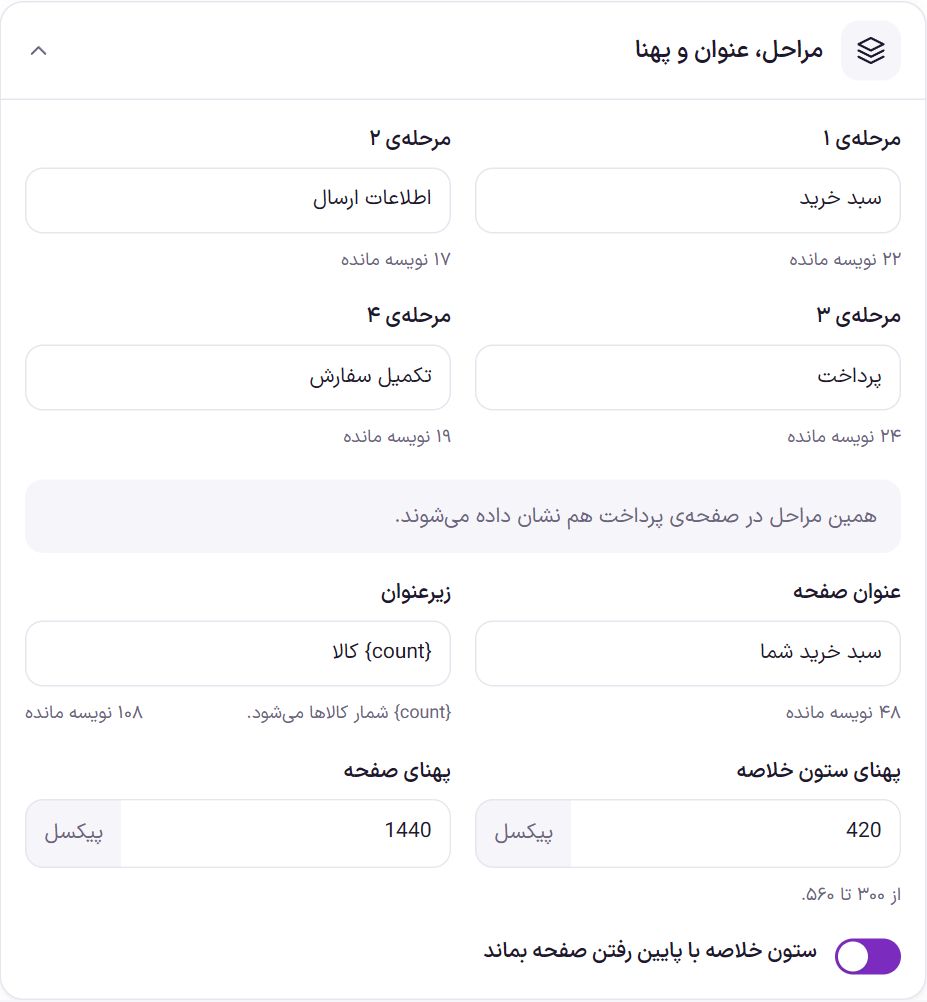
| Option | What it does | Default |
|---|---|---|
| Step 1 | Up to 30 characters. | Cart |
| Step 2 | Up to 30 characters. | Shipping info |
| Step 3 | Up to 30 characters. | Payment |
| Step 4 | Up to 30 characters. | Order complete |
| Page title | Up to 60 characters. | Your Cart |
| Subtitle | Up to 120 characters. {count} is replaced by the number of items. | {count} items |
| Summary column width | From 300 to 560 pixels. | 420 |
| Page width | The maximum content width, from 960 to 1920 pixels. | 1440 |
| Keep the summary column in view as the page scrolls | When the cart is long, the summary and the continue button stay in view. | On |
Color scheme
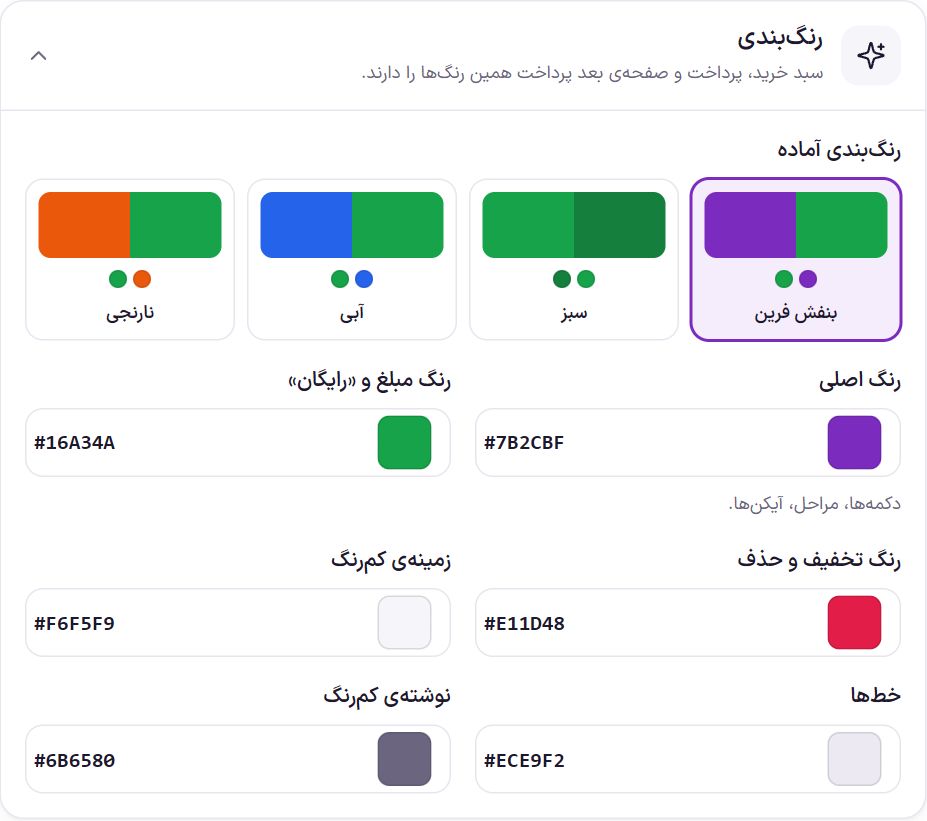
The cart, the payment page and the post-payment page share these colors.
| Option | What it does | Default |
|---|---|---|
| Ready-made color schemes | Farin purple, green, blue and orange. | Farin Purple |
| Main color | Buttons, steps and icons. | #7b2cbf |
| Amount color and “Free” | The final amount and the word “Free”. | #16a34a |
| Discount and delete color | The discount amount and the delete buttons. | #e11d48 |
| Light background | The background of less important boxes. | #f6f5f9 |
| Lines | Edges and dividers. | #ece9f2 |
| Light text | Secondary texts. | #6b6580 |
Page sections
These are the sections you move in “Edit layout”. Any section you do not place in the layout does not appear on the page.
| Section | What it shows |
|---|---|
| Checkout steps | Cart › Shipping info › Payment › Order complete. The step names are in the “Steps, title and width” box. |
| Cart title | “Your Cart” and the number of items. |
| Free Shipping Bar | How much more is left until free shipping. |
| Cart products | Quantity, delete, multi-select and “Buy later”. |
| Buy later | The products the shopper has set aside for later. |
| Banner | A small banner above the summary, such as “Have a discount code?”. |
| Order summary | Total, discount, shipping cost, final amount and buttons. |
| Store services | A few short rows such as support, authenticity guarantee and fast shipping. |
| Suggested products | Complementary products, with a promo card. |
| Elementor template | A saved Elementor template, in the place where you put the section. |
| Custom section 1 and 2 | Text, HTML or shortcode. |
Cart products settings
| Option | What it does | Default |
|---|---|---|
| Multi-select and “Delete selected” | The shopper ticks several products and removes them from the cart with one button. | On |
| “Move to buy later” button | The product leaves the cart and stays in the “Buy later” list. It is kept in the same browser for a guest, and in the account for a logged-in user. | On |
Buy later settings
| Option | What it does | Default |
|---|---|---|
| Title | Up to 40 characters. | Buy later |
Banner settings
| Option | What it does | Default |
|---|---|---|
| Title | Up to 60 characters. | Have a discount code? |
| Text | Up to 120 characters. | Enter it at checkout |
| Address | With an address, the whole banner becomes a link. | Empty |
| Image | Suggested size 200 × 200. With no image, a shopping bag with a percent sign is drawn. |
Store services settings
Up to six rows, each with an “Icon” (truck, shield, return, headset, gift, card, clock, star, wallet, verified badge or store), a “Title” and a “Short text”. The first rows are sample text; match them to your store’s terms.
Suggested products settings
| Option | What it does | Default |
|---|---|---|
| Title | Up to 100 characters. | Complete your purchase with these products |
| Text | Up to 140 characters. | Products usually bought together with these items |
| How many products | From 0 to 16. First the cart products’ own “Cross-sells” come, then related products, then discounted products. | 8 |
| Promo card title | Up to 60 characters. If left empty, the promo card does not appear. | A special offer for you |
| Promo card text | Up to 100 characters. | Complementary products at a special discount |
| Promo card address | Where the card goes. | Empty |
Set each product’s complementary products (Cross-sells) in that product’s edit screen, in the linked products area of “Product data”.
Elementor template and custom sections
In the “Elementor template” section, choose one of the saved Elementor templates. “Custom section 1” and “2” each take up to 4,000 characters of text, HTML or shortcode and are saved with “Apply”.
Frequently Asked Questions
Why does the summary say “Shipping cost: At the next step”?
WooCommerce has not yet selected a shipping method for this cart, usually because the shopper’s address is unknown. The cost is calculated after the address is entered on the payment page. If you do not want this row in the cart, turn off “Show the Shipping cost row”.
The free shipping bar is not visible.
Either the “Free shipping bar” section is not in the layout, or no free-shipping amount was found. Enter an amount here, or turn on “Free shipping from purchase” in Shipping .
I built the cart page with Elementor, but the Farin cart appears.
When “Farin cart enabled” is on, the Farin cart is shown whatever the cart page contains. If you want your own Elementor design, turn this switch off and, in the page, use the “Farin Custom Elements · Cart” widgets or the shortcode [farin_cart] .
Farin Theme · 1405