

Contact Methods
Contact Channels is a round button with a mobile image in the bottom corner of every page. Tapping it shows the buyer a card with Instagram, Telegram, WhatsApp, phone, email, and the store’s other ways of contact side by side.
Where is it? Farin → Site content → Trust and Notifications → Contact Methods
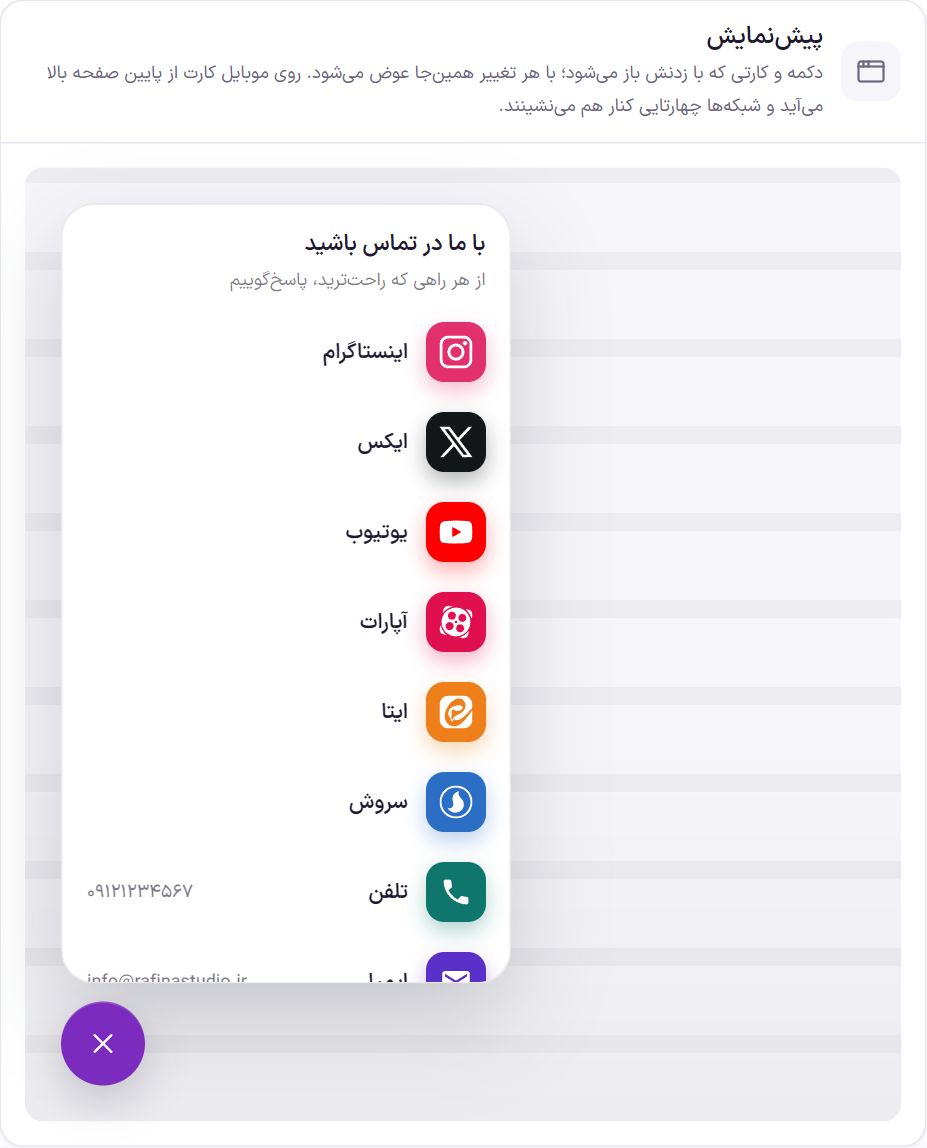
The preview updates right here with every change, even before saving. On a computer, the card opens from the button itself. On mobile, the card rises from the bottom of the screen and the networks sit four to a row. Beside phone and email, the number and address themselves are shown too.
Until at least one network has a valid address, the button does not appear on the site and you see a warning under the preview.
Setup
- Fill in the networks. In “Networks and contact channels”, write the address or username of each network you have.
- Turn on “Button on the site”. Change the heading and the line under it if you like.
- Choose the colors. Tap a ready-made palette or make the colors yourself.
- Check it on a phone. Open the site on mobile and tap the button to make sure every link goes to the right place.
Contact channels button
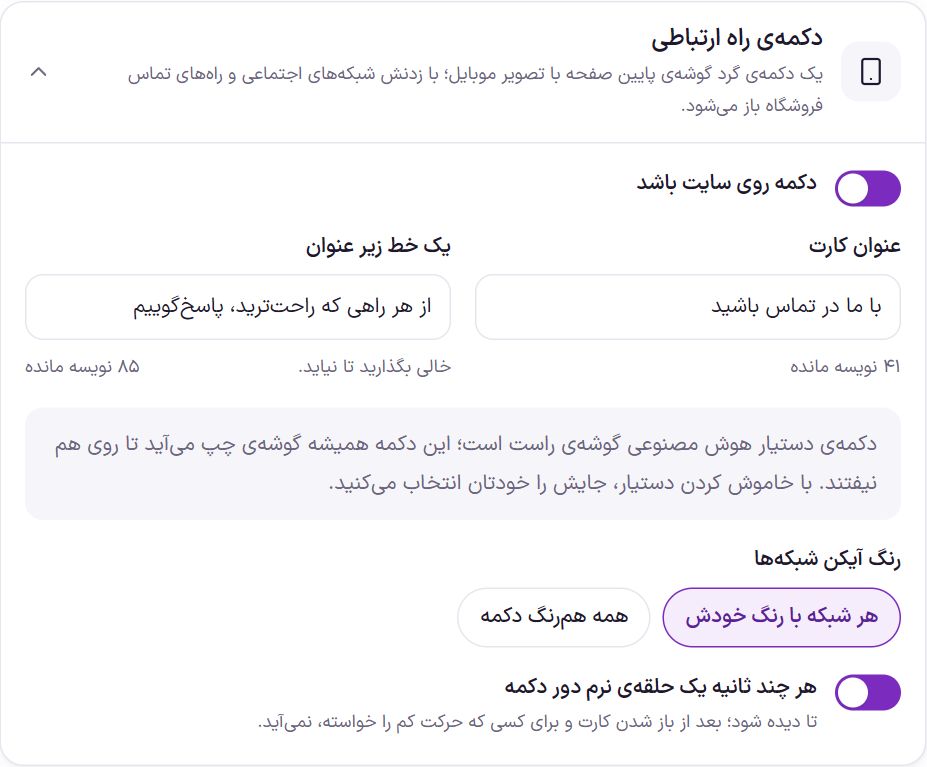
| Option | What it does | Default |
|---|---|---|
| Button on the site | The main switch. When off, no file from this section is loaded on the site. | Off |
| Card heading | The heading at the top of the card. Up to 60 characters. | Get in touch |
| A line under the heading | A short sentence under the heading. Leave empty to hide it. Up to 120 characters. | We respond whichever way is easiest for you |
| Button position | “Right corner” or “Left corner” of the bottom of the page. This option is visible only when the AI assistant is not on for the site. | Right corner |
| Network icon color | “Each network in its own color”: Instagram pink, Telegram blue, and so on. “All the button color”: all icons in the button’s color. | Each network in its own color |
| A soft ring around the button every few seconds | A gentle ring is played around the button so it gets noticed. It does not appear after the card opens. It also does not appear for someone who has asked their device for reduced motion. | On |
Colors
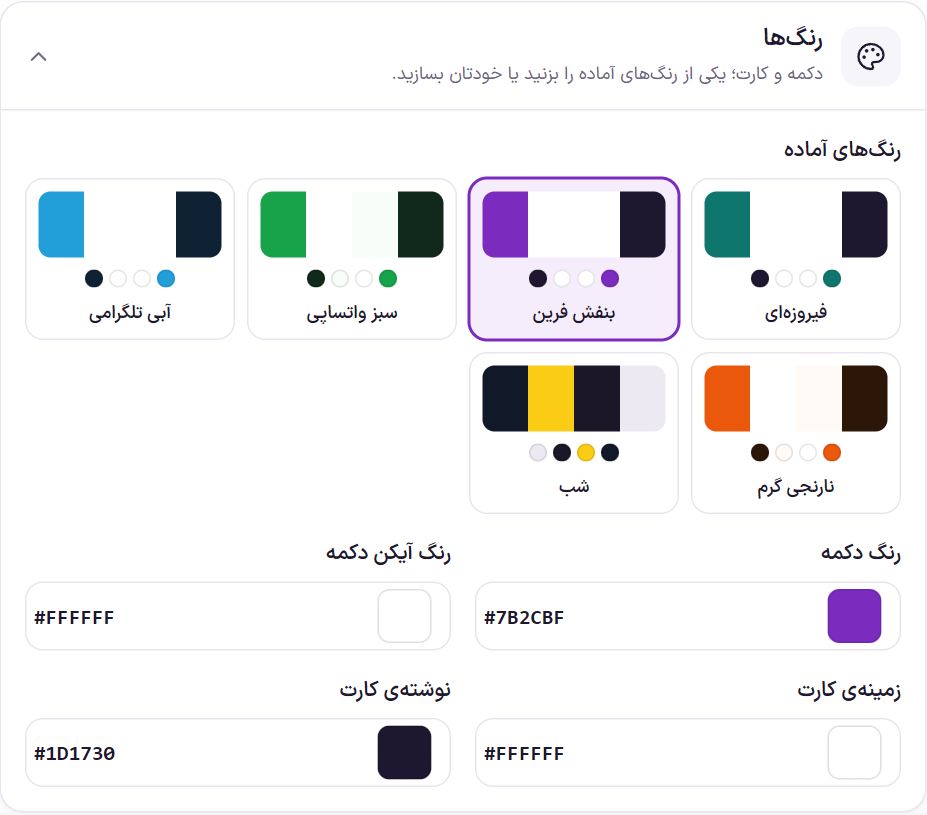
Ready-made palettes: turquoise, Farin purple, WhatsApp green, Telegram blue, warm orange, and night. Each changes the four colors below at once.
| Option | What it does | Default |
|---|---|---|
| Button color | The round button’s color. | #0F766E |
| Button icon color | The color of the mobile image on the button. | #FFFFFF |
| Card background | The background of the card that opens. | #FFFFFF |
| Card text | The color of the heading and network names. | #1D1730 |
Networks and contact channels
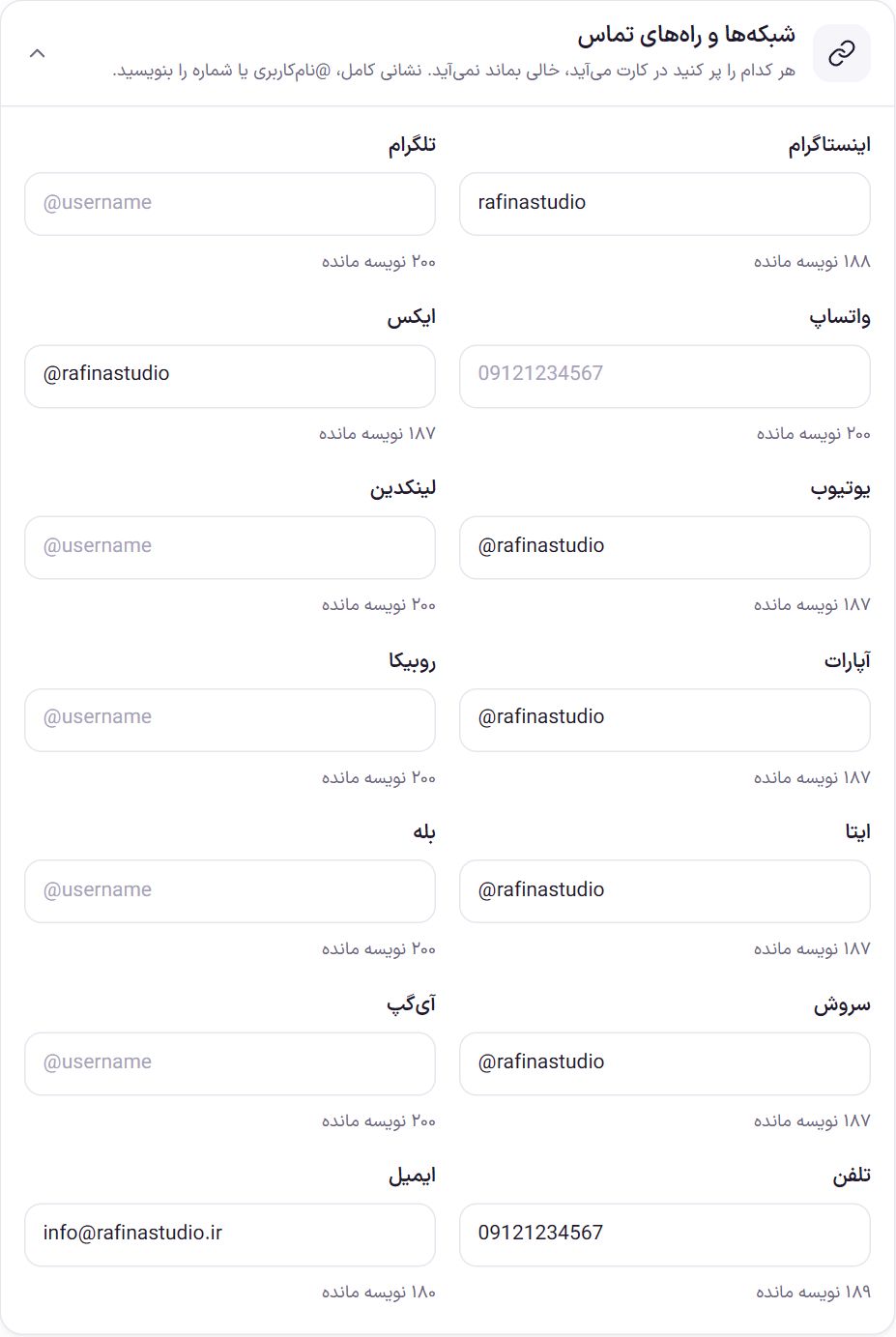
You have fourteen channels: Instagram, Telegram, WhatsApp, X, YouTube, LinkedIn, Aparat, Rubika, Eitaa, Bale, Soroush, iGap, phone, and email. In each field, write one of these:
- Username With
@or without it, such as@myshop. Farin builds the full page address itself. - Full address that starts with
https://; it is used exactly as it is. - WhatsApp: A mobile number, such as
09121234567. An Iranian number is automatically converted to international format and a WhatsApp chat link is built. - Phone: A number that is called when tapped on a phone.
- Email: A valid email address; tapping it opens the buyer’s email app.
If a valid address cannot be built from the value you wrote (for example, an incomplete email), an error appears under that field and the previous value stays.
If, on the Footer If you have filled in the social networks, a “Same addresses as the footer” button appears above this box. Tapping it fills in the same addresses here too, and then you can change any of them.
Frequently Asked Questions
I turned the button on but it is not on the site.
At least one network must have a valid address. If you see the warning “No network has an address yet” under the preview, fill in one of the fields. If you have a caching plugin, clear the cache too.
Why can’t I change the button position?
The AI assistant is on for the site and this button automatically moves to the other corner. If you want a different place, change the assistant’s corner in the assistant’s own settings.
For WhatsApp, should I write a number or a link?
Both work. It is simpler to write the mobile number like 09121234567 ; Farin builds the WhatsApp link itself.
Farin Theme · 1405