

Invoice
Farin builds a print-ready invoice for each order and, for an unpaid order, a proforma invoice. The shopper gets it from their own account and you get it from the order list. Printing or saving to PDF is done by the browser itself and needs no separate plugin.
Where is it? Farin → Site content → Checkout and Payment → Invoice
Where the invoice is found
- Shopper: In the account, beside each paid order is a “Download invoice” button. Beside an unpaid order (if the proforma invoice is on) “Download proforma invoice” appears. On the post-payment page there is also an invoice link.
- You: In the WooCommerce order list, the “Print” column has each order’s invoice link. On each order’s page there is also a “Print” box at the side. To print several invoices together, tick the orders and choose “Print invoices” from the bulk actions.
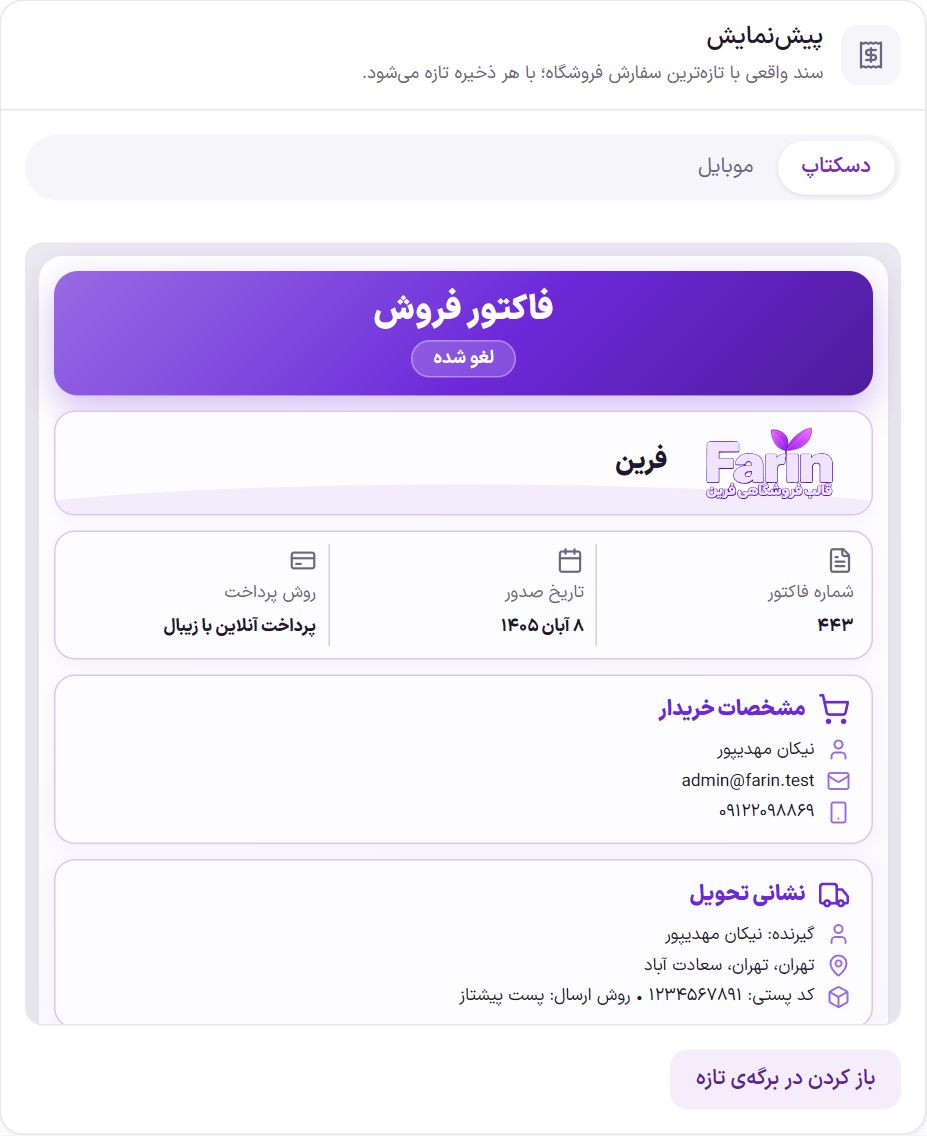
Preview
At the top of the tab, the invoice of the store’s most recent order is shown and it refreshes with every save. Each document has the invoice number (the same as the order number), issue date, payment method, buyer details, delivery address, products and amounts. Dates are Jalali.
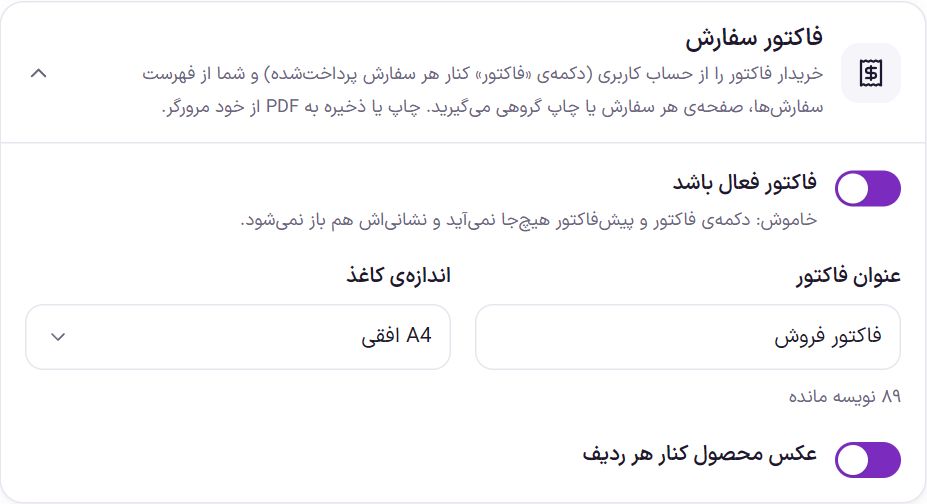
Order invoice
| Option | What it does | Default |
|---|---|---|
| Invoice enabled | When off, the invoice and proforma buttons appear nowhere and their address does not open. | On |
| Invoice title | The large title at the top of the document. If left empty, the default is used. | Sales Invoice |
| Paper size | “A4 landscape”, “A4 portrait” or “A5 portrait”. | A4 landscape |
| Product photo beside each row | A small photo of each product in the products table. | On |
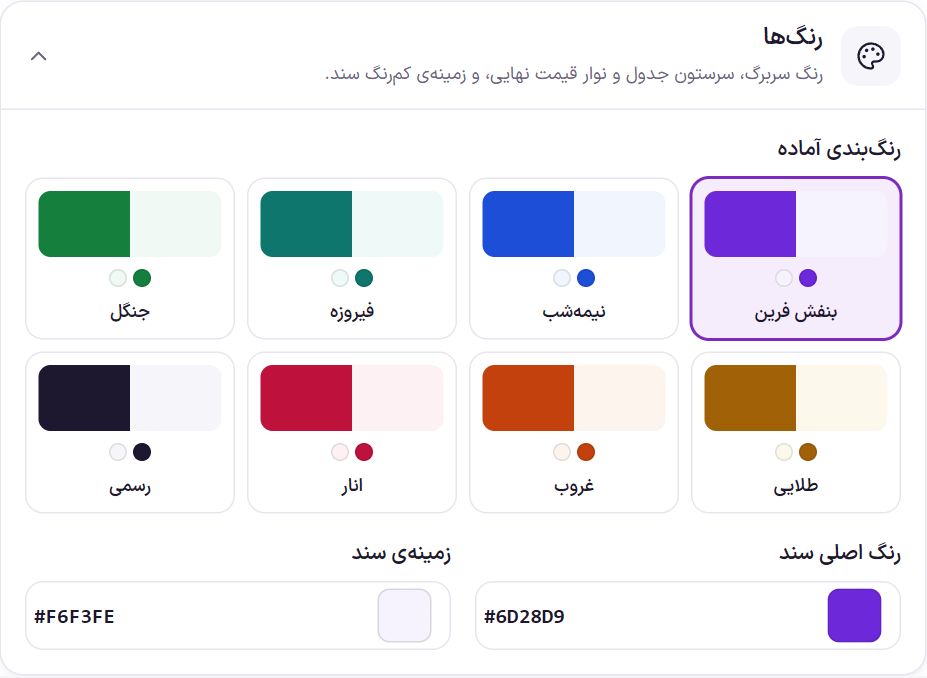
Colors
The color of the letterhead, table header and final price bar, and the document’s light background. Click one of the eight ready-made color schemes or set the colors yourself.
| Option | What it does | Default |
|---|---|---|
| Document main color | The letterhead, table header and final price bar. | #6D28D9 |
| Document background | The light background of the boxes. | #F6F3FE |
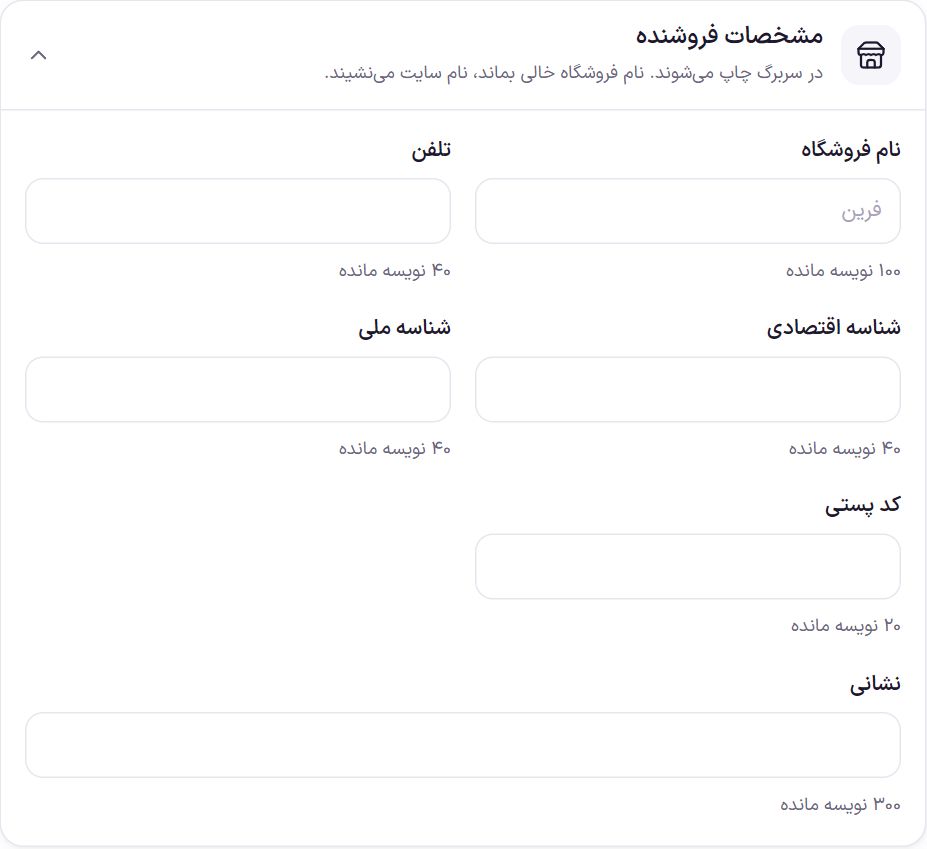
Seller details
These are printed in the invoice letterhead. Any box left empty does not appear on the document.
| Option | What it does | Default |
|---|---|---|
| Store name | If left empty, the site name is used; if you change the site name later, the invoice changes too. | Empty (site name) |
| Phone | The store’s phone. | Empty |
| Economic ID | For an official invoice. | Empty |
| National ID | The company’s national ID. | Empty |
| Postal code | The store’s postal code. | Empty |
| Address | The store’s address, up to 300 characters. | Empty |
The phone, postal code and address here are also used for the Shipping Label as well, when its sender boxes are empty.
Logo and stamp
| Option | What it does | Default |
|---|---|---|
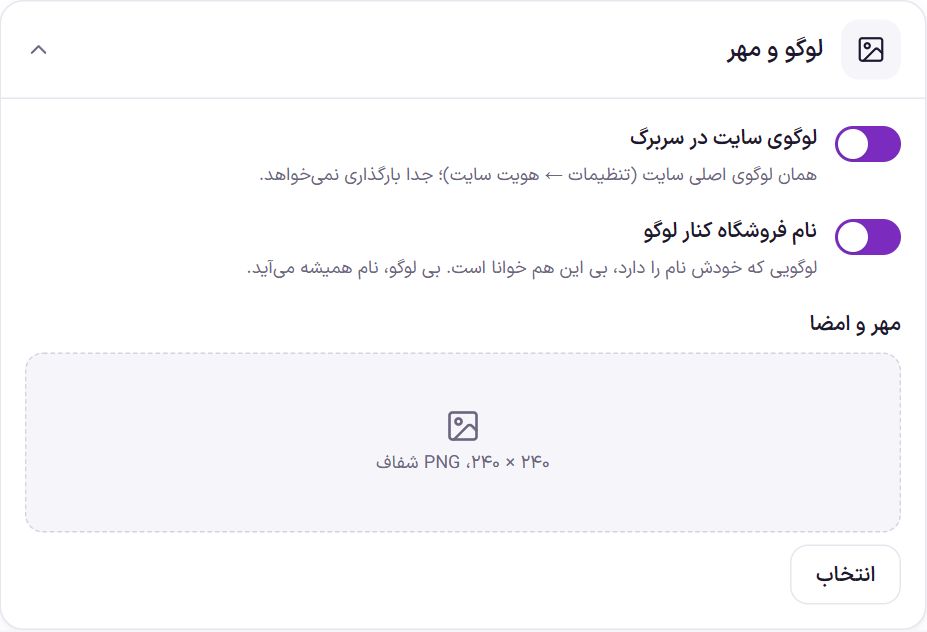
| Site logo in the letterhead | The site’s same main logo in Site Identity; no separate upload is needed. | On |
| Store name beside the logo | A logo that contains the name is readable without this. If there is no logo, the name always appears. | On |
| Stamp and signature | The image of the store’s stamp and signature at the bottom of the document. Pick it from the media library with “Select”; a suitable size is 240 × 240 and a PNG with a transparent background. | Empty |
Proforma invoice
Before paying, the shopper gets the proforma invoice from their account to confirm it or send it to their organization. After payment, the same address opens the invoice. The proforma button does not appear for cancelled, failed or refunded orders. The proforma invoice works only when “Invoice enabled” is also on.
| Option | What it does | Default |
|---|---|---|
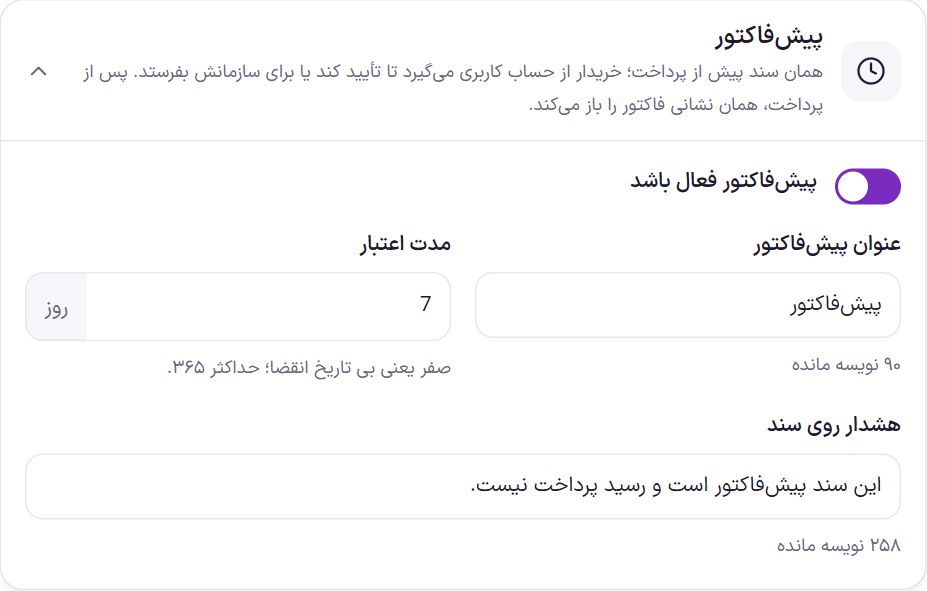
| Proforma invoice enabled | The proforma invoice button for unpaid orders. | On |
| Proforma invoice title | The title at the top of the document. If left empty, the default is used. | Proforma invoice |
| Validity period | How many days after the order is placed. A “Valid until” date is printed on the document. Zero means no expiry date; at most 365 days. | 7 days |
| Warning on the document | The sentence printed prominently on the proforma invoice. | This document is a proforma invoice and is not a payment receipt. |
Texts at the bottom of the document
| Option | What it does | Default |
|---|---|---|
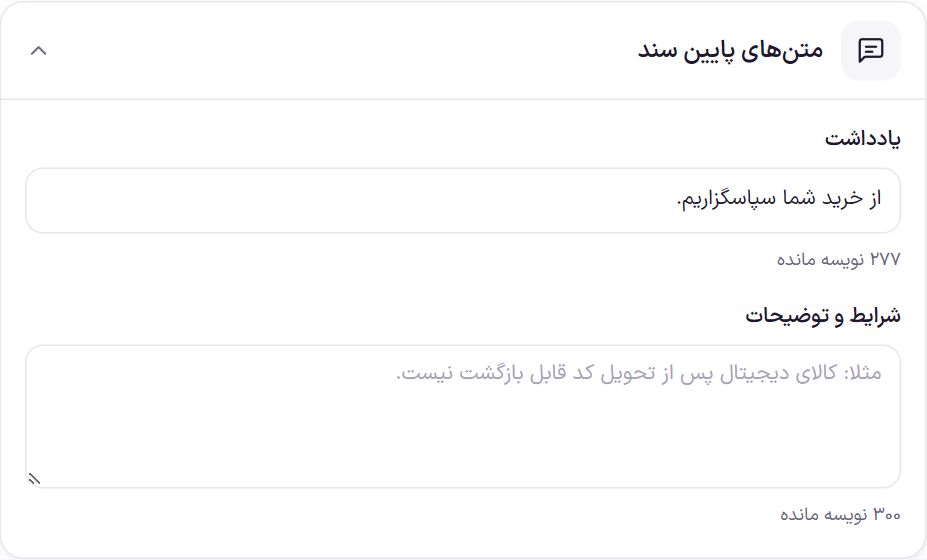
| Note | A short sentence at the bottom of the document. If left empty, it does not appear. | Thank you for your purchase. |
| Terms and notes | The terms of sale or product returns, up to 300 characters; for example “Digital products cannot be returned after the code is delivered”. If the shopper left a note on the order, it appears here with the title “Buyer’s note”. | Empty |
Official invoice
If, on the Pre-Payment Page the option “The shopper can request an official invoice” is on and the shopper ticks the official invoice checkbox, the company name, national ID and economic code they write are printed on that order’s invoice.
Frequently Asked Questions
How do I save the invoice as PDF?
Open the invoice, click “Print” in the browser and choose “Save as PDF” instead of a printer. The paper size is passed to printing from this tab.
The shopper doesn’t see the invoice button.
The “Download invoice” button appears only beside a paid order. If the order is not yet paid, “Download proforma invoice” appears, provided the proforma invoice is on. If “Invoice enabled” is off, neither appears.
I want to print today’s order invoices together.
In the order list, tick the orders, choose “Print invoices” from the bulk actions and click “Apply”. They all open on one sheet for printing.
Farin Theme · 1405